How to record a hybrid meeting with Sally AI
A hybrid meeting is one where part of the team sits together in a room while everyone else joins online. It is the trickiest case for a recording, because the people in the room share a single microphone and a single seat in the online meeting. This guide shows how to set a hybrid meeting up so the recording still comes out clean, and what to do afterwards when everyone in the room ended up under the same speaker name.
The basic idea is simple: you create a normal online meeting, Sally joins it as a participant, and the room takes part in that same online meeting through one laptop and a conference microphone. Everything that is said in the room or online then goes through the meeting and ends up in Sally's recording. The first section walks you through this from start to finish, even if you have never used Sally or set up an online meeting before.
Quick navigation
- Step by step: set up a hybrid meeting
- Tips for good audio in the room
- Sort out the speakers afterwards
- Common questions
1. Step by step: set up a hybrid meeting
-
Invite Sally to the online meeting. To bring Sally into a hybrid meeting, you invite her to the online meeting you set up. You can do this manually or automatically through your connected calendar.
-
Prepare the room. In the room, one device, for example a laptop, joins the online meeting. Through it, everyone in the room hears the online participants, and the online participants and Sally hear the room. Make sure the audio is good, because the sound quality in the room has a major impact on the quality of the transcript. A conference speakerphone in the middle of the table works well for this, but it is not a must.
-
Start the meeting. Sally recognizes everyone in the room as one single speaker, because there is no technical data for them, such as a name in the online meeting. This will change with the upcoming hybrid mode. Until then, you can assign the text blocks to the right people afterwards, as described in Sort out the speakers afterwards.
We are working on a dedicated hybrid mode. With it, Sally will be able to tell the individual people in the room apart as well, so that each of them gets their own name in the transcript instead of sharing the room's name. Until then, the steps above are the way to record a hybrid meeting.
2. Tips for good audio in the room
How good the transcript turns out is decided mostly in the room, before the meeting even starts. These preparations help you get the most out of the recording.
-
Use only one device in the room. One laptop or the room system carries the meeting, everyone else in the room keeps their microphone and speakers off. Two open microphones in the same room cause echo and feedback, and both end up in the recording.
-
Make sure you have a good microphone. A conference speakerphone in the middle of the table or the room system records far better than a built-in laptop microphone. The further a voice is from the microphone, the harder it is to understand.
-
Sit close to the microphone. Whoever sits at the far end of a long table is hard to understand later. In large rooms, a second microphone helps.
-
Start with a round of introductions. Ask everyone in the room to say their name once at the start. This makes it easier to assign the speakers afterwards.
-
Keep the room quiet. Air conditioning, an open window to a busy street or side conversations all land in the same audio track as the discussion.
The passages from the room show up in the transcript under the name the room device uses in the meeting. "Room Berlin" beats "Laptop of Anna Müller", because you can see at a glance which passages still need to be assigned.
3. Sort out the speakers afterwards
The room reaches the transcript as one speaker. You clear that up in the transcript editor, and the summary is written from the corrected version once you regenerate it.
-
Open the transcript of the recording and look for the blocks that carry the room's name.
-
Reassign the speaker. In each block, the dropdown next to the speaker's name lets you pick the right person. Edit speakers in the transcript bar also lets you rename speakers and merge two entries that are the same person. The full walkthrough is in Reassign speakers.
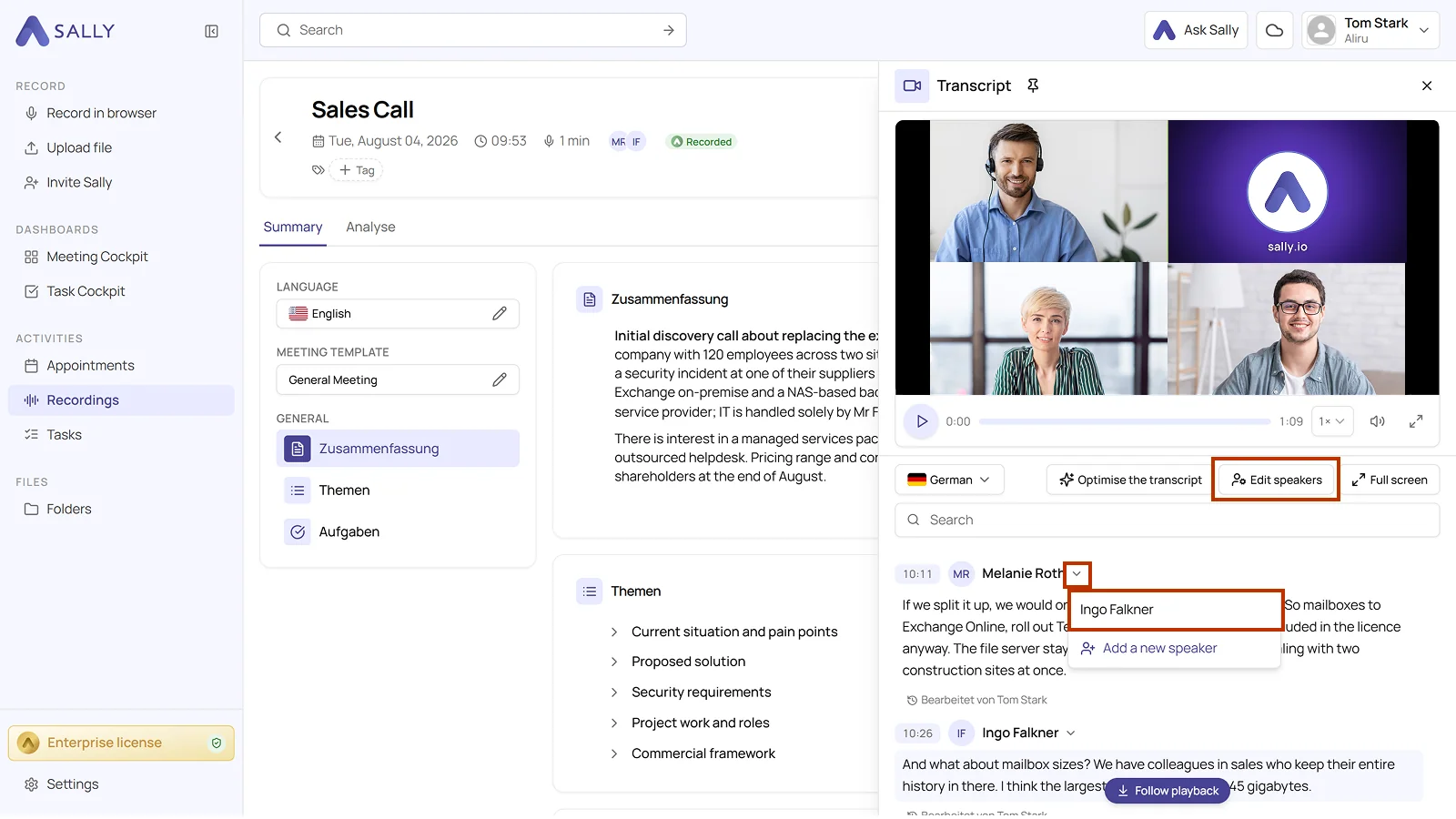
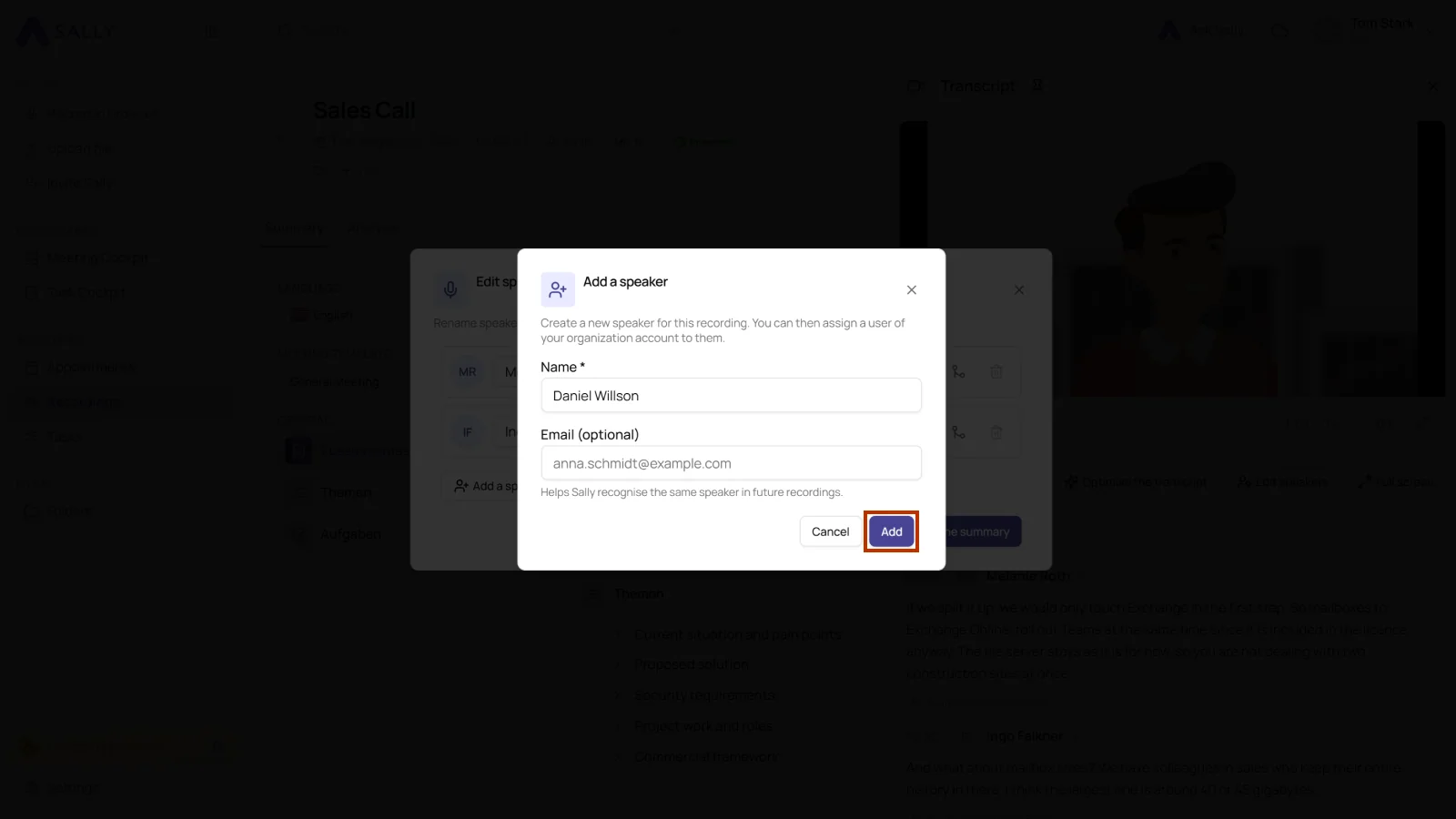
- Add missing people. If someone from the room is not in the list yet, select Add new speaker in the dropdown. In the Add a speaker dialog, enter the name, optionally an email, and click Add.
-
Split blocks where two people share one. If a block contains an exchange between two people in the room, split it first and assign each part separately, as described in Split text blocks.
-
Generate the summary again once the speakers are right, so quotes and decisions land with the correct person. Optimize transcription covers that step.
If you optimize the transcription anyway, count the people in the room plus the online participants and enter that number under Number of speakers. Under Environment, Meeting room or Conference / panel discussion fits a hybrid meeting best. Both settings noticeably improve how well the voices in the room are told apart.
4. Common questions
How do I record a meeting where some people are in a room and some are online?
Set the room up with one device and one good microphone, and let Sally join the online meeting either automatically or by invitation. Everything the meeting hears ends up in the transcript and the summary.
Why does everyone in the room show up under the same name?
Because the room is a single participant in the meeting platform, and speaker names come from the participant list. Sally separates the voices, but it has only one name for all of them. You assign the right names in the transcript.
How do I split the speakers in a conference room?
Open the transcript, reassign the speaker in each block, and split a block first when two people share one. Editing transcripts walks through both steps.
Do I need the Sally app for a hybrid meeting?
No. The online meeting is enough. The app is worth it when the room does most of the talking and you want each voice on its own track, which is what a group recording is for.
Does Sally have a setting for hybrid meetings?
Not yet, but a dedicated hybrid mode is coming soon. It will let Sally tell the individual people in the room apart, so each of them gets their own name in the transcript. Until then, you record a hybrid meeting as an online meeting and handle the room through the microphone setup and the speaker assignment afterwards, as described in Step by step: set up a hybrid meeting.