Automatic data deletion
Sally can delete meeting data on her own once a set period is over, so nothing is kept longer than it needs to be. You set the period separately for five types of data, from the recordings down to the technical logs. You can also decide who is allowed to delete recordings by hand.
This guide shows you where to set the retention periods, what each of the five data types covers, which periods you can choose from, and how to restrict who can delete recordings. In Sally, both settings are in the Storage Limitation area, headed Art. 5 (1) (e), Art. 17 GDPR.
Both settings apply to the whole organization.
Only owners and admins can change them, members cannot.
Quick navigation
1. Set the retention periods
- Open Settings at the bottom of the left sidebar.
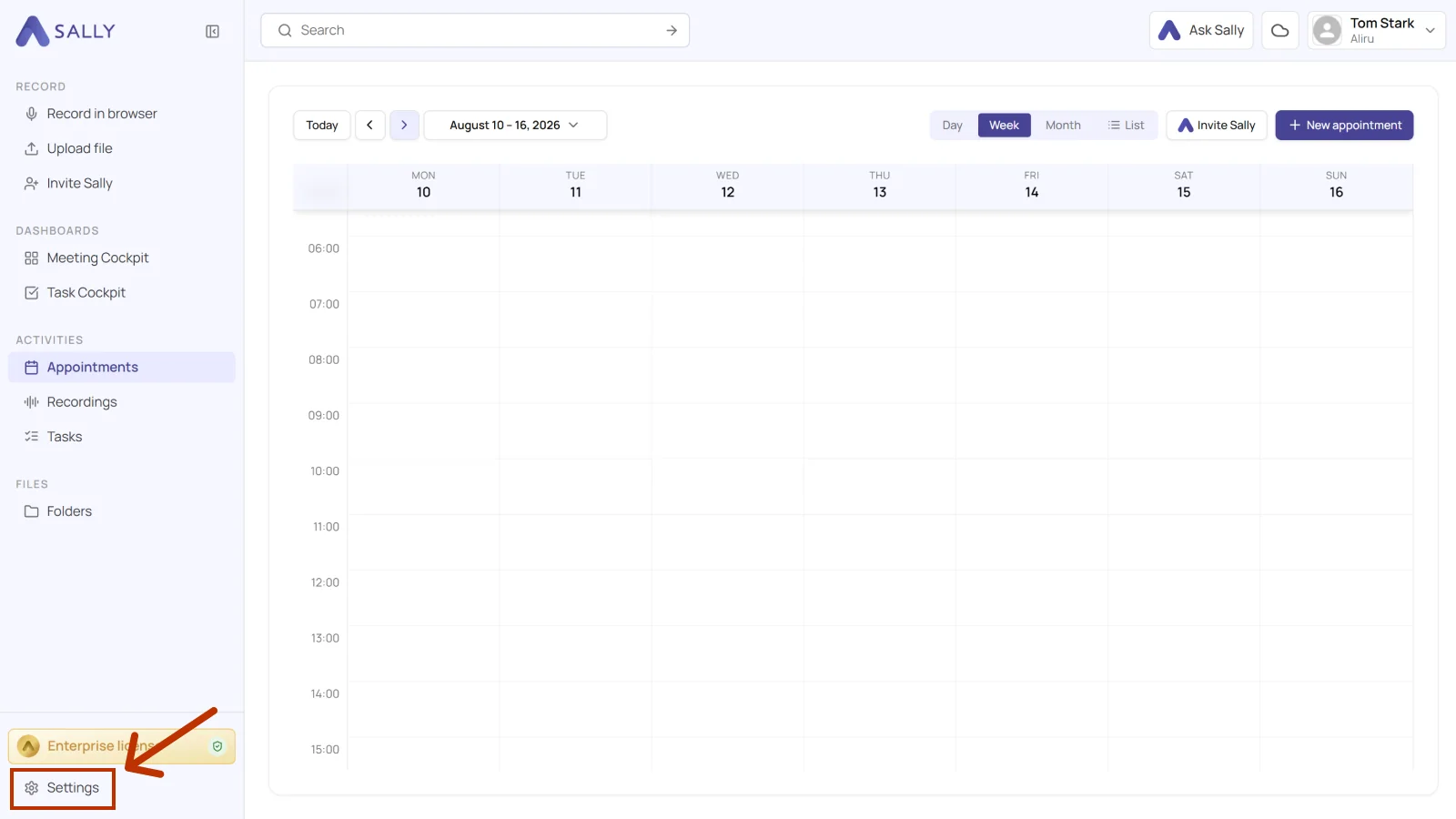
- Under Administration, open Data Protection and pick Storage Limitation on the left.
- Open the Automatic deletion section. The line under the title shows whether automatic deletion is active.
- Open the dropdown of the data type you want to change and pick a period.
- Click Save. Until you do, the section shows Unsaved changes at the bottom.
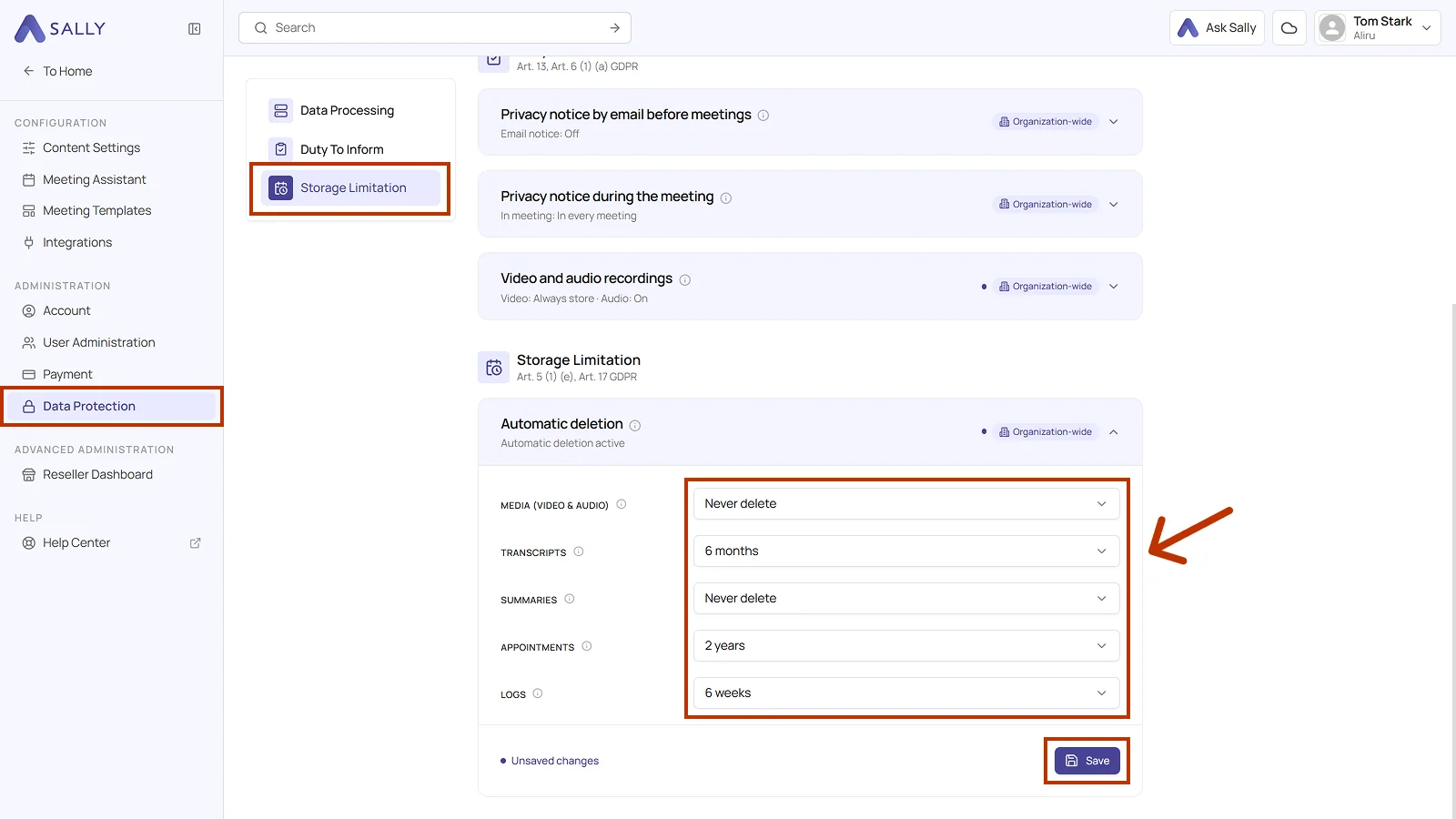
Every data type can have its own period. In figure 2, media is set to Never delete, transcripts to 6 months, summaries to Never delete, appointments to 2 years, and logs to 6 weeks. That is only an example, you set each period on its own, the way you need it.
Once the period is over the data is gone for good, and there is no way to restore it. Automatic deletion runs once a night, so a new period only takes effect the following night.
2. The five data types
| Data type | What it covers |
|---|---|
| Media (video & audio) | Every video and audio recording from meetings, including screen shares and uploaded media. |
| Transcripts | The full word-by-word transcription, with speaker labels and timestamps. |
| Summaries | The summaries Sally writes, including key topics, decisions, action items, and tasks. |
| Appointments | The calendar entries with date, time, participants, and duration, without the content of the meeting. |
| Logs | Technical logs such as API calls, sync events, and user activity, used for troubleshooting and auditing. |
The periods work independently of each other. If you delete the media early, the transcript and the summary stay for as long as their own periods allow.
3. Available retention periods
Every dropdown offers the same periods:
- 2 weeks
- 6 weeks
- 3 months
- 6 months
- 1 year
- 2 years
- Never delete
Never delete means Sally does not remove that data type on her own. You can still delete it by hand, as long as deleting recordings is not restricted.
4. Who can delete recordings
Besides the retention periods, you can decide who is allowed to delete recordings by hand. By default, anyone with access to a recording can delete it, and it is then gone for every participant.
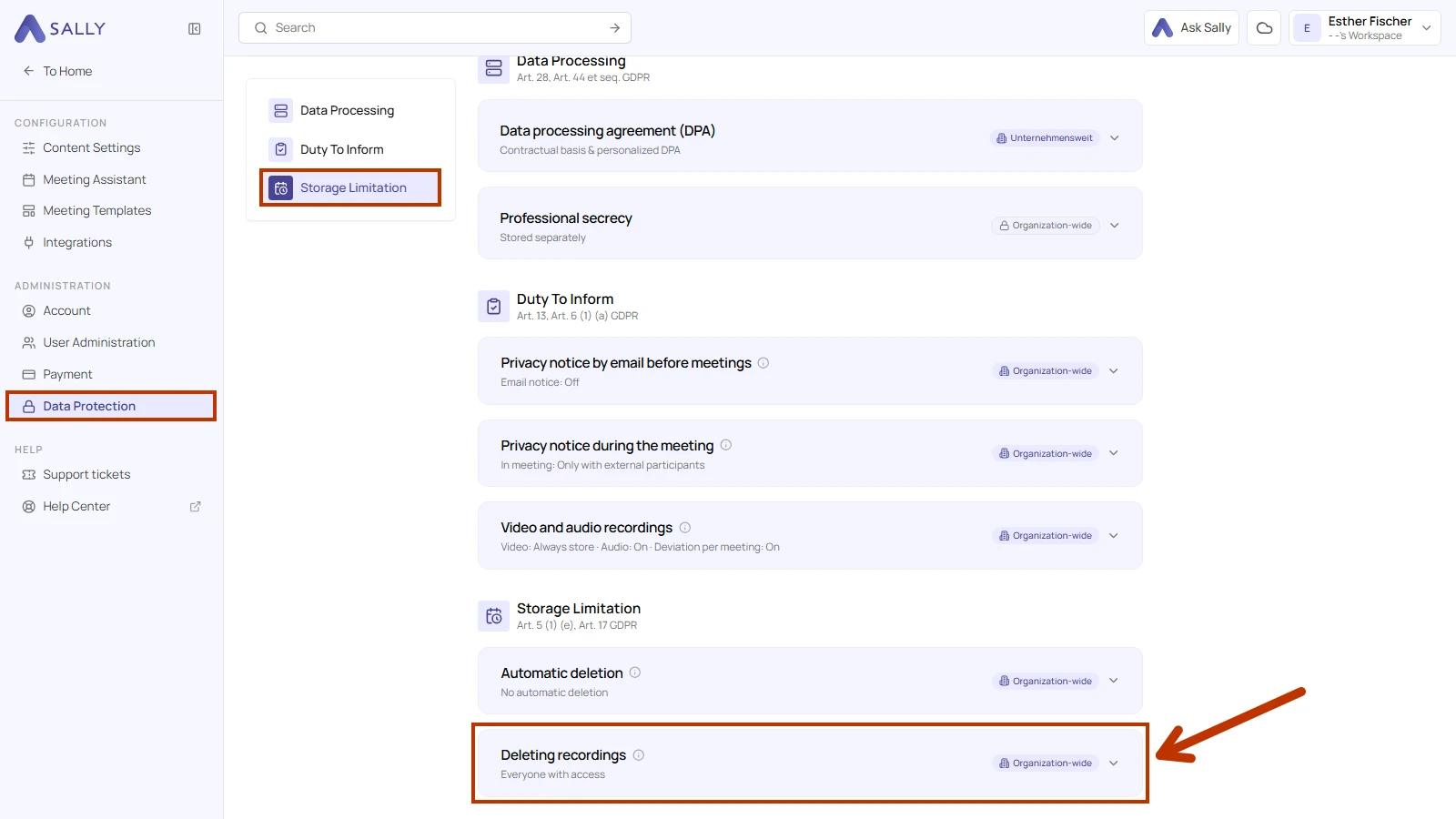
- Open Settings at the bottom of the left sidebar, choose Data Protection under Administration, and pick Storage Limitation on the left. Click Deleting recordings to expand the section.
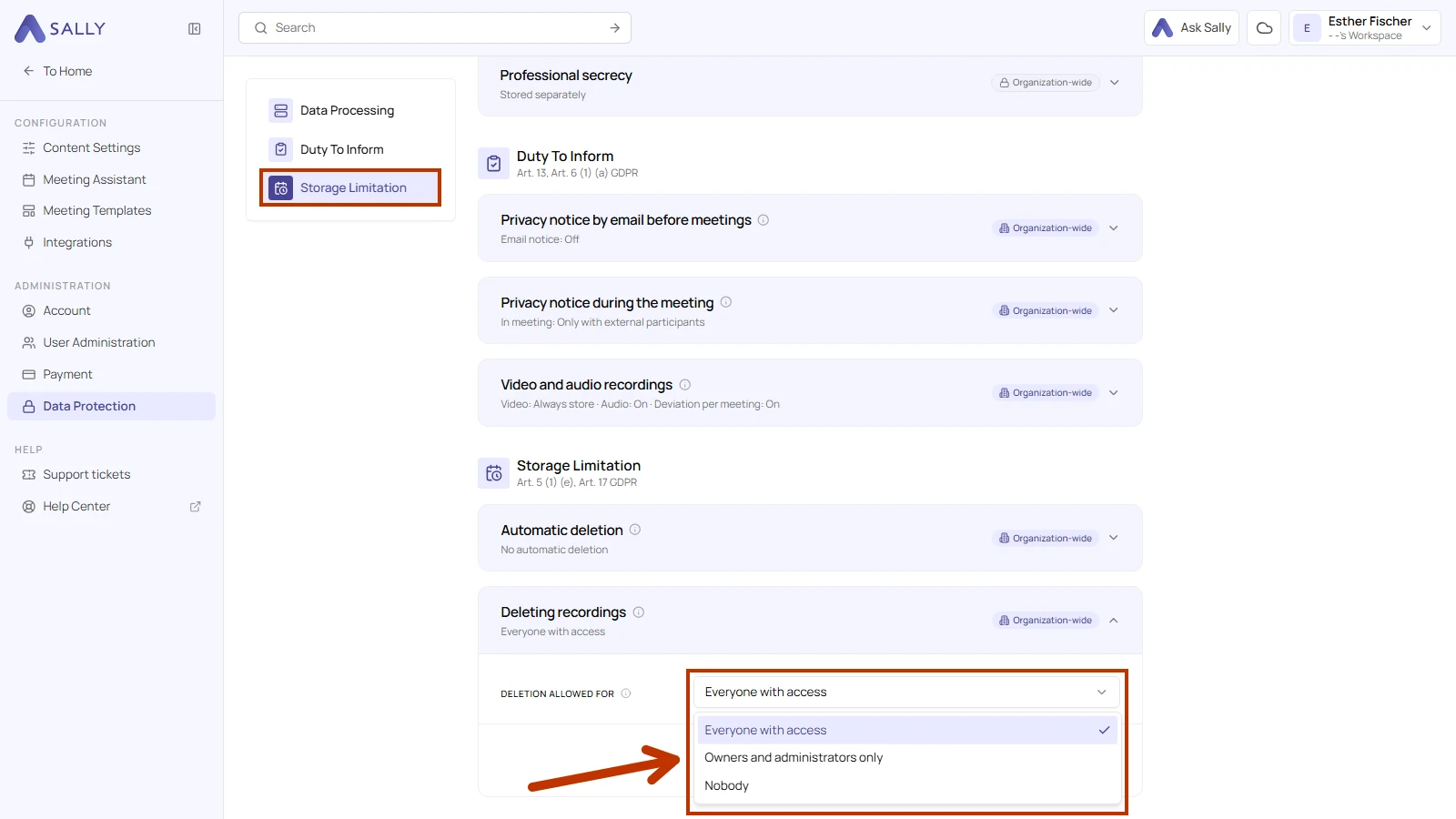
- Under Deletion allowed for, open the dropdown and choose who can delete recordings.
- Click Save. The new setting applies right away.
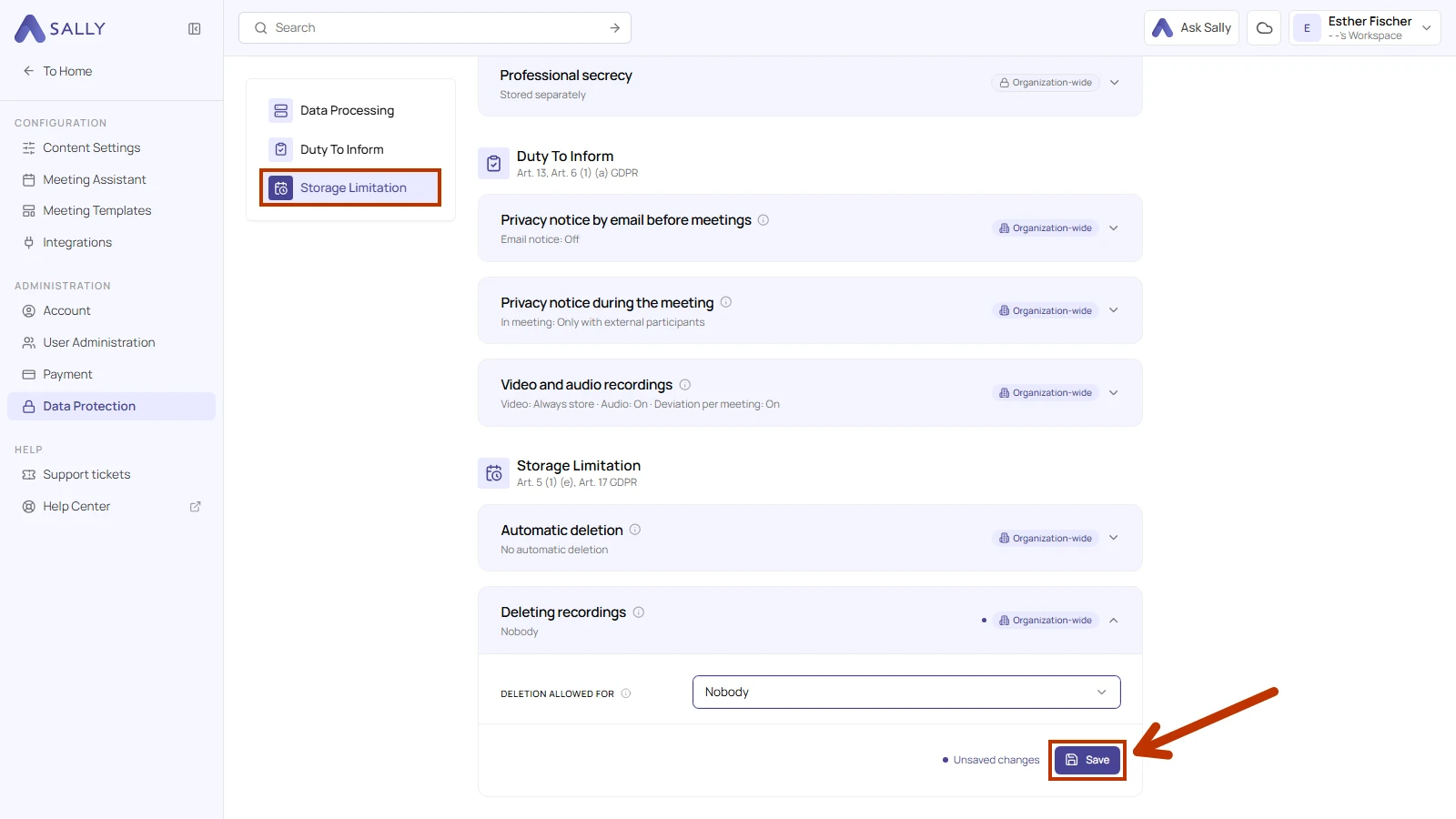
The three options at a glance:
| Option | Who can delete recordings |
|---|---|
| Everyone with access | Anyone with access to the recording. This is the default. |
| Owners and administrators only | Owners and admins of the organization can delete any recording. Members can only delete what's their own: their uploads, recordings from the Sally Mobile App, the Sally Desktop App or the Sally Browser Extension, and their own calls. Recordings of meetings Sally joined as a participant stay with owners and admins. |
| Nobody | No one, not even owners and admins. This includes files that users uploaded themselves. |
Anyone who is not allowed to delete a recording sees Delete grayed out in its menu. Hovering over it shows the reason. With Nobody, it says "In this organization, deleting recordings is turned off." With Owners and administrators only, it says "In this organization, only owners and administrators can delete this recording. You can still delete your own recordings."
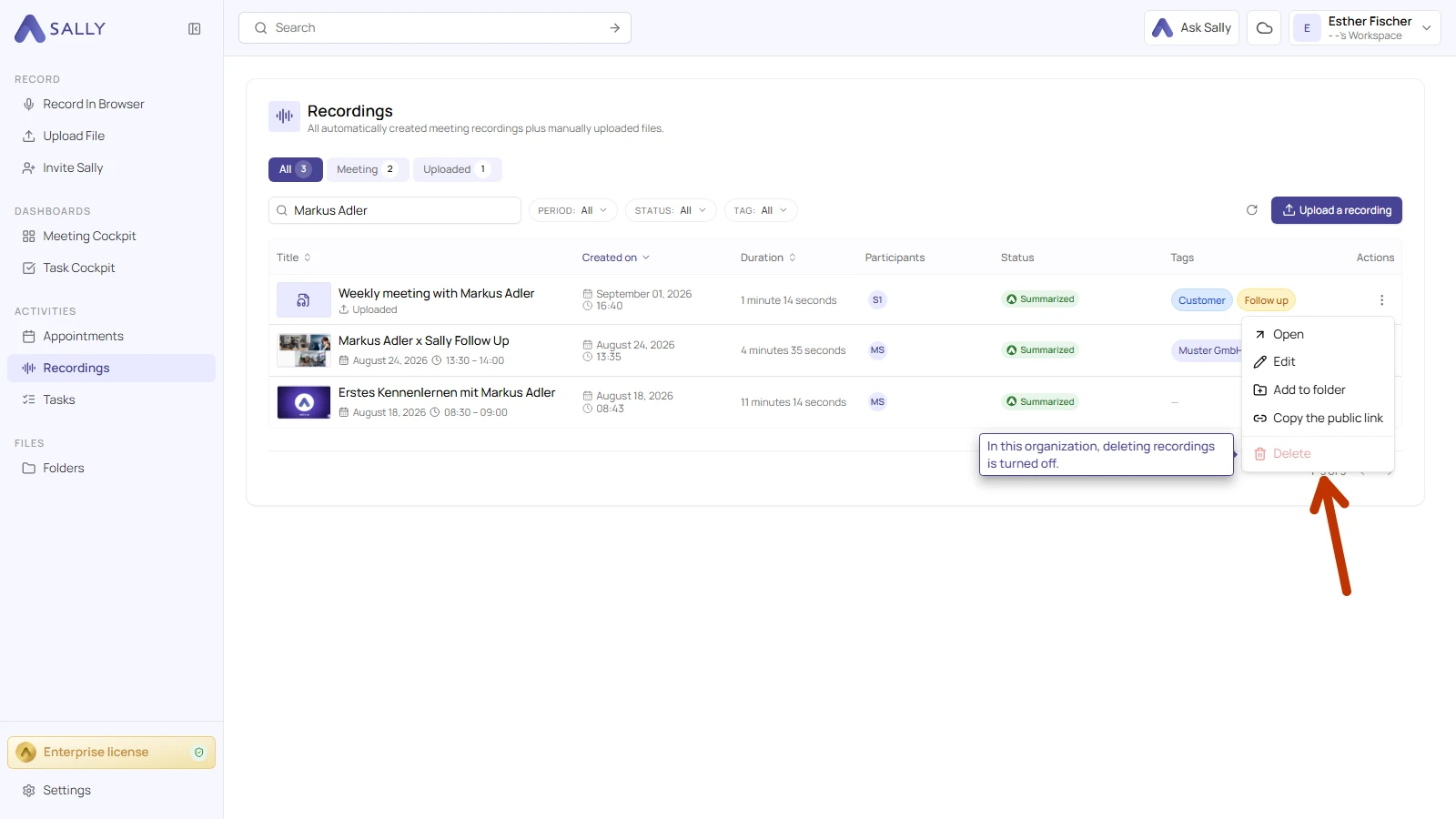
- Automatic deletion: the retention periods still apply as before
- Replacing a recording: when you have Sally join again or upload a file for a meeting, you can still replace the existing recording. Sally deletes the old one in the process