Connect Zoom to Sally AI through the Zoom App Marketplace
Sally is available on the Zoom App Marketplace as Sally AI - Meeting Assistant for Zoom. Once you add Sally there and connect Zoom in Sally, your scheduled Zoom meetings show up in Sally automatically. Sally then joins those meetings, so you no longer have to invite her each time.
The setup has three parts: you add Sally in the Marketplace, connect Zoom in Sally and finish the setup in the Marketplace. After each meeting, you find the transcript and the summary in Sally.
Quick navigation
- What you need
- Add Sally in the Zoom App Marketplace
- Connect Zoom in Sally
- Finish in the Marketplace
- After the connection
- Tick the checkbox later
- If no meetings show up
- How to reach our support team
1. What you need
- The Zoom desktop app: you open the Zoom App Marketplace from there
- Your Zoom account: use the account you schedule your meetings with. Sally only sees the meetings of that account
- A Sally account: if you do not have one yet, you create it during the setup
- Permission to add apps: if your organization only allows approved apps, your Zoom administrator has to approve Sally AI first
2. Add Sally in the Zoom App Marketplace
First, you add Sally in the Marketplace. Along the way, you create your Sally account or sign in.
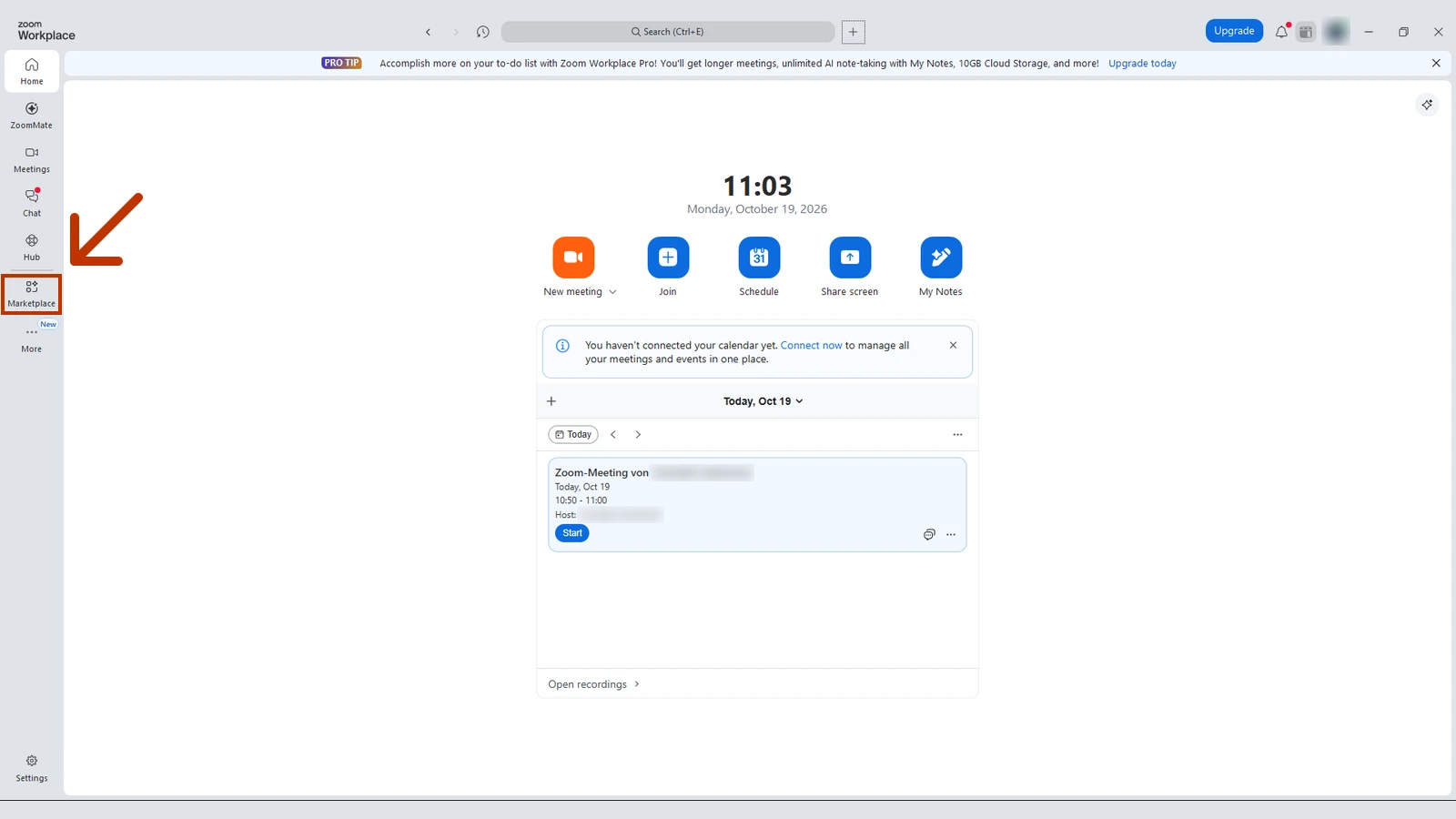
- Open the Zoom desktop app and click Marketplace in the left bar. If you do not see it there, you can find it under More.
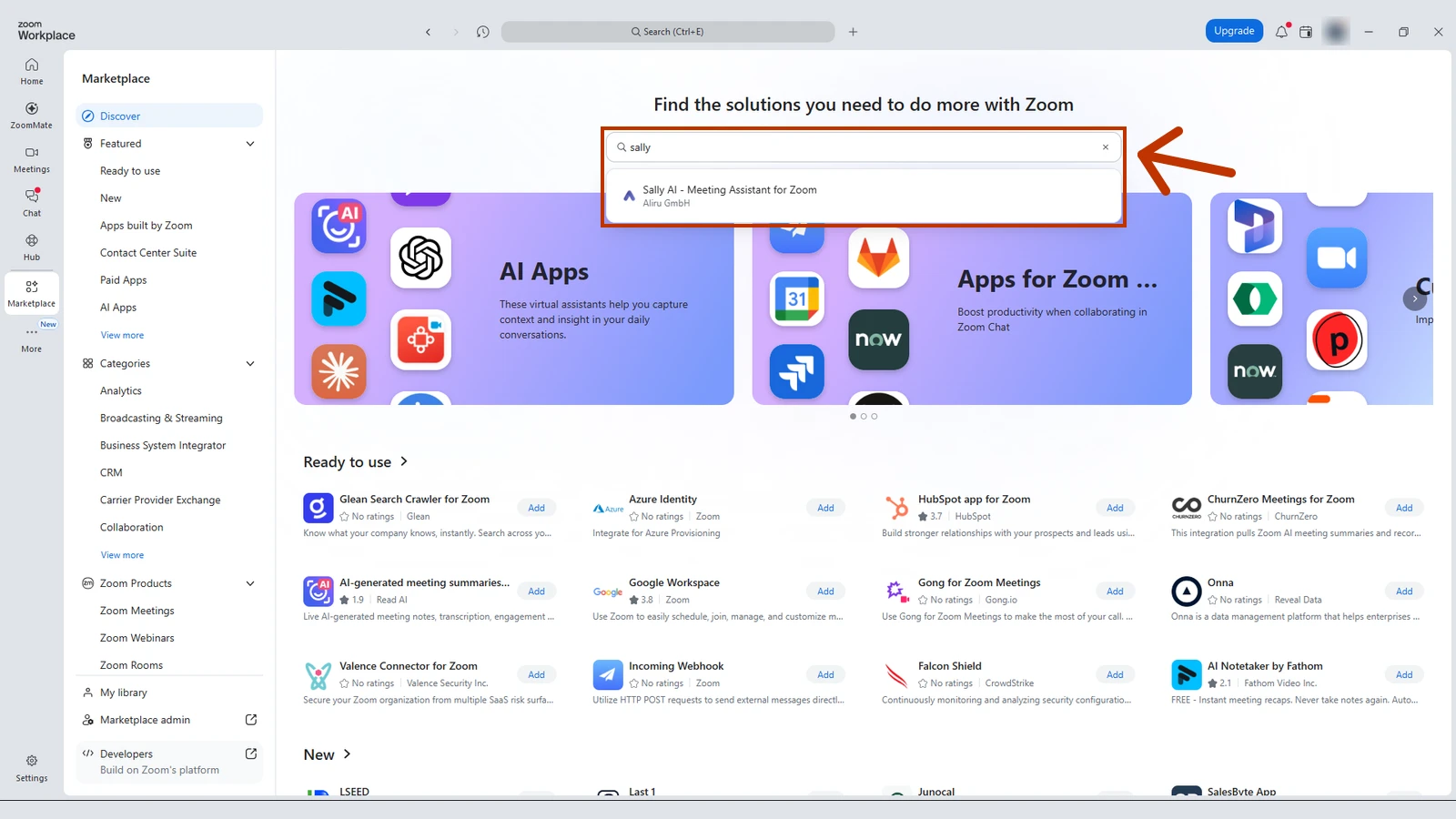
- Type Sally into the search field at the top and select Sally AI - Meeting Assistant for Zoom from the results.
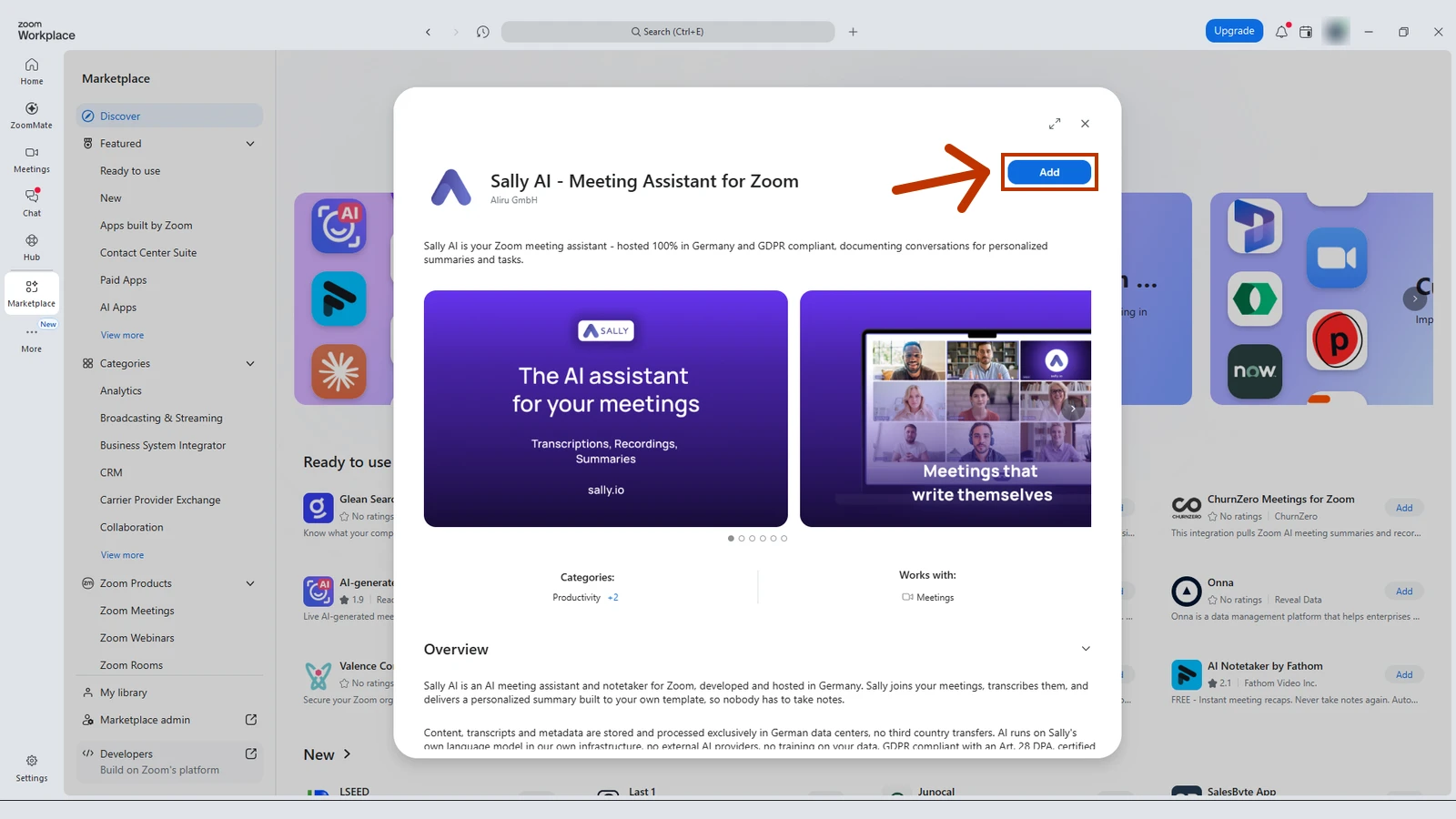
- Click Add. This takes you to Sally.
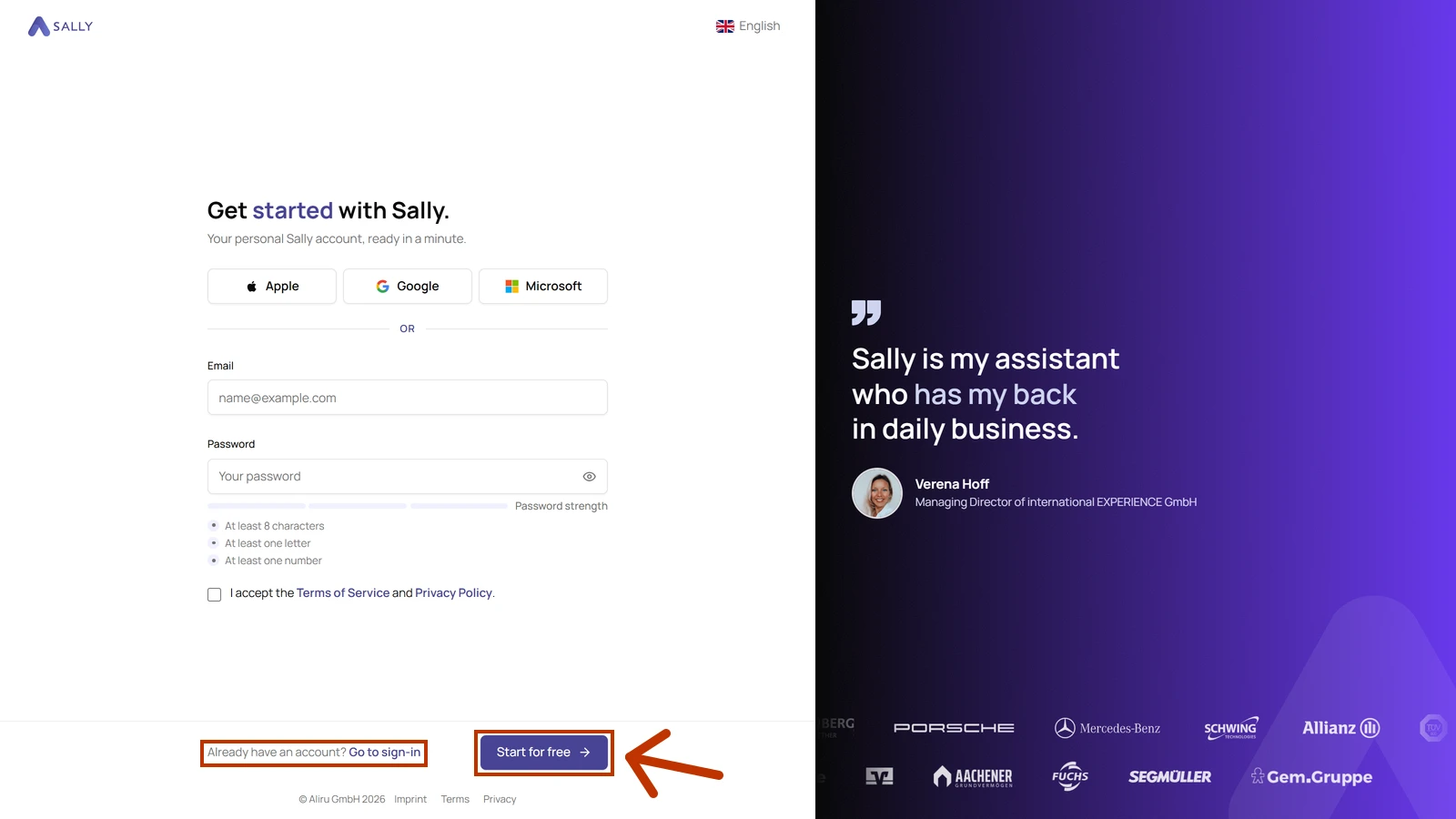
- Create your Sally account with Apple, Google, Microsoft or an email address and password. Accept the Terms of Service and click Start for free. If you already have an account, click Go to sign-in and sign in.
3. Connect Zoom in Sally
Next, connect your Zoom account in Sally so she can see your Zoom meetings.
- In Sally, click Settings at the bottom left and select Integrations under Configuration. Then click Add integration at the top right.
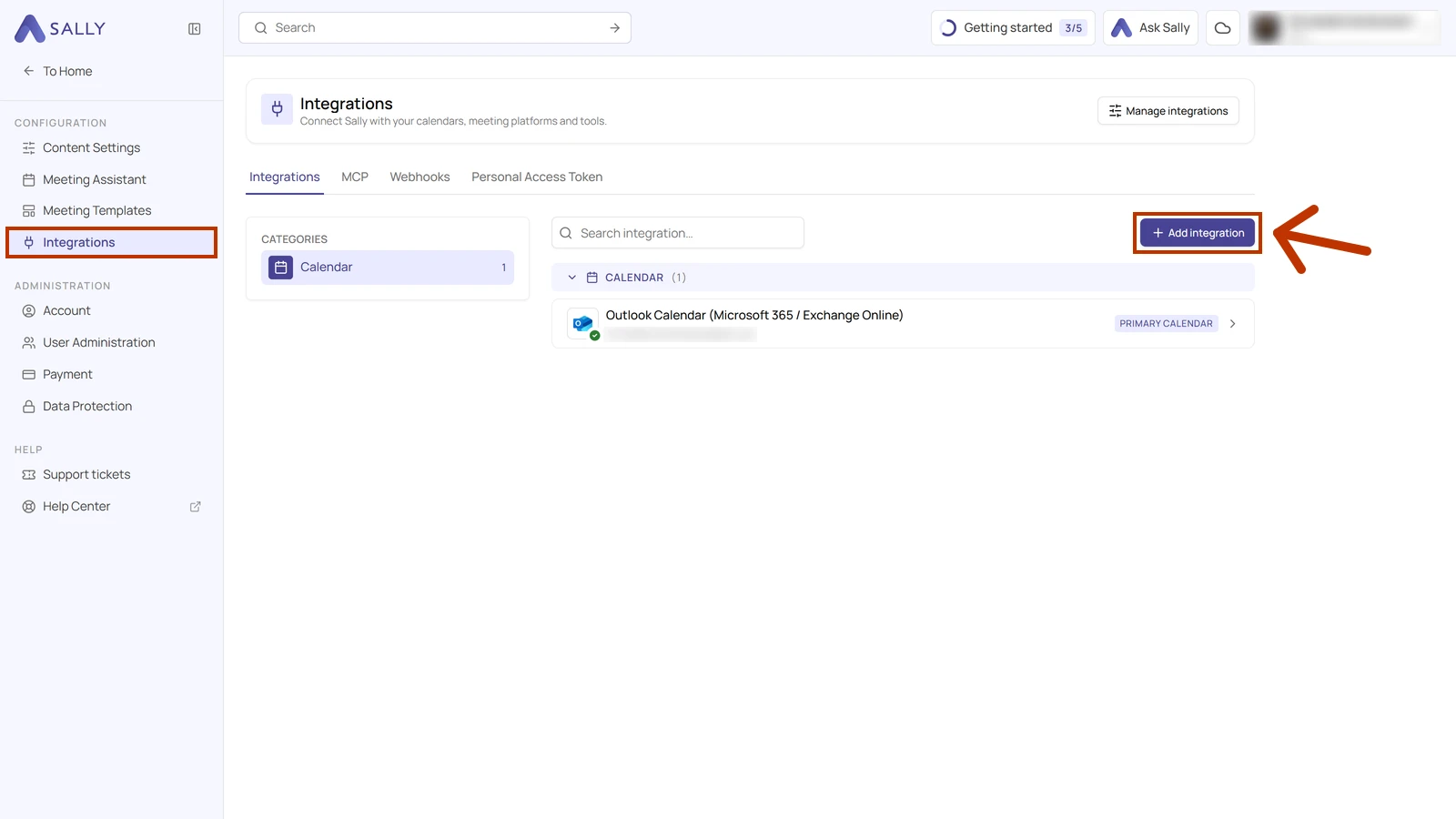
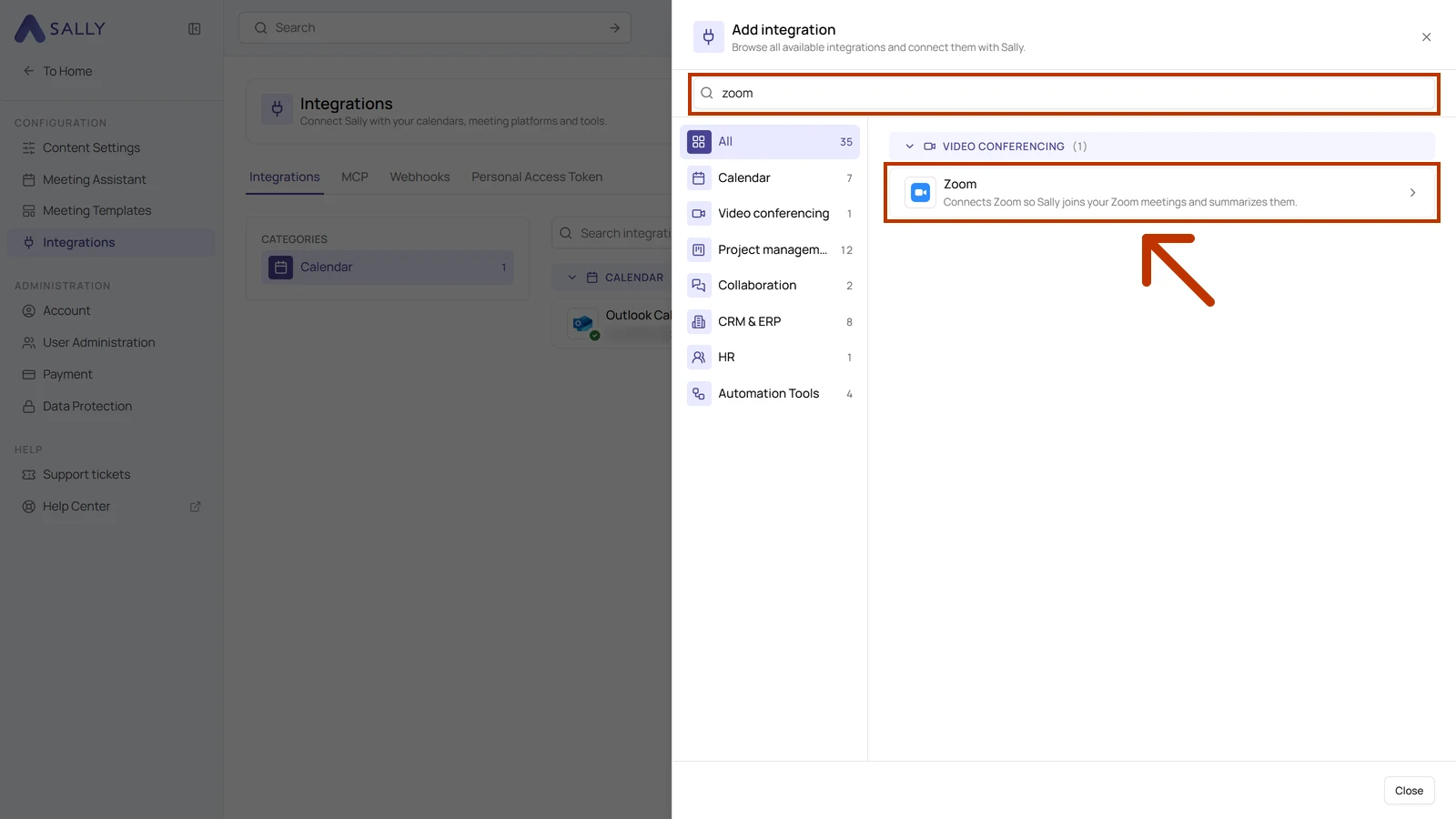
- Type zoom into the search field and click Zoom.
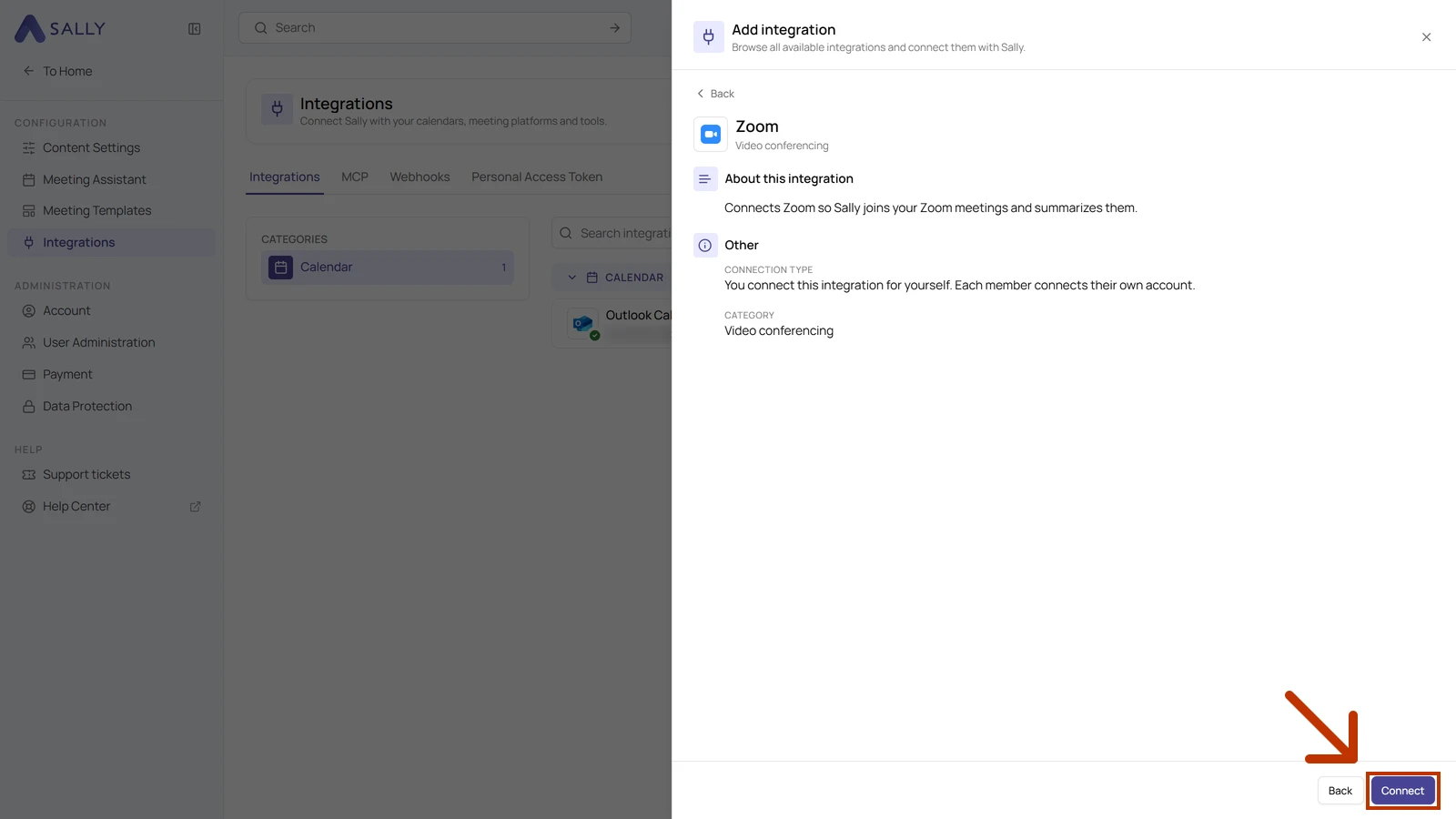
- Click Connect at the bottom right.
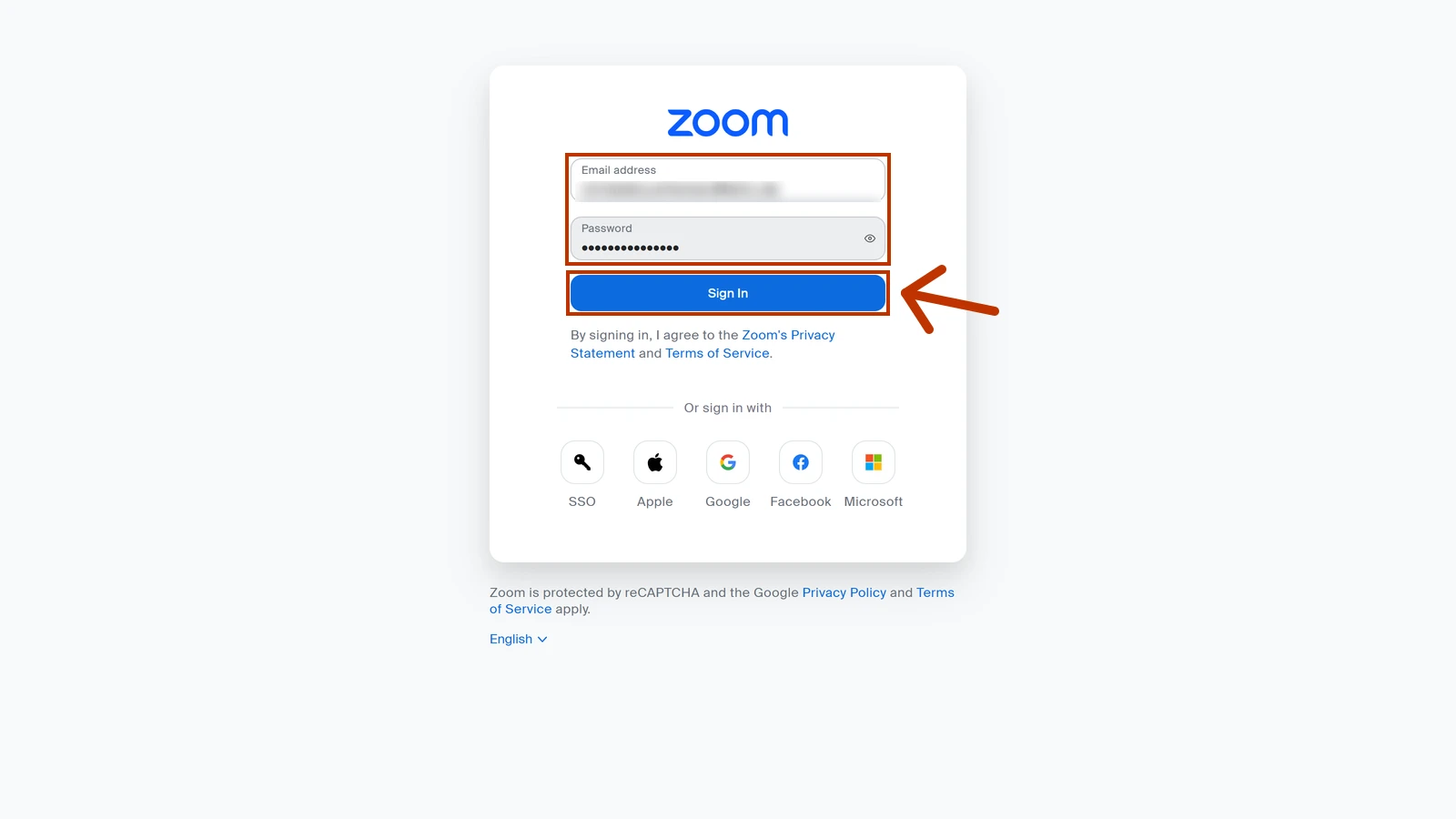
- Sign in with your Zoom account.
- Zoom shows you which permissions Sally receives. They are read-only: View a user's meetings for your scheduled meetings and View a user for your name and email address. Tick Allow this app to use my shared access permissions and click Allow.
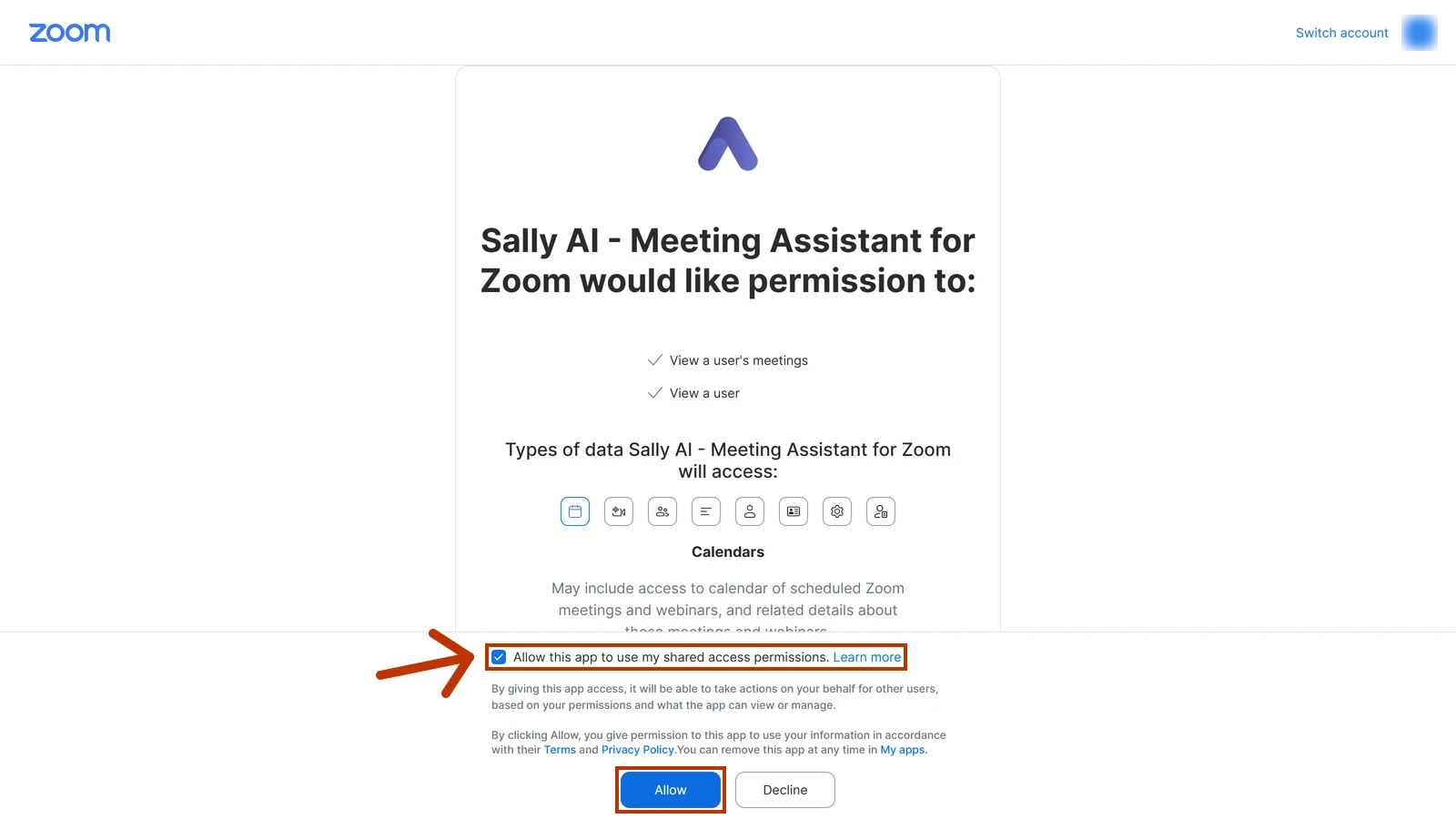
Without Allow this app to use my shared access permissions, Zoom does not pass your meetings on to Sally, and she cannot join your Zoom meetings. If you missed it, you can tick it later in the Marketplace.
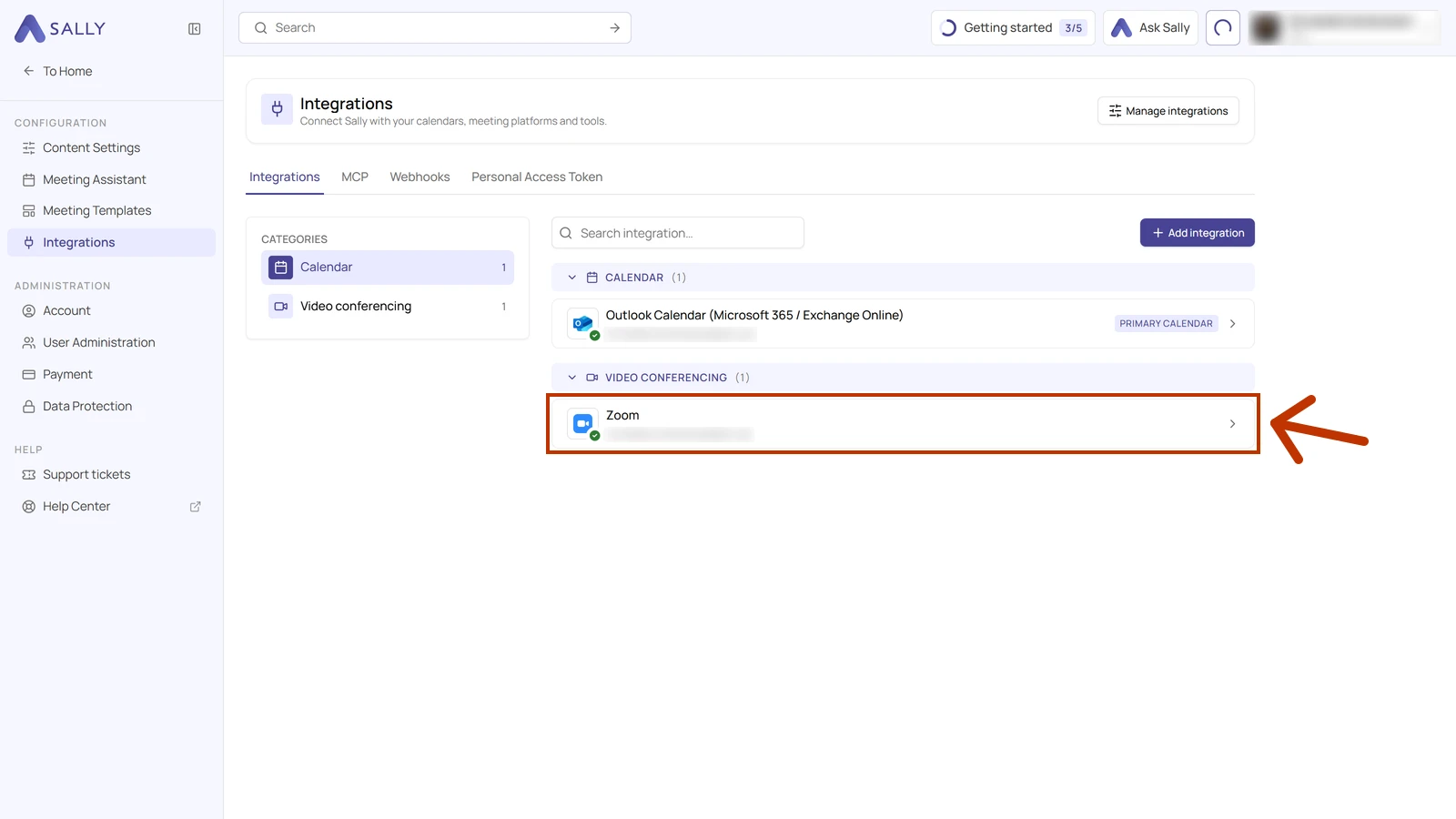
Zoom then takes you back to Sally. On the Integrations page, Zoom now appears under Video conferencing, and the green check mark on its icon shows that it is connected.
4. Finish in the Marketplace
To finish, you confirm Sally in the Zoom App Marketplace.
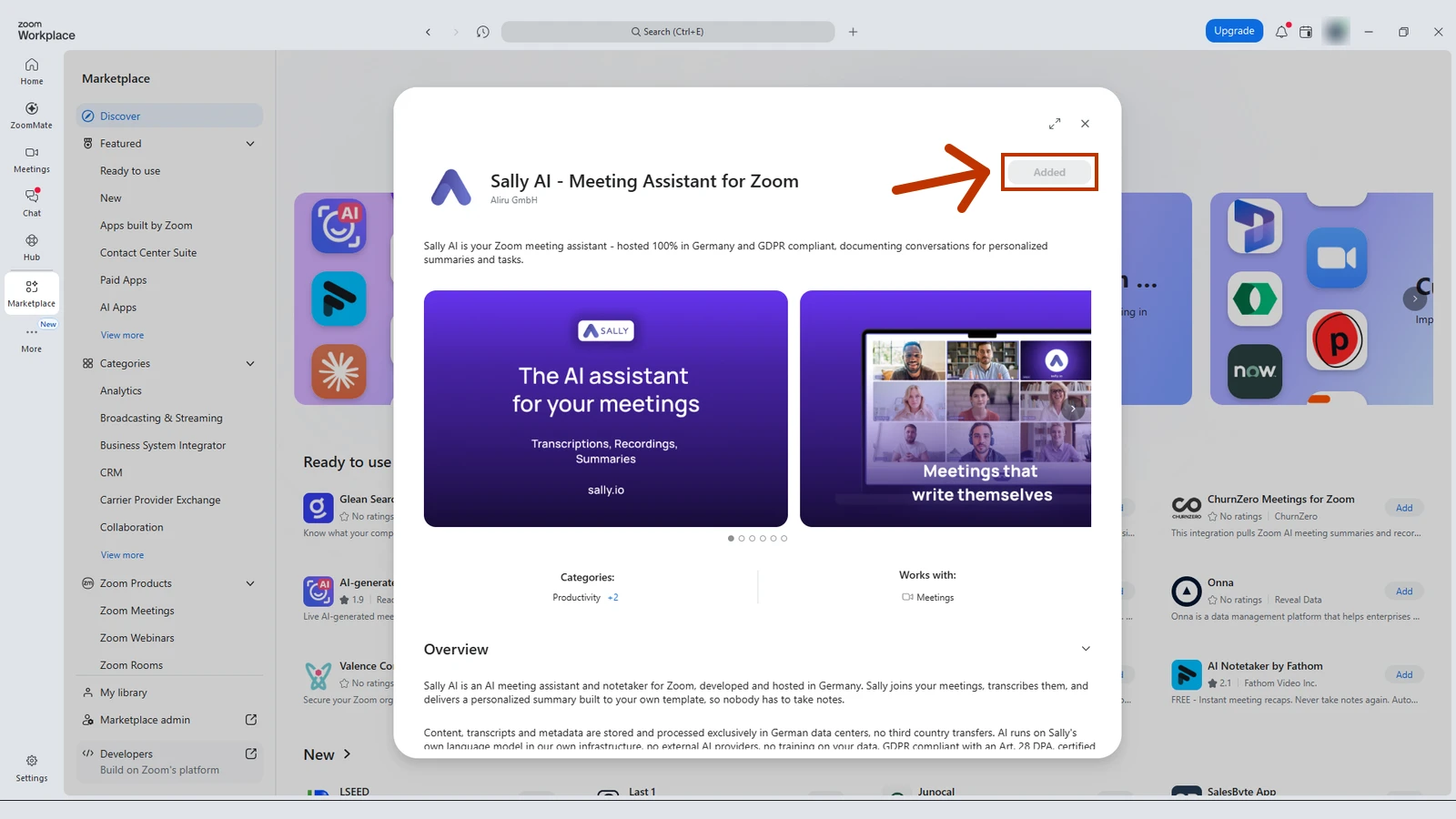
- Go back to the Zoom desktop app and click Add on Sally AI - Meeting Assistant for Zoom once more. The button then reads Added.
5. After the connection
The meetings you schedule in Zoom show up under Appointments in Sally automatically, next to the events from your other calendars. The first sync can take a moment.
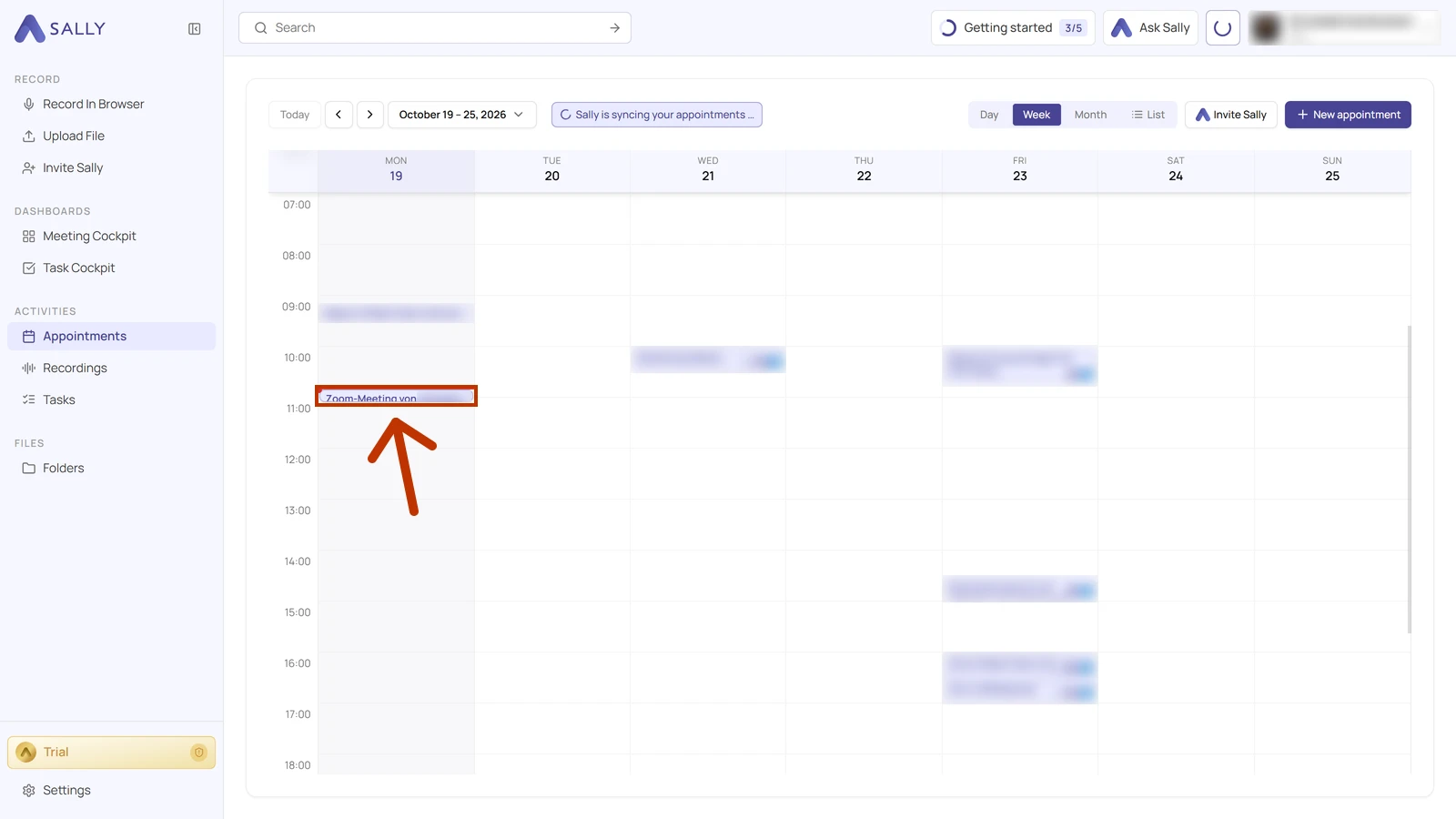
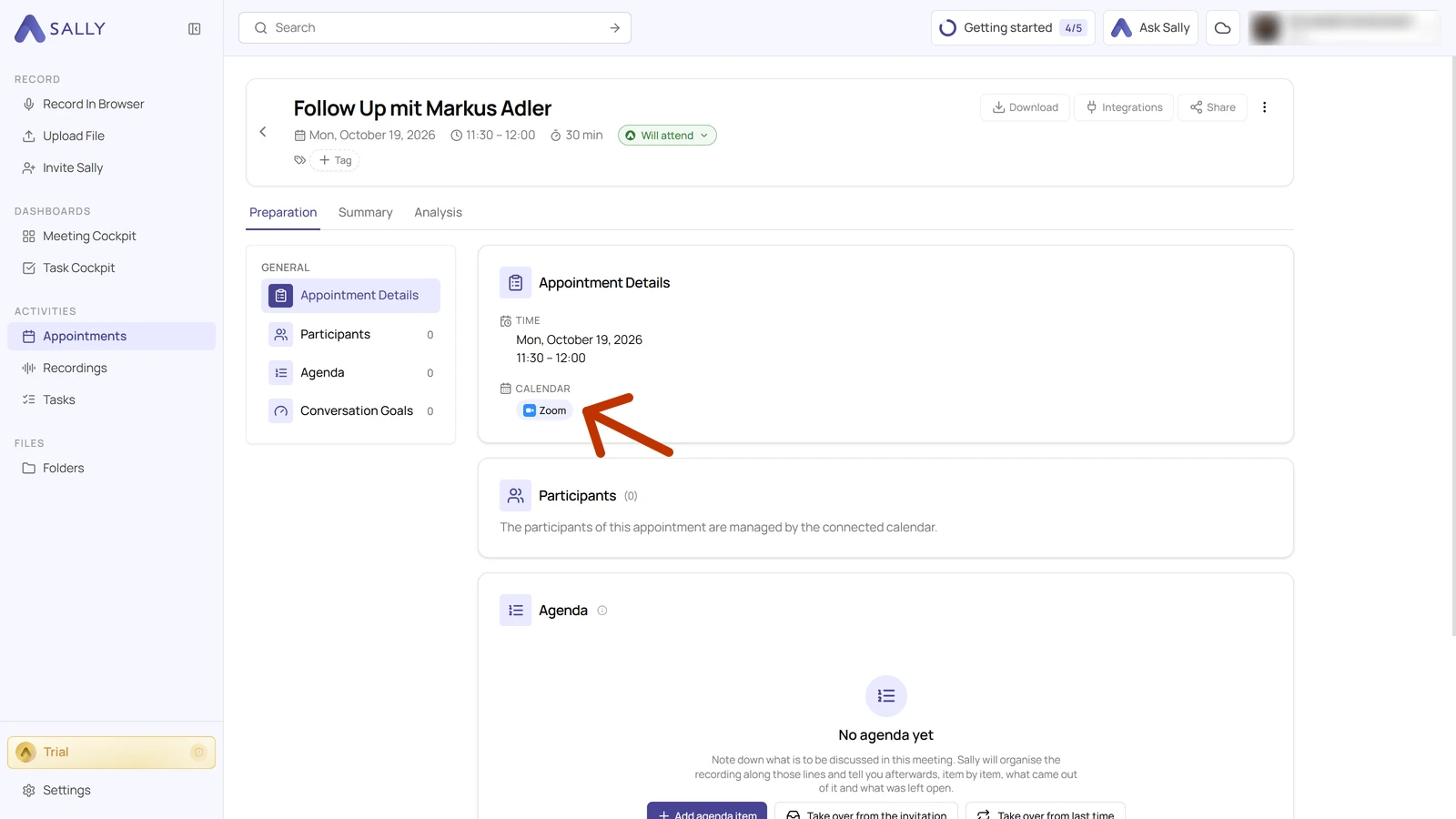
When you open one of these meetings, Zoom appears under Calendar. The Will attend status shows that Sally is going to join the meeting. After the meeting, you find the transcript and the summary there.
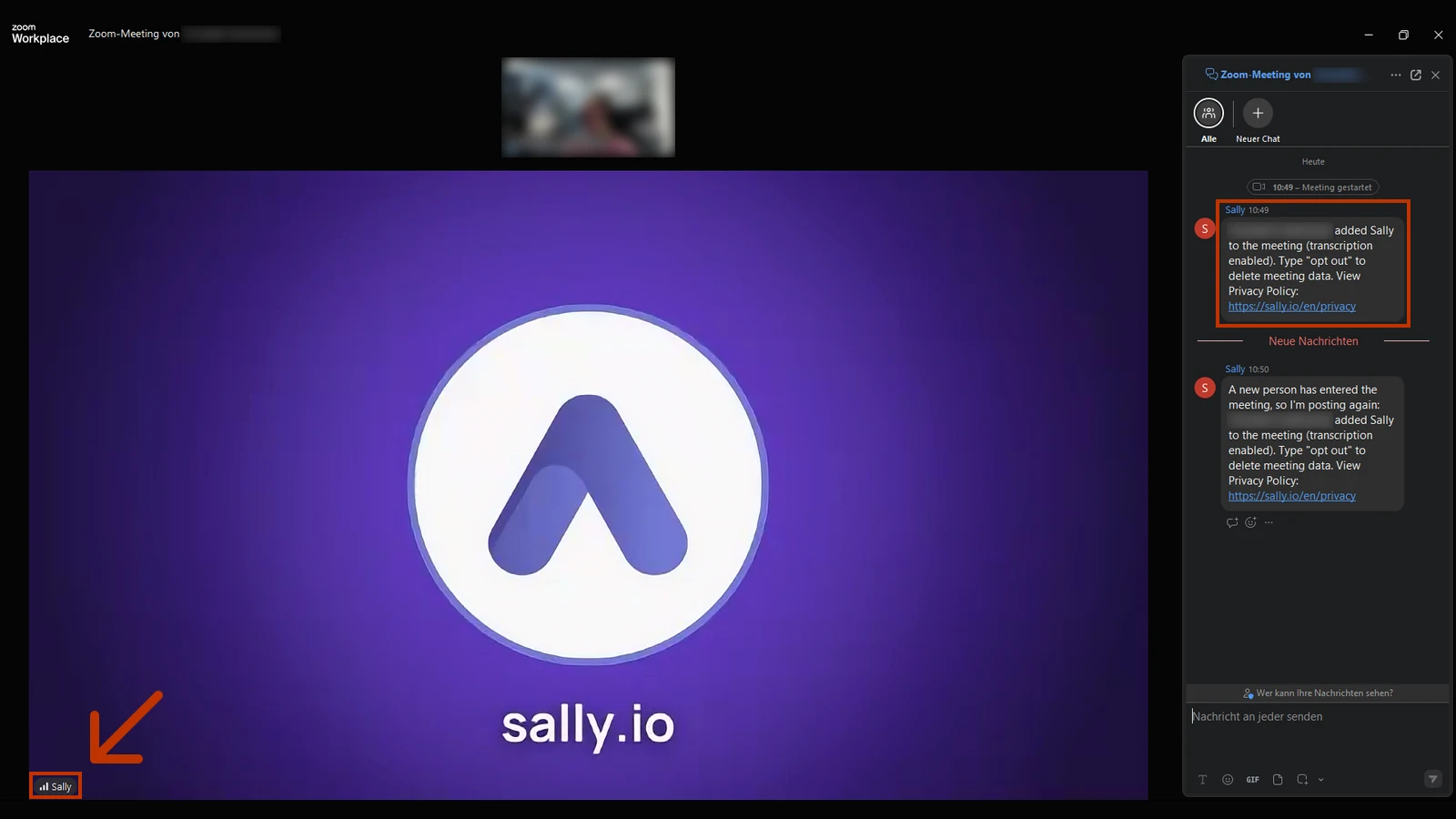
In the Zoom meeting itself, Sally appears as a separate participant named Sally. In the meeting chat, she posts who added her and that transcription is on. When someone joins later, she posts the notice again. Anyone who types opt out in the chat removes Sally and deletes everything she has recorded so far.
You decide whether and when Sally joins automatically in automated attendance. Instant meetings that you start on the spot in Zoom have no calendar entry, so they do not show up in Sally. For those, add Sally with the meeting link.
6. Tick the checkbox later
If you did not tick the shared access permissions checkbox when signing in, you can still do so in the Marketplace. You do not need to disconnect Zoom in Sally first.
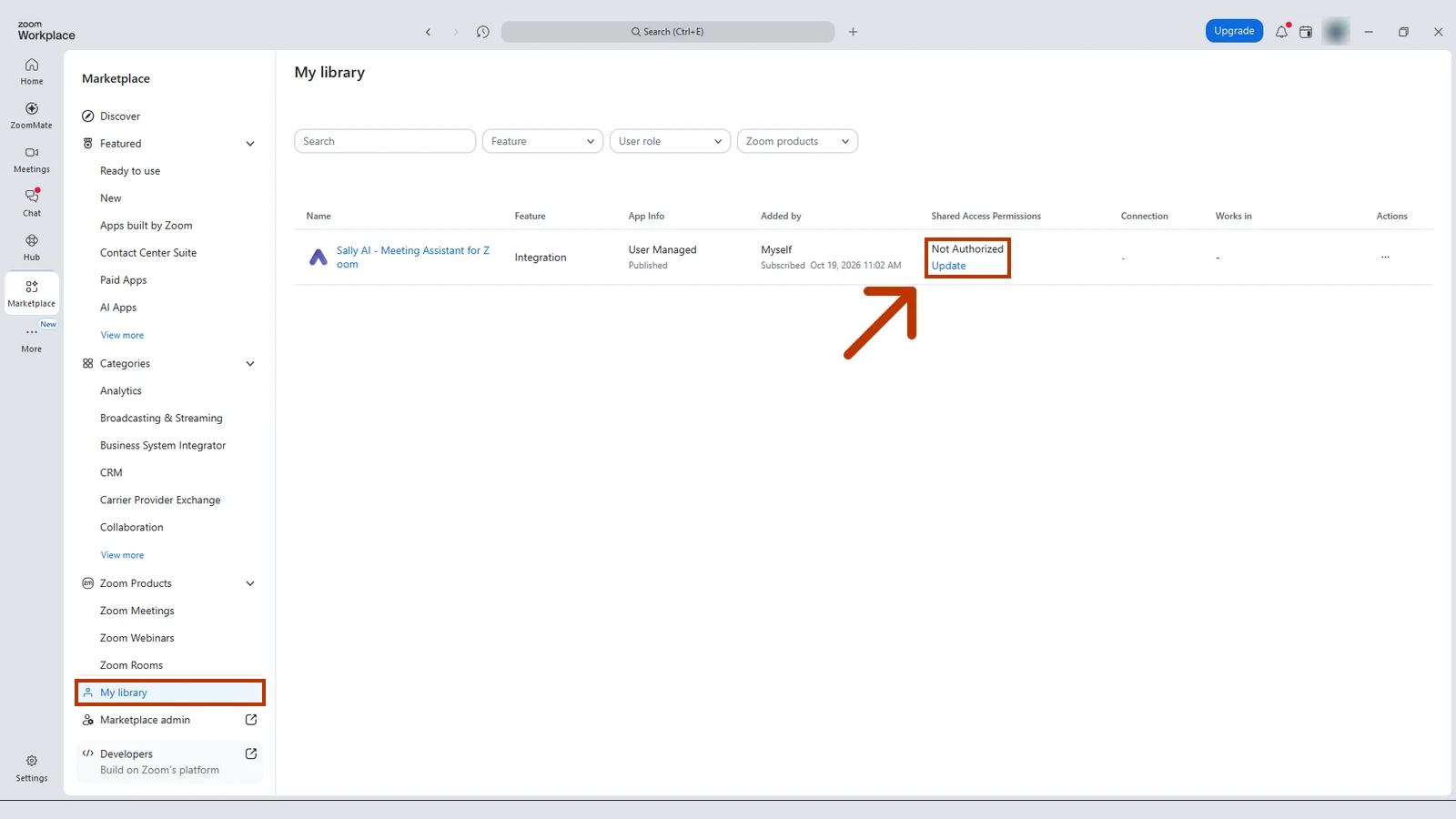
- Open the Marketplace in the Zoom desktop app and click My library at the bottom of its menu. Next to Sally AI - Meeting Assistant for Zoom, the Shared Access Permissions column shows Not Authorized. Click Update below it.
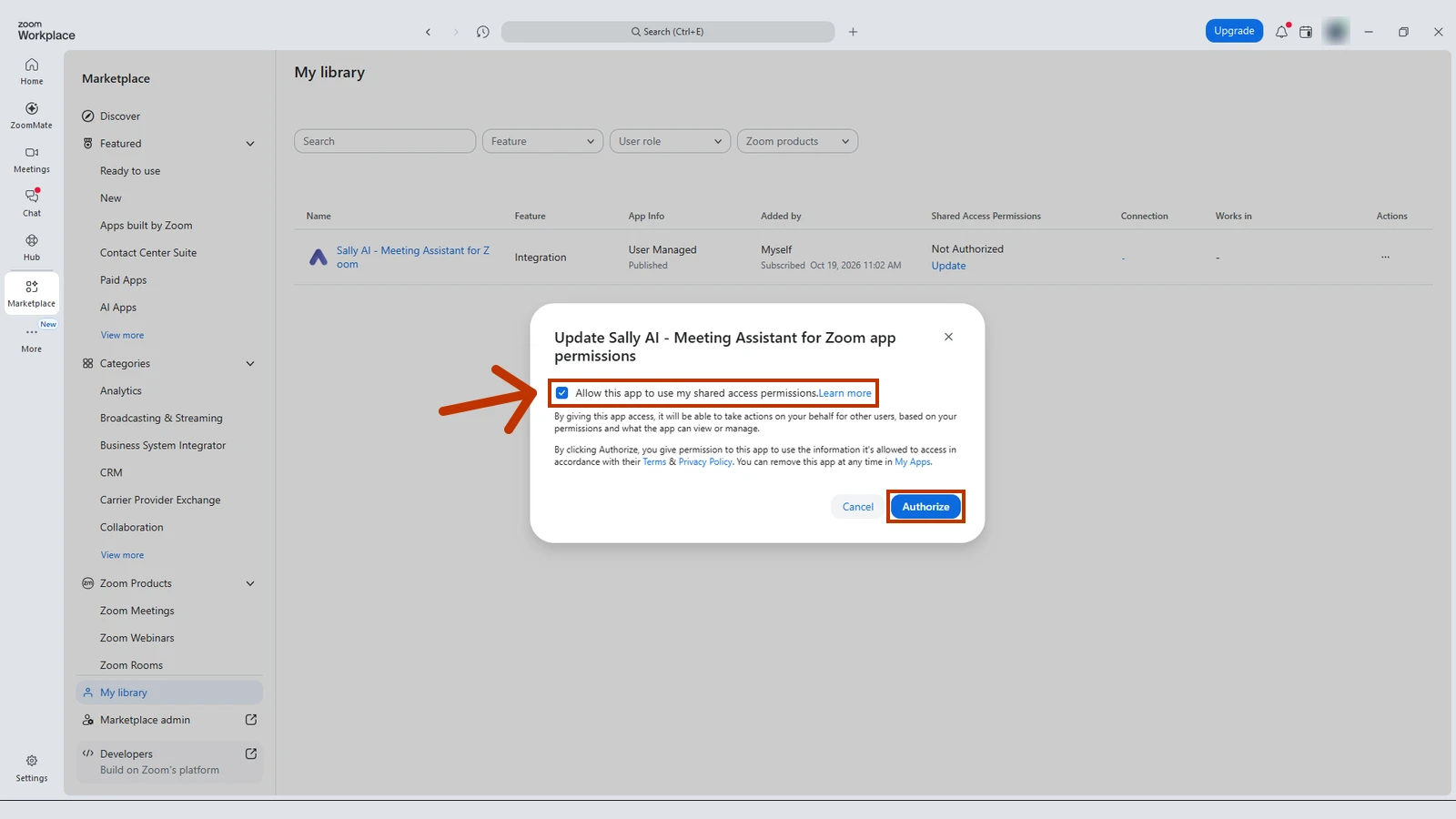
- Tick Allow this app to use my shared access permissions and click Authorize.
From then on, Zoom passes your meetings on to Sally, and she can join your Zoom meetings.
7. If no meetings show up
- Checkbox not ticked: without the shared access permissions, Zoom does not pass any meetings on to Sally. Tick the checkbox later in the Marketplace
- A different Zoom account is connected: Sally only sees the meetings of the connected account. Connect the account you schedule your meetings with
- The sync is still running: give Sally a moment, then reload the Appointments page
8. How to reach our support team
If none of this helps, our support team is one ticket away. Open Settings → Support tickets in Sally and start your request with New ticket. If you cannot get into the app at all, write to support@sally.io.