How to connect Pipedrive CRM with Sally AI
Connect Sally AI with Pipedrive to turn what came out of a meeting into real work, right on the matching lead, deal, contact or organization. With the Sally Pipedrive integration you send notes, meetings and tasks to Pipedrive in one click, so nothing gets typed twice and your CRM stays current.
Quick navigation
1. How to connect Pipedrive with Sally AI
Follow these steps to set up the Sally Pipedrive integration.
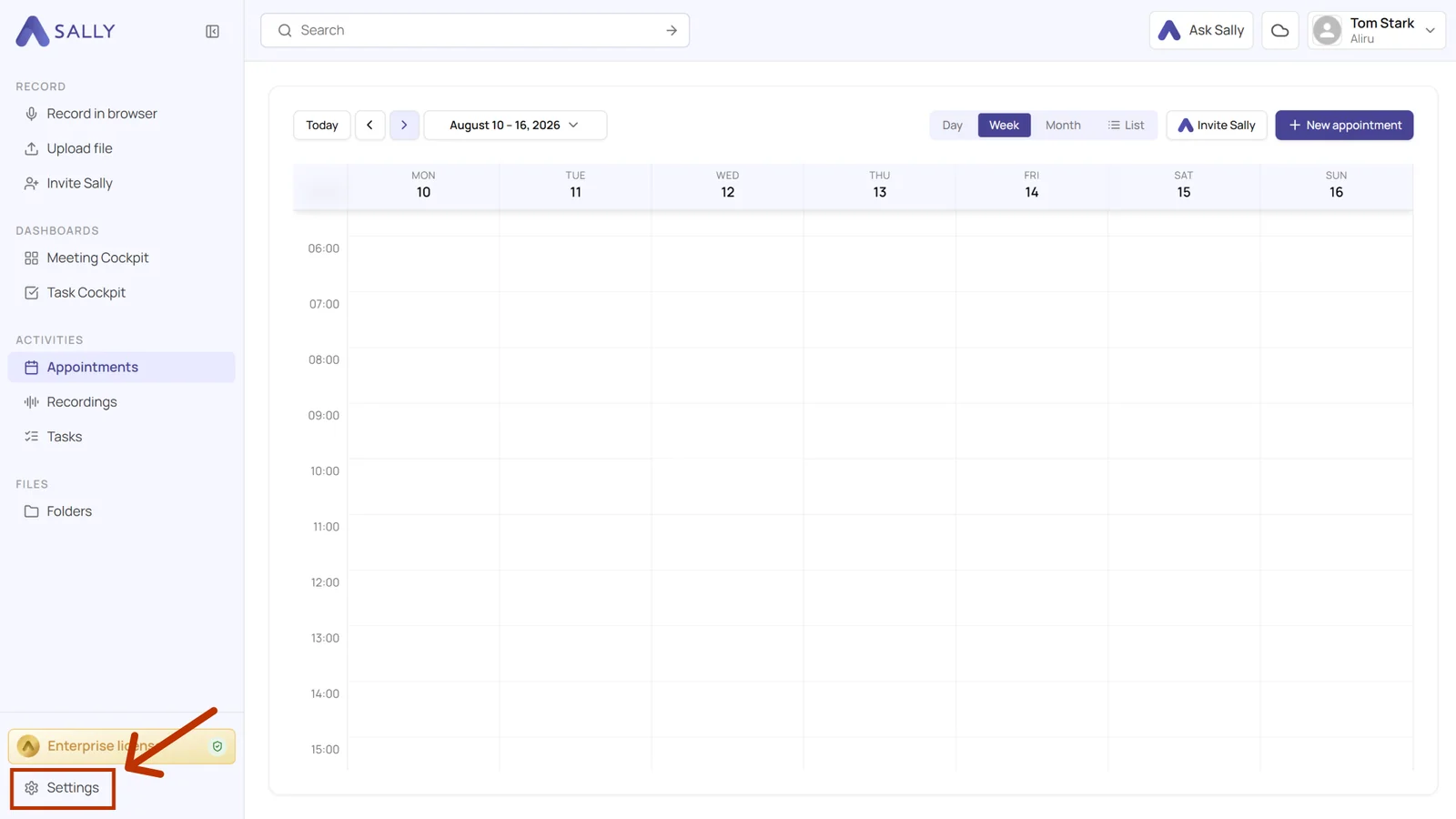
- Open Settings at the bottom of the left sidebar.
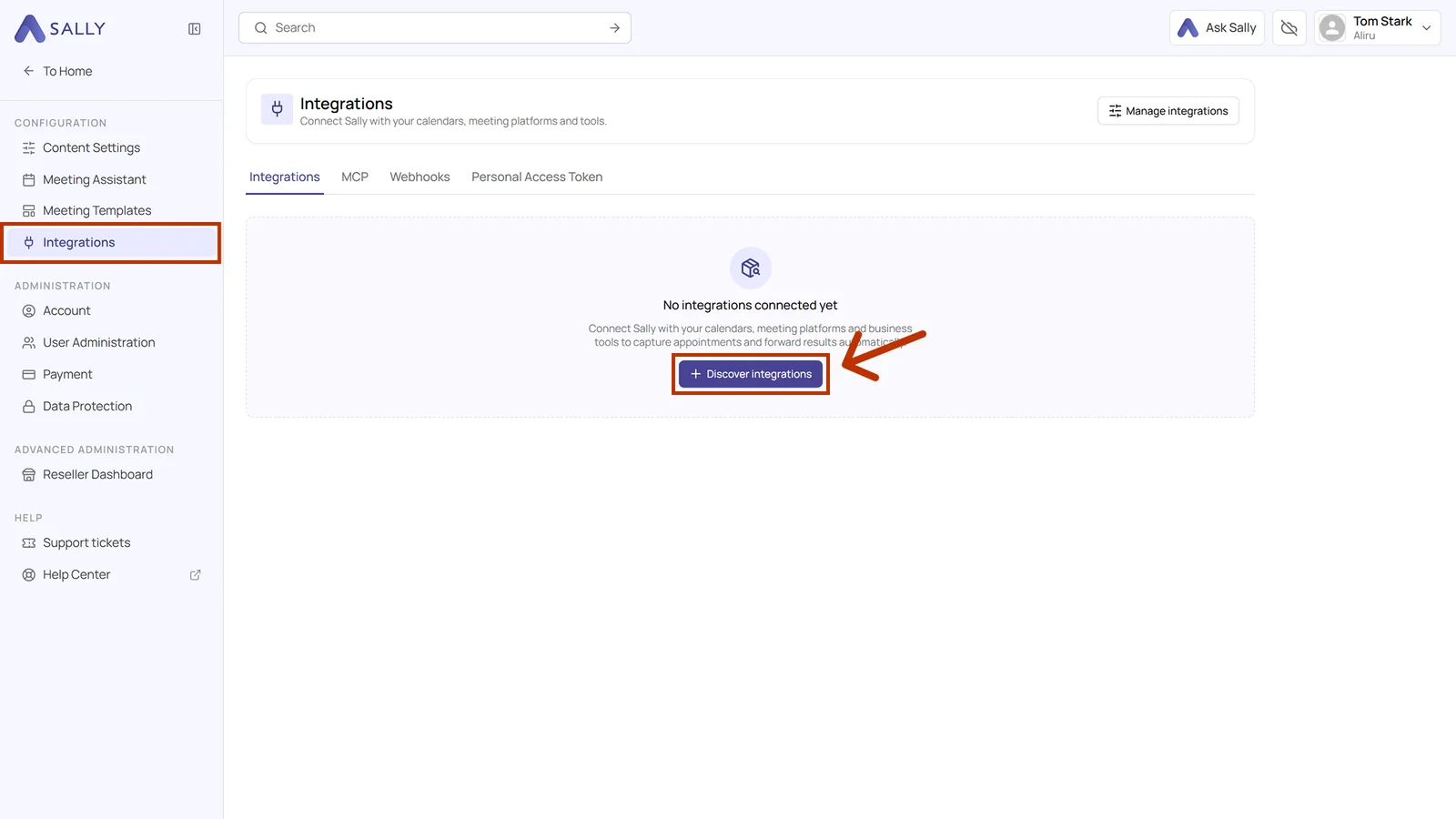
- Under Configuration, go to Integrations and click Discover integrations.
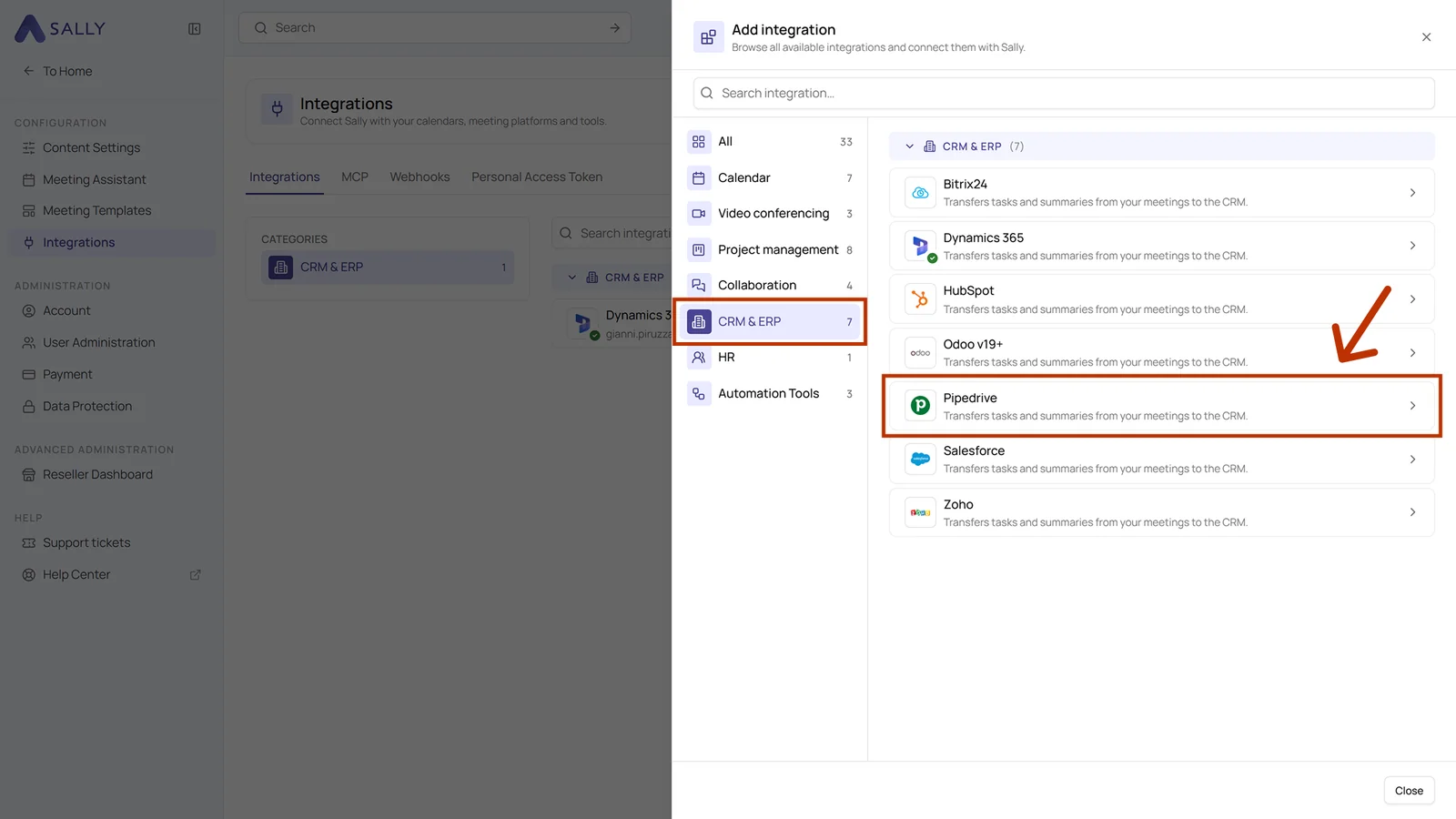
- Pick the CRM & ERP category on the left, then select Pipedrive. The search bar at the top takes you straight there as well.
-
The panel on the right tells you what the integration transfers. Click Connect in the bottom right, then complete the OAuth flow in Pipedrive.
-
Once you have signed in, Pipedrive is connected and shows up on the integrations page. The Actions tab shows what Sally offers through this integration and lets you switch off individual actions for the organization account. Disconnect in the top right ends the connection again.
Whether an integration may be connected at all is up to owners and admins, see managing integrations for your users.
2. How to send insights to Pipedrive
Once Pipedrive is connected, a few clicks are enough to move content from a recording into Pipedrive, straight onto the right CRM record.
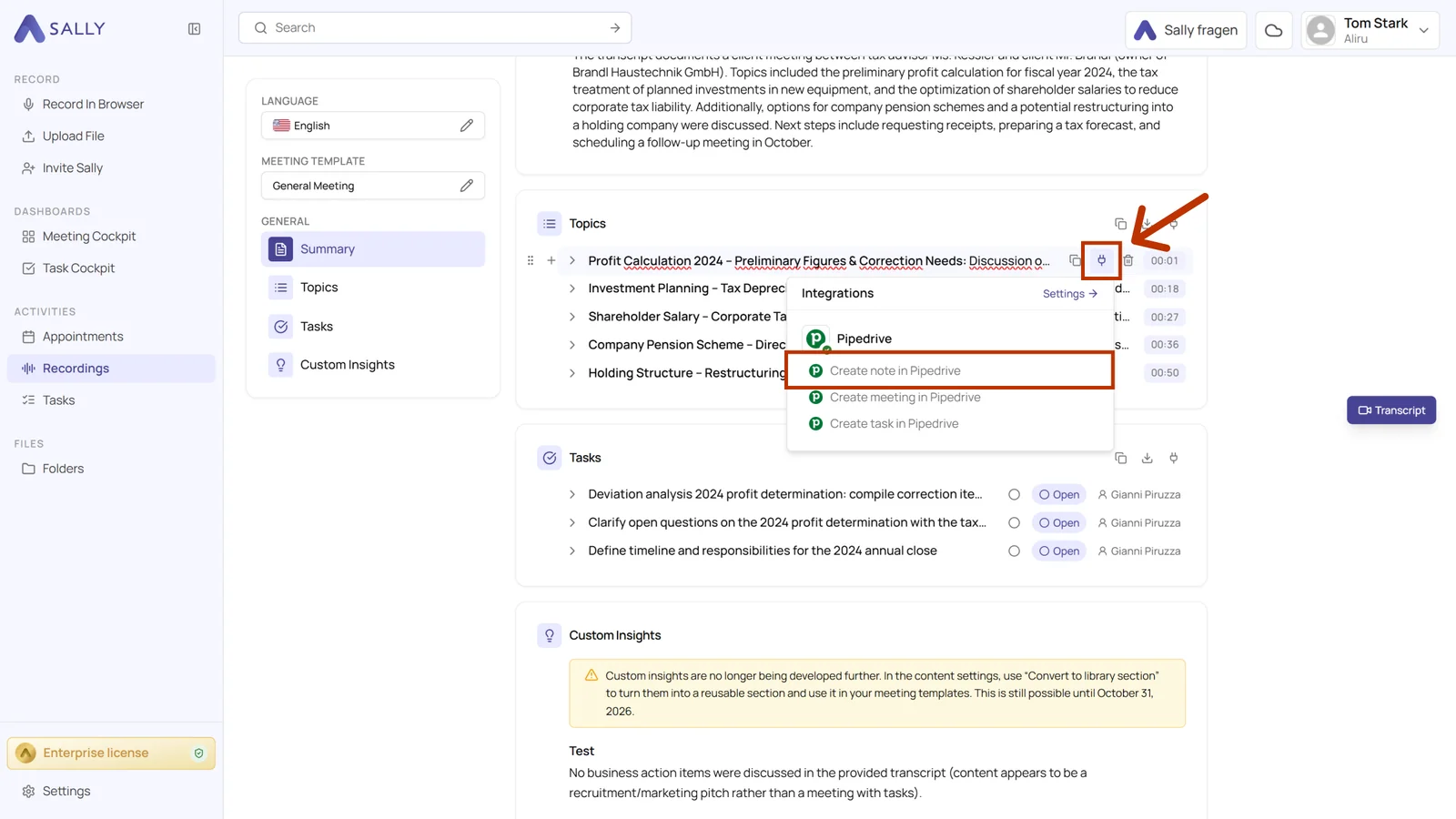
The route is always the same: open the recording you need and click the Integrations icon. It sits at the top of every section and on every single line. Below it you find the three Pipedrive actions.
You can:
For every one of these actions the content comes prefilled from the summary and can be edited. Further down the form you link the entry to the record it should sit on in Pipedrive: a lead, deal, contact, or organization. Each of those fields is optional on its own, but every entry needs at least one link.
2.1. Create a note in Pipedrive
Keep the context of a meeting on the matching Pipedrive record, as a note.
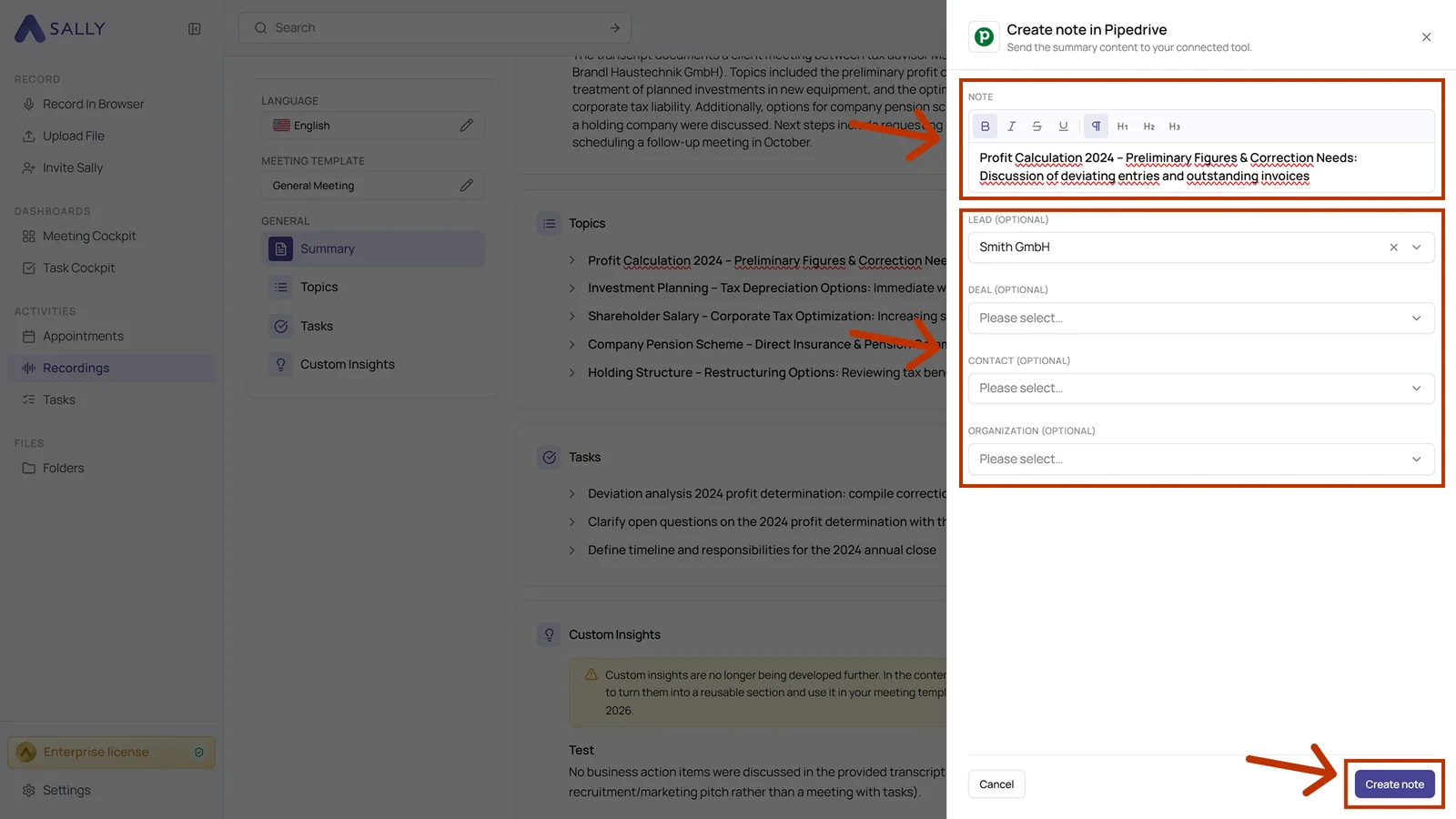
- Choose Create note in Pipedrive in the Integrations menu.
- Check the Note. It comes prefilled from the summary and can be formatted in the editor.
- Link the note to a Lead, Deal, Contact, or Organization.
- Click Create note.
- The note then sits under History on the linked record in Pipedrive.
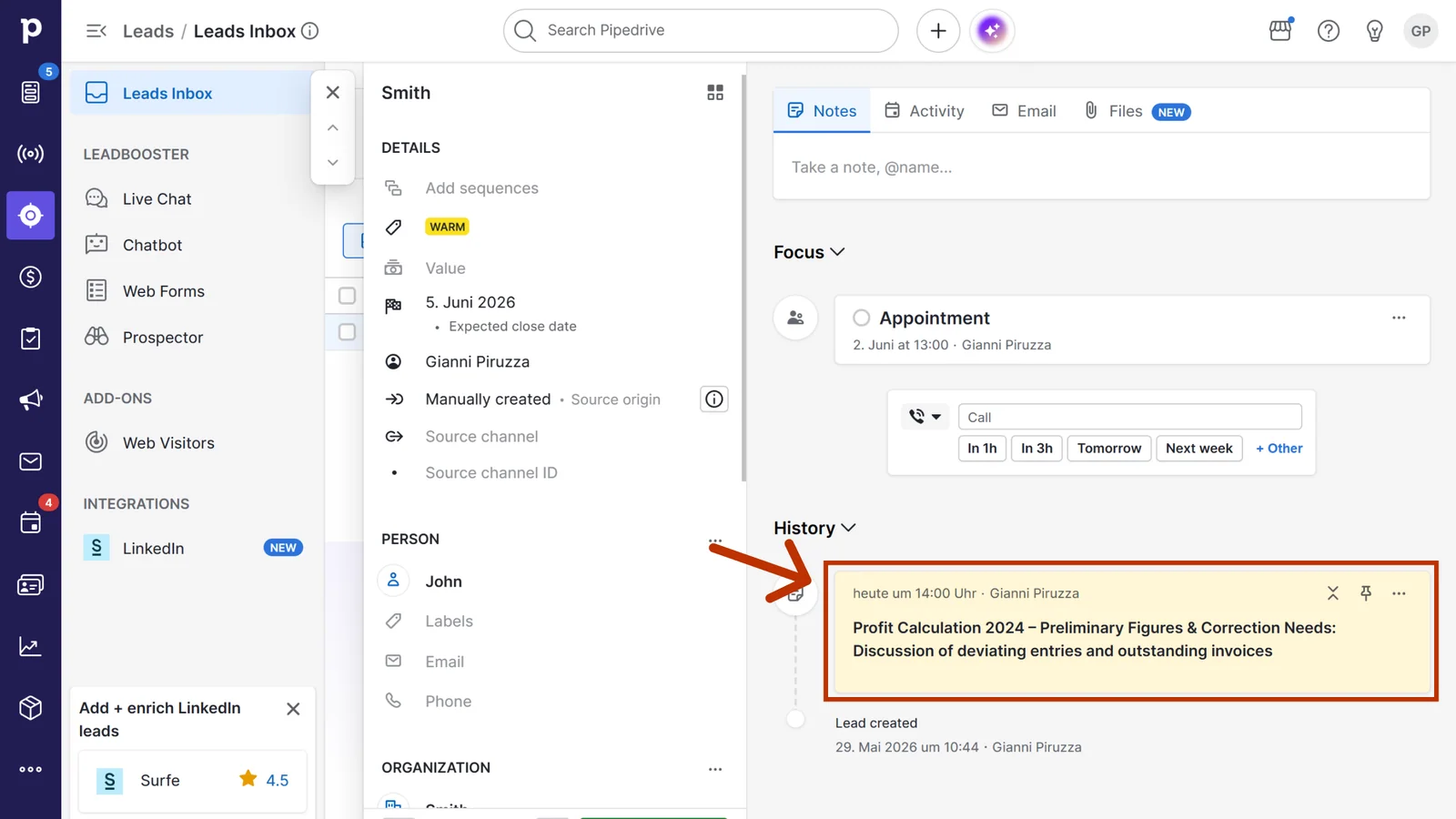
Link the note to the record where the work actually continues, so an active deal rather than the general organization. That keeps the history where your team looks for it.
2.2. Create a meeting in Pipedrive
Log a meeting as an activity in Pipedrive, for example the meeting itself or an agreed follow-up.
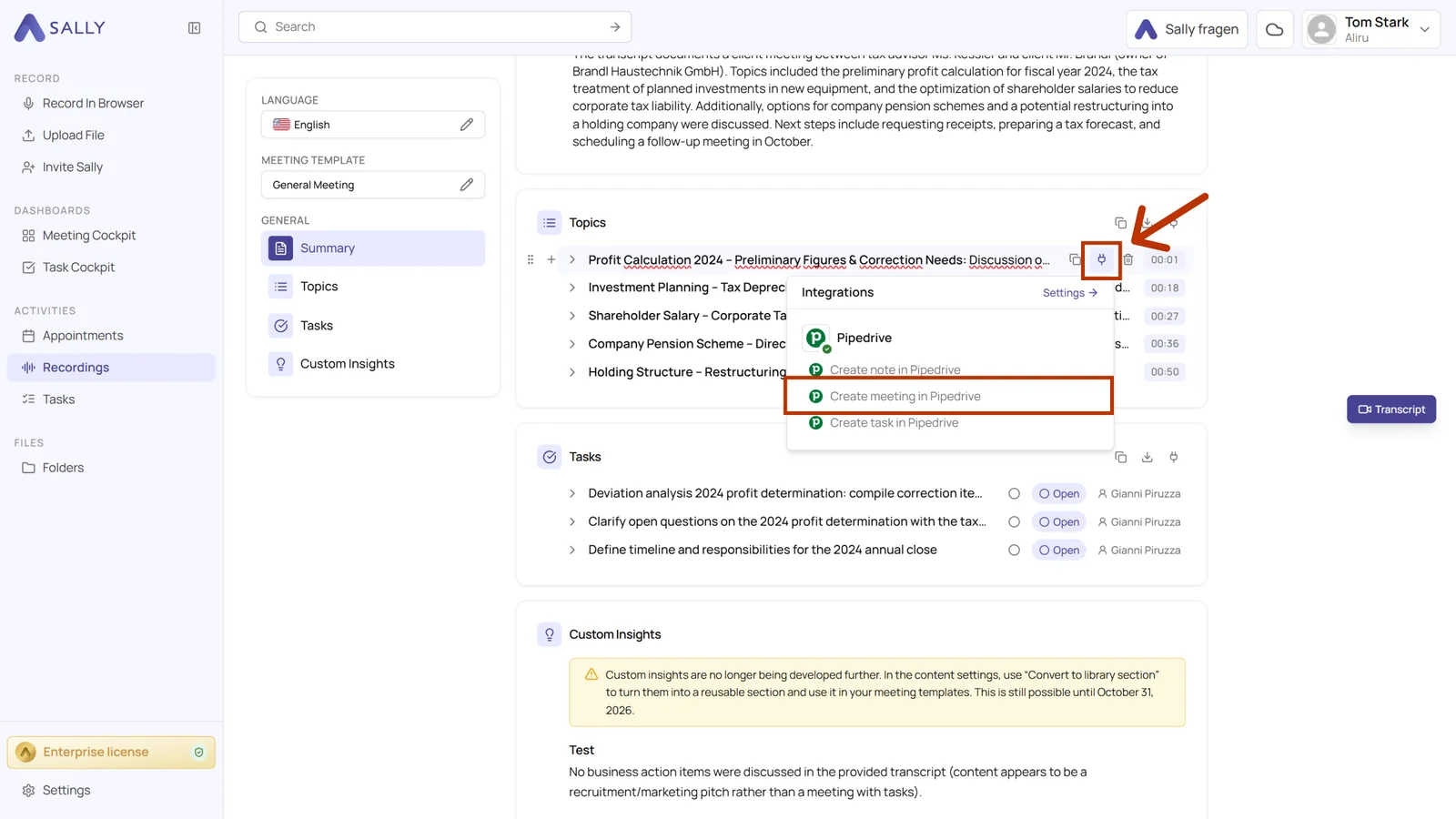
- Choose Create meeting in Pipedrive in the Integrations menu.
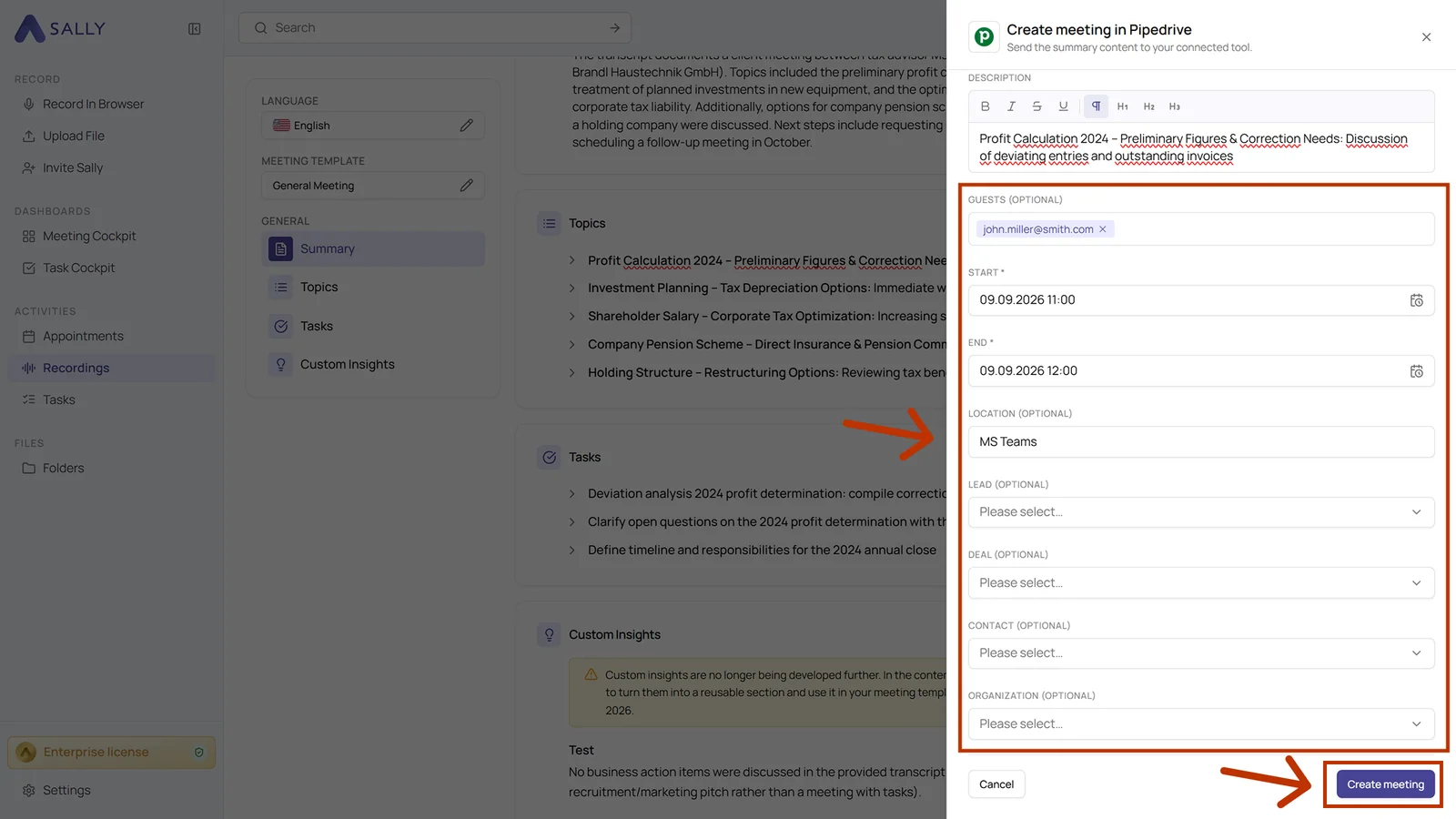
- Check Title and Description. Both come prefilled from the summary, the title is mandatory.
- Check Start and End. Both are mandatory and prefilled with the time frame of the meeting.
- Add Guests and Location if you need them. Both are optional.
- Link the meeting to a record and click Create meeting.
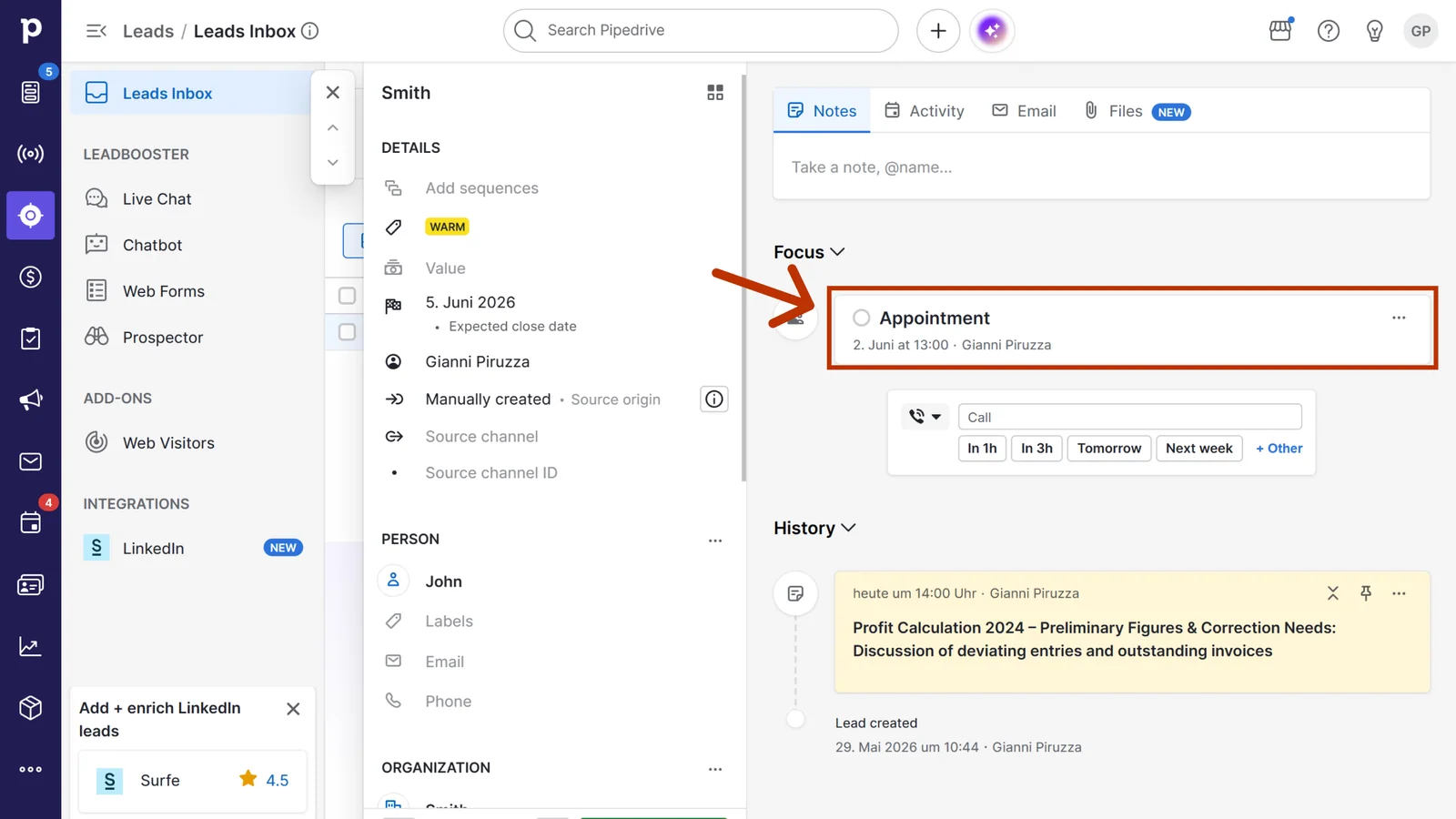
- The meeting then sits in the Focus area of the linked record in Pipedrive.
2.3. Create a task in Pipedrive
Turn a line from the summary into a Pipedrive task.
- Choose Create task in Pipedrive in the Integrations menu.
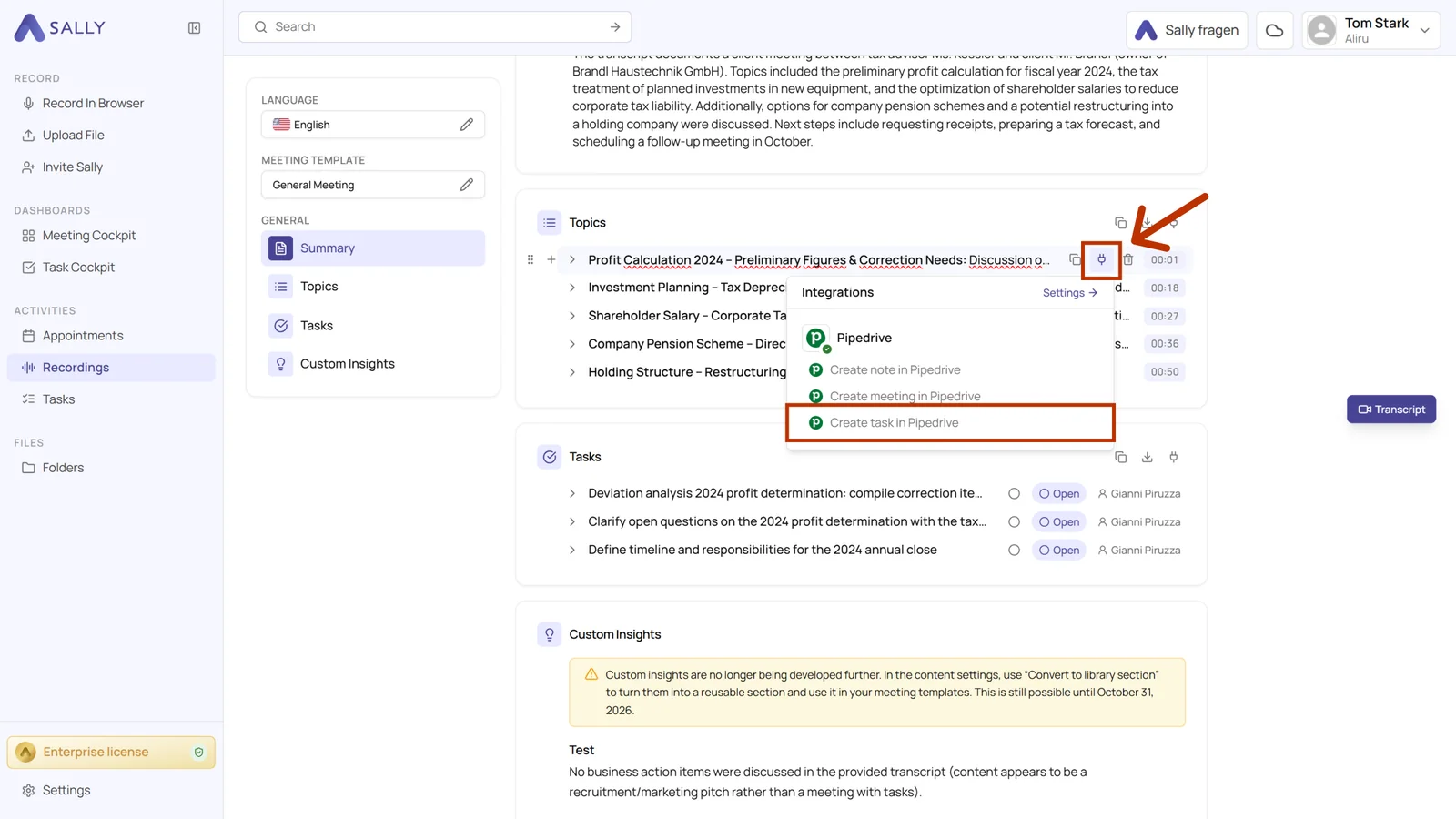
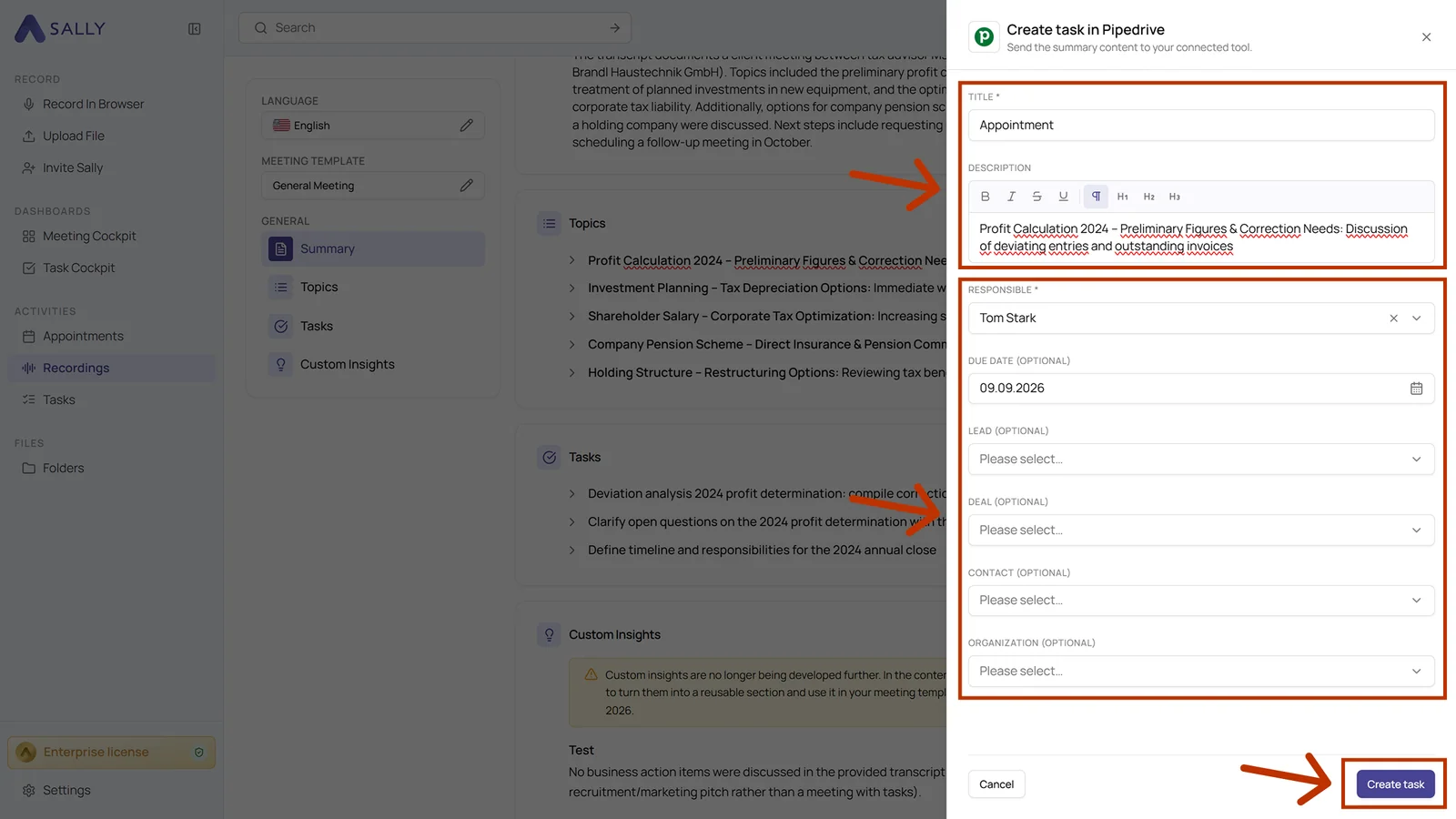
- Check Title and Description. Both come prefilled from the summary, the title is mandatory.
- Pick the person who takes the task under Responsible. That field is mandatory too.
- Set a Due date if you need one. It is optional.
- Link the task to a record and click Create task.
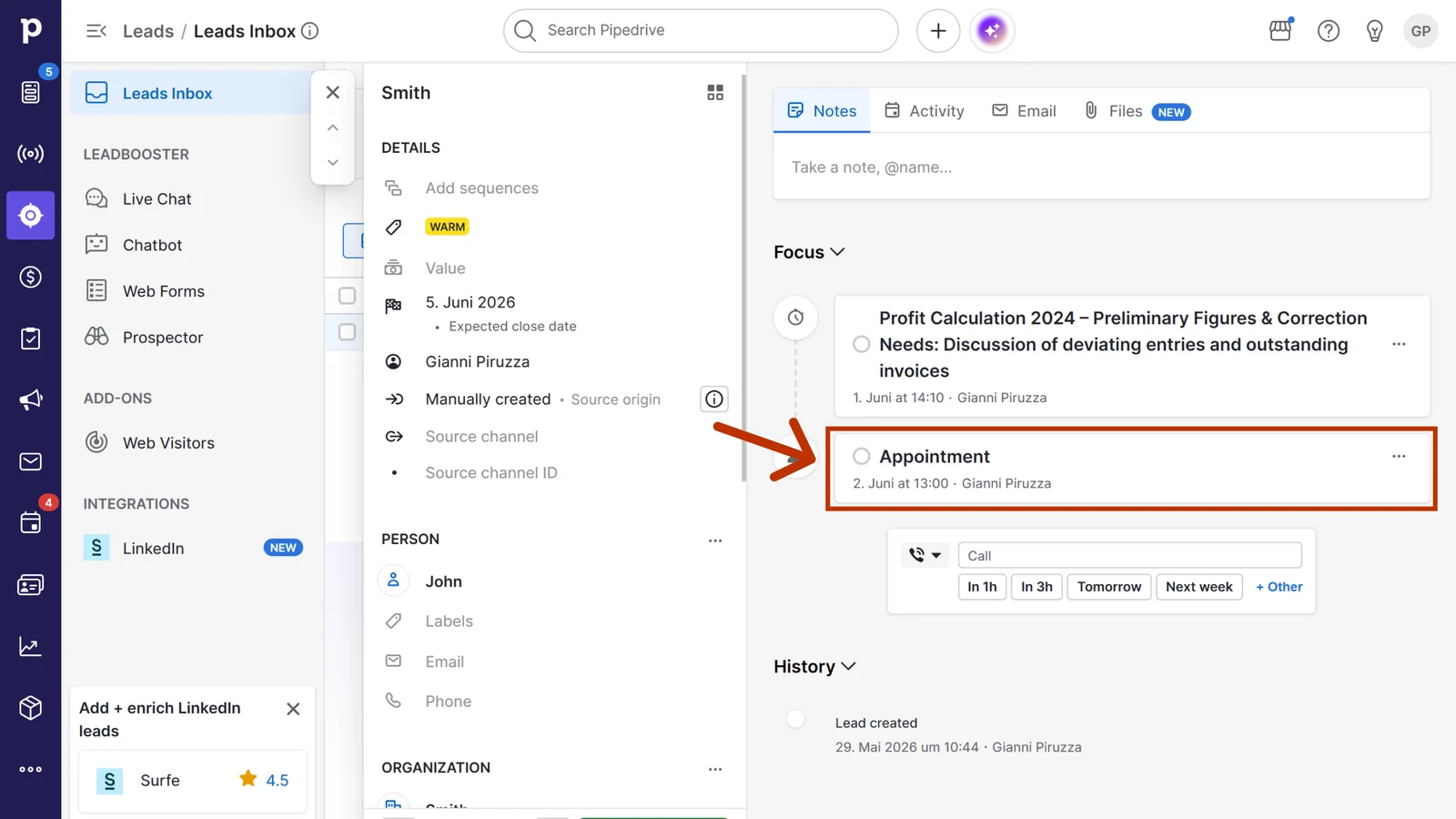
- The task then sits in the Focus area of the linked record in Pipedrive.
Use a meeting for anything with a fixed point in time, for example a demo or a call back. For work without a fixed date you take a task.
3. Required OAuth scopes
For the integration with Pipedrive, Sally uses OAuth 2.0 for authorization. The following scopes define which areas Sally can access on behalf of the authenticated user.
-
Sally accesses this information solely to technically establish and maintain the connection to the user account.
-
Sally does not make any autonomous changes. Actions are performed exclusively upon the explicit initiative of the user.
-
API endpoints are only called within the scope of an active action initiated by the user within the platform.
Technical overview of required scopes
| Scope | What Pipedrive technically allows with this scope | How Sally uses this scope |
|---|---|---|
base | Read access to basic user and company data | Sally reads basic profile data to establish the connection and identify the correct Pipedrive workspace. |
contacts:full | Read and write access to persons and organizations, including notes on them | Sally reads contact and organization information to display them as link targets and creates notes on persons or organizations when explicitly requested by the user. |
deals:full | Read and write access to deals, including notes on them | Sally reads deal information to display deals as link targets and creates notes on deals when explicitly requested by the user. |
leads:full | Read and write access to leads, including notes on them | Sally reads lead information to display leads as link targets and creates notes on leads when explicitly requested by the user. |
activities:full | Read and write access to activities (meetings, tasks) | Required so Sally can create meetings and tasks in Pipedrive when explicitly requested by the user. |
users:read | Read access to user data | Sally reads user information to correctly display responsible users within the integration. |
search:read | Search across deals, persons, organizations, and leads | Sally searches Pipedrive to let the user pick the correct Lead, Deal, Contact, or Organization to link to. |