How to integrate HR4YOU with Sally AI
Connect Sally AI with HR4YOU so the results of your applicant interviews land straight in your applicant management. With the Sally HR4YOU integration you write the interview summary to the applicant as a history entry, upload it as a document and create follow-ups for applicants and companies, in one click and without retyping anything.
You connect your own HR4YOU system with your personal HR4YOU login. Every member of the organization account connects on their own, so entries in HR4YOU always carry the name of the person who sent them.
Quick navigation
1. How do I connect HR4YOU with Sally AI?
To connect, you need three things: the address of your HR4YOU system, your HR4YOU username and your password.
- In the settings, go to Integrations under Configuration and click Add integration. If no integration is connected yet, the button is called Discover integrations.
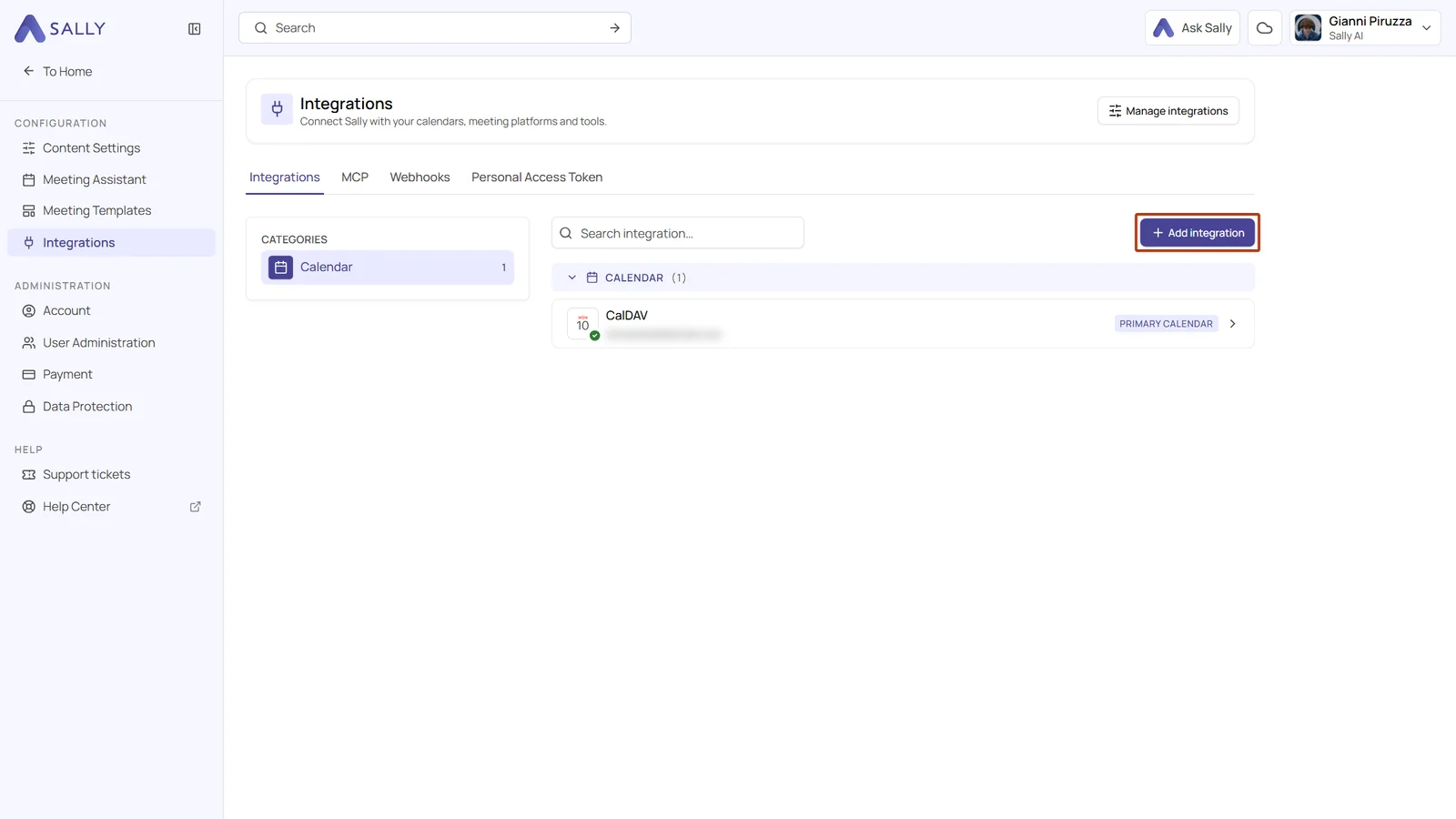
- Pick the HR category on the left, then select HR4YOU. The search bar at the top takes you straight there as well.
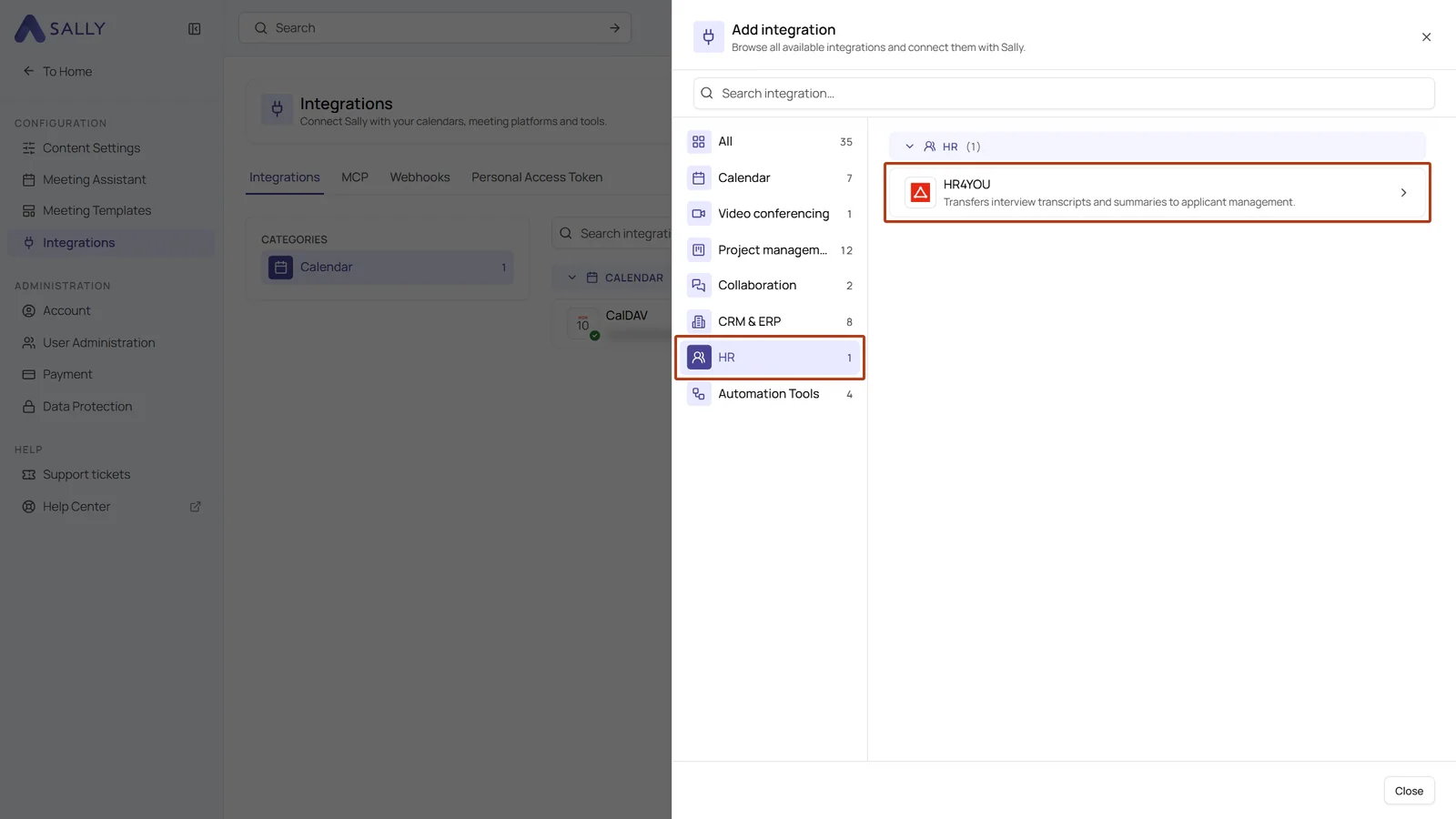
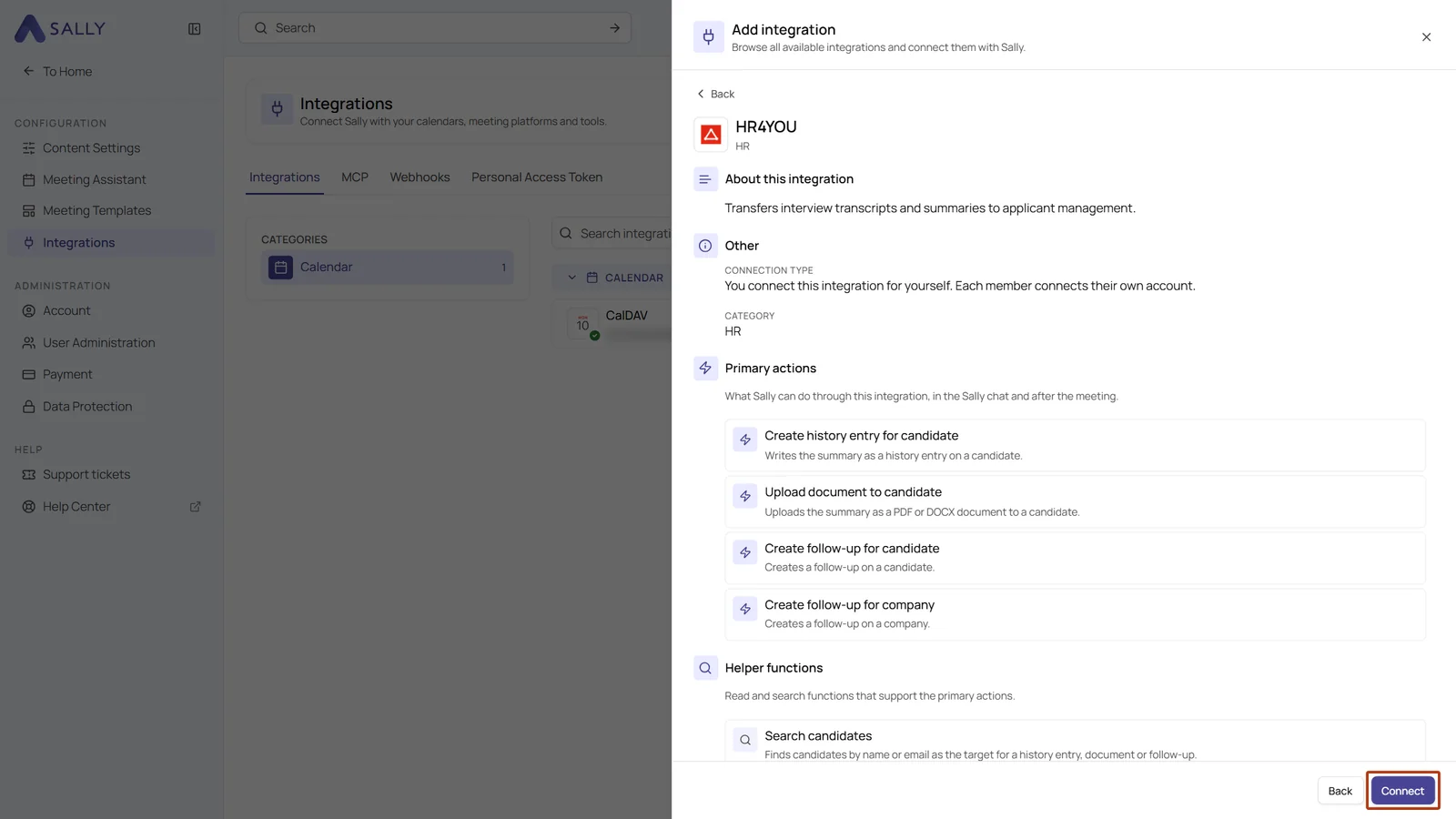
- The panel on the right tells you what the integration transfers. Click Connect in the bottom right.
- In the Connect HR4YOU dialog, enter the address of your HR4YOU system under Customer system, for example
https://yourcompany.hr4you.org. The easiest way is to copy it from your browser's address bar while HR4YOU is open. - Enter your HR4YOU username and password and click Connect. Sally signs in to HR4YOU with them and only stores your credentials if the sign-in works.
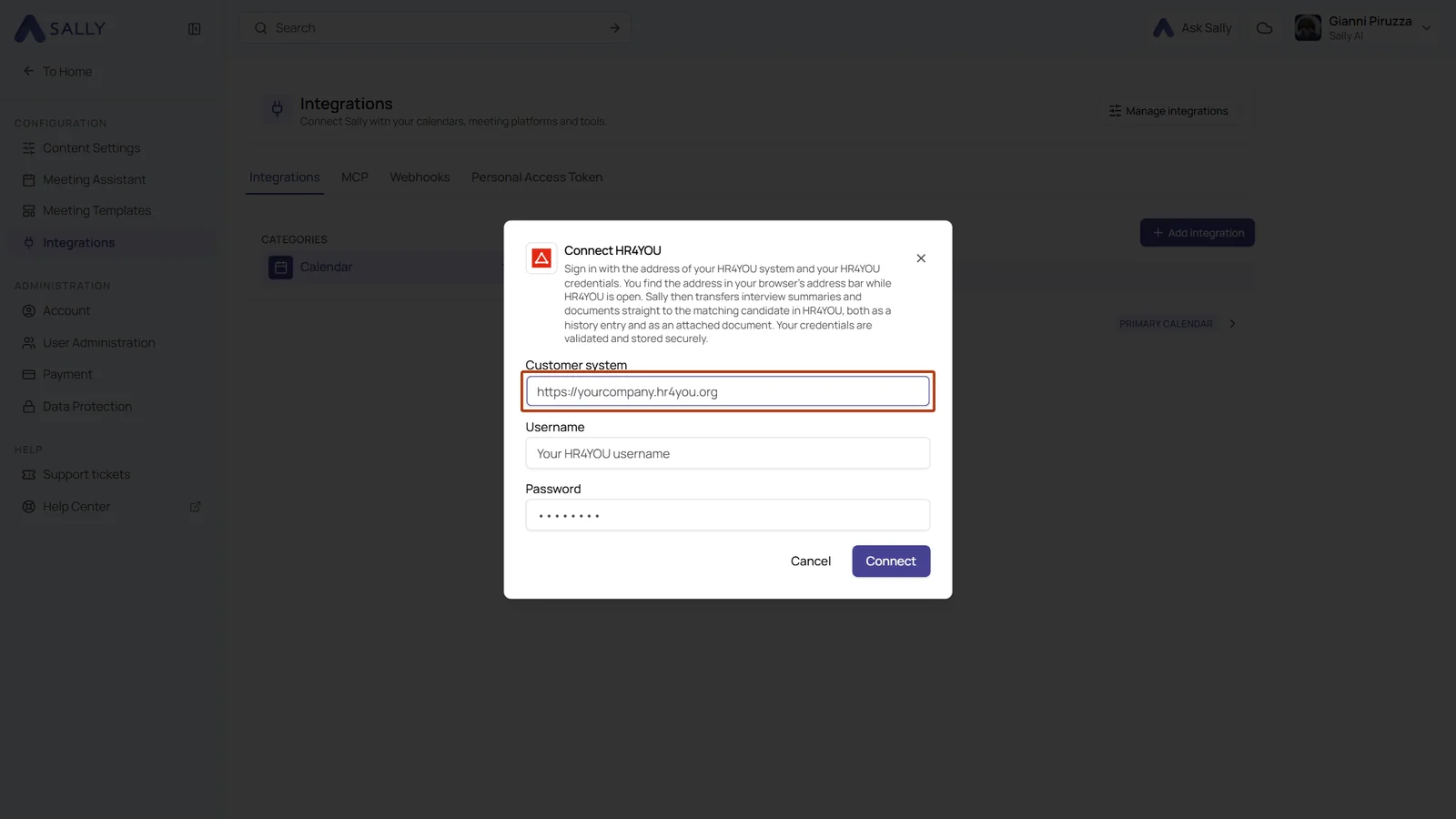
- Sally only accepts addresses that start with
https://and belong to.hr4you.org. Your credentials are sent to exactly this address, which is why Sally rejects any other. - If you copied a path along with it, such as
/bewerber/4, that is fine. Sally only stores the address up to.hr4you.org. - If your HR4YOU runs on a domain of its own, try the
.hr4you.orgaddress first, it usually forwards to your system. If that does not work, contact support and we will allow your domain.
If your HR4YOU system only accepts requests from approved IP addresses, Sally's addresses have to be on that list: 167.233.210.254, 167.235.234.62 and 46.225.144.3. Otherwise the connection fails even though your username and password are correct.
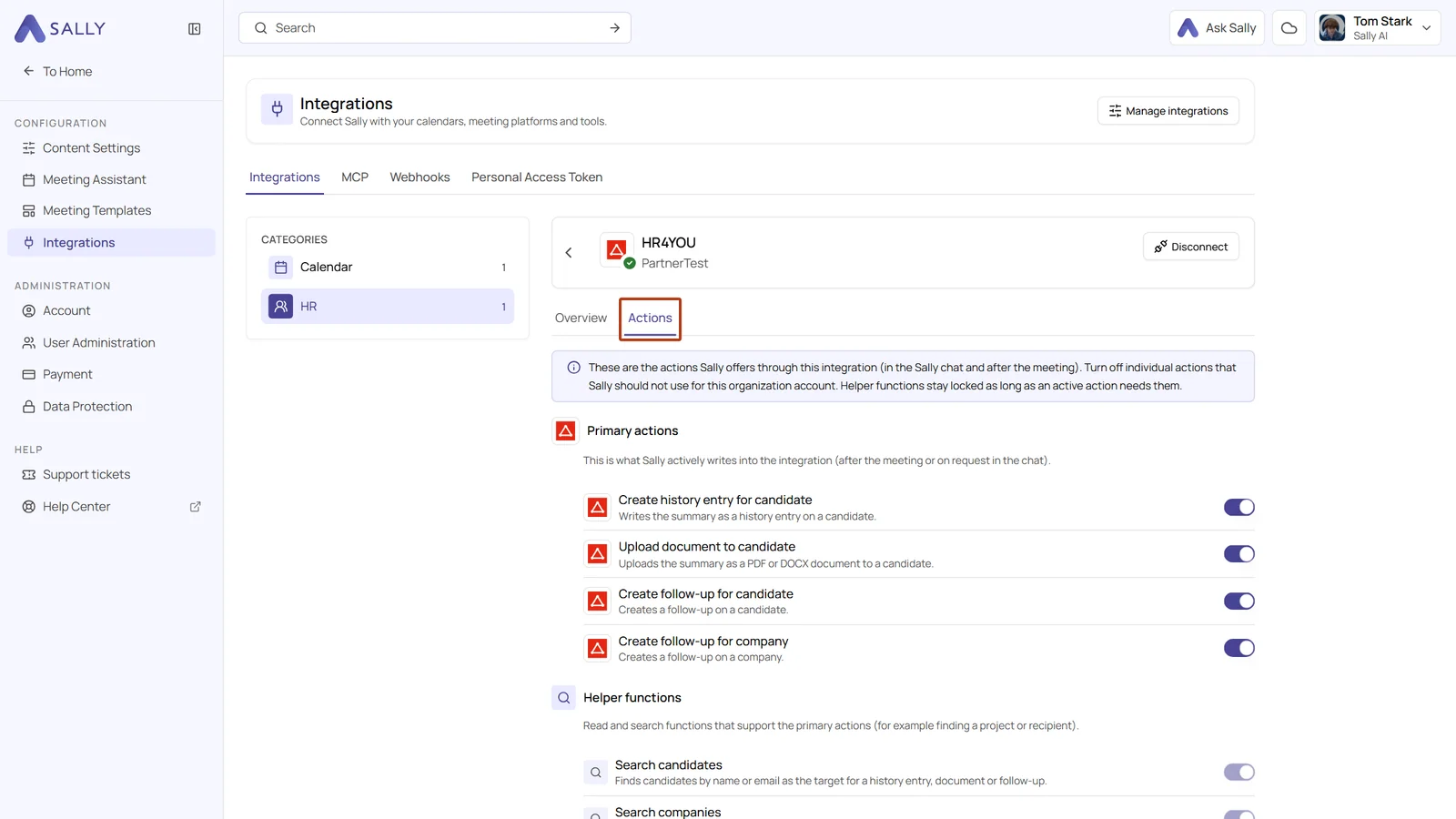
- Once you have signed in, HR4YOU is connected. The Actions tab shows what Sally offers through this integration and lets you switch off individual actions for the organization account. Helper functions such as Search candidates stay locked while an active action needs them. Disconnect in the top right ends the connection again.
Whether an integration may be connected at all is up to owners and admins, see managing integrations for your users.
2. How do I send interview results to HR4YOU?
Once HR4YOU is connected, a few clicks are enough to send content from a recording to the matching applicant or company.
Open the recording you want on the Summary tab. The Integrations icon sits in three places, and where you click decides what Sally puts into the form:
- Integrations in the top right of the recording sends the whole summary.
- The icon in the top right of a section, such as Decisions or Tasks, sends that section.
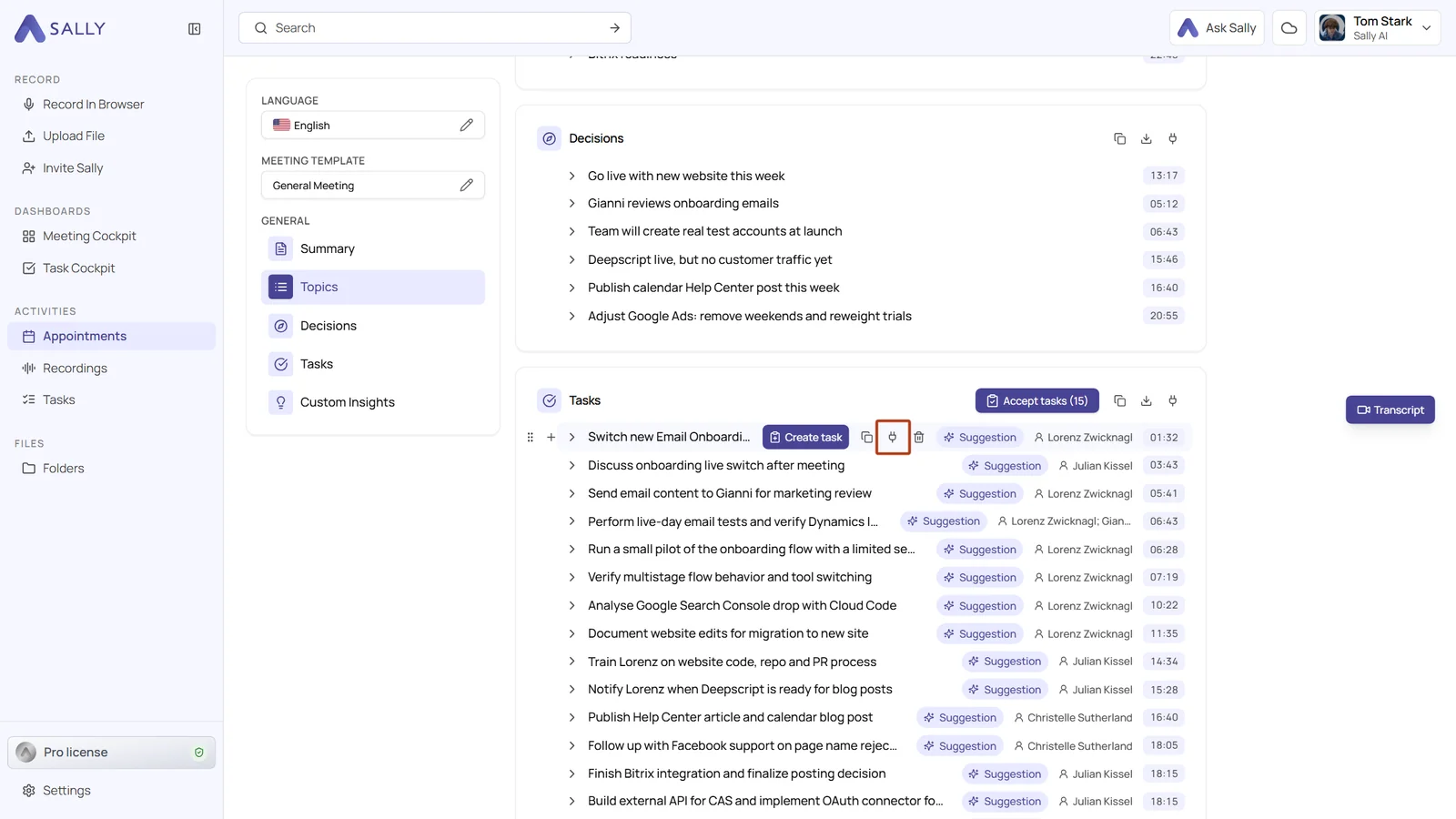
- The icon on a single line sends exactly that item, for example one task. It appears as soon as you move your mouse over the line.
- Move your mouse over the line you want to send to HR4YOU and click the Integrations icon.
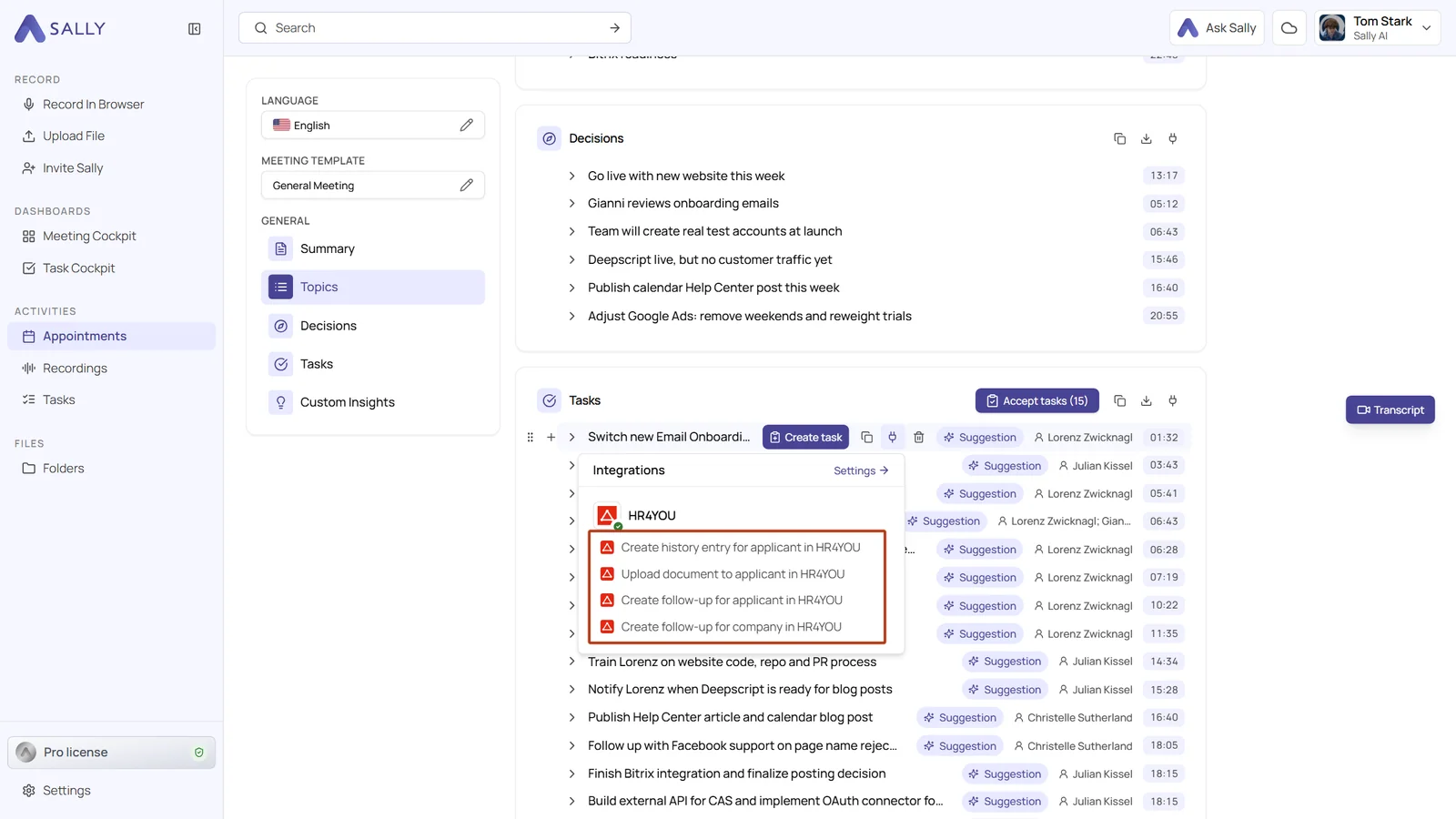
- Pick one of the four HR4YOU actions in the menu. The form opens on the right, prefilled with the content of that line.
You can:
- Create a history entry for an applicant
- Upload a document to an applicant
- Create a follow-up for an applicant
- Create a follow-up for a company
- History entry for the outcome of the interview, right in the applicant's history.
- Document for the full summary as a PDF or Word file in the applicant's file.
- Follow-up for an applicant for everything that still needs doing with the applicant after the interview.
- Follow-up for a company for next steps with the client, such as feedback on the candidate.
You pick applicants and companies from a list. For applicants it shows the name and email address, for companies the name and location. Typing in the field narrows the list down. In HR4YOU every entry shows the time you sent it under Created on.
2.1. Create a history entry for an applicant
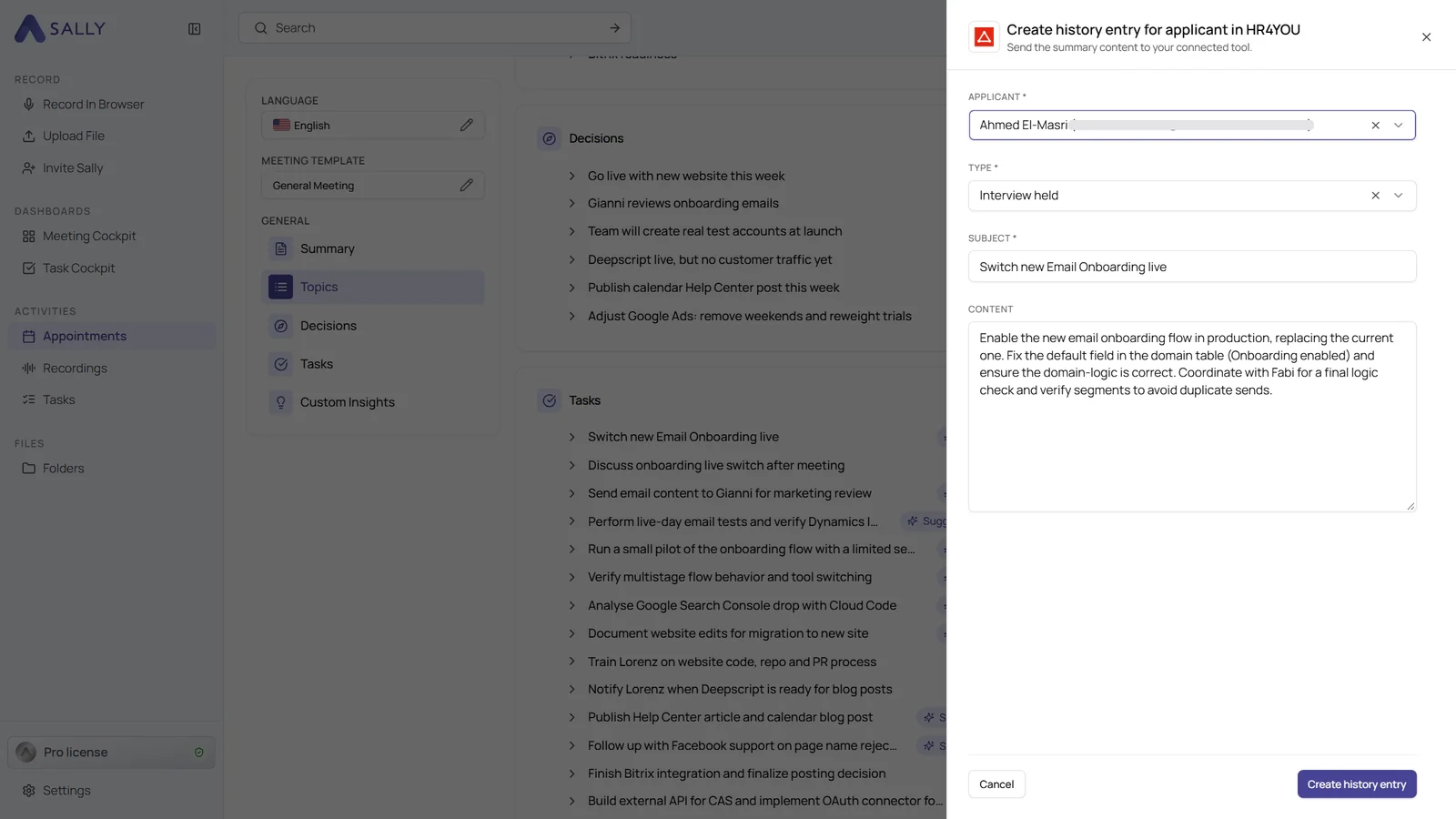
- In the Integrations menu, select Create history entry for applicant in HR4YOU.
- Select the Applicant.
- Select the Type of the entry. The list shows the history texts from your HR4YOU, for example "Interview held". This type is preselected if your system has it.
- Check Subject and Content. Both are prefilled from the summary and can be changed before you send.
- Click Create history entry.
- Sally confirms which applicant received the entry. In HR4YOU you find it in the applicant's history.
Check the name in the confirmation. That way you notice right away if you picked an applicant with a similar name by mistake.
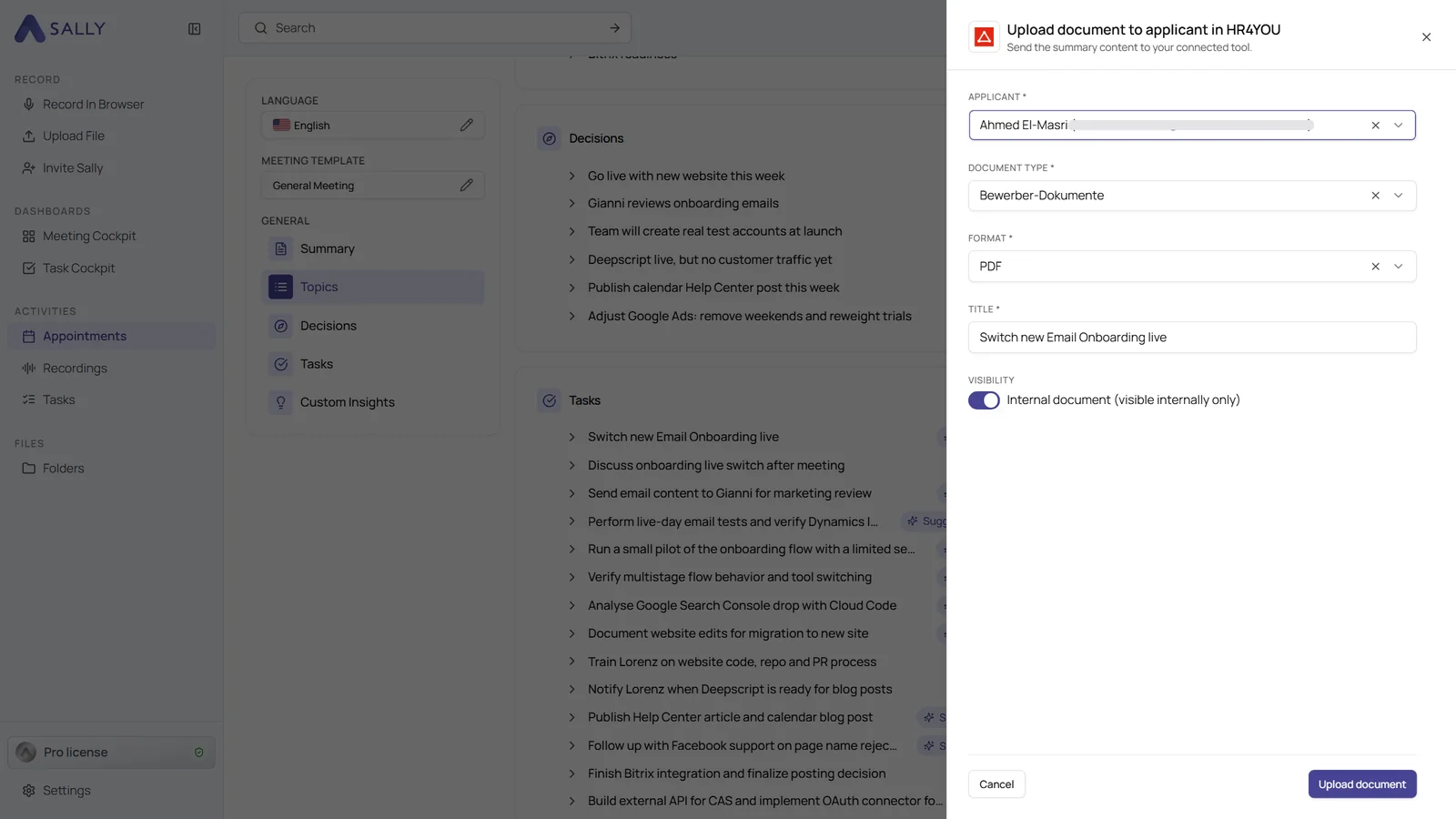
2.2. Upload a document to an applicant
- In the Integrations menu, select Upload document to applicant in HR4YOU.
- Select the Applicant.
- Select the Document type. Applicant documents are preselected if your system has this type.
- Choose the Format, PDF or Word (DOCX), and check the Title.
- Under Visibility, Internal document (visible internally only) is switched on. Leave it on if only your team should see the document in HR4YOU.
- Click Upload document. Sally creates the summary of the recording as a file, just like the download, and attaches it to the applicant.
2.3. Create a follow-up for an applicant
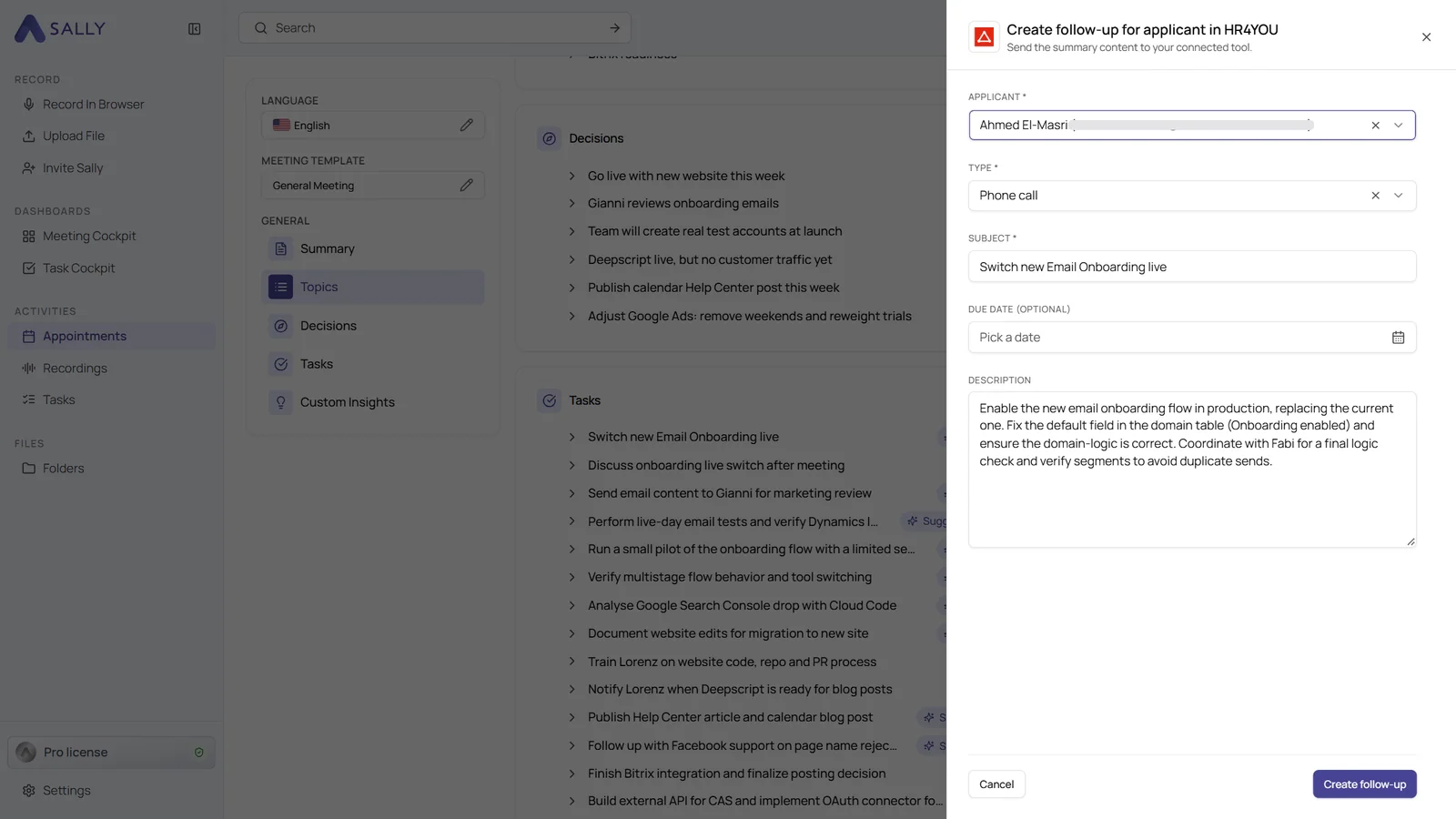
- In the Integrations menu, select Create follow-up for applicant in HR4YOU.
- Select the Applicant and the Type of follow-up. The list shows the follow-up texts from your HR4YOU, for example "Phone call".
- Check the Subject and set a date under Due date if needed. The date is optional.
- Check the Description. If you start the action for the whole summary, it only contains the tasks Sally detected in the meeting. From a section or a single line, Sally takes exactly that content.
- Click Create follow-up. In HR4YOU you are set as the person responsible.
2.4. Create a follow-up for a company
- In the Integrations menu, select Create follow-up for company in HR4YOU.
- Select the Company and the Type of follow-up.
- Check Subject, Due date (optional) and Description.
- Click Create follow-up.
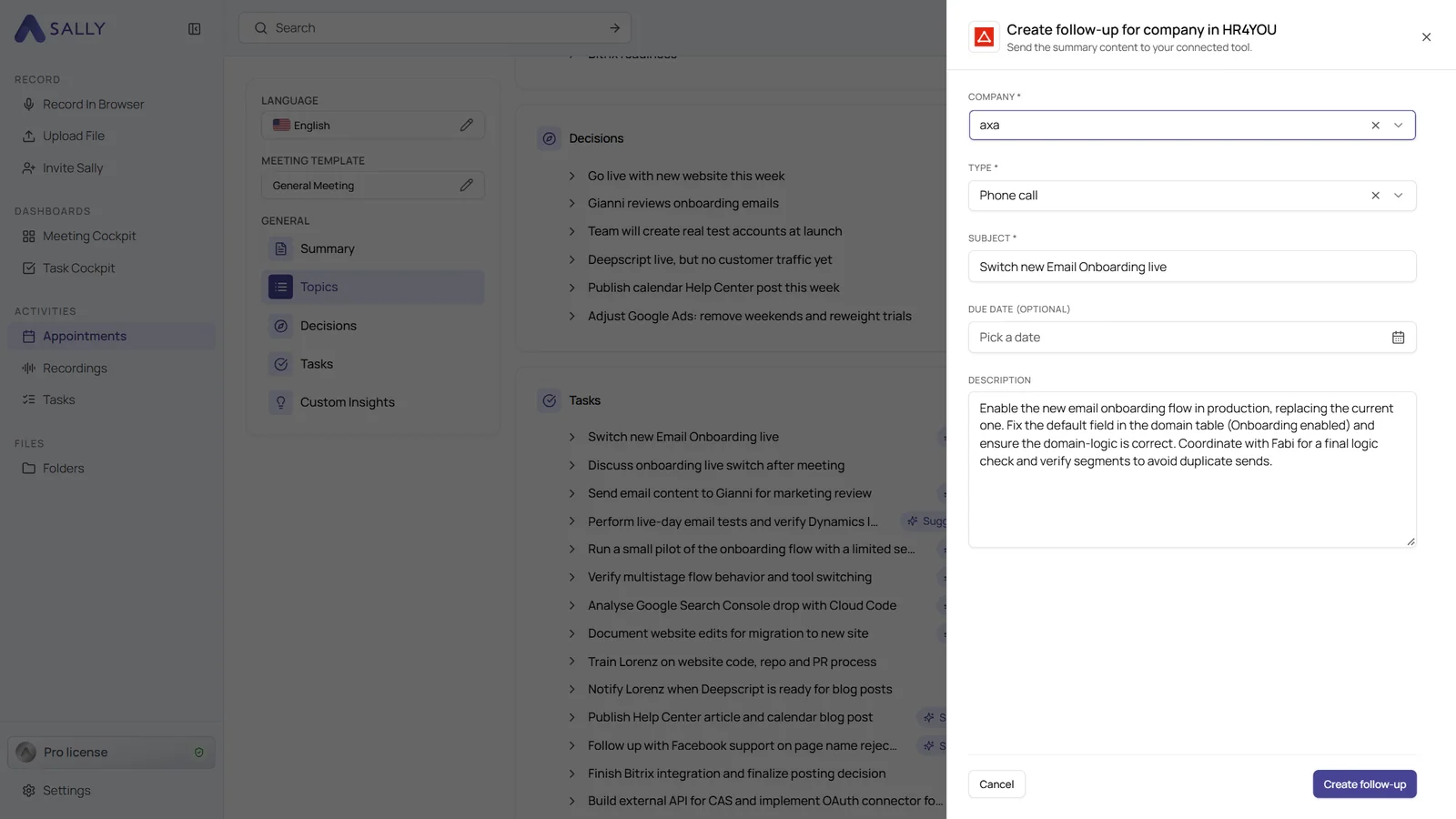
Create the follow-up with a due date right after the interview. HR4YOU then reminds you in time to get back to the client.
3. If the connection fails
| Message | What you can do |
|---|---|
| Please enter the address of your HR4YOU system | Check the Customer system field. The address has to start with https:// and belong to .hr4you.org. |
| The connection to HR4YOU could not be established | Check your username and password, ideally by signing in to HR4YOU directly. If both are correct, the IP allowlist is often missing. |
| HR4YOU is no longer connected | The stored sign-in is no longer valid, for example after a password change. Reconnect HR4YOU under Integrations. |
| No consultant profile was found for this HR4YOU account | To upload documents, your HR4YOU user needs a consultant profile. Ask your HR4YOU admin to create one, then reconnect HR4YOU. |