Connect an external MCP
At Sally, we distinguish between internal and external MCP connections. Internal MCP connections are the tools we offer a direct connection for, such as Claude, ChatGPT or Cursor. You can find them under AI agents (MCP). If you want to connect a third-party tool that has no direct connection, read on.
With an external MCP server you attach a third-party tool to Sally. Sally then uses its tools and data in chats and automations, for example to look up a project in your project management tool or to read from an internal knowledge base. This guide shows how to add a server, which sign-in method fits which server and how to connect and test it. It also covers the two methods for servers that do not register clients automatically: OAuth 2.1 with client ID, where you enter a client ID from the provider, and OAuth 2.1 client credentials, where Sally signs in without anyone logging in.
Quick navigation
- Add a server
- Choose the sign-in method
- Visibility, requirement and shared login
- Connect, test and manage
- Common questions
1. Add a server
- The address of the MCP server. It must start with
https://. Internal or local addresses are not allowed. - The sign-in details from the provider of the server, if it needs any: an API key, or a client ID and client secret.
- Anyone can add a personal MCP server. Only owners and admins can add servers for the whole organization.
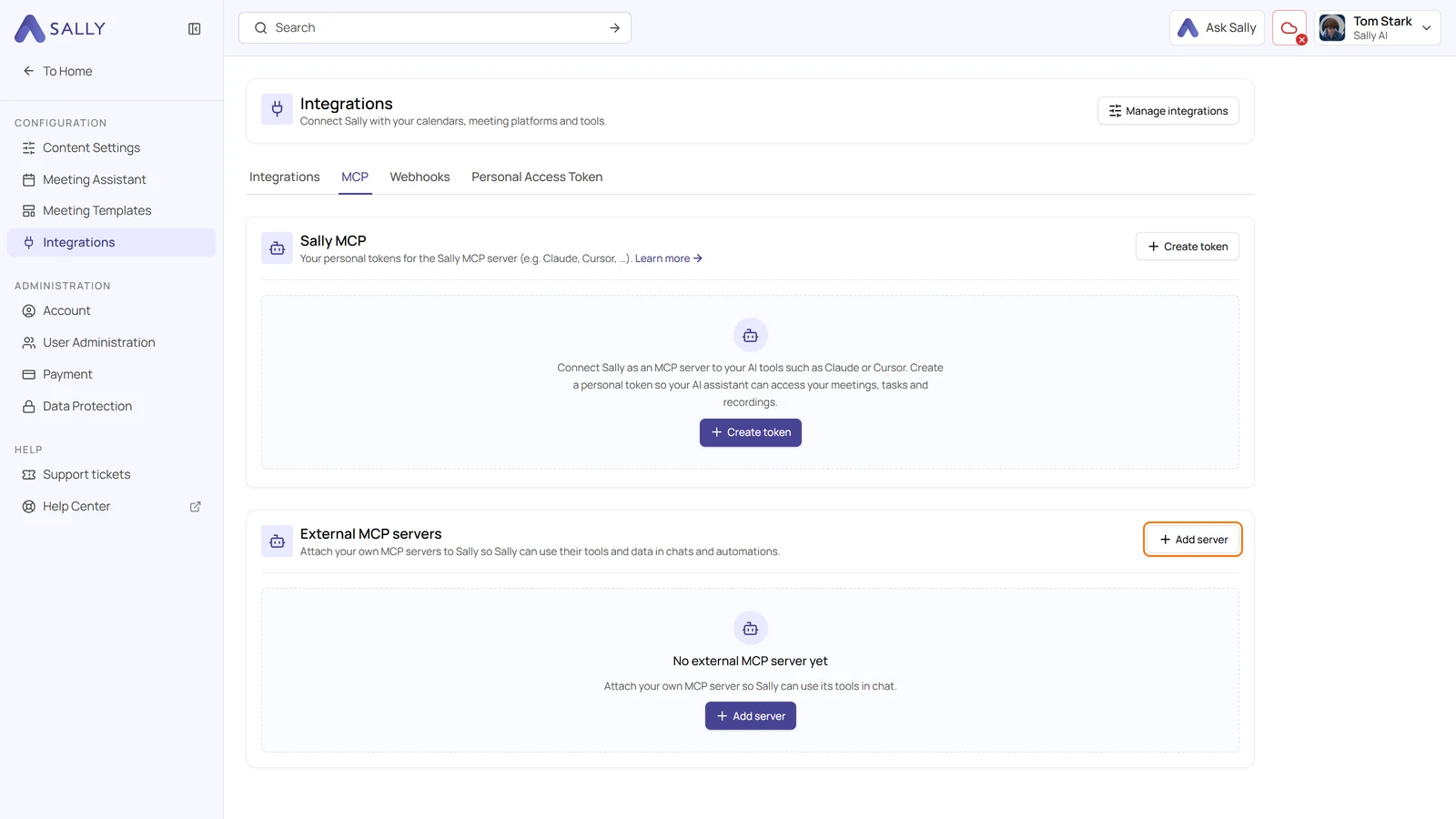
- Open Settings › Integrations and switch to the MCP tab.
- In the External MCP servers section, click Add server.
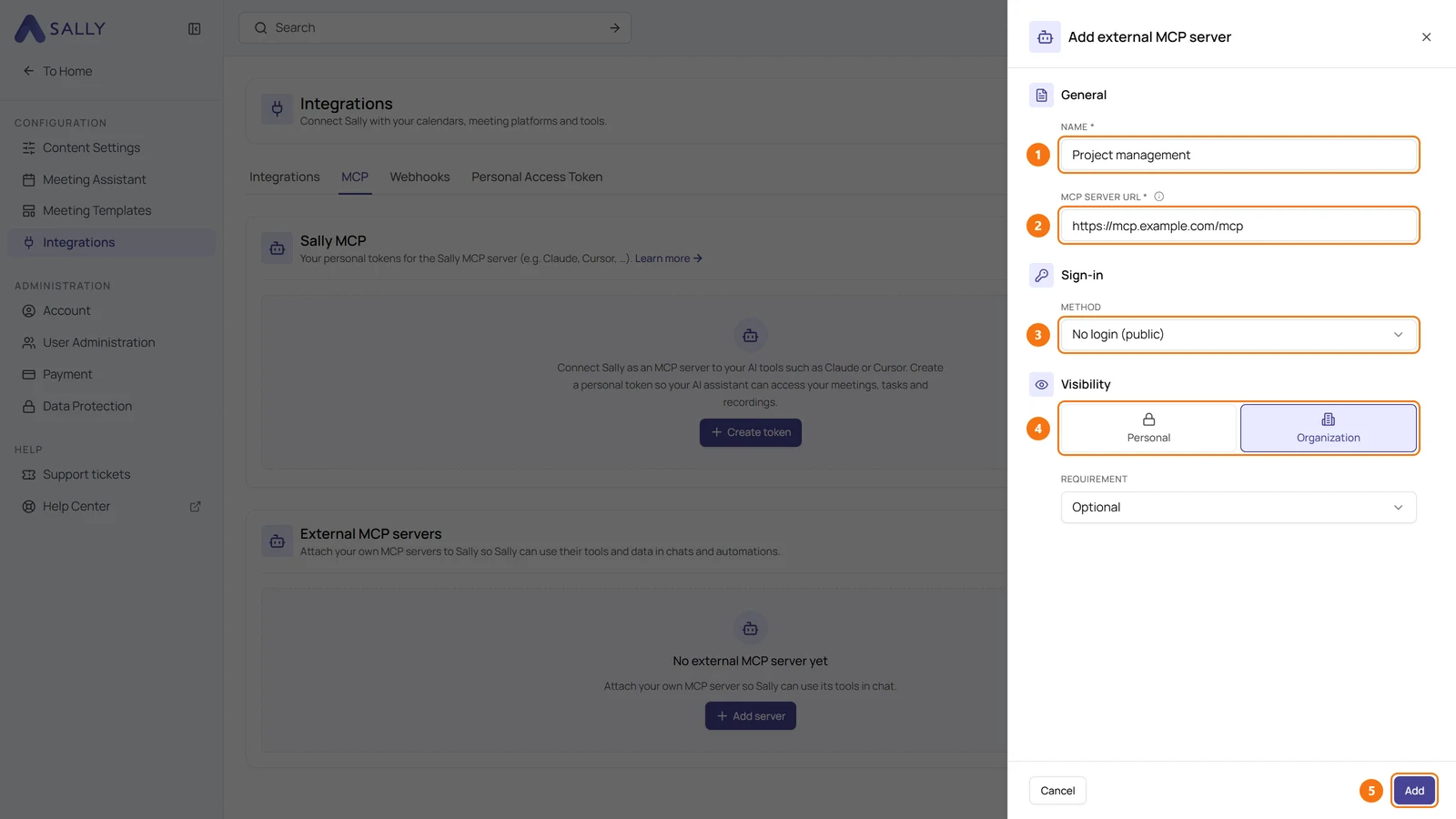
- Under General, enter a Name that tells everyone what the server is for, and the MCP server URL, for example
https://mcp.example.com/mcp. - Under Sign-in, pick a Method, see the next section.
- Under Visibility, decide who sees the server, see Visibility, requirement and shared login.
- Click Add.
2. Choose the sign-in method
Which method you need depends on the server, not on Sally. The documentation of the provider usually says how its MCP server expects clients to sign in.
| Method | When to use it | What you enter |
|---|---|---|
| No login (public) | The server is publicly reachable and needs no sign-in. | Nothing |
| API key | The provider gives you a key. Sally sends it with every request. | The key, after saving, via Connect. Optionally a Header name if the server expects something other than Authorization: Bearer, for example X-API-Key. |
| OAuth 2.1 (login) | The server supports OAuth with automatic client registration. Sally finds and registers everything itself. | Nothing, you sign in after saving via Connect |
| OAuth 2.1 with client ID | The server uses OAuth, but issues client IDs only on request, for example MeisterTask. | Client ID and, if the provider issued one, Client secret |
| OAuth 2.1 client credentials (no login) | Sally should sign in as an application, without a person logging in. | Client ID and Client secret |
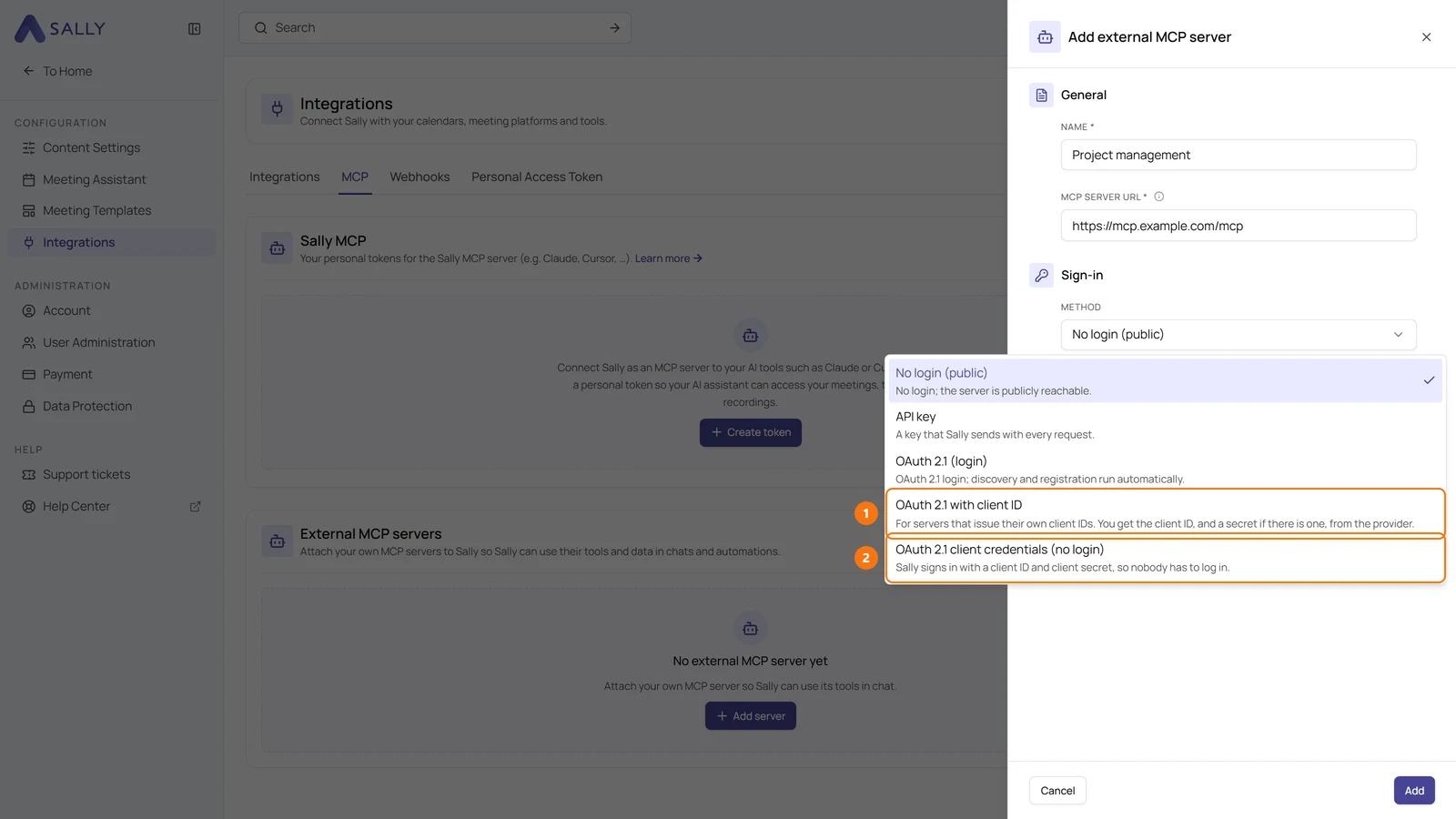
Start with OAuth 2.1 (login). If connecting fails with the message that the server issues client IDs only on request, the server does not support automatic registration. Then switch to OAuth 2.1 with client ID.
2.1. OAuth 2.1 with client ID
Use this method when the provider of the MCP server issues client IDs itself. You request the client ID at the provider, and Sally skips the automatic registration. Sally does not issue client IDs.
- In the drawer, select OAuth 2.1 with client ID as the Method.
- Copy the Redirect URI with the copy button next to it. The provider may also call it a callback URL.
- Request a client ID at the provider of the MCP server and enter the redirect URI there.
- Enter the Client ID you got from the provider in Sally.
- Enter the Client secret (optional) only if the provider issued one.
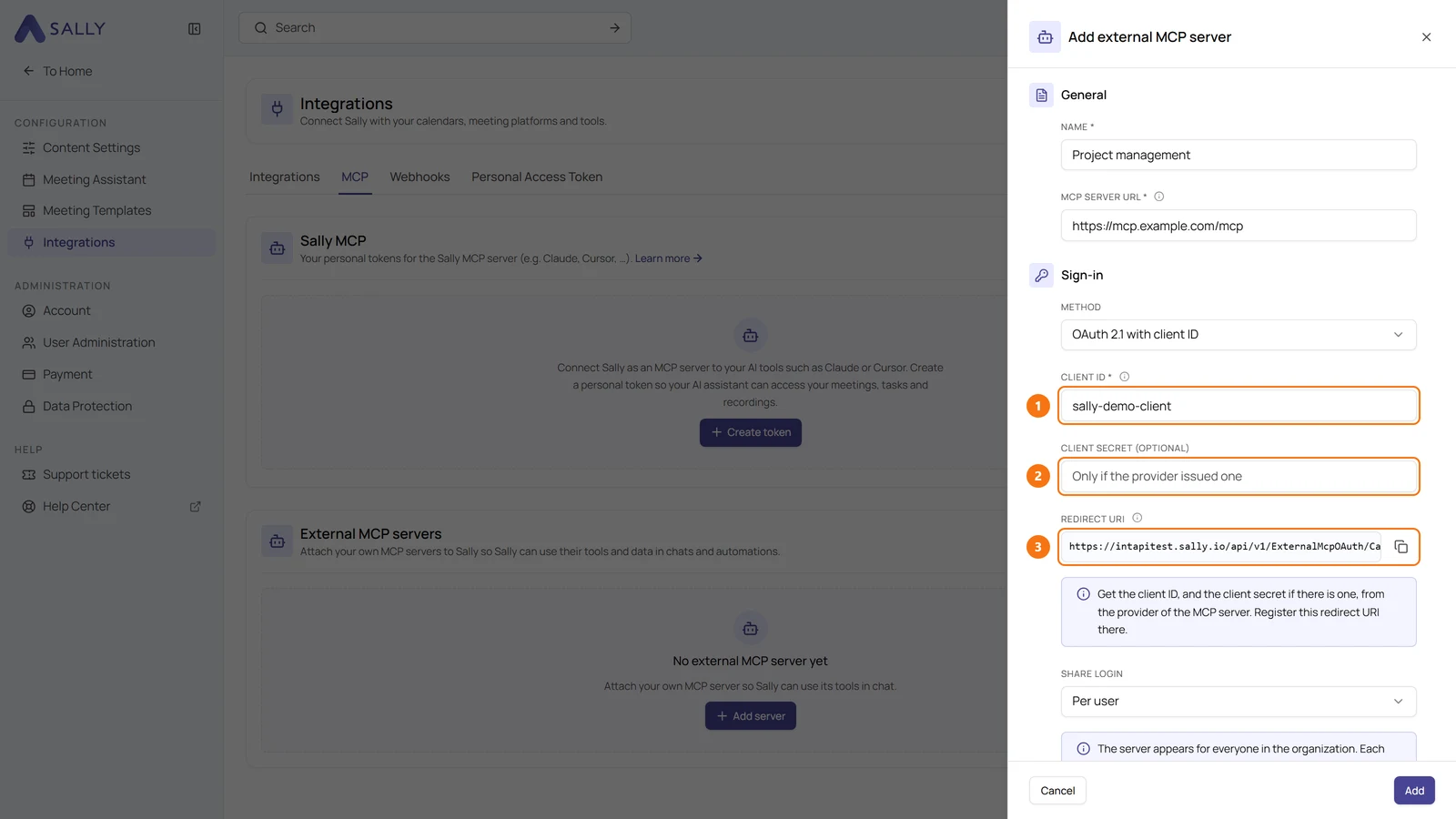
- Click Add. Then click Connect next to the server in the list and sign in at the provider.
2.2. OAuth 2.1 client credentials
With client credentials, Sally signs in with a client ID and a client secret as an application. Nobody has to log in, and there is no redirect URI.
- In the drawer, select OAuth 2.1 client credentials (no login) as the Method.
- Enter the Client ID and the Client secret from the provider. Both fields are required.
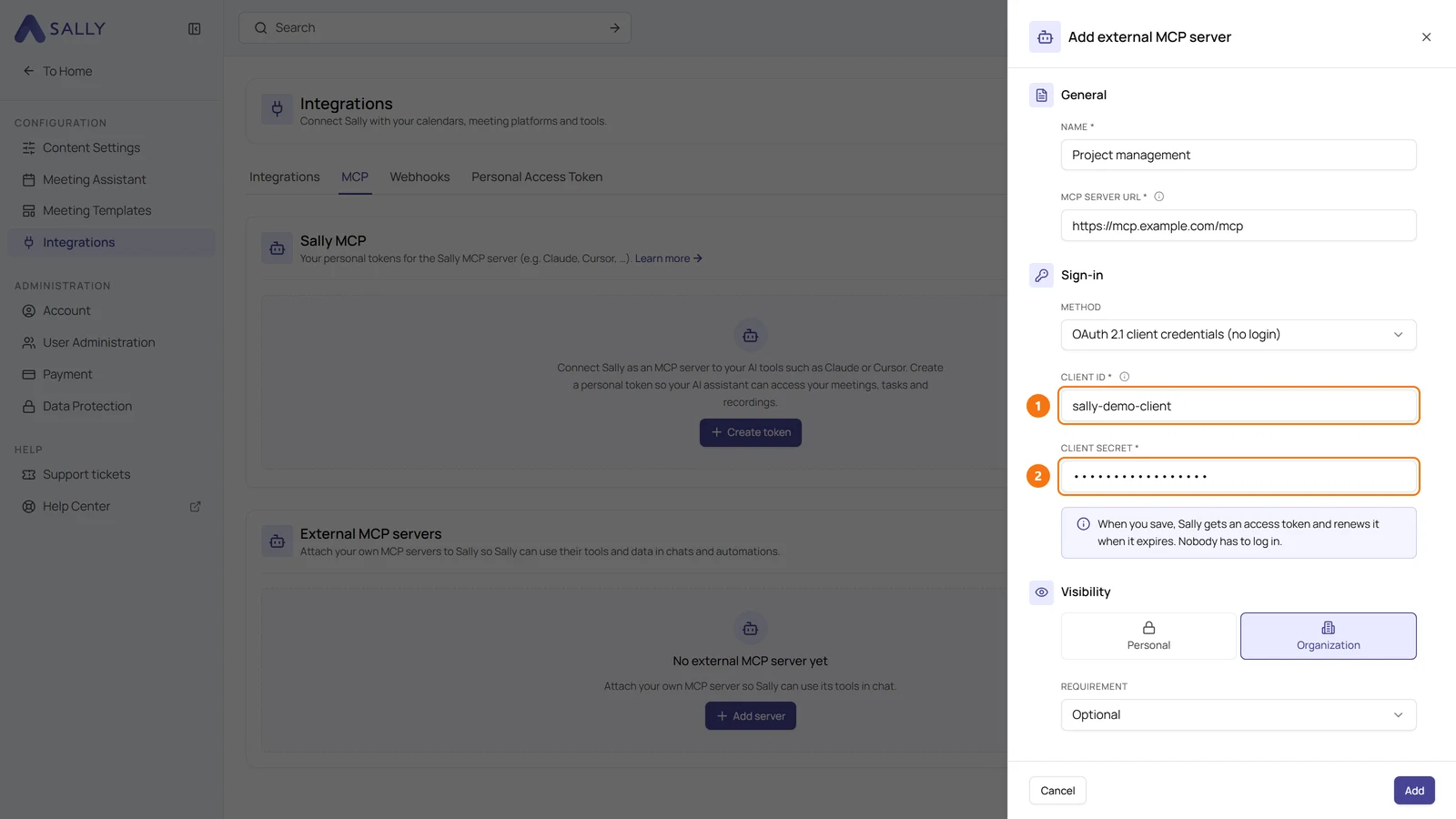
- Click Add. Sally gets an access token right away and renews it itself when it expires.
If the provider rejects the sign-in, Sally still saves the server and tells you the reason, for example invalid_client for a wrong secret. Correct the details via Edit.
Sally never shows a saved client secret again. When you edit the server, the field says Saved. Leave empty to keep it. Only enter a new secret if you want to replace it.
3. Visibility, requirement and shared login
The Visibility section decides who sees the server. You can only choose it when you add the server, afterwards it is fixed.
- Personal: only you see and use the server. Anyone can add personal servers.
- Organization: the server applies to the whole organization. Only owners and admins can choose this.
For organization servers, two more settings appear:
- Requirement: Optional means the server is active for everyone, but anyone can turn it off for themselves. Mandatory means nobody can turn it off.
- Share login (with the methods API key, OAuth 2.1 and OAuth 2.1 with client ID): Per user means everyone connects with their own login. Organization-wide (shared) means an owner or admin connects once and everyone uses the same login. With client credentials this setting does not appear, because Sally signs in once for everyone anyway.
4. Connect, test and manage
After saving, the server appears in the list with its status:
| Status | Meaning |
|---|---|
| Connected | Sally can use the tools of the server. |
| Not connected | The sign-in is still missing. Click Connect. |
| Awaiting admin | The login is shared organization-wide, and an owner or admin still has to connect it. |
| Token expired | The access is no longer valid. Connect again. |
| Disabled | The server is turned off. |
Under More actions (the three dots next to a server) you find:
- Test connection: Sally connects and reports how many tools it found, for example "Connected. Found 12 tools."
- Edit, Disconnect and Delete
- Enable and Disable, or Turn off for me for optional organization servers
5. Common questions
What does "This server issues client IDs only on request" mean?
The server supports OAuth, but no automatic client registration. Edit the server, select OAuth 2.1 with client ID as the method and enter the client ID you got from the provider. Steps in OAuth 2.1 with client ID.
Where do I get a client ID and client secret?
From the provider of the MCP server, usually in its developer or integration settings. Sally does not issue client IDs. For OAuth 2.1 with client ID, also enter Sally's redirect URI there.
What is the difference between OAuth 2.1 with client ID and client credentials?
With client ID, a person signs in at the provider, and Sally acts on their behalf. With client credentials, Sally signs in as an application with ID and secret, nobody logs in. Which one works depends on what the provider supports.
Why does Sally reject my server address?
The address must start with https:// and must be reachable from the internet. Internal or local addresses and private IP addresses are not allowed.
Who can add external MCP servers?
Anyone can add personal servers. Servers for the whole organization can only be added and managed by owners and admins.
How is this different from the Sally MCP connector?
The Sally MCP connector works the other way round: an AI tool such as Claude, ChatGPT or Cursor reads your Sally data. External MCP servers give Sally access to the tools of other services.