How to integrate Capacities with Sally AI
Connect Sally with Capacities to keep your meetings next to the rest of your notes. Sally creates an object for each meeting in your Capacities space, with the summary as text and the tasks as separate Capacities tasks.
You can do this by hand from a recording, or let an automation save every meeting on its own as soon as the summary is ready. This article walks you through connecting, both ways of saving, and what Sally creates in Capacities.
Quick navigation
- Connect Capacities
- Create an object by hand
- Save every meeting automatically
- Good to know
- Disconnect Capacities
1. Connect Capacities
Capacities connects through a personal API key. Every member connects their own Capacities account, and one key belongs to exactly one space. The Capacities API is available from Capacities Pro.
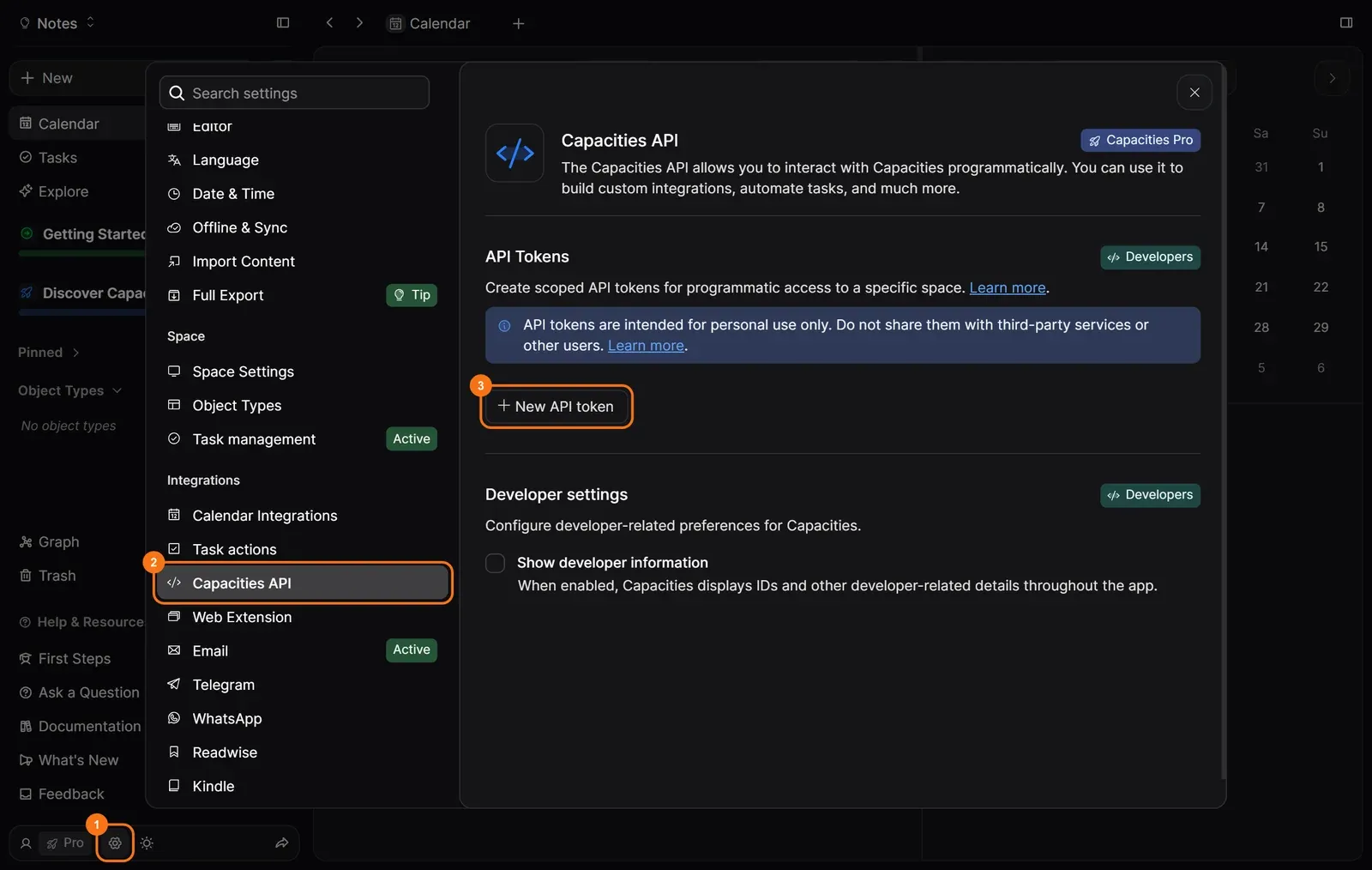
- In Capacities, open the settings with the gear icon at the bottom left and select Capacities API under Integrations. Click New API token, give the token write access to the space Sally should save to, and copy it. Capacities calls the API key an "API token".
Anyone holding the key can write to your Capacities space. Keep it to yourself and don't send it around by chat or email.
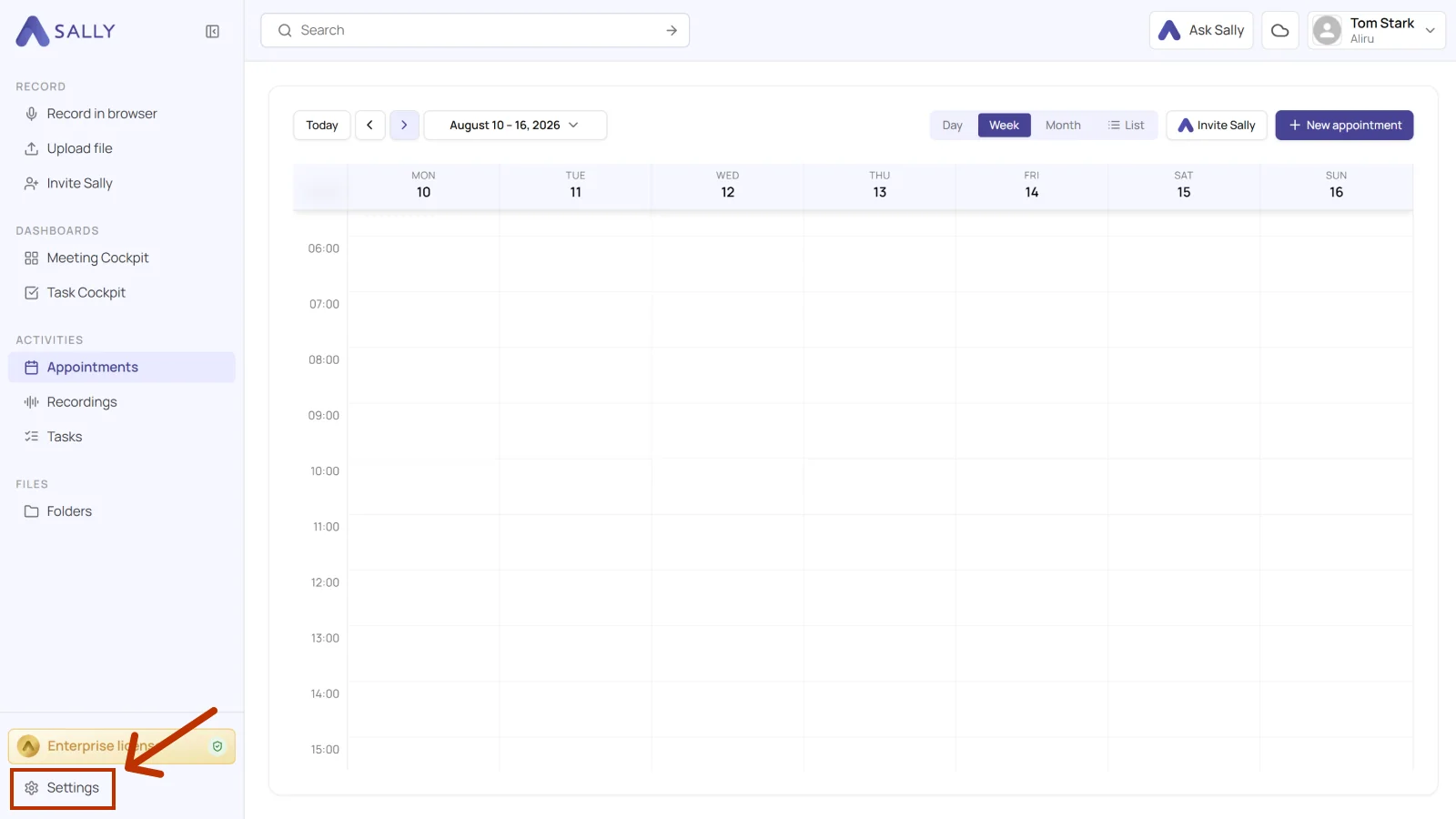
- In Sally, open Settings at the bottom left of the sidebar.
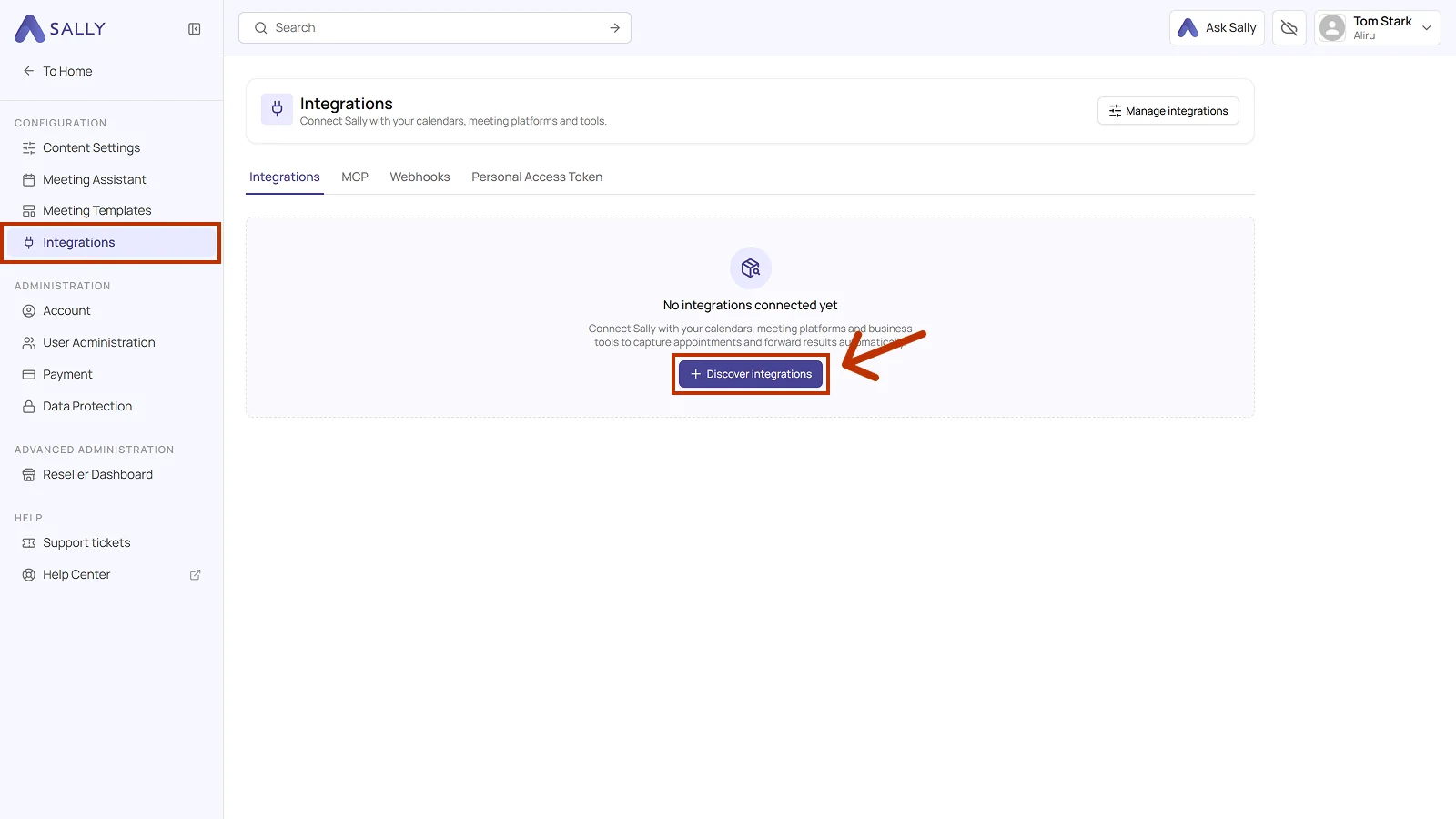
- Under Configuration, select Integrations. If no integration is connected yet, click Discover integrations, otherwise click Add integration in the top right corner.
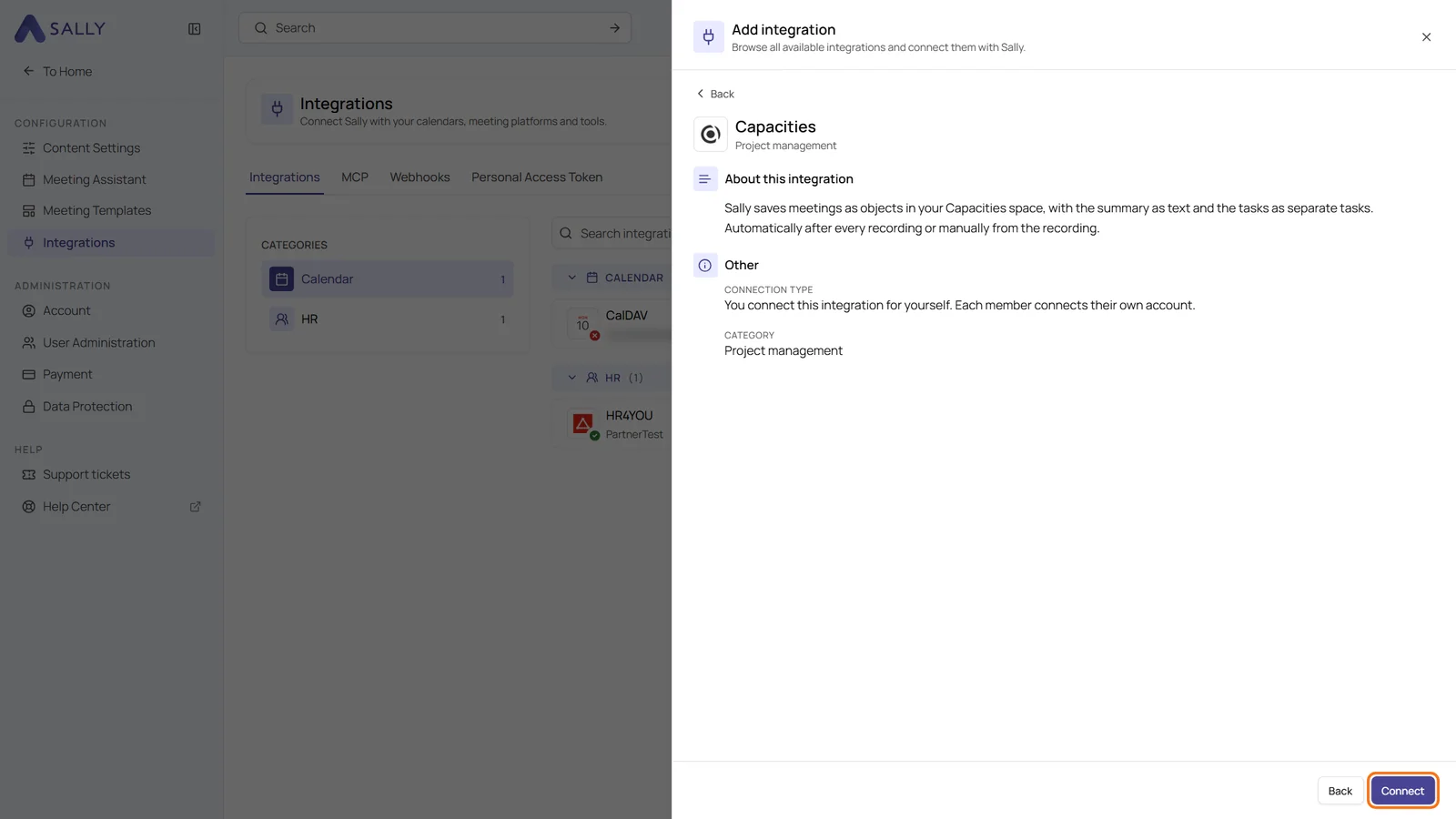
- Pick the Project management category on the left and then Capacities. Click Connect.
- Paste the API key and confirm. Sally checks the key with Capacities right away, so a wrong key is rejected immediately.
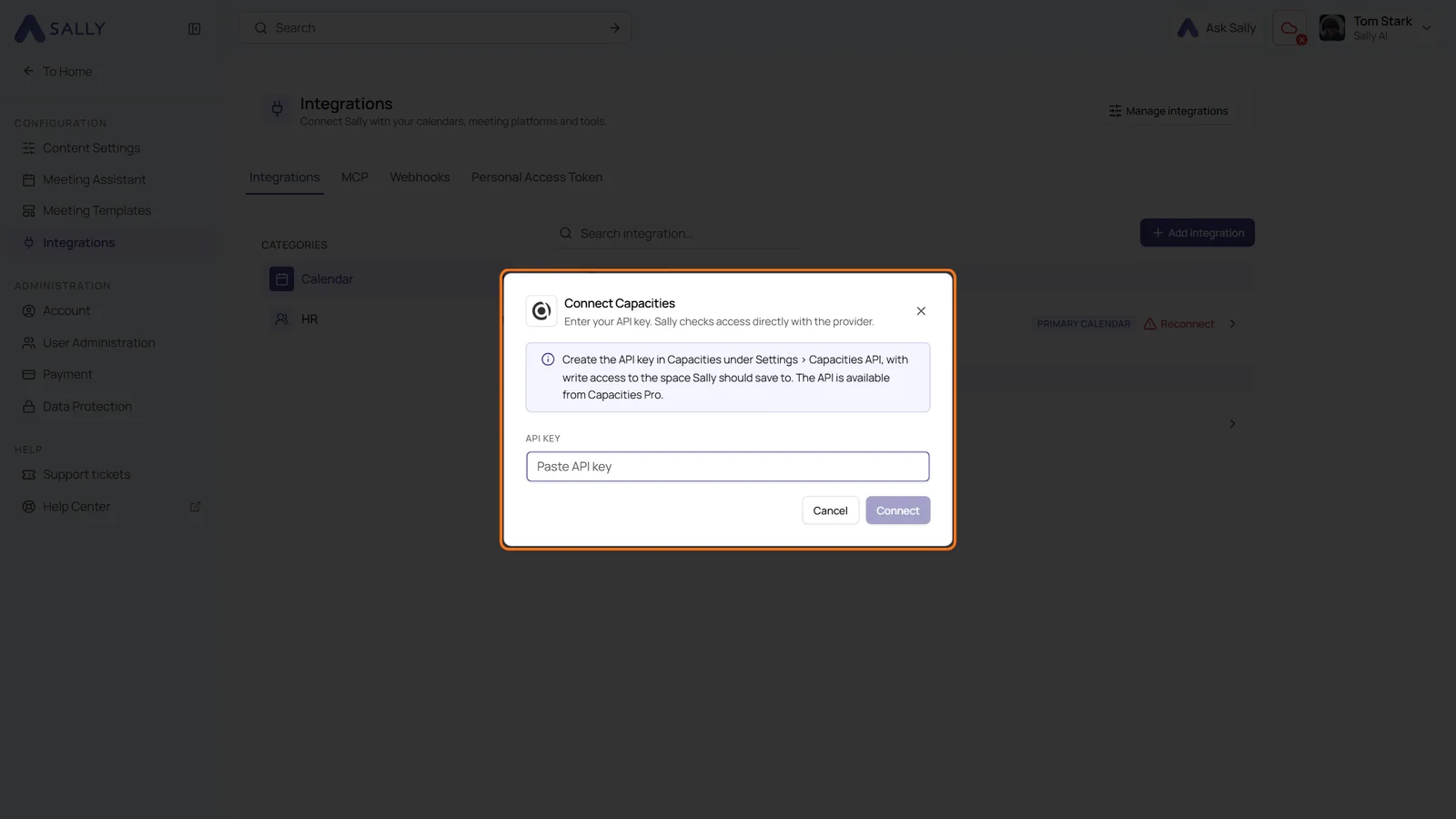
Capacities then appears in your integrations. The connection carries the name of your space. You can also connect Capacities in the Sally app.
2. Create an object by hand
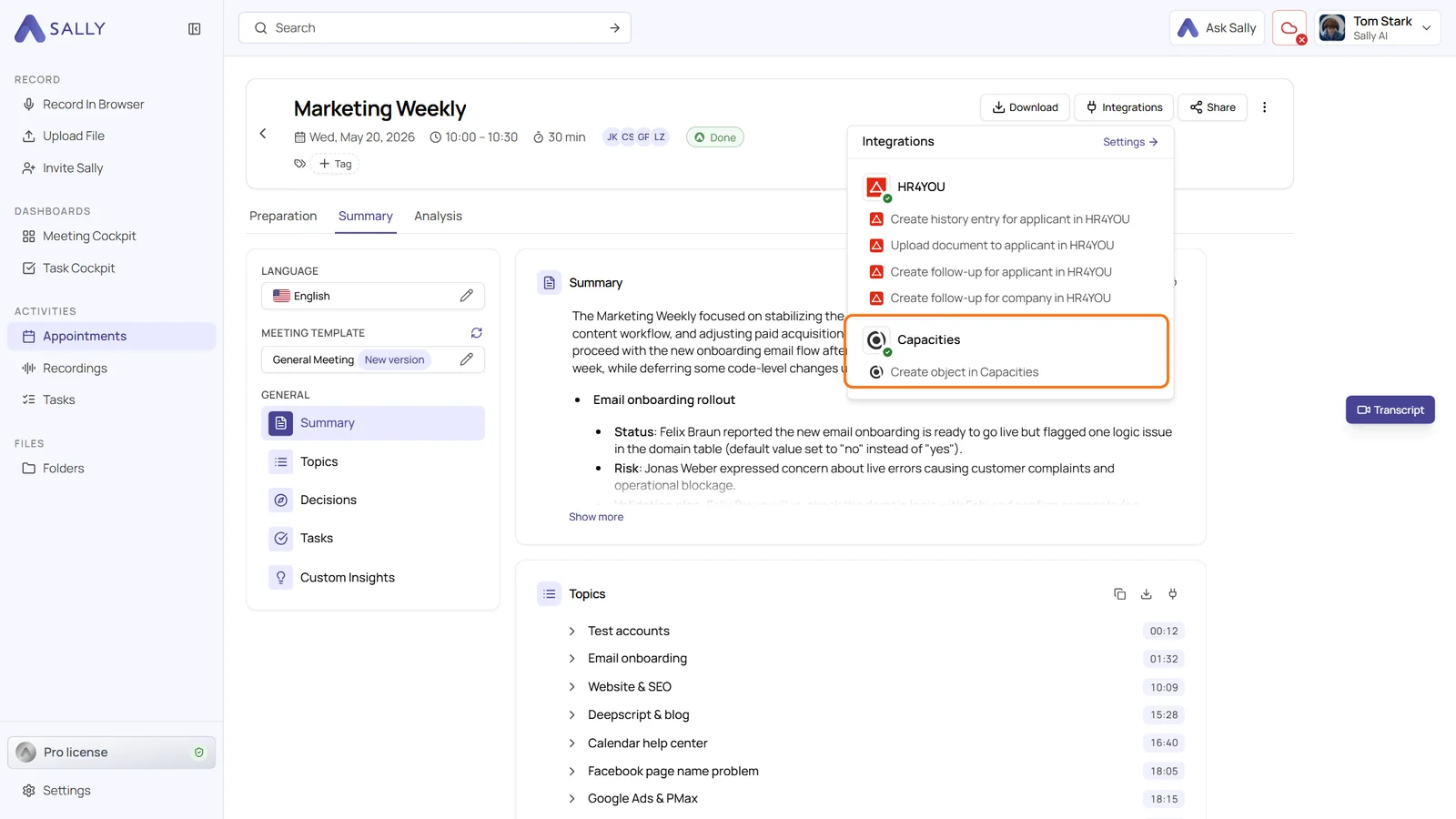
- Open the recording in Sally and click Integrations at the top. Under Capacities, choose Create object in Capacities.
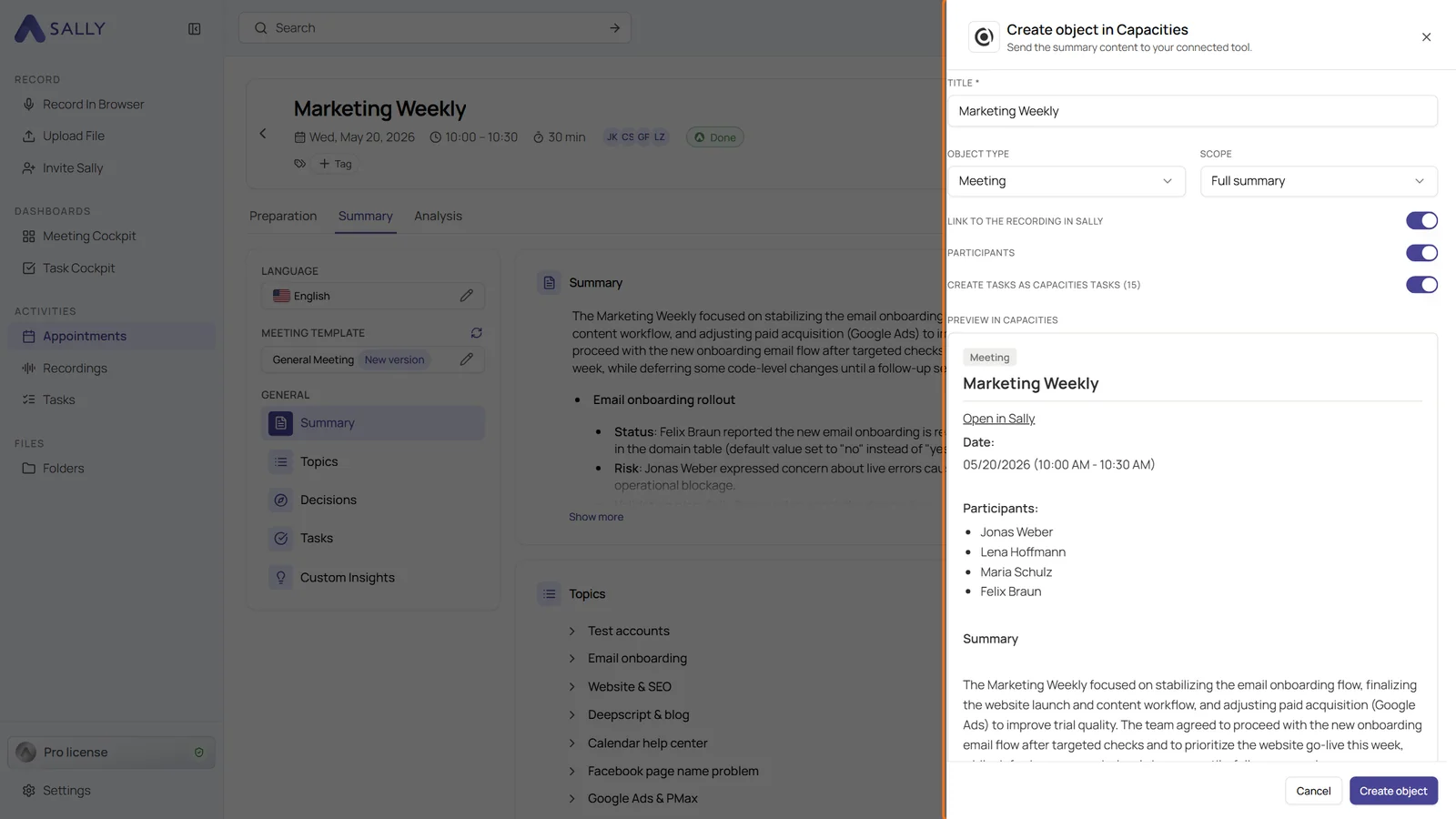
- Check the settings in the form:
- Object type: the Capacities type for the meeting. If your space has a type called "Meeting", it is preselected, otherwise Page.
- Scope: Full summary or Short summary only.
- Link to the recording in Sally and Participants: add them to the object or leave them out.
- Create tasks as Capacities tasks: turns every task of the summary into its own Capacities task.
- Check the Preview in Capacities and click Create object.
The same works in the Sally app. There, the object has no link to the recording.
3. Save every meeting automatically
With an automation, Sally saves your meetings to Capacities without a click, as soon as the summary of a recording is ready. Automations are available with Pro and Enterprise.
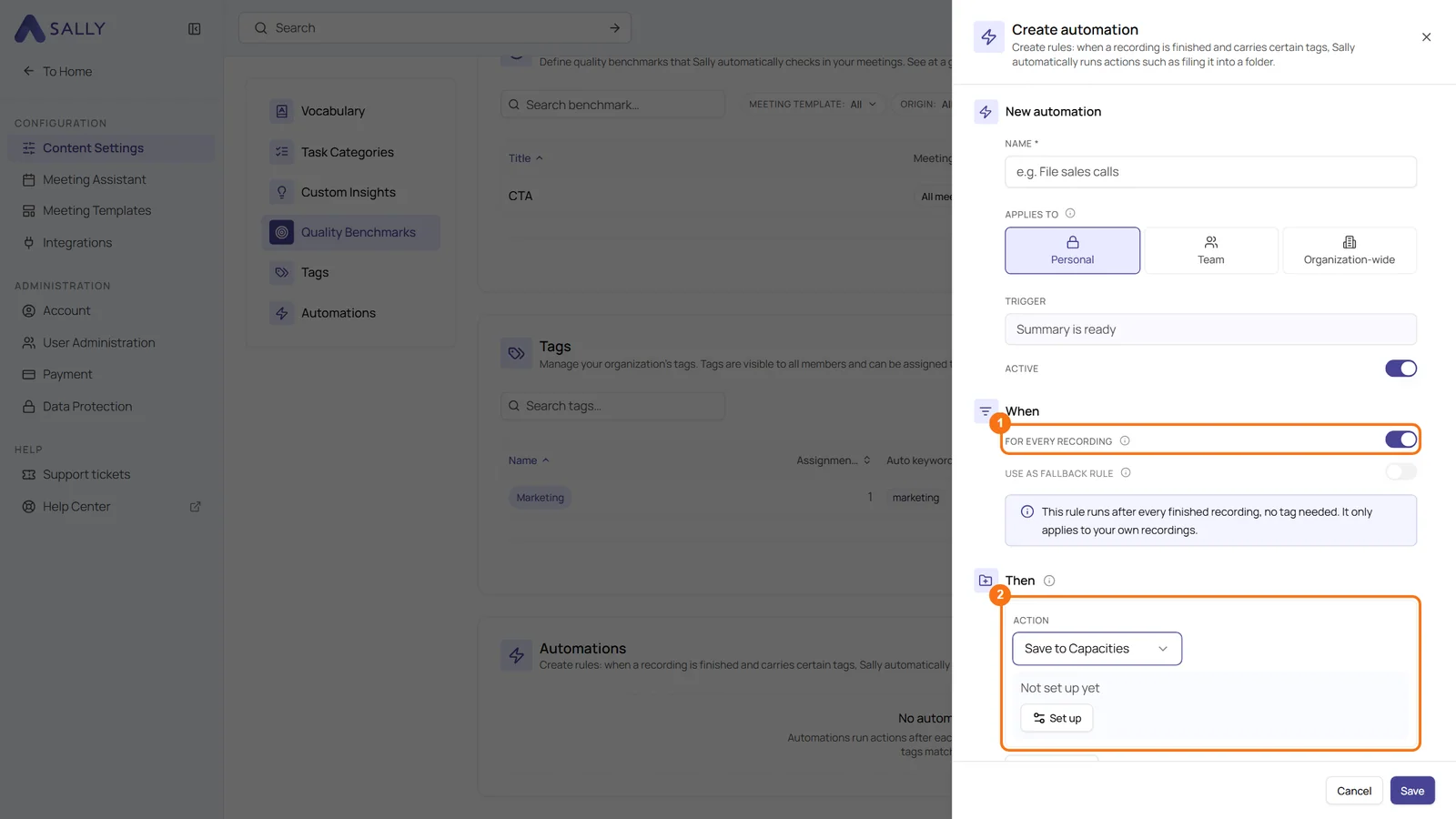
- Open Settings › Content Settings, go to Automations and click New automation.
- Give the automation a Name and leave Applies to on Personal. Capacities writes with your personal API key, so this action only works in personal automations.
- Under When, turn on For every recording. The rule then runs after every finished recording, no tag needed. If only certain meetings should go to Capacities, add their tags instead.
- Under Then, choose the action Save to Capacities and click Set up.
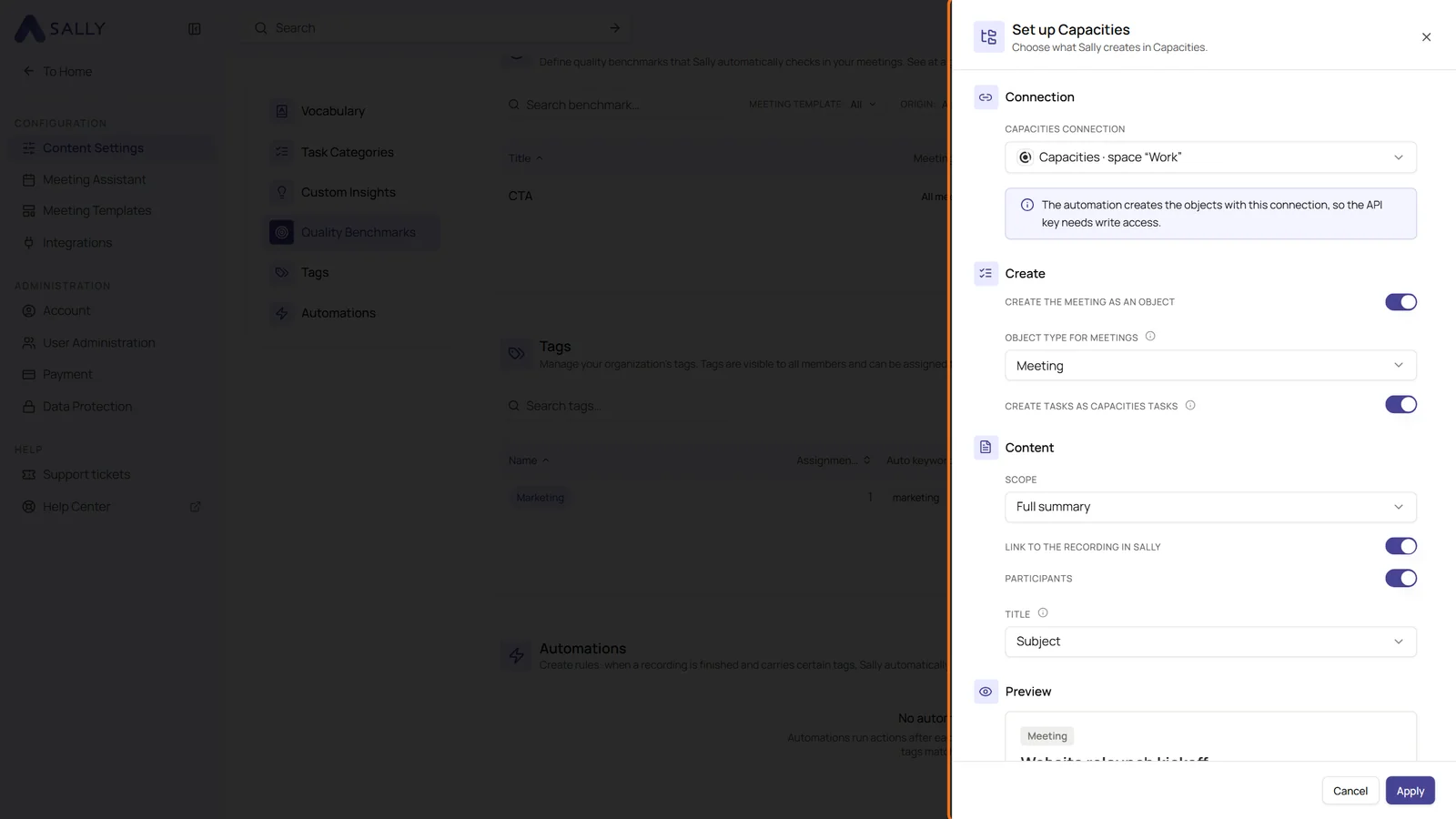
- In Set up Capacities, choose what Sally creates:
- Capacities connection: your space.
- Create the meeting as an object with the Object type for meetings. If your space has no "Meeting" type, Sally creates pages until you add one in Capacities and choose it here.
- Create tasks as Capacities tasks, with a due date if the task has one.
- Content: the Scope, the Link to the recording in Sally, the Participants and the Title, either Subject or Date and subject.
- Check the Preview, click Apply and then Save.
For every recording isn't tied to Capacities. Every automation can use it instead of tags, see File recordings automatically.
4. Good to know
- Tasks are linked to the meeting. Every task becomes its own Capacities task and shows up as a reference under the meeting object.
- One transfer per recording. If you regenerate a summary later, Sally doesn't send it to Capacities again.
- Deleted key: If you delete the API key in Capacities, Sally marks the connection as expired, sends you an email and shows Reconnect. Until you enter a new key, nothing is saved.
5. Disconnect Capacities
Open Capacities in your integrations and click Disconnect. Sally no longer saves anything to Capacities afterwards, including through automations. Anything already in Capacities stays there. To delete the API key itself, go to Settings › Capacities API in Capacities.