How to file recordings into folders automatically
Sorting every recording into a folder by hand gets old after the third week. Sally can do it for you: you mark a meeting with a tag, and a rule puts every recording carrying that tag into the folder you picked, as soon as the summary is ready. Your weekly sales call then lands in "Sales" on its own, and a client workshop in the folder for that client.
This article puts the three pieces together. Two of them already have their own guides, so you will find links to the details instead of a second copy of them here.
Quick navigation
- How automatic filing works
- Step 1: create the folder
- Step 2: tag the meetings
- Step 3: build the automation
- What happens to older recordings
- Common questions
1. How automatic filing works
Three pieces play together, and each one has a job of its own:
- The folder is the destination. It is where the recording ends up, and who you share the folder with decides who sees what is in it.
- The tag is the label on the meeting. It says what kind of meeting this is, for example Customer, Weekly or Onboarding. You can set it by hand, or let Sally set it from a keyword in the appointment title.
- The automation is the rule that connects the two. It reads "when a recording carries this tag, add it to that folder" and runs as soon as the summary of the recording is ready.
Once the rule exists, nothing else is needed. Every new meeting that matches is filed on its own, including every date of a recurring appointment.
Sally files by what a meeting is, not by what it is called. A tag survives a renamed appointment, works across several calendars and can be set automatically from the title, which makes it a far more reliable trigger than the meeting title alone.
2. Step 1: create the folder
Create the folder your recordings should land in, and share it with the colleagues or teams who need it. Sub-folders work as targets as well, so a client folder can have one sub-folder per project.
Organize meetings in folders walks through creating, structuring and sharing a folder.
Rules are worth the most where meetings repeat: a weekly team call, a monthly board meeting, the recurring check-in with a key account. Set the folder up for exactly that topic, then the rule stays simple.
3. Step 2: tag the meetings
The tag is what the rule looks for. You create it once in Settings, under Configuration, in Content Settings on the Tags tab.
Two ways to get the tag onto your meetings:
-
Set it yourself. Open an appointment or a recording and pick the tag under the title with + Tag. Good for one-off meetings that do not follow a pattern.
-
Let Sally set it. Give the tag a keyword under Automation when you create it, for example
weekly sales. From then on Sally puts the tag on every appointment whose title contains that word, before the meeting even starts. That is what makes recurring appointments file themselves.
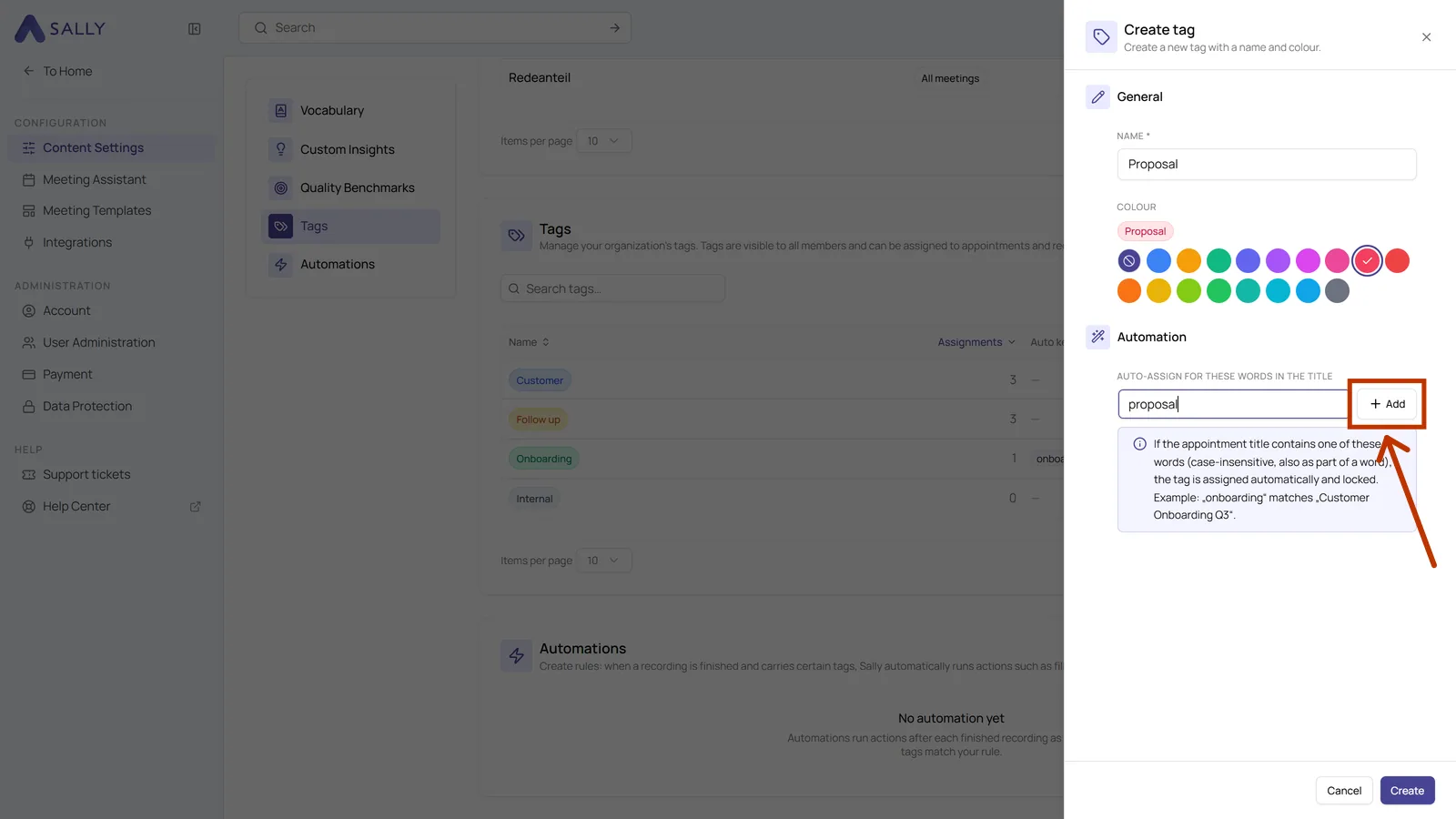
Tags has the full walkthrough, including automatic assignment from the title and how to apply a new keyword to appointments that already sit in your calendar.
4. Step 3: build the automation
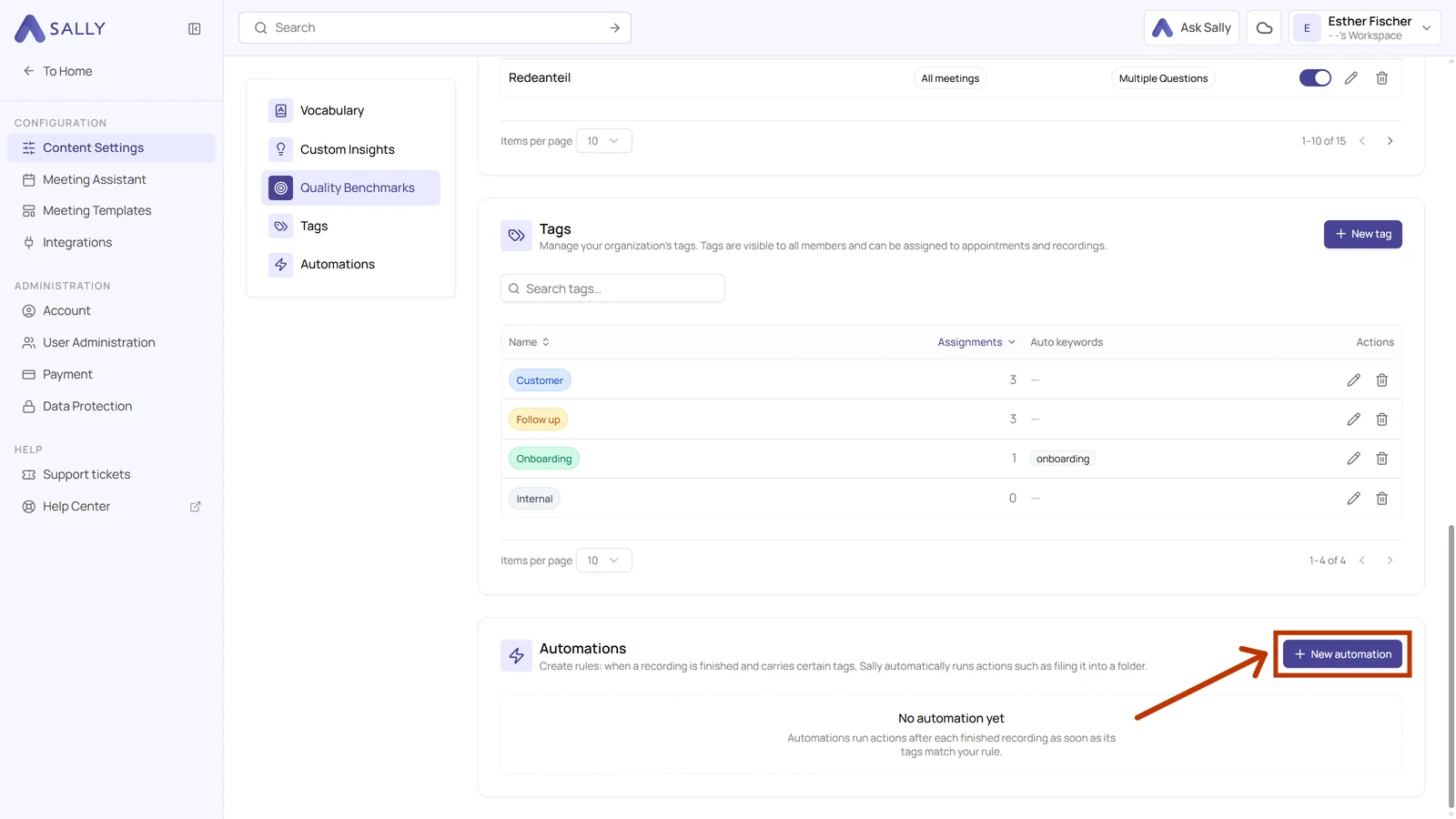
The rule itself lives in the same place as the tags, in Content Settings, in the Automations section right below them.
- Click New automation at the top right.
-
Give the rule a Name and decide under Applies to whether it covers only your own recordings (Personal) or every recording in the account (Organization-wide). Organization-wide rules are reserved for admins. The Trigger is fixed at Summary is ready.
-
Under When, add the tag the recording needs. Two tags in one box mean a recording needs both. Add OR group opens a second box as an alternative, so the rule also applies when only that one matches.
-
Under Then, pick the action Add to folder and select your folder. Add action chains further actions onto the same rule.
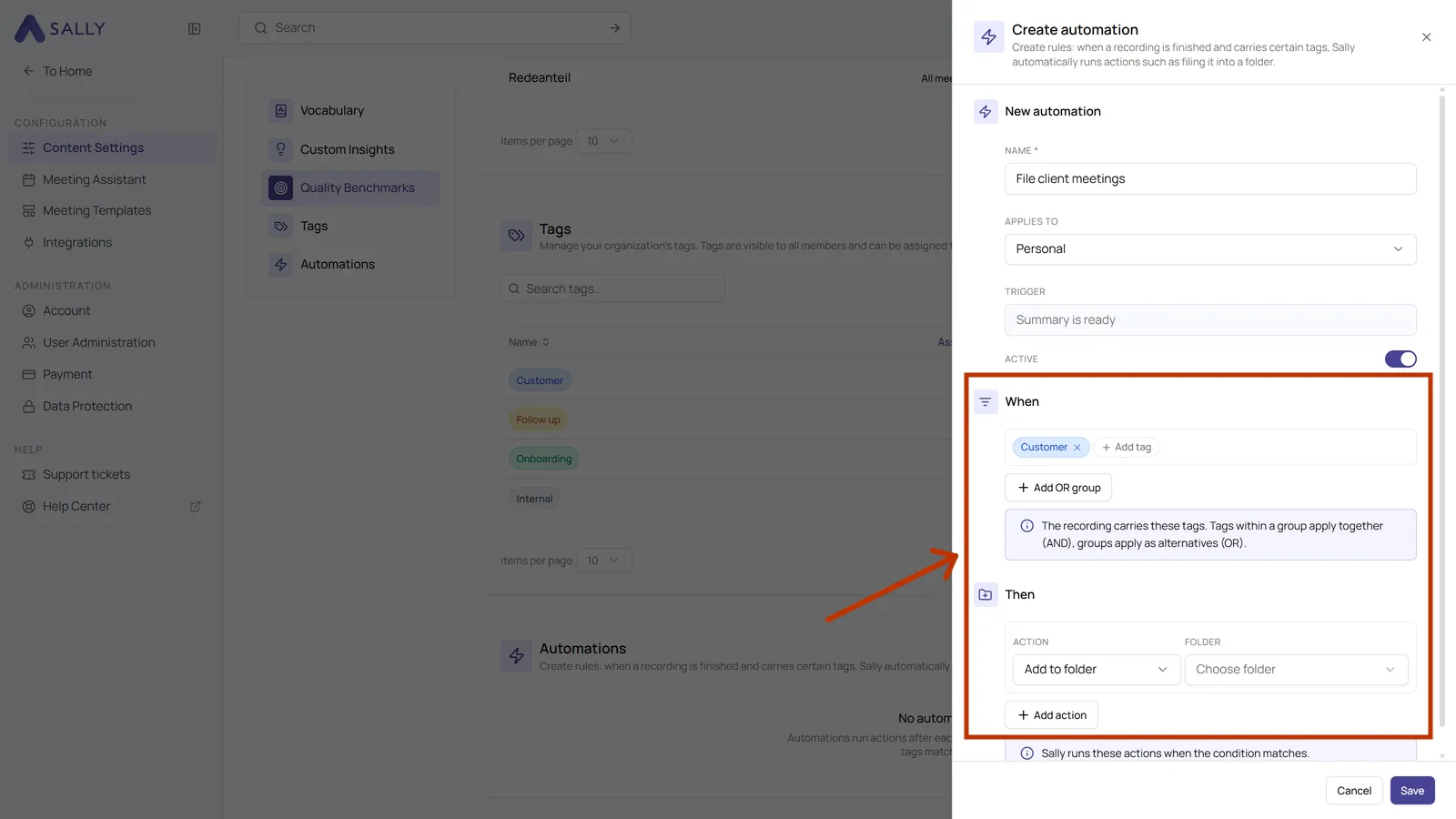
- Save the rule. From the next meeting on, filing happens without you.
Every Monday your team has "Weekly Sales Review", and all of those recordings belong in the folder "Sales".
- Folder: "Sales", shared with the sales team.
- Tag: Weekly sales, with the keyword
weekly sales, so Sally sets it on every date of the recurring appointment. - Automation: When the tag Weekly sales, then Add to folder "Sales".
From the next Monday on, the recording, transcript and summary sit in "Sales" without anyone lifting a finger.
5. What happens to older recordings
An automation runs when the summary of a recording is ready, so it only catches meetings from the moment the rule exists. Recordings that are already in your list stay where they are, even when they carry the right tag.
Two ways to catch up:
- Add them by hand. Open the folder and use Add recording to search for the older meetings and save them into the folder in one go. Add recordings to a folder shows the dialog.
- Tag them anyway. Even if the rule no longer picks them up, the tag makes them easy to find through search and keeps the older meetings consistent with the new ones.
Adding a recording to a folder does not take it out of another one. A client call can be in the client folder and in the quarterly folder at the same time, and two rules can file the same recording into both.
6. Common questions
How do I file recordings into folders automatically?
Create the folder, give the meetings a tag, and build an automation with When the tag and Then the action Add to folder. Sally files every new recording that carries the tag once its summary is ready.
Can Sally sort my meetings into folders on her own?
Yes, through an automation rule. Sally has no rule that guesses the folder by itself, but once a tag and a rule exist the filing runs without further input.
How do I automate my folder filing?
Through tags plus an automation in Content Settings. The tag says which meetings are meant, the rule says which folder they go into.
Do recurring appointments land in the same folder every time?
Yes. Give the tag a keyword that appears in the appointment title, and Sally tags every date of the series. The automation then files each recording into the same folder.
Why does my recording not land in the folder?
Check three things: the recording carries the tag, the tag is in the rule's When box, and the summary is finished. Recordings from before the rule was created are not filed retroactively.
Can several rules file into different folders?
Yes. Build one rule per folder and let each one watch for its own tag. A recording that carries several tags is filed by every matching rule.