How to assign substitutes and impersonate users in Sally AI
With impersonation mode, authorized users can work in Sally from another user’s perspective for a while.
You can also name substitutes who step into a user’s account while that person is away, even without an admin role.
That keeps the work going when someone is ill, on holiday or suddenly unavailable.
Impersonation grants no extra permissions. Everything you do stays inside the role and the permissions of the person whose account you are in.
If you want impersonation switched off for your whole organization, contact us and we turn it off completely.
Quick navigation
- Who can impersonate other users?
- How do I assign a substitute?
- How do I impersonate a user?
- How do I end impersonation mode?
- Data protection and compliance
1. Who can impersonate other users?
Impersonation is restricted by role, so access stays controlled and traceable.
1.1 Standard impersonation via roles
| Impersonating role ↓ / Target role → | Owner | Admin | Member |
|---|---|---|---|
| Owner | ✅ | ✅ | ✅ |
| Admin | ❌ | ✅ | ✅ |
| Member | ❌ | ❌ | ❌ |
This hierarchy keeps impersonation in line with the responsibilities and permissions your organization has defined.
1.2 Impersonation via assigned substitutes
On top of that, substitutes can be assigned. An assigned substitute may impersonate that particular user, regardless of their own role.
These rules apply:
| Role | Can impersonate users |
|---|---|
| Owner | Yes |
| Admin | Yes (except owners) |
| Member (without substitute assignment) | No |
| Member (assigned as substitute) | Yes (for assigned users only) |
Substitutes can only impersonate the user for whom they have been assigned as a substitute.
Members cannot make themselves a substitute. Only owners and admins set that up.
2. How do I assign a substitute?
A substitute may then impersonate that one user when it is needed, without holding an admin or owner role.
Typical use cases:
- Vacation coverage
- Sick leave
- Assistant roles
- Project handovers
Key characteristics:
- The substitute can only impersonate the assigned user.
- No additional system permissions are granted.
- All actions are performed within the permission context of the impersonated user.
2.1 Steps to assign a substitute
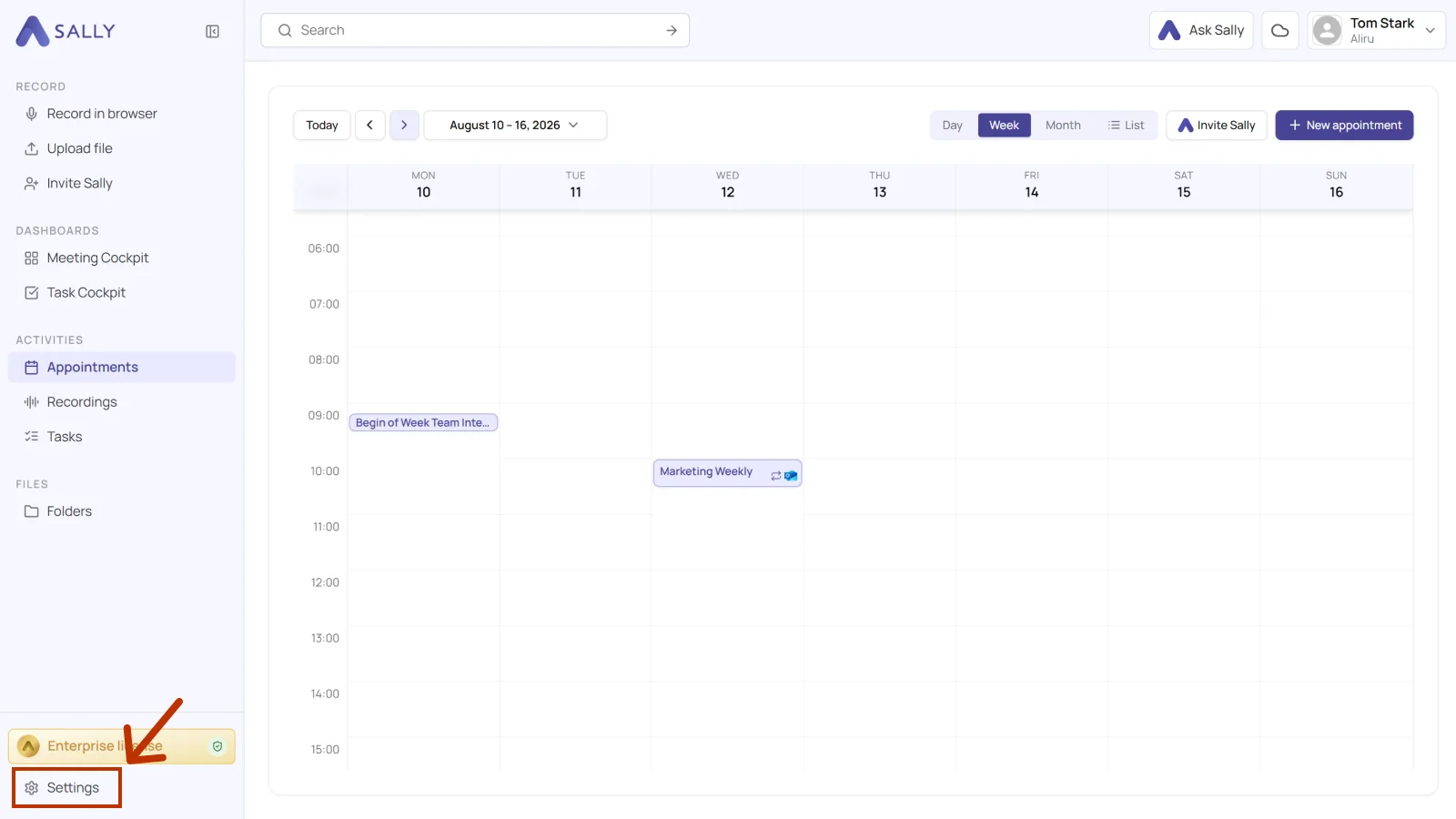
- Open Settings at the bottom of the left sidebar.
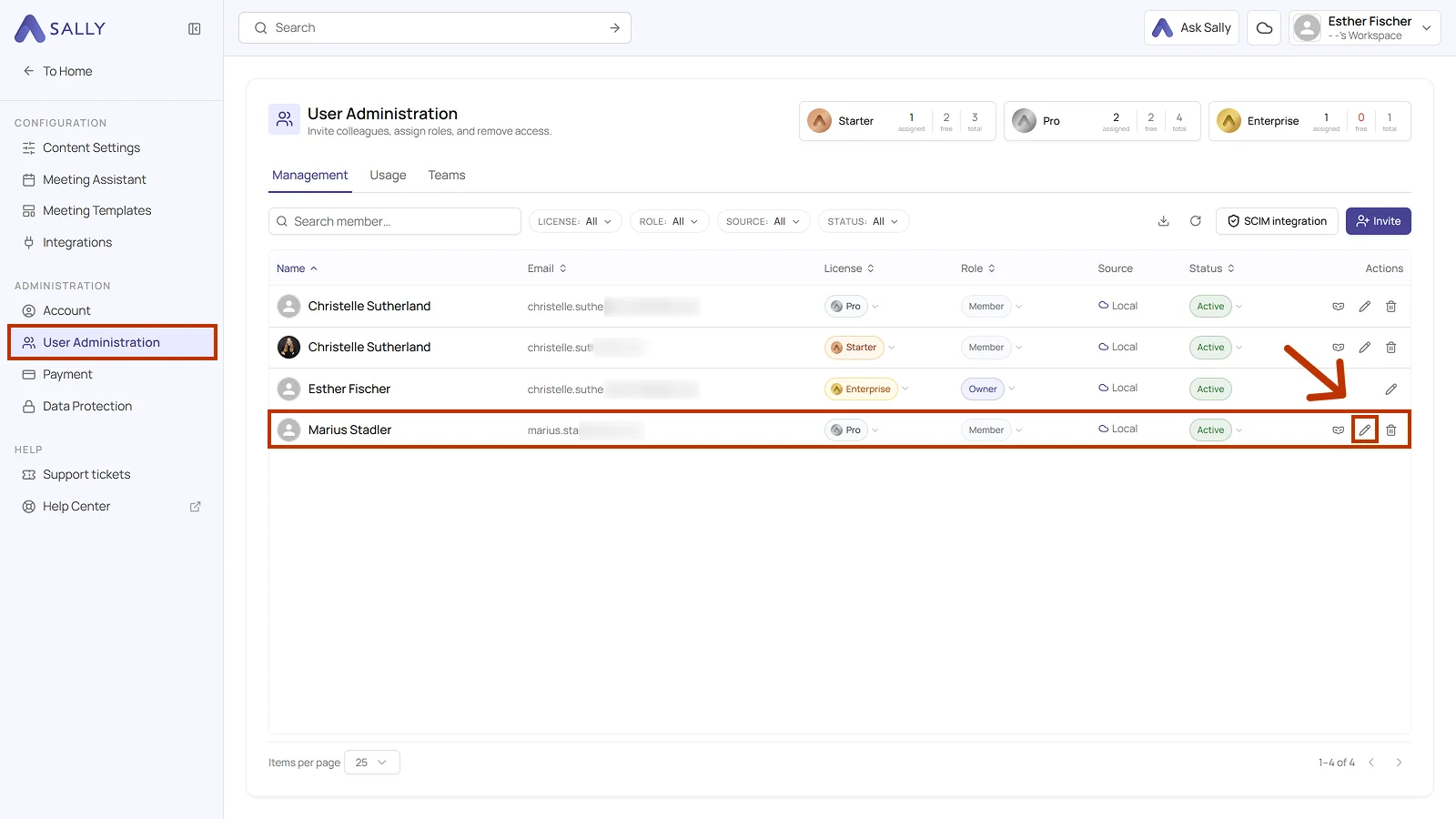
- Under Administration, open User Administration.
- In the person's row, click the pencil in the Actions column.
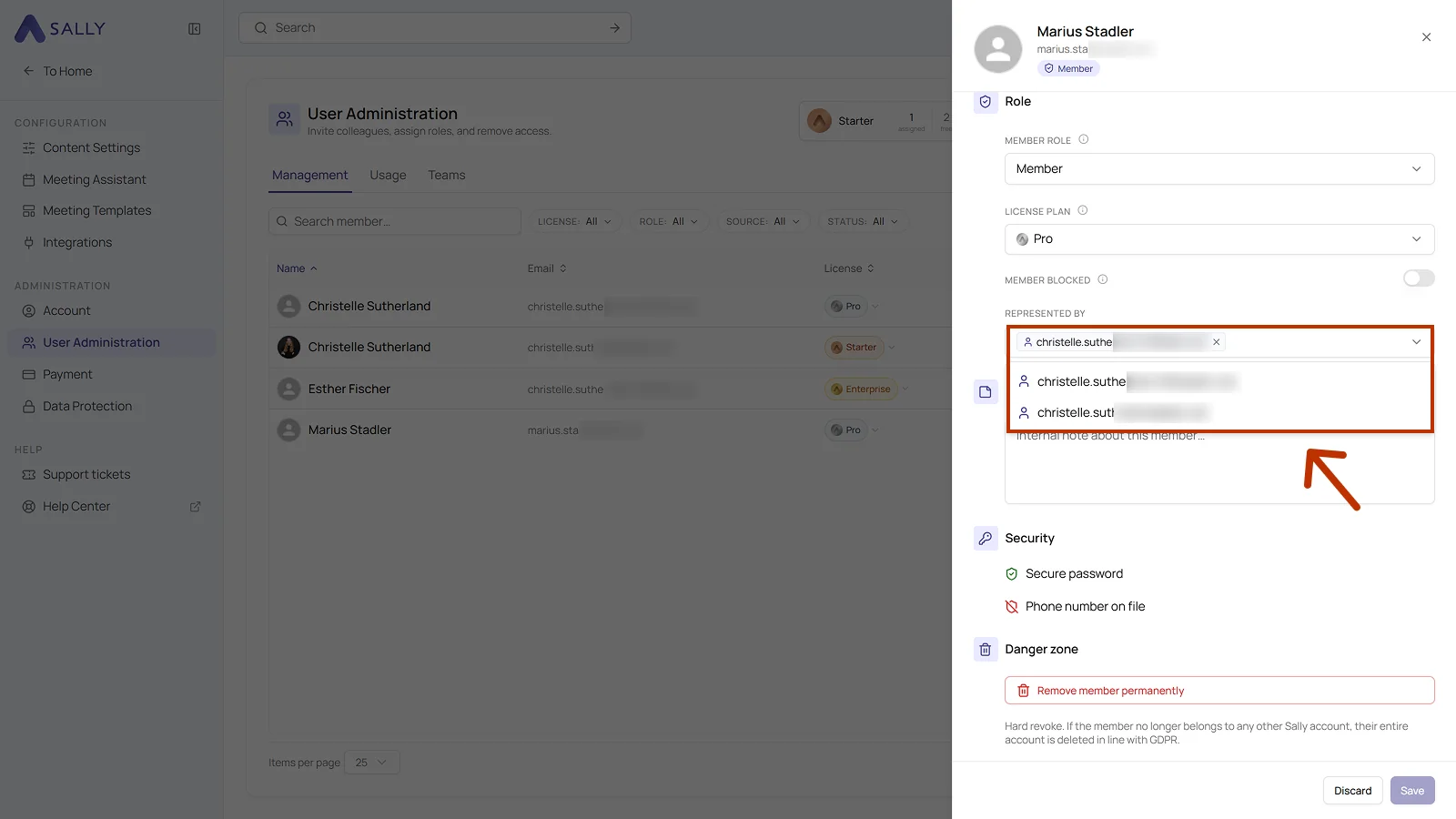
- The person's profile opens on the right. Under Role, add one or more people to Represented by. The cross next to a name removes that substitute again.
- Click Save in the bottom right corner, or Discard to leave the profile unchanged.
The selected users can now impersonate the corresponding user.
The same profile is where you set the member role and the license plan. The Member blocked switch shuts off access without deleting the account, and below it you can keep an internal note about that member. At the very bottom, the danger zone removes the member permanently.
2.2 How an assigned substitute signs in
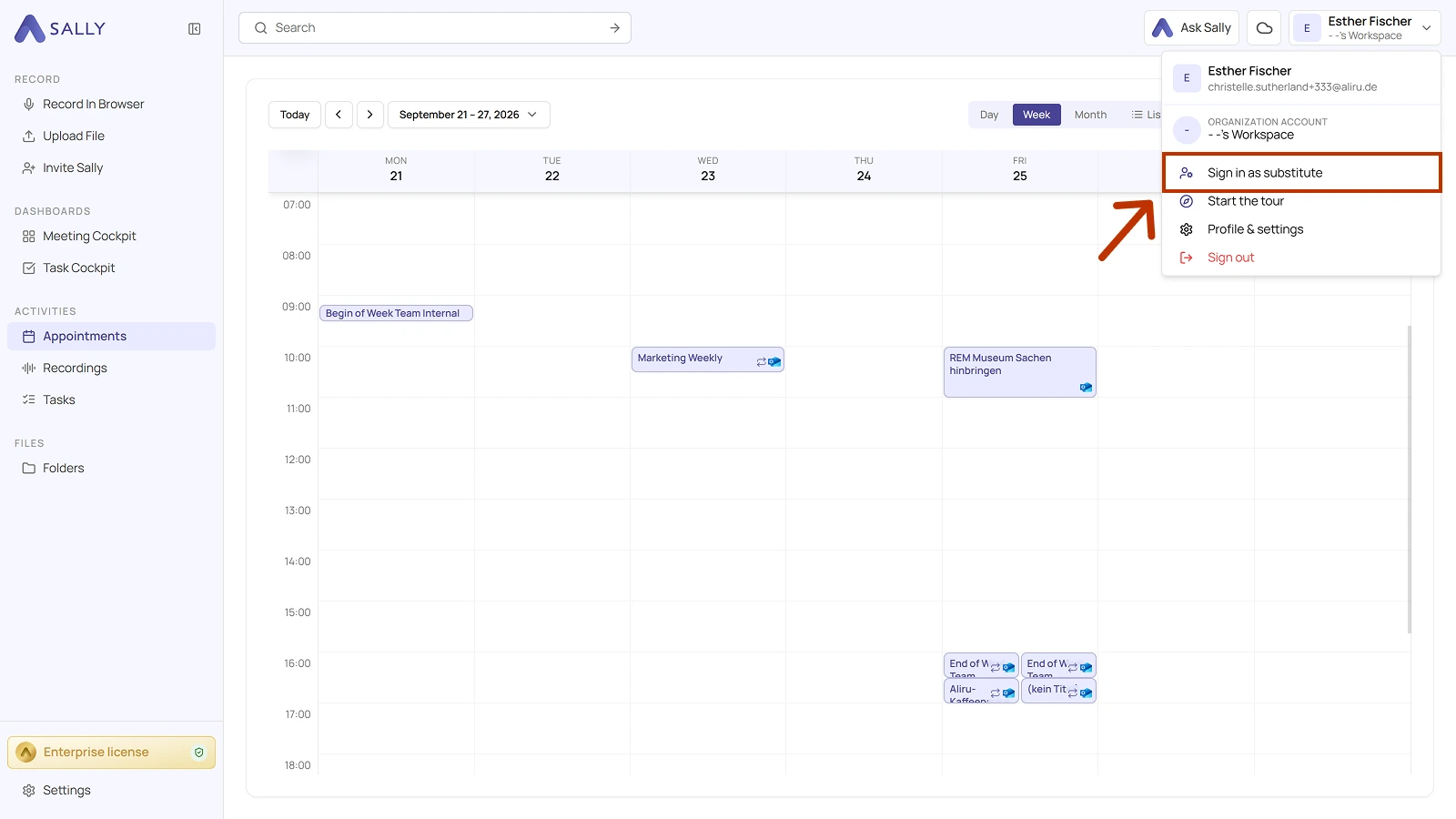
Once someone is your substitute, they do not need the User Administration page. A Sign in as substitute entry appears in their account menu, and it only shows for people who are a substitute for at least one user.
- Open the account menu in the top right corner and choose Sign in as substitute.
- In the Sign in as substitute dialog, pick the person you stand in for under Sign in as, enter a reason (required), then click Sign in as [name].
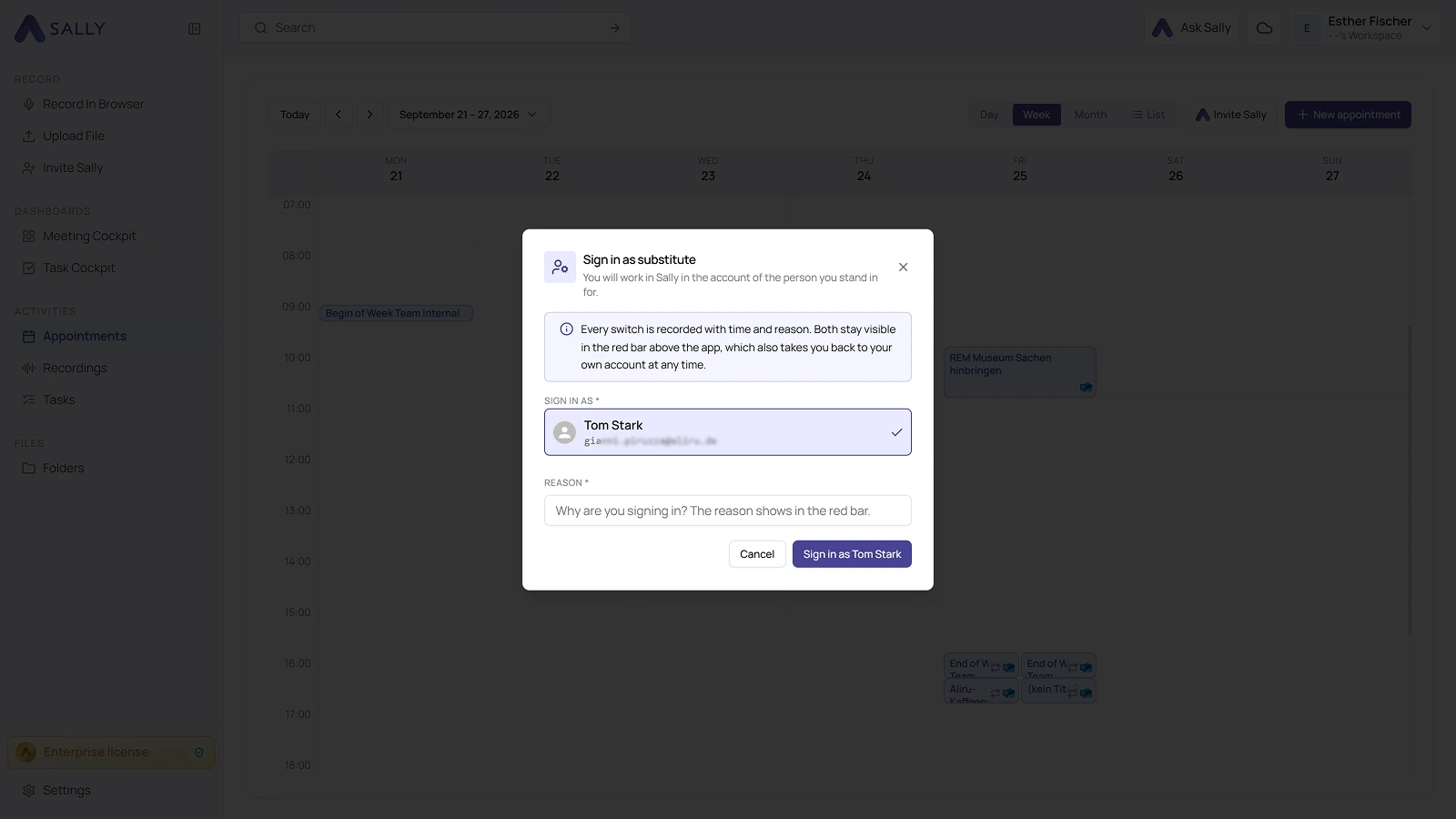
From here it works exactly like an admin impersonation: a red bar sits across the top of the app, the access is time-limited, and Back to my account takes you back.
3. How do I impersonate a user?
The steps below run through User Administration and are meant for owners and admins (admins for other admins and members, not owners). If you are an assigned substitute without an admin role, you do not use this page. You sign in from your account menu instead.
Follow these steps to activate impersonation mode:
- Open Settings at the bottom of the left sidebar.
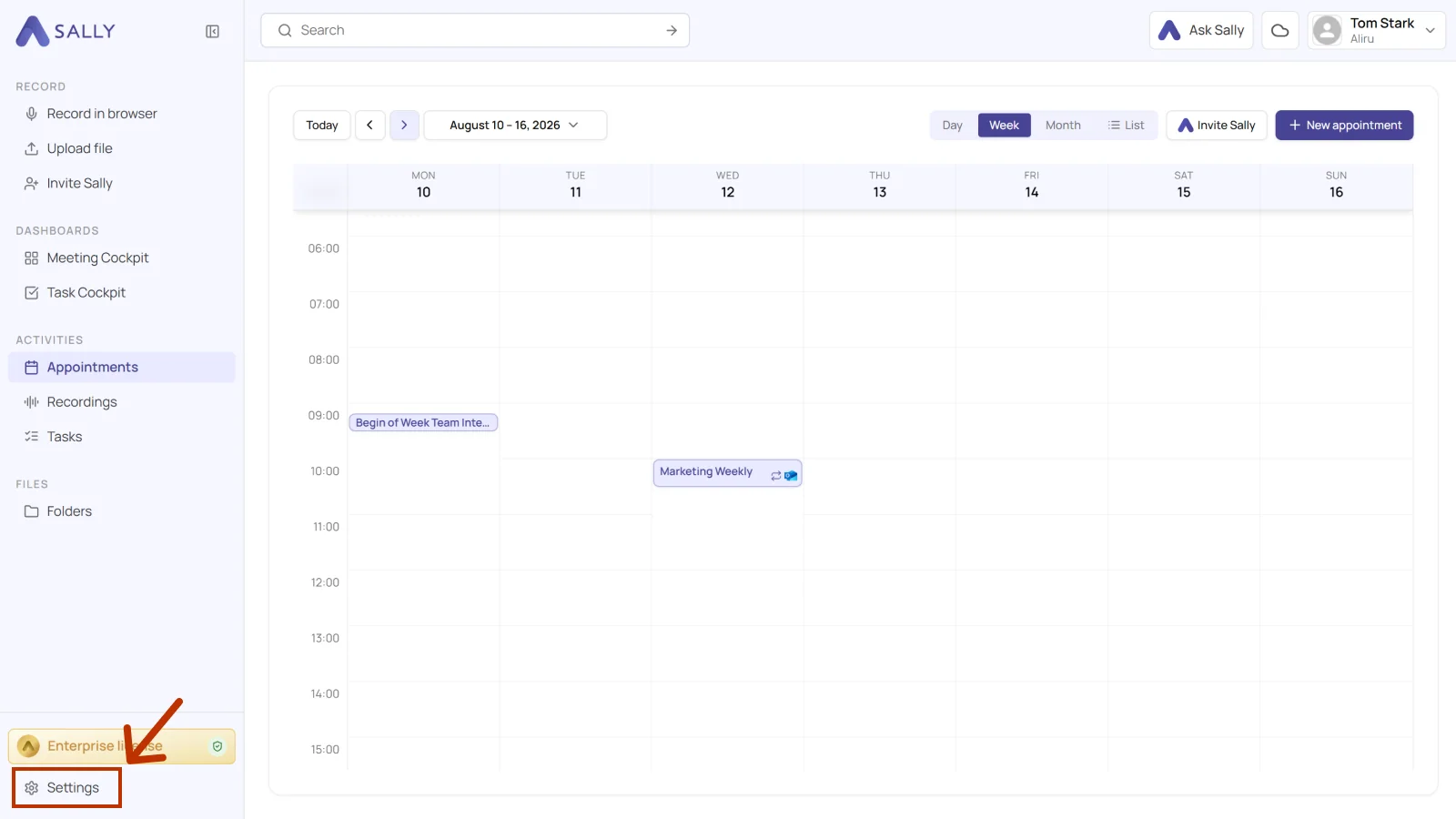
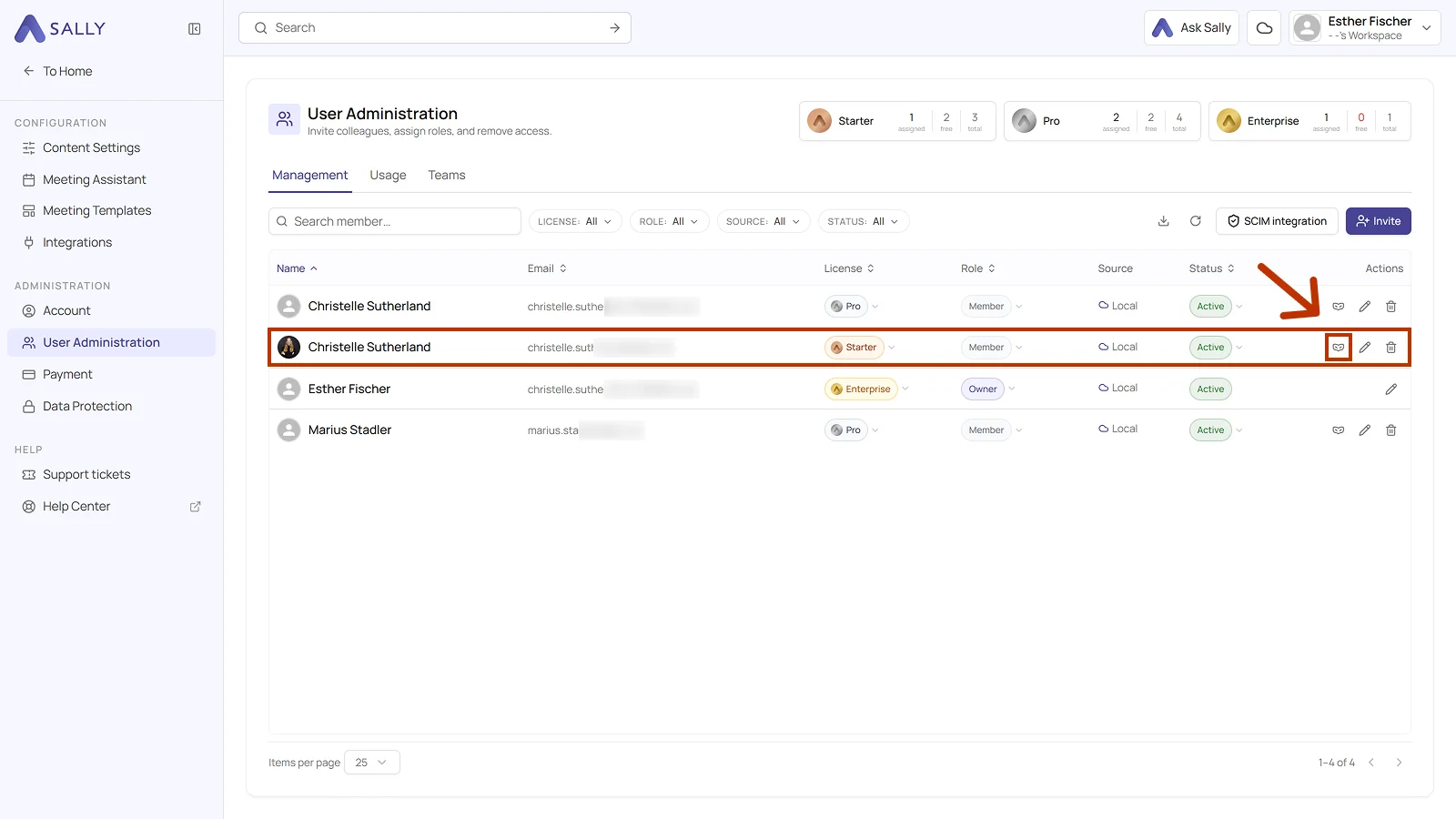
- Under Administration, open User Administration and find the row of the person you want to impersonate.
- Click the mask icon in the Actions column.
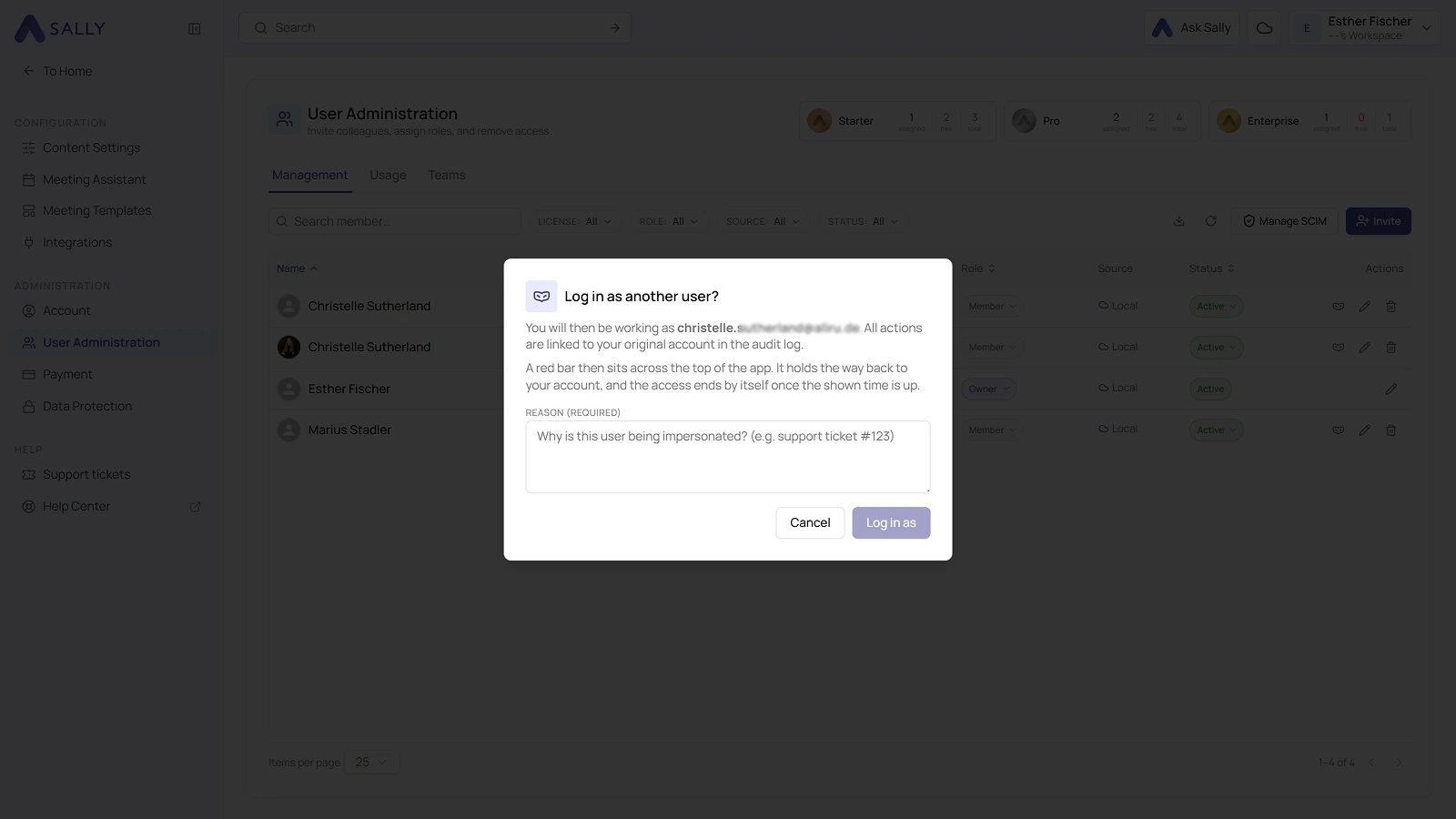
- The Log in as another user? dialog opens. It names the email address you will be working as, reminds you that every action is linked to your original account in the audit log, and notes that a red bar will then sit across the top with the way back and a time limit. Enter a reason (required), for example the ticket number or the absence you are covering, then click Log in as. Cancel stops without switching.
You are now in impersonation mode, and two things make that unmistakable.
A red Account access bar sits across the top of the app. It shows whose account you are in, since when, and the reason you gave. In the top right corner, the account switcher shows that person's name instead of your own.
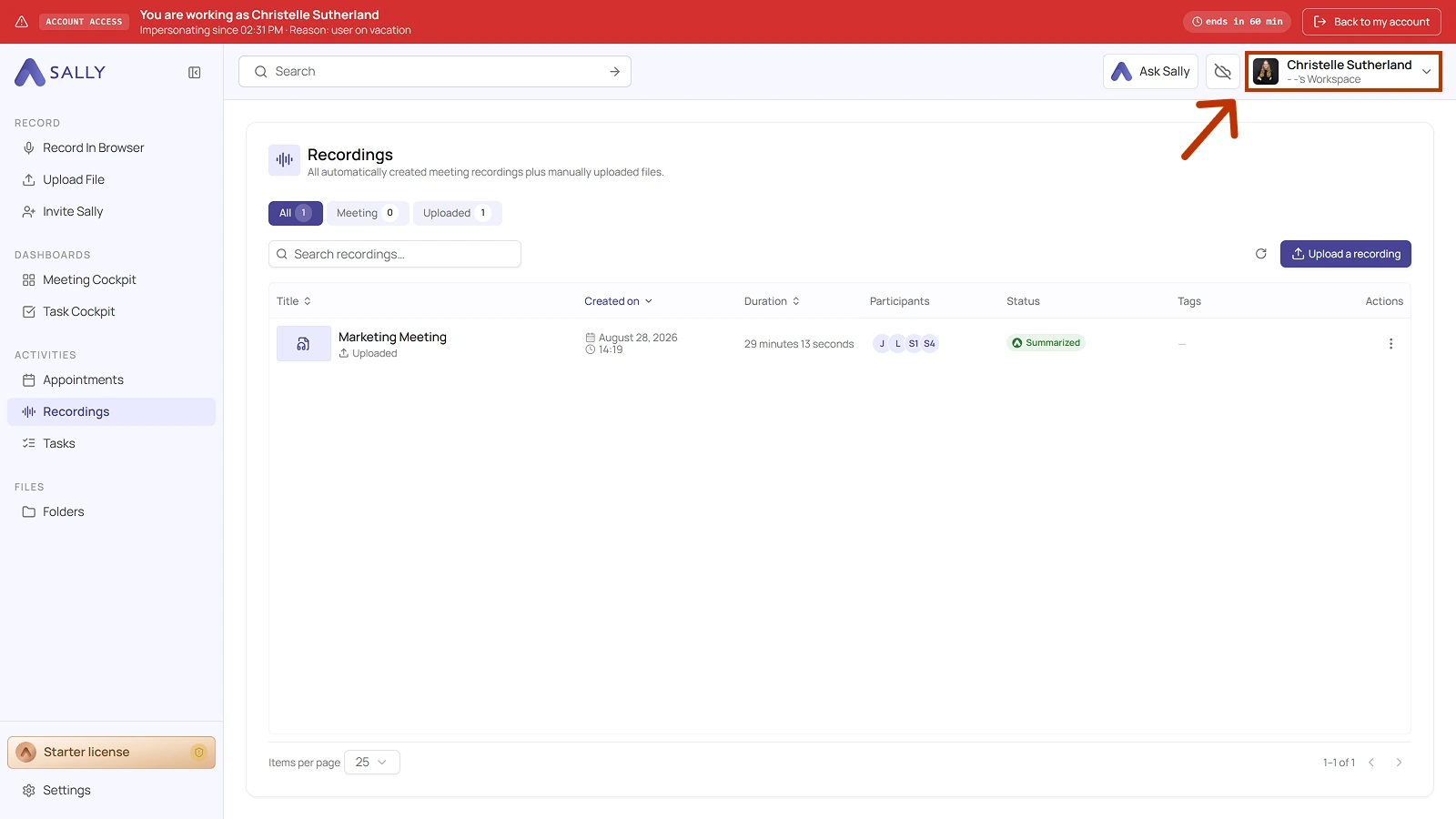
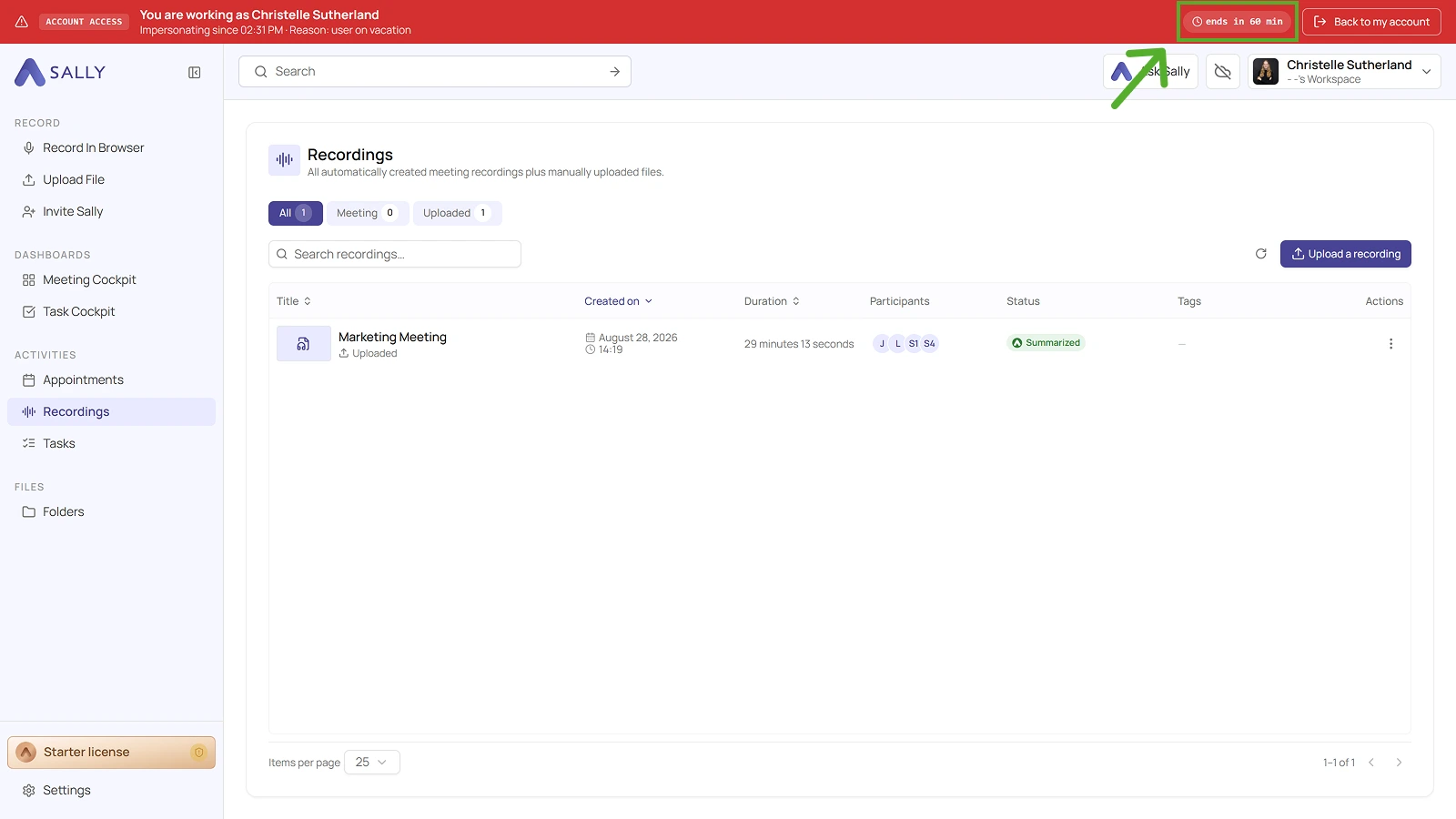
The access ends by itself. The bar shows how much time is left, for example ends in 60 min. When the time runs out, you are returned to your own account automatically, so a forgotten session cannot stay open.
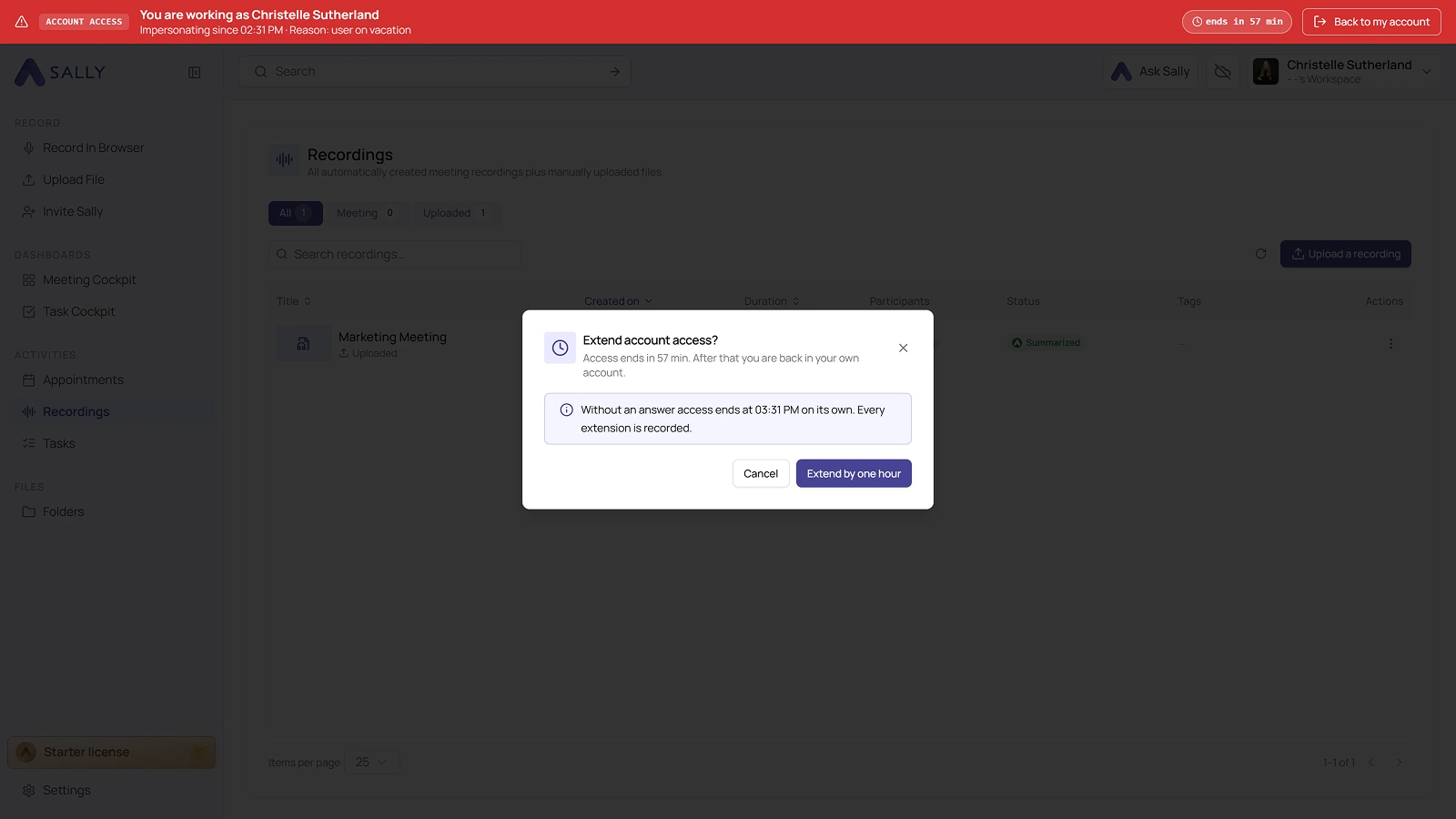
Need more time? Click the remaining time in the bar.
In the Extend account access? dialog, choose Extend by one hour. Without an answer the access still ends on its own at the time shown. Every extension is written to the audit log.
3.1 Permissions in impersonation mode
In impersonation mode, you assume exactly the role and permissions of the user you are impersonating.
This means:
- You have all permissions that the user has.
- You receive no additional permissions.
- Your own role (e.g., Owner or Admin) is not active during impersonation.
While impersonating, you operate entirely within the permission context of the target user.
In practice, this means:
- If the user can view meetings, you can also view them.
- If the user can add Sally to meetings, you can do so as well.
- If the user cannot modify system-wide settings, you cannot either.
The license is the impersonated person's as well. Working in the account of a member on Starter, the bottom left reads Starter license, even when your own account is on Enterprise.
Impersonation is not a permission level of its own, only a temporary switch into someone else’s view.
If an owner impersonates a member, they hold the member’s permissions for that time. The owner rights are not active.
Impersonation never expands or bypasses existing role, license, or access restrictions.
4. How do I end impersonation mode?
Click Back to my account in the red bar at the top. You return to your own account right away.
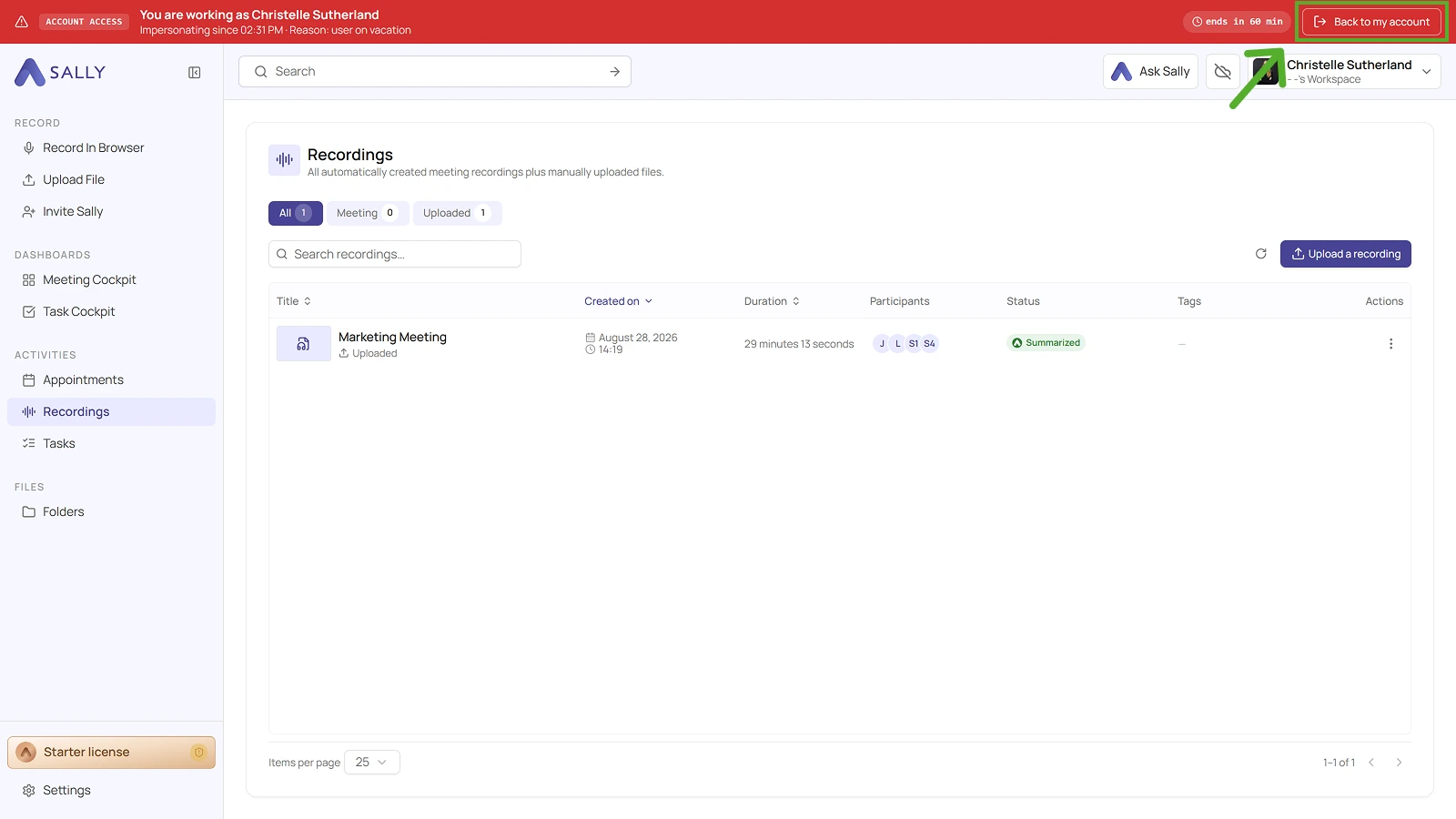
If you do nothing, the access also ends on its own once the time shown in the bar has run out.
5. Data protection and compliance
Impersonation is meant only for temporary stand-ins at work, to bridge an absence or keep things running.
Key principles:
- Access follows the role and permission structure your organization already has in place.
- Every action taken during an impersonation is linked to your original account in the audit log.
- Each impersonation records the reason you enter and runs as a time-limited session that ends on its own; every extension is logged as well.
- Impersonation does not bypass access controls.
- Substitutes only get access in the context of the impersonated user.
- Sally does not perform any independent or automated actions.
- Every action has to be started by a user.
Organizations are responsible for defining internal policies on when impersonation may be used, documented absences for example.
Sally processes meeting data exclusively within the defined business scope of your organization. Access to recordings, transcripts, and summaries remains subject to the role and permission settings you have configured.