How to share meeting summaries in Sally AI
You can share meeting summaries directly from Sally with colleagues or clients. Use a link to quickly forward the report in a chat or messenger. You can set an expiry date after which the link stops working. When you share by email, the recipient also gets a security code, which adds another layer of security.
Quick navigation
1. Share via link
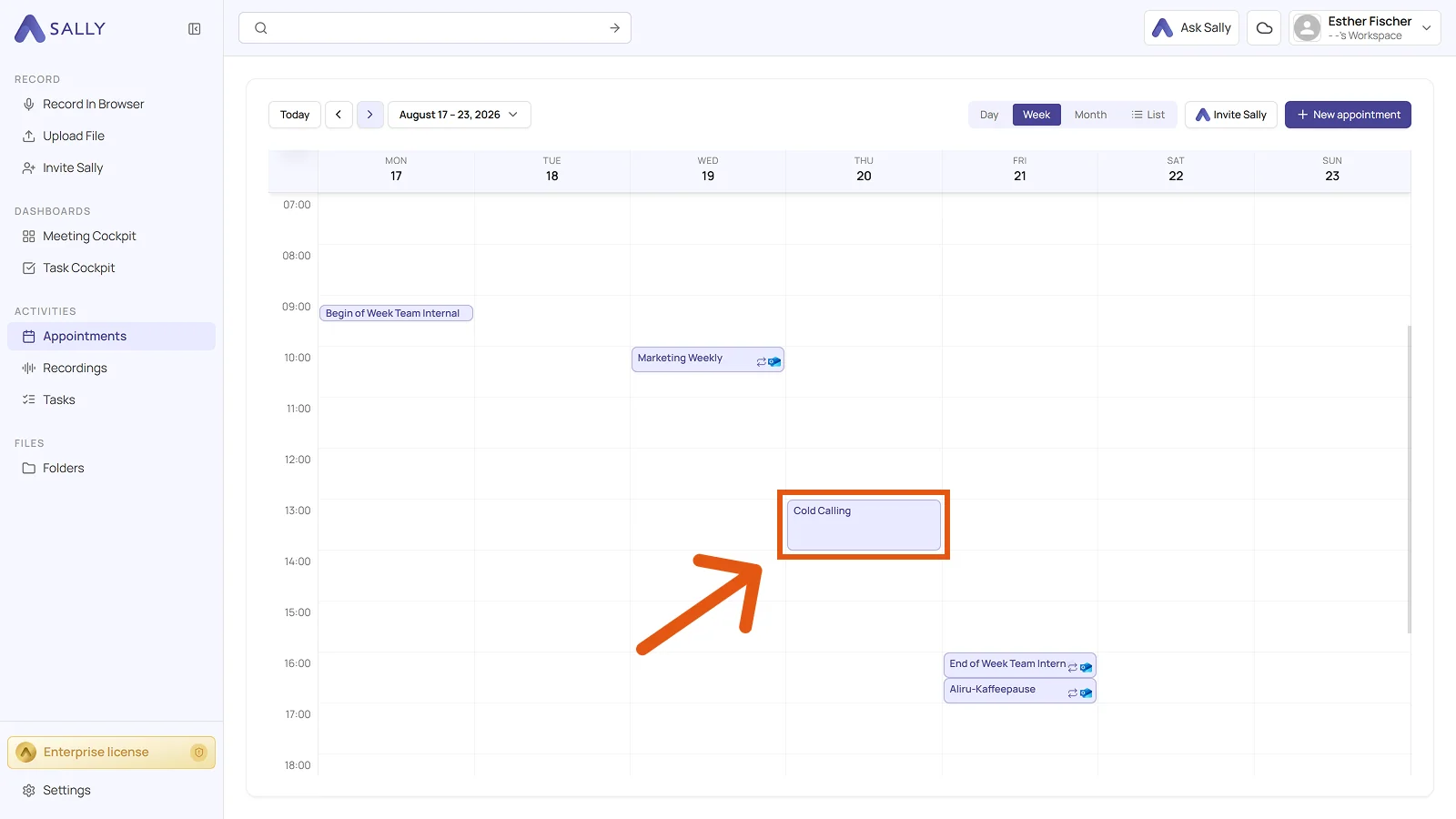
- Open the meeting in Sally.
Info
You can also open the meeting from Recordings in the sidebar.
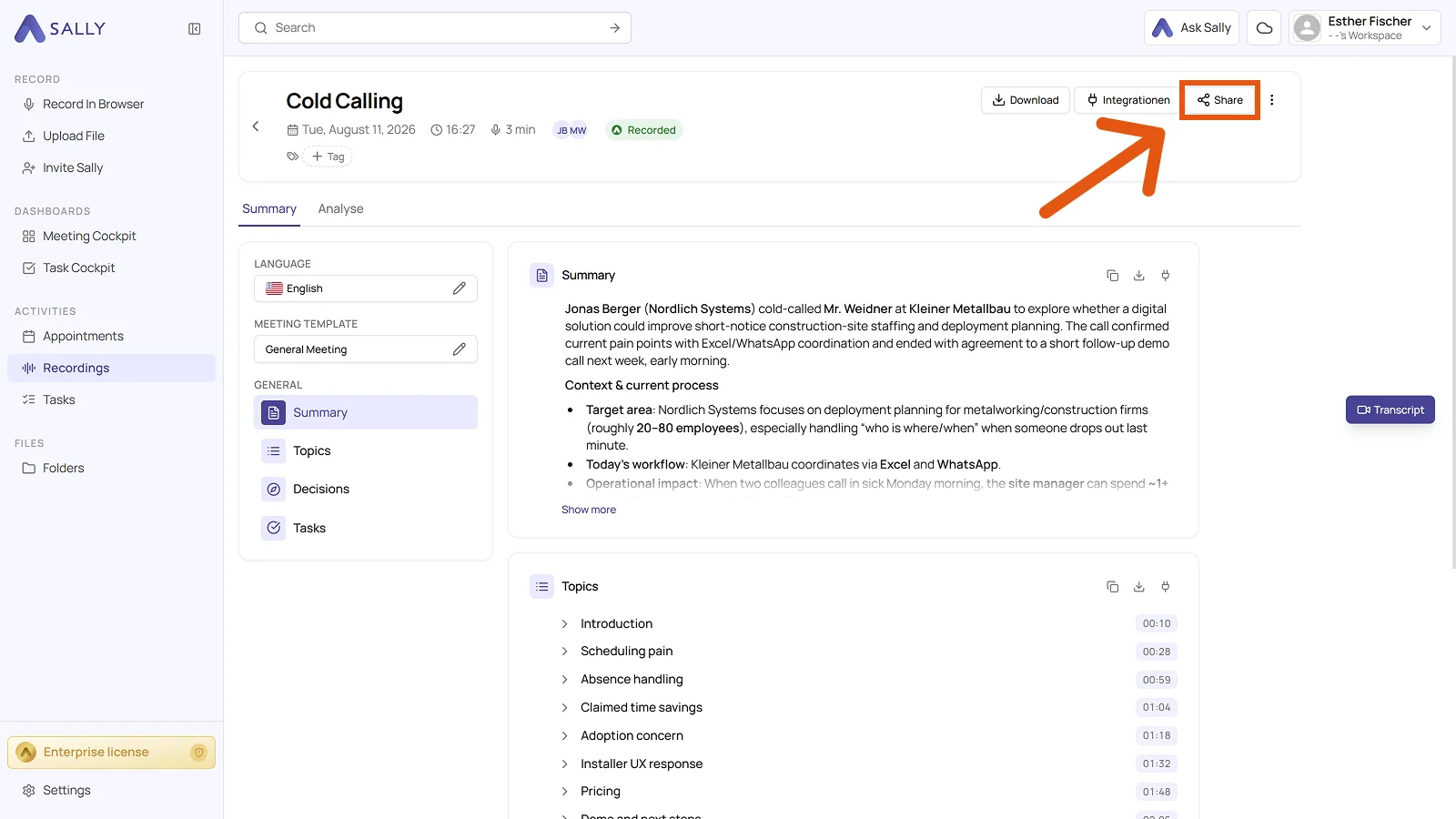
- Click Share in the top right.
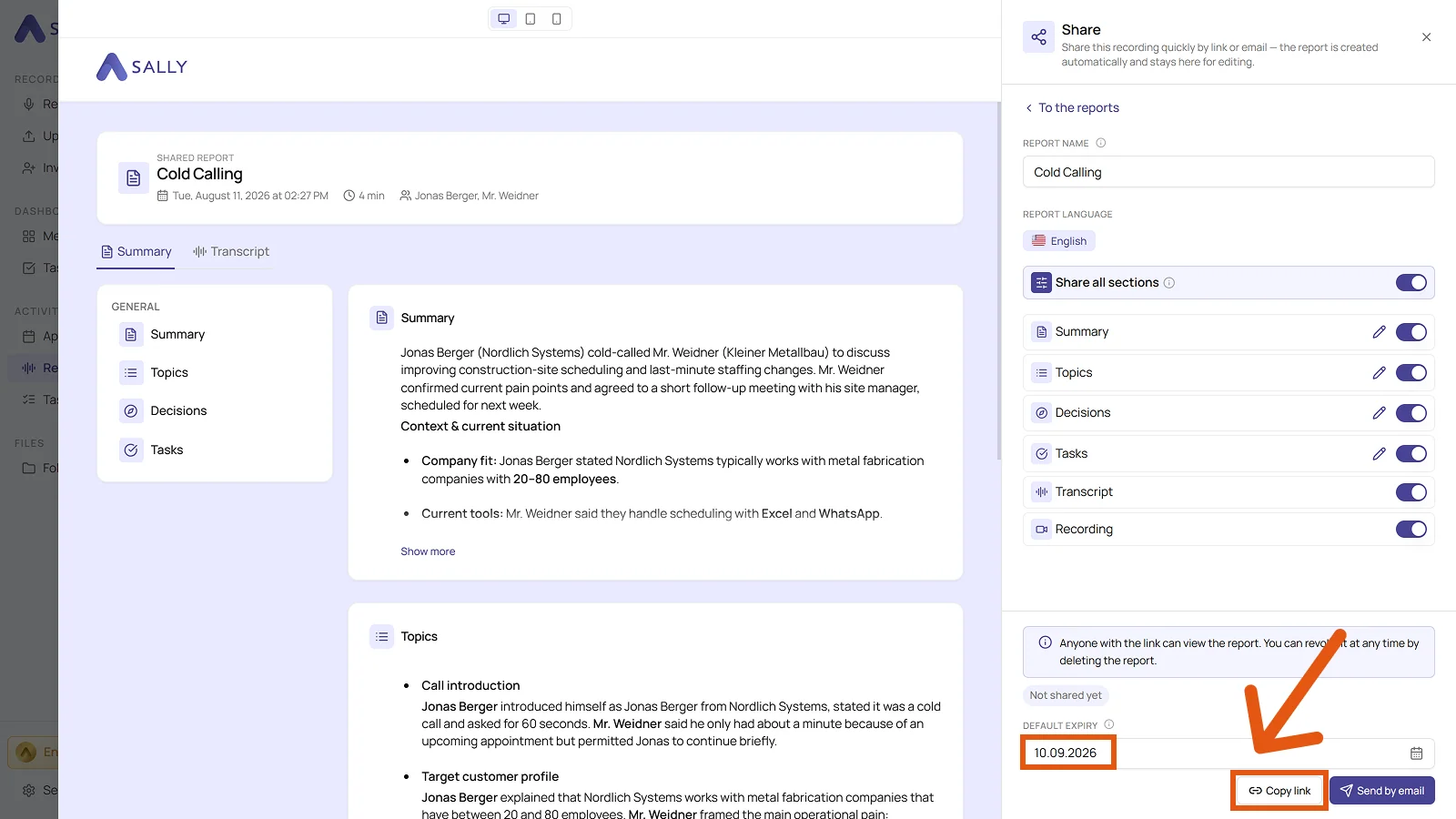
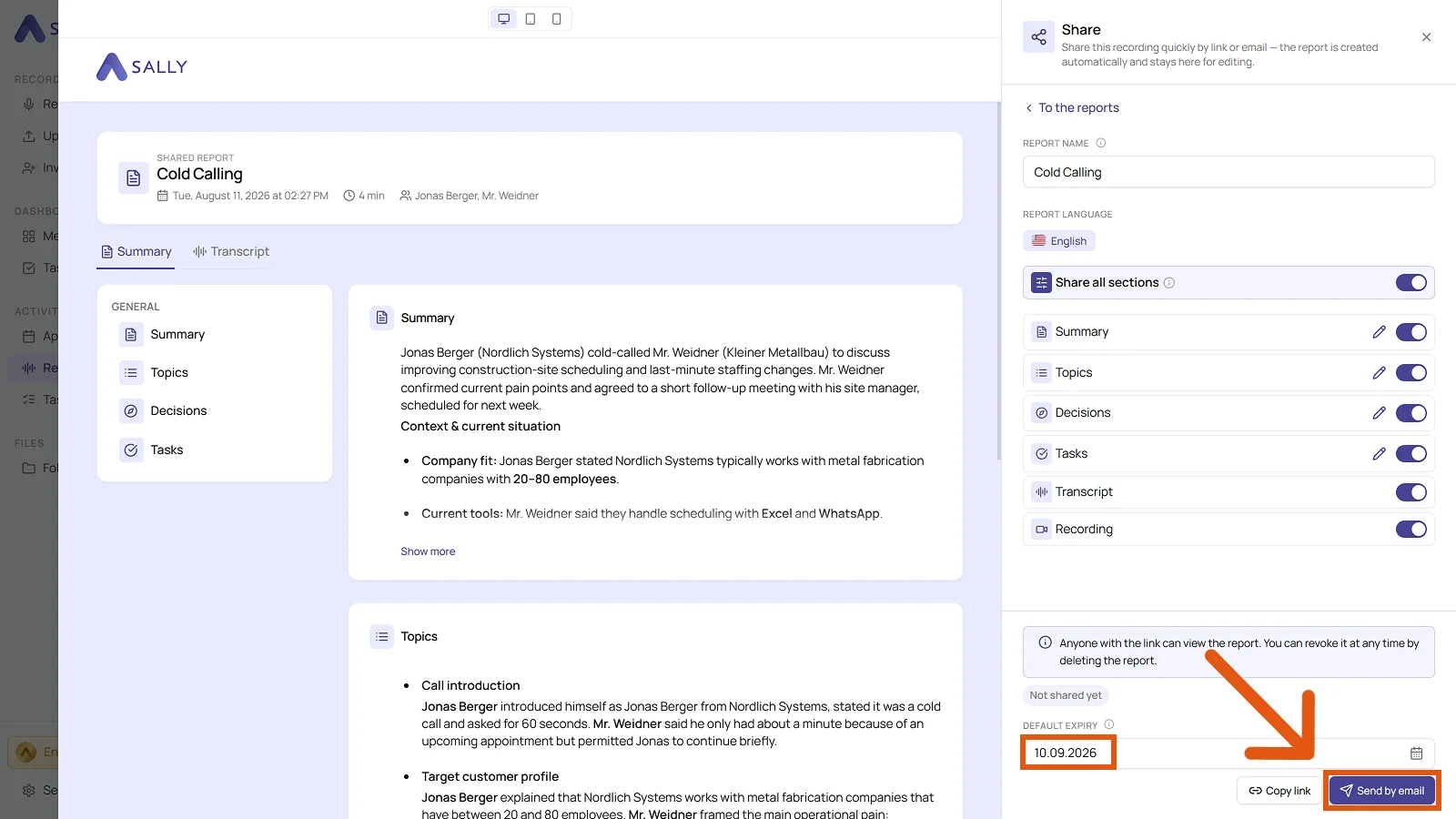
- In the Share panel, set the report name. Use the toggles to choose which sections to include. Besides summary, topics, decisions and tasks, you can also share the transcript and the recording. Use the pencil next to the individual sections to adjust the content right here.
- If you want, pick a default expiry to limit how long the report stays visible. By default, no expiry date is set. Then click Copy link.
Info
Anyone with the link can view the report. You can revoke it at any time by deleting the report.
2. Share via email
The first two steps are the same as for sharing via link: open the meeting and click Share in the top right.
- In the Share panel, use the toggles to choose which sections to include, and edit them with the pencil if needed.
- If you want, pick a default expiry. By default, no expiry date is set.
- Click Send by email in the bottom right.
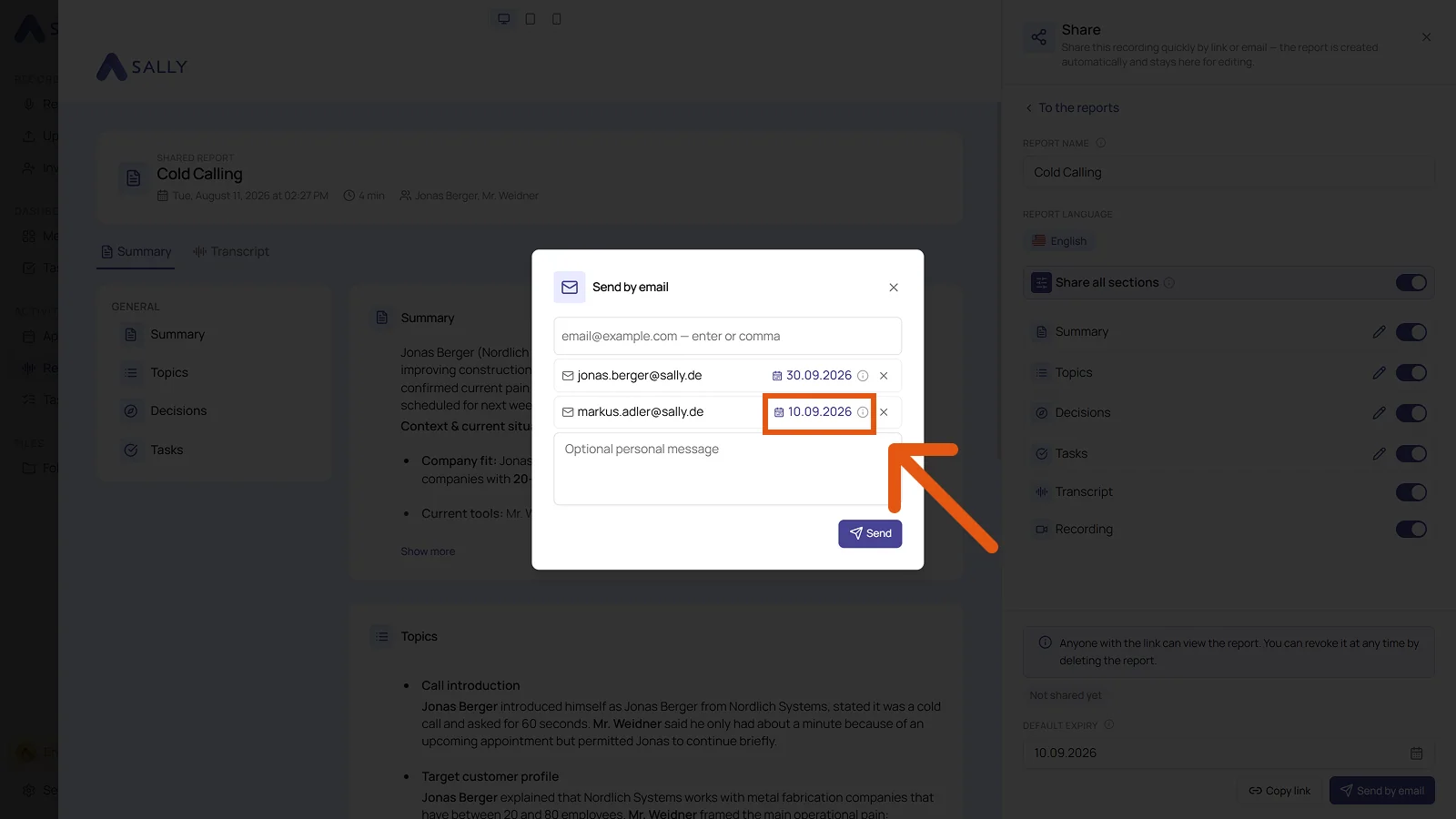
- Enter the recipient email addresses and add an optional personal message.
- You can give single recipients their own expiry date: click the date next to an address and pick a different one.
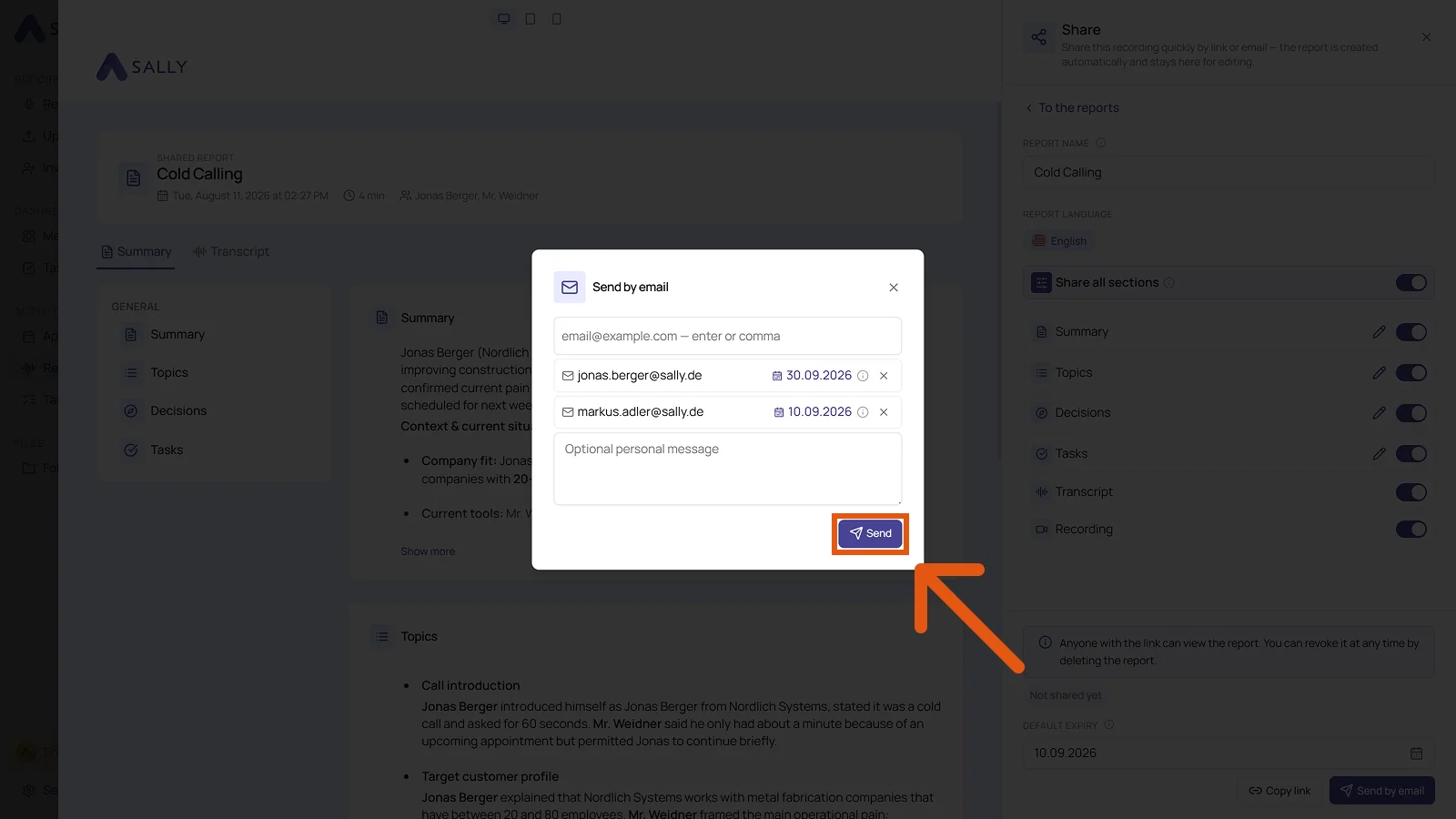
- Click Send.
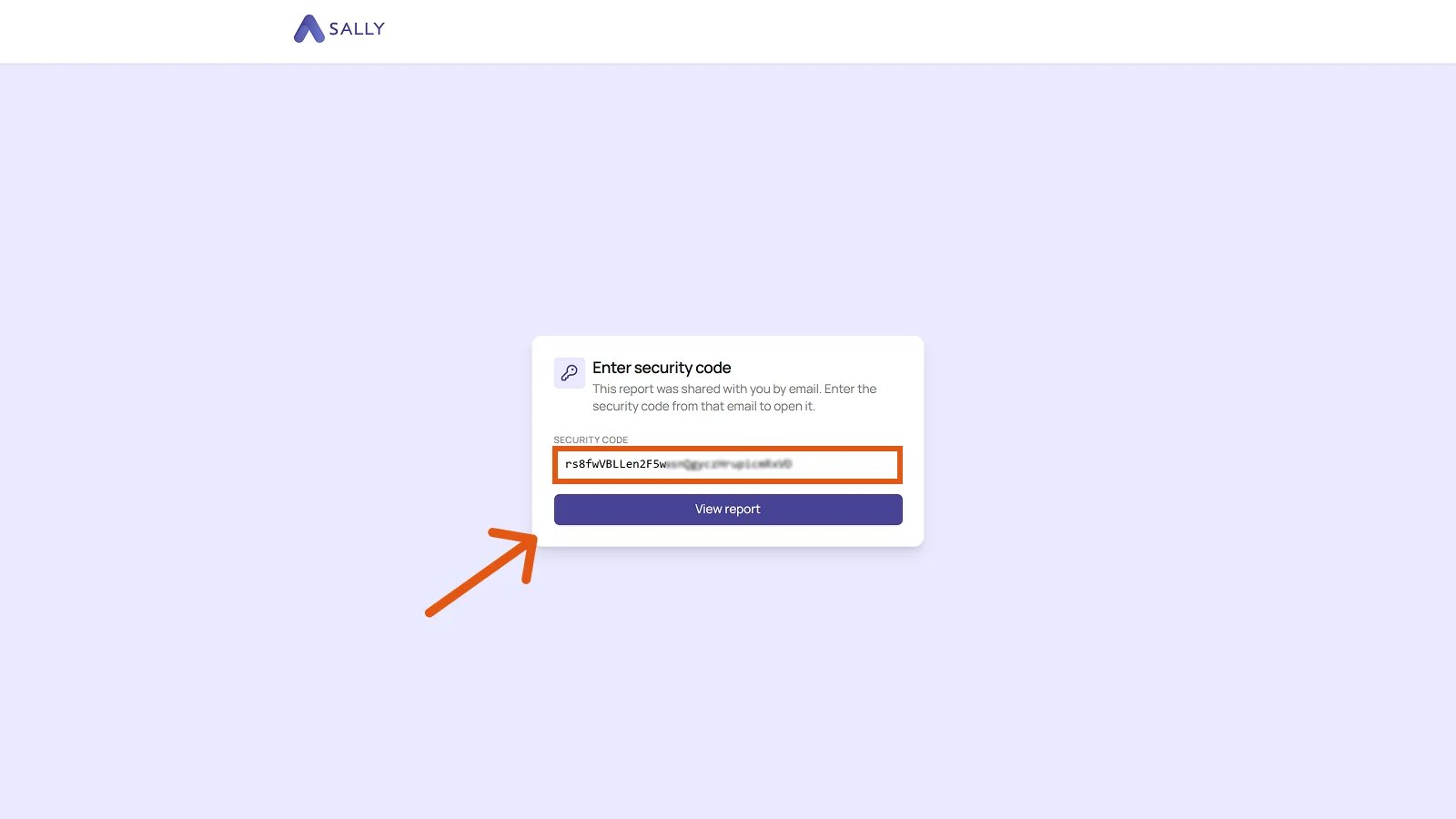
- The recipient receives an email with a security code and clicks View report.
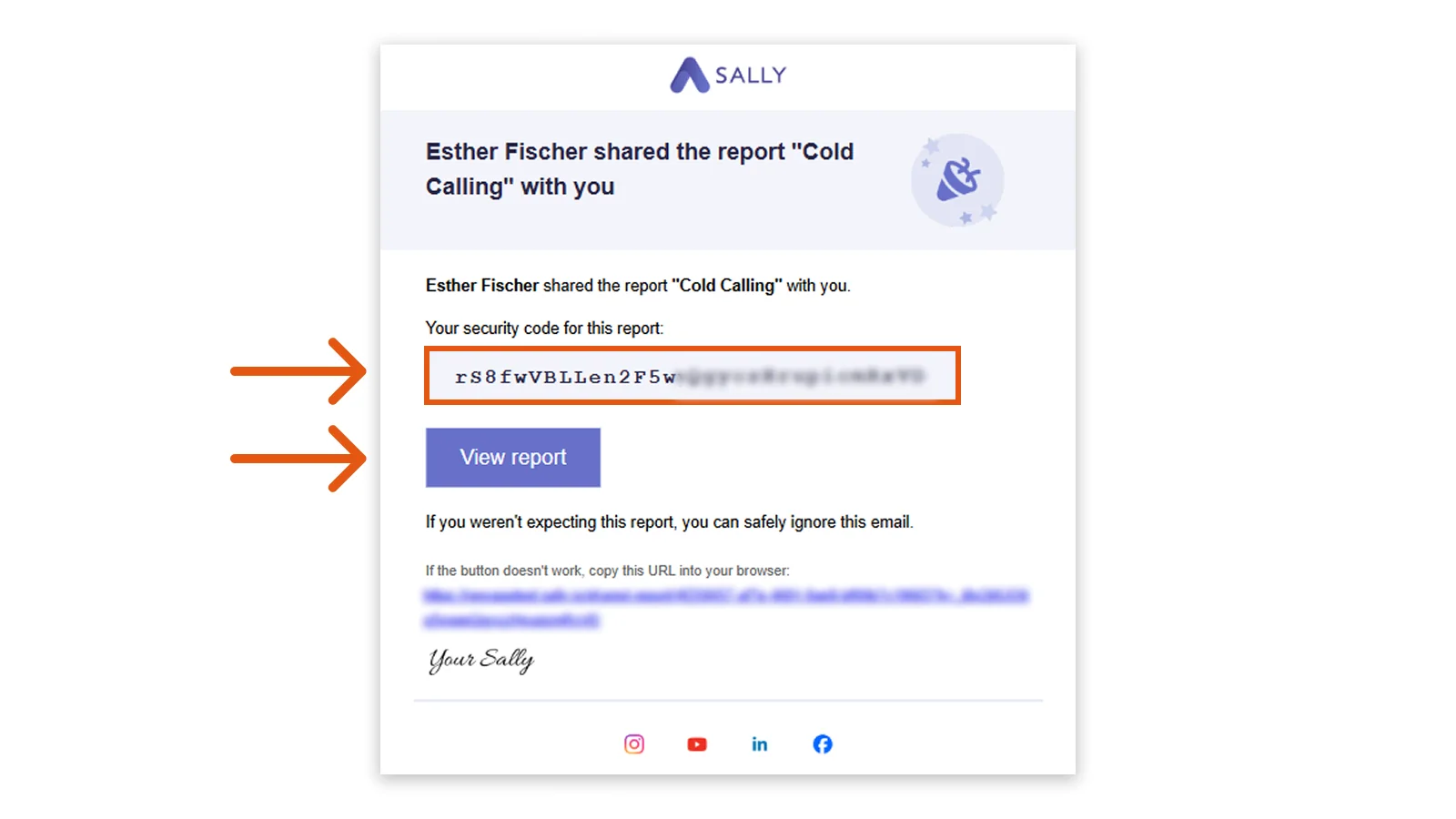
- They enter the security code from the email and click View report again.
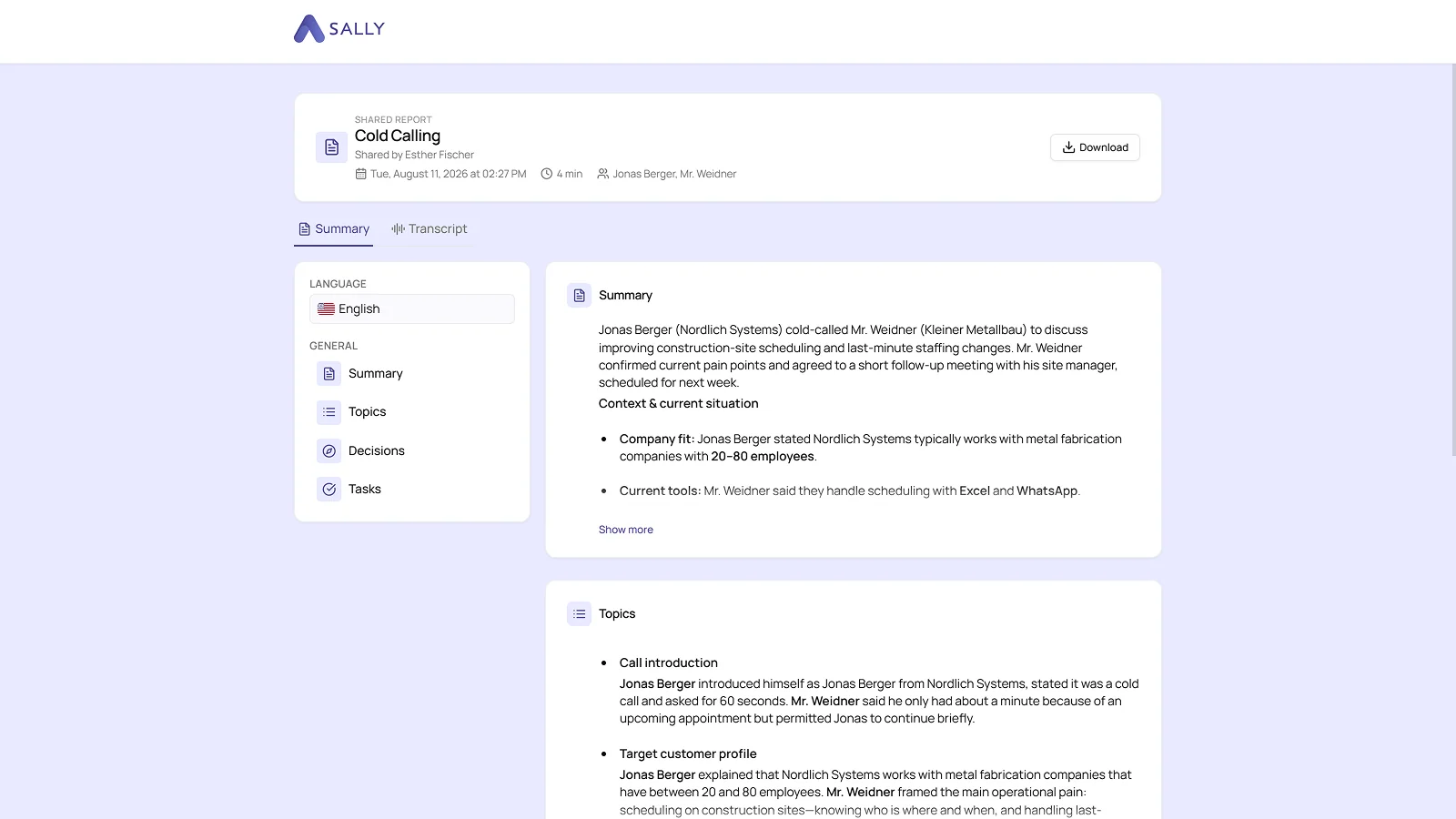
- This is what the shared report looks like for the recipient.