How to integrate Confluence with Sally AI
Connect Sally AI with Confluence to turn what came out of a meeting into structured knowledge, right in the matching organization, space and page. With the Sally Confluence integration you send action items, decisions and follow-ups to Confluence in one click, so nothing gets typed twice and your documentation stays current.
Sally can also file your meetings in Confluence automatically. After each meeting, an automation creates a new page and adds it beneath a parent page you pick once.
Quick navigation
- How to connect Confluence with Sally AI
- How to send insights to Confluence
- File meetings in Confluence automatically
- Required OAuth scopes
1. How do I connect Confluence with Sally AI?
Follow these steps to enable the Sally Confluence integration.
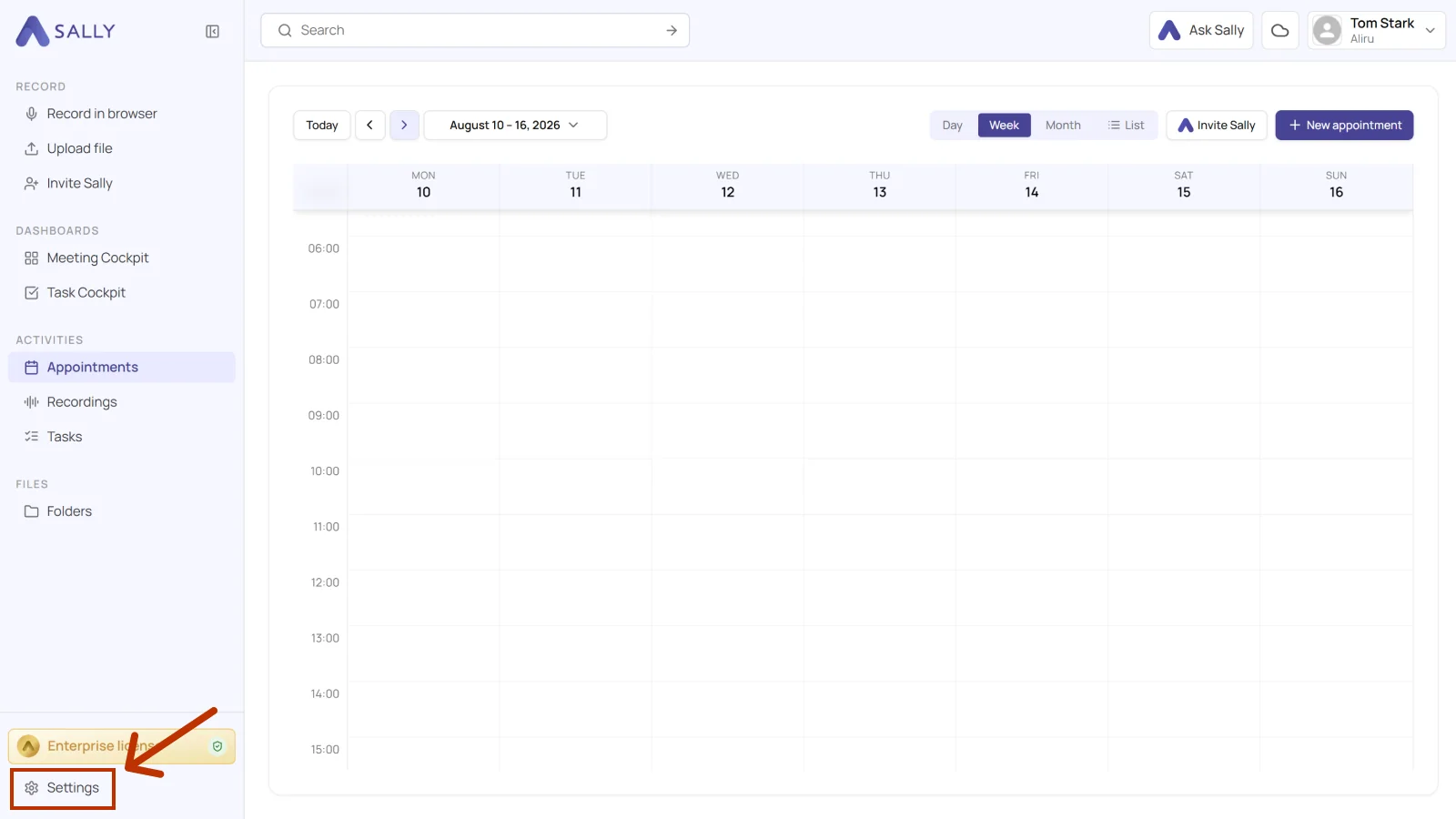
- Open Settings from the bottom-left corner of the sidebar.
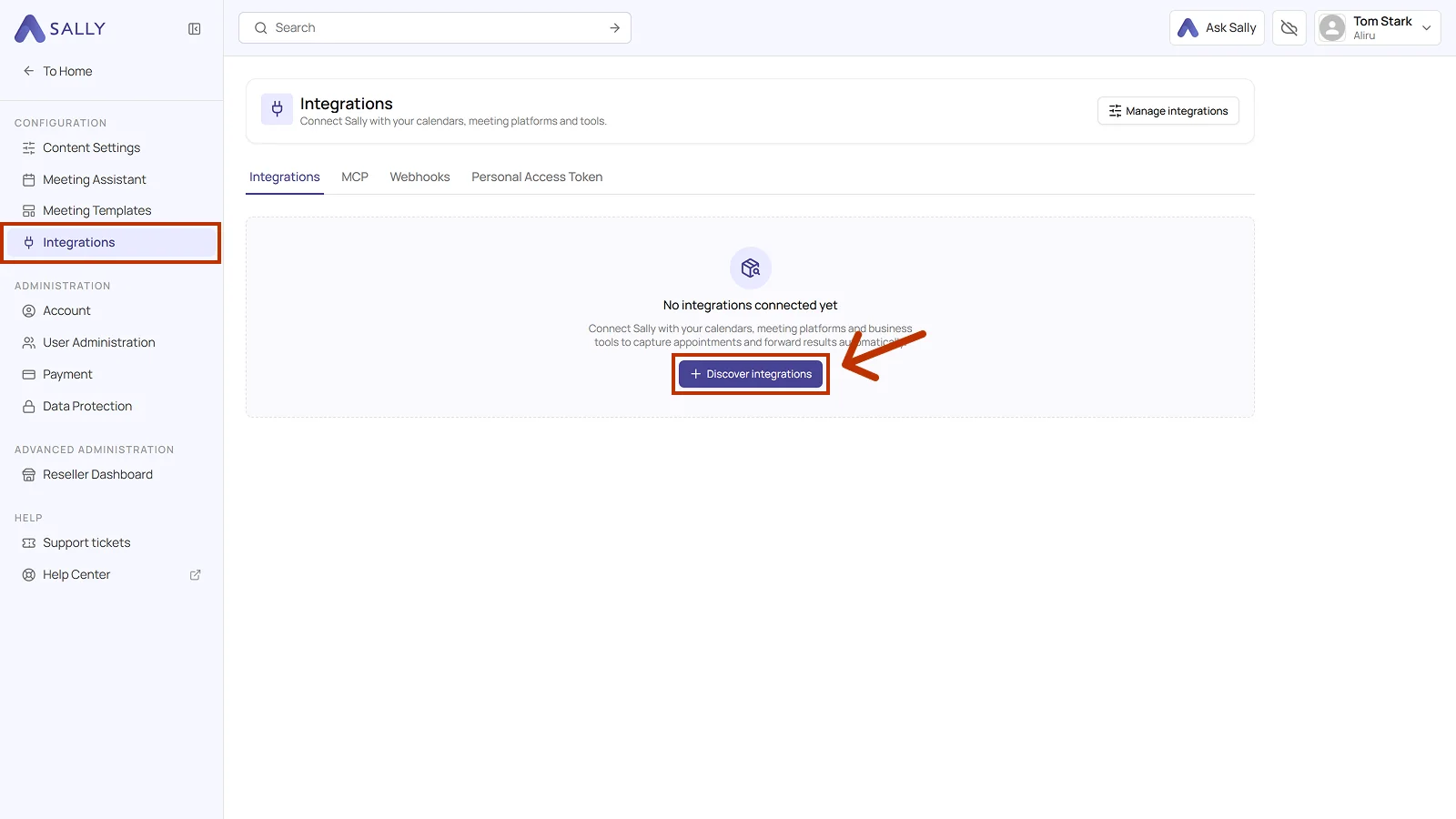
- Under Configuration, select Integrations. If no integration is connected yet, click Discover integrations, otherwise click Add integration in the top right corner.
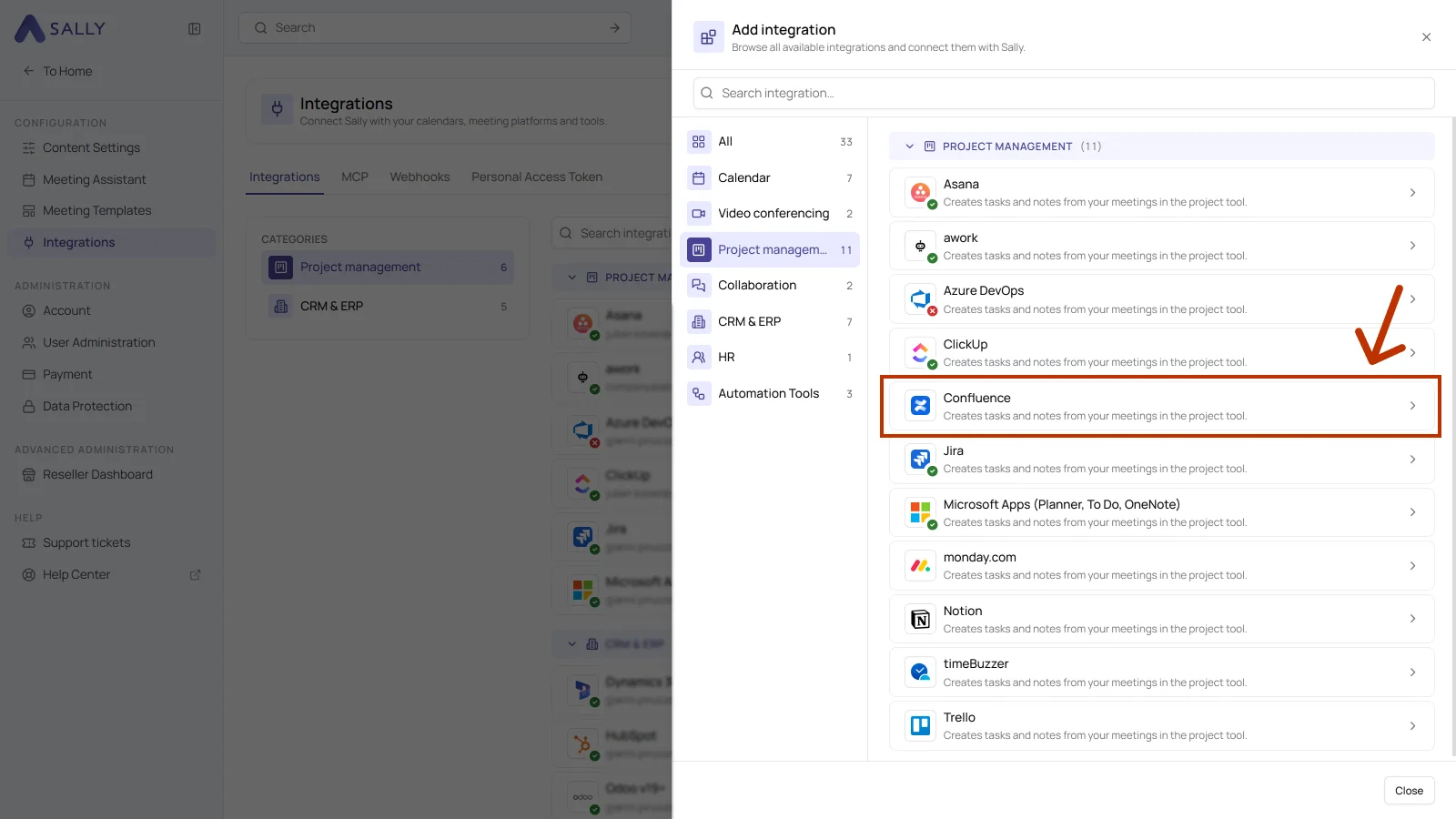
- In the Add integration panel, pick the Project management category on the left and then Confluence. Complete the authorization on the Atlassian side.
- After the authorization, Confluence appears in the list under the Project management category. Disconnect in the top right corner ends the connection whenever you need to.
1.1. Which actions may Sally use?
A connected integration has two tabs, Overview and Actions. The Actions tab defines what Sally offers through this integration, in the Sally chat and after the meeting.
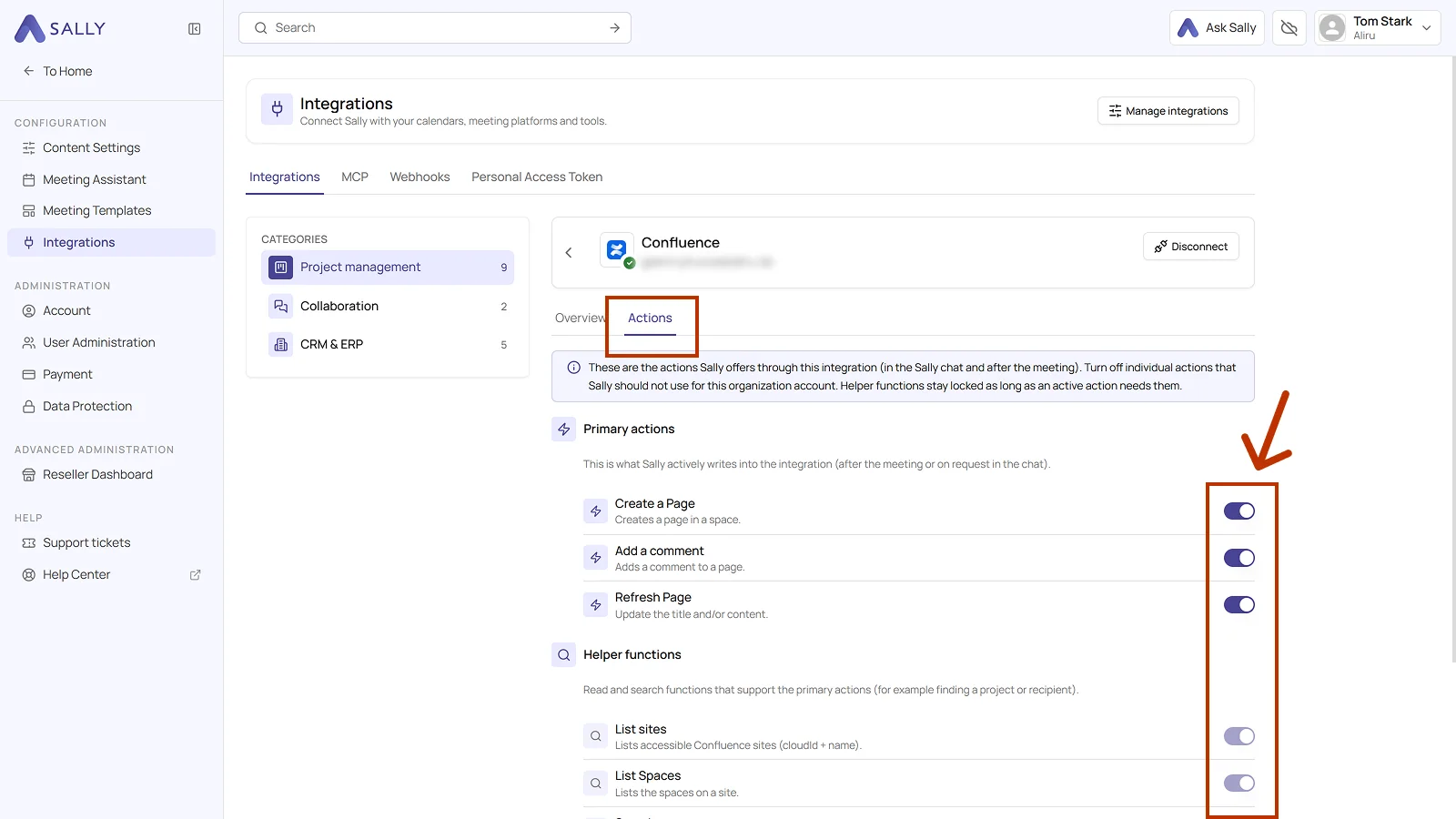
Primary actions are what Sally actively writes into Confluence, meaning creating and updating pages and commenting on them. Each action explains what it does in the line below it.
Use the toggle on the right to take out a single action that Sally should not use for this organization account.
Not every action shows up in the selection at the meeting. Sally uses some of them itself, in the chat or as part of another action. Leave them switched on so the integration works in full, and switch off only what Sally really should not do in this organization account.
Below that sit the helper functions, the read and search functions that support the primary actions, for Confluence those include List sites and List Spaces. They stay locked as long as an active action needs them.
2. How do I send meeting insights to Confluence?
Once Confluence is connected, you can send meeting insights from Sally to Confluence with a single click, into the right organization, space, and page.
You can:
- Create page in Confluence for a new documentation page with its own title and its own content.
- Add comment to Confluence page for extra context on an existing page, without creating a new document.
2.1. Create a page in Confluence
Turn a Sally insight into a new page in Confluence.
- Open the meeting in Sally.
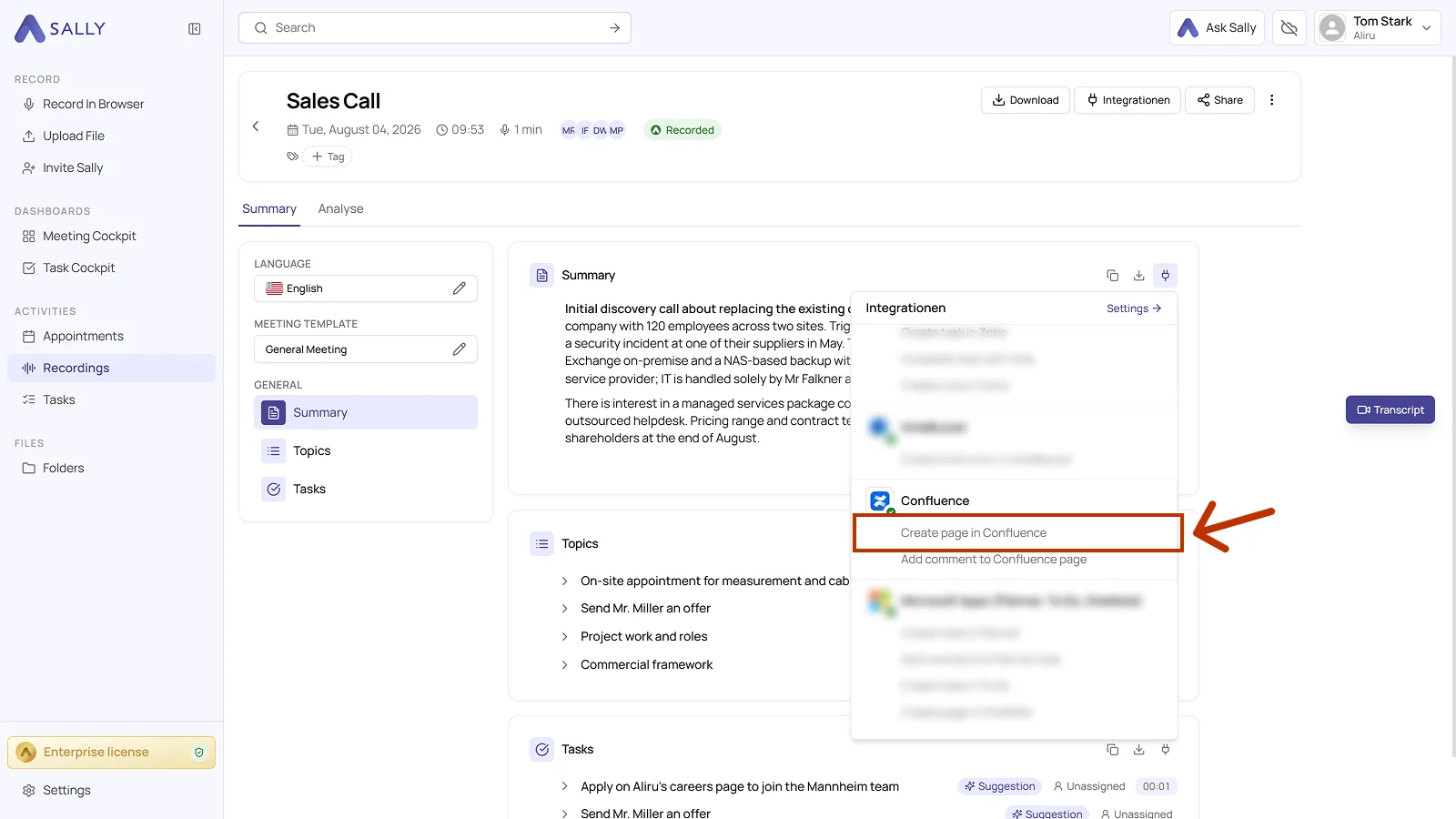
- In the summary, hover over a block or over a single entry and click the plug icon. In the list, choose Create page in Confluence under Confluence.
- Fill in the dialog. Organization, Area, and Title are required, and the title already comes prefilled from Sally. Area is the Confluence space the page goes into.
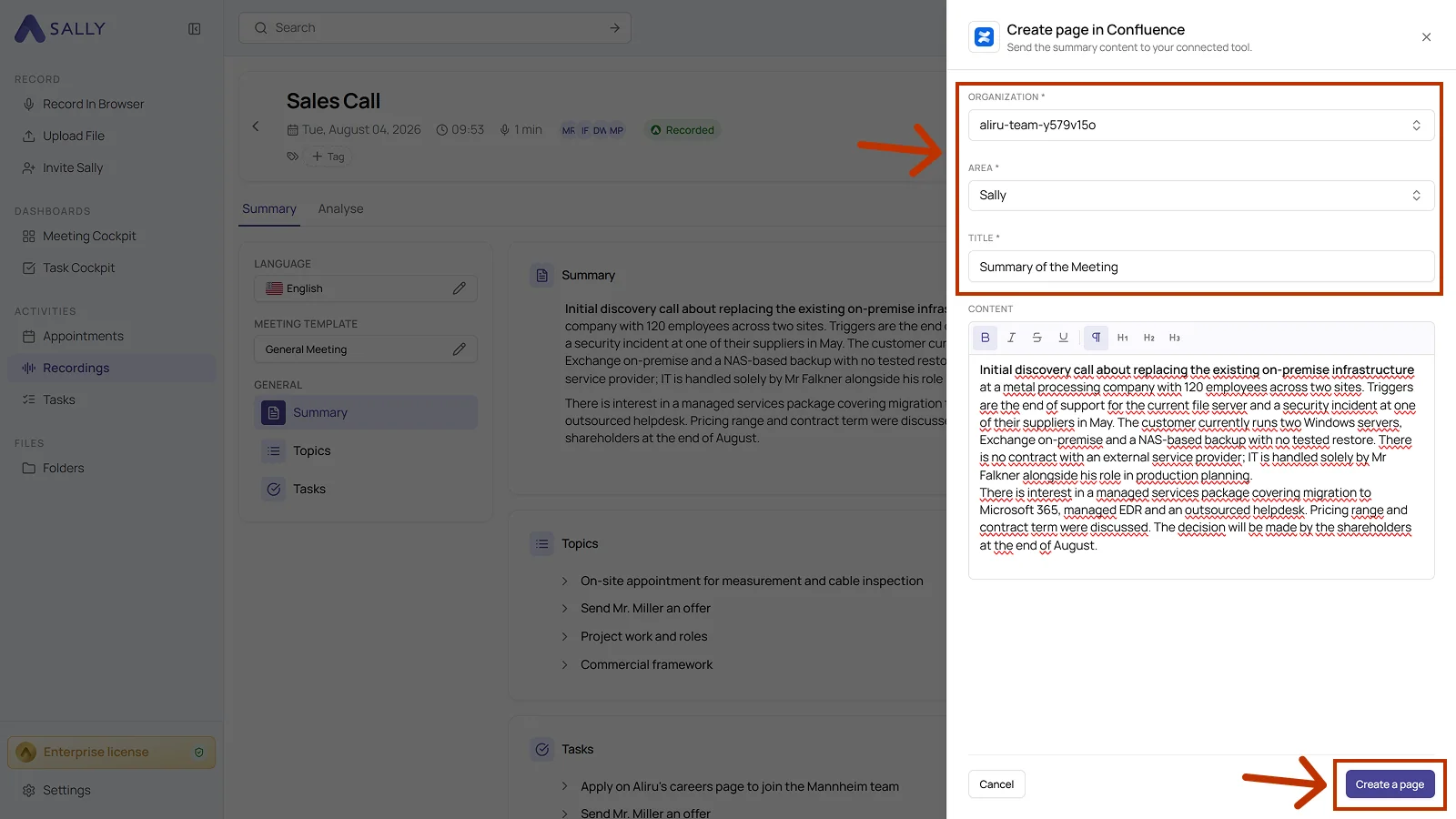
- The content field holds the text from the summary, which you can edit and format in the editor.
- Click Create a page to create the page in Confluence.
Pick the space deliberately and give the page a meaningful title. That way your team finds the meeting documentation again through the search in Confluence instead of losing it in some general area.
2.2. Add a comment to a Confluence page
Add meeting context to an existing page, which is ideal for updates, decisions, or extra notes.
- Open the meeting in Sally.
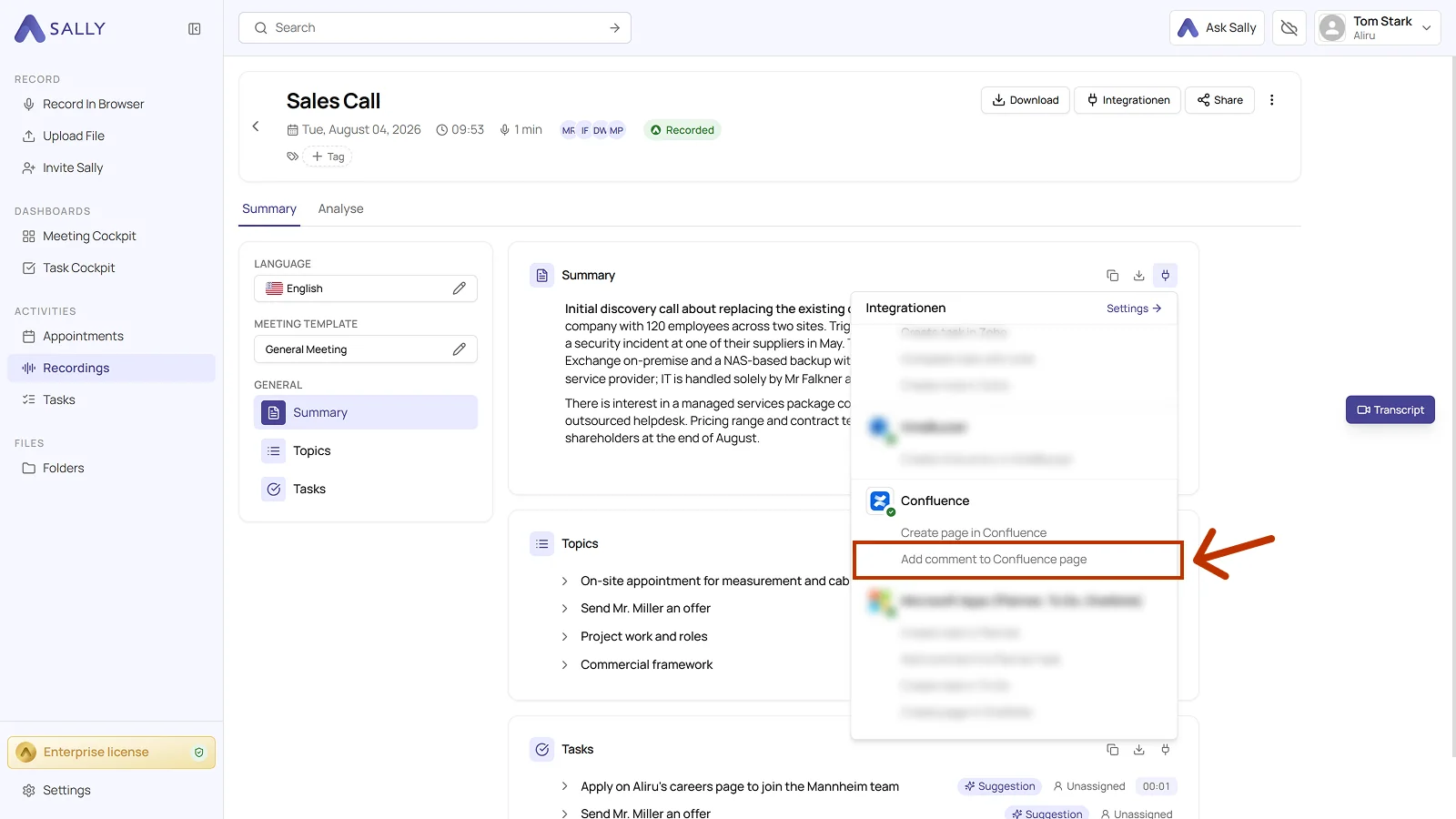
- Click the plug icon on the block or on the entry and choose Add comment to Confluence page under Confluence.
- In the dialog, pick the organization and the page the comment belongs to. Both fields are required.
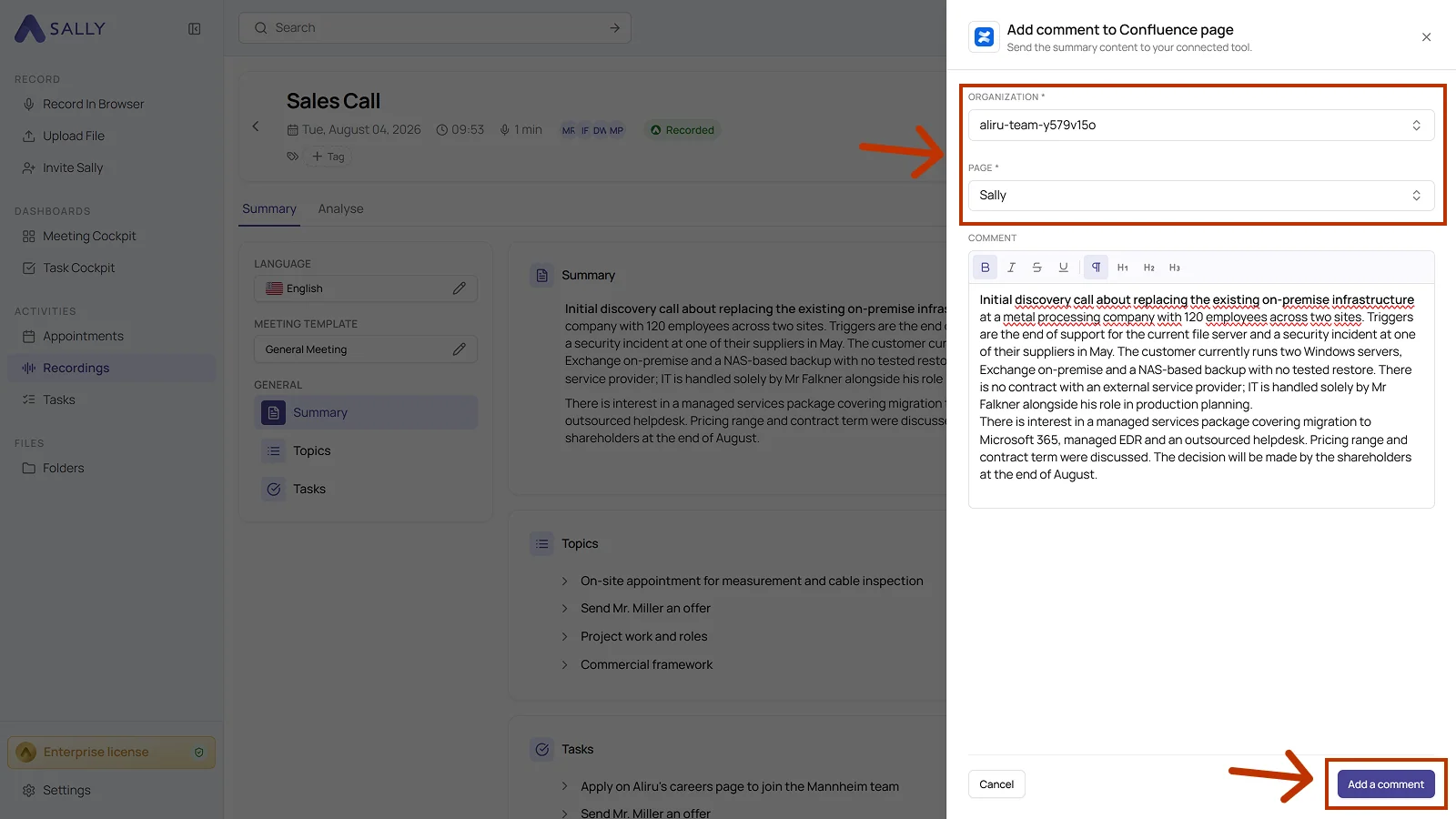
- The comment field holds the text from the summary, which you can edit in the editor.
- Click Add a comment to send the comment to Confluence.
3. How do I file meetings in Confluence automatically?
With an automation, Sally creates a Confluence page after every meeting, so there is no need to export anything. You pick a parent page once, such as a customer's meeting notes page, and Sally adds each new page beneath it. A tag decides which meetings are filed there.
- Confluence is connected: as described in How to connect Confluence with Sally AI
- Write access in Confluence: for the page Sally files the meetings under
- A tag for the meetings: for example one per customer, set up as described in Tags
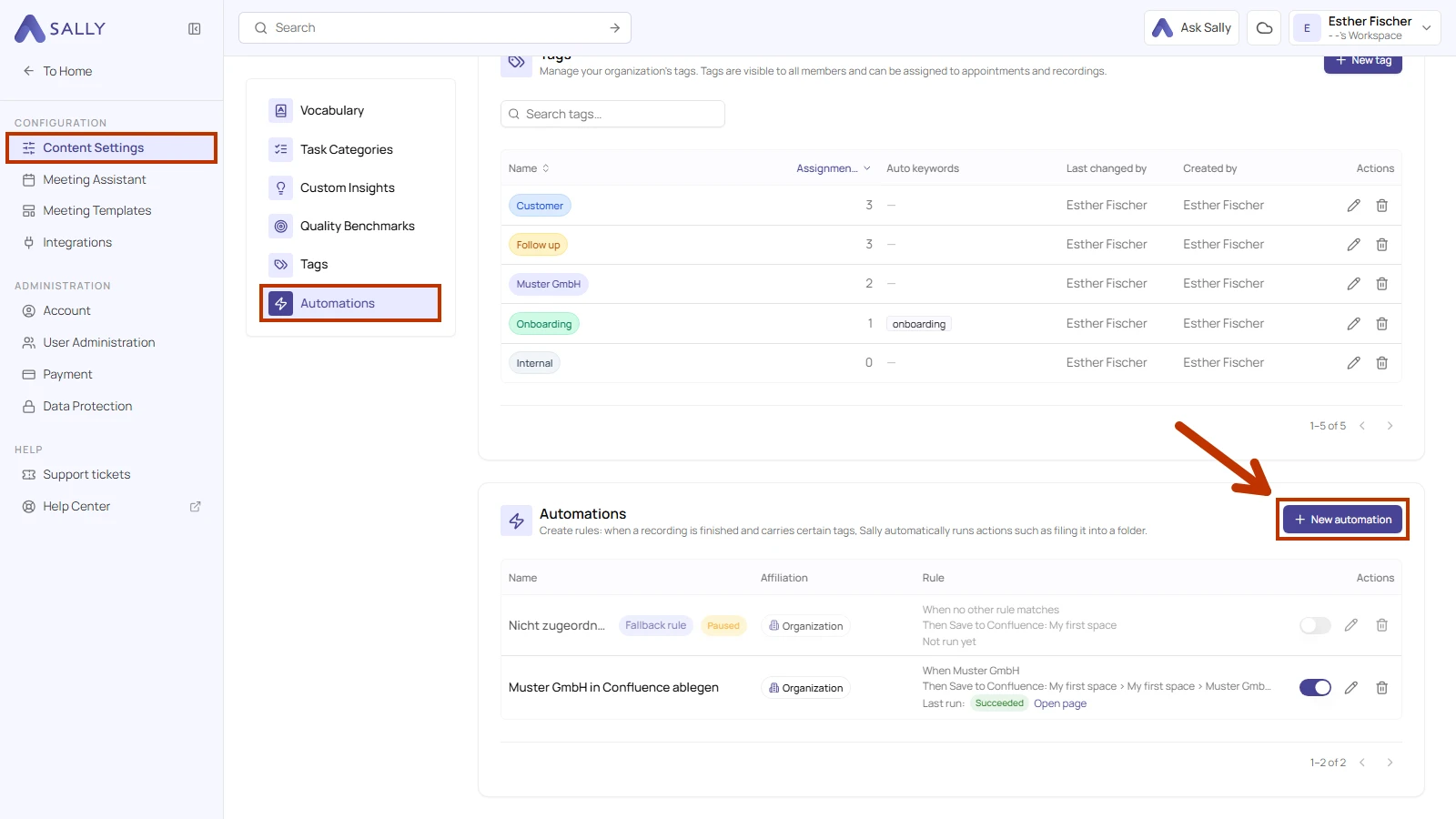
- Open Settings at the bottom left of the sidebar and pick Content Settings under Configuration. In the menu to the right, click Automations. The page scrolls down to the Automations section. Click New automation there.
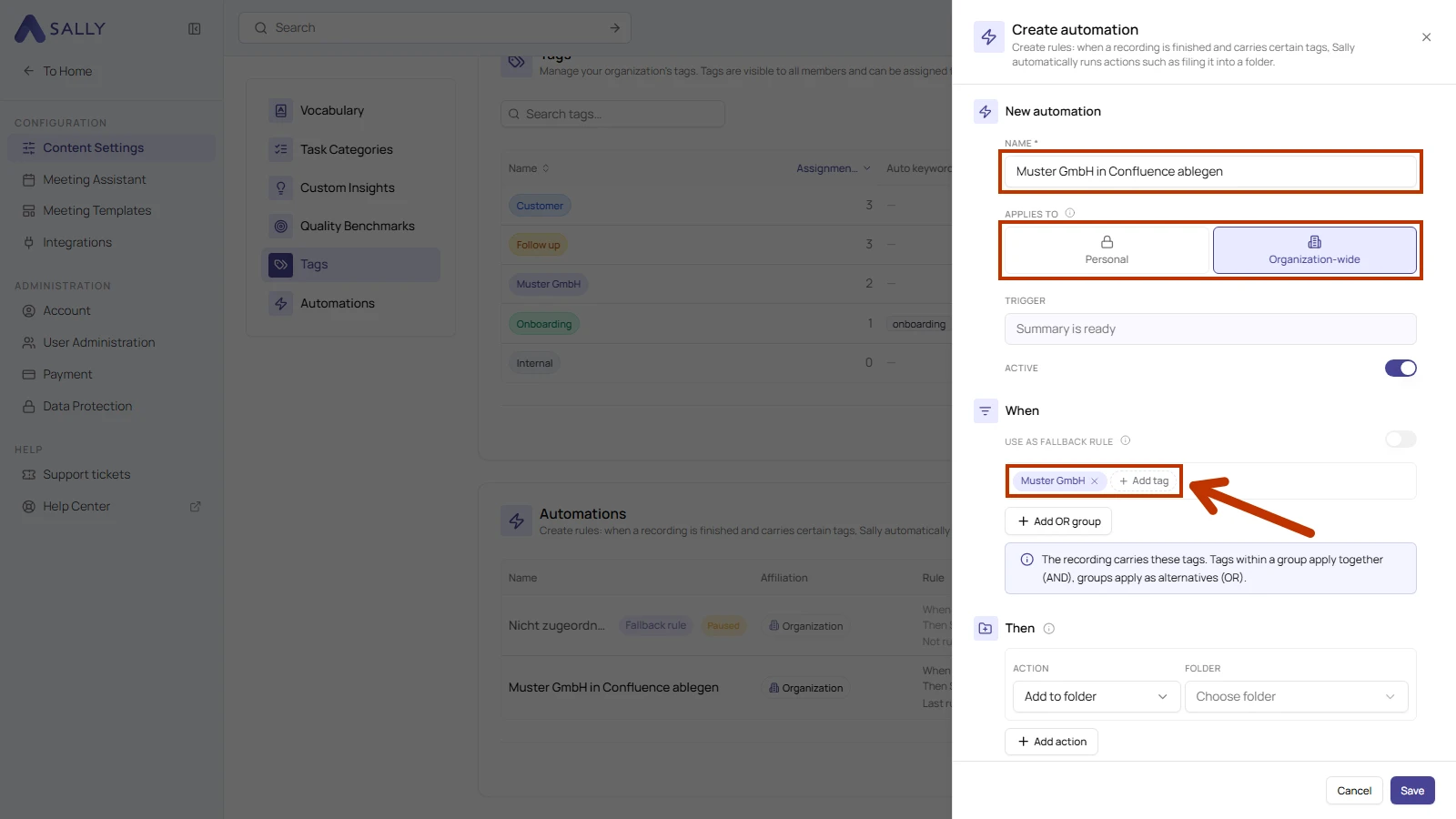
- Give the automation a Name. Under Applies to, choose whether it covers only your recordings (Personal) or every recording in the organization (Organization-wide). Only admins can create an organization-wide automation. Under When, click Add tag and add the tag your meetings carry, for example the customer's tag.
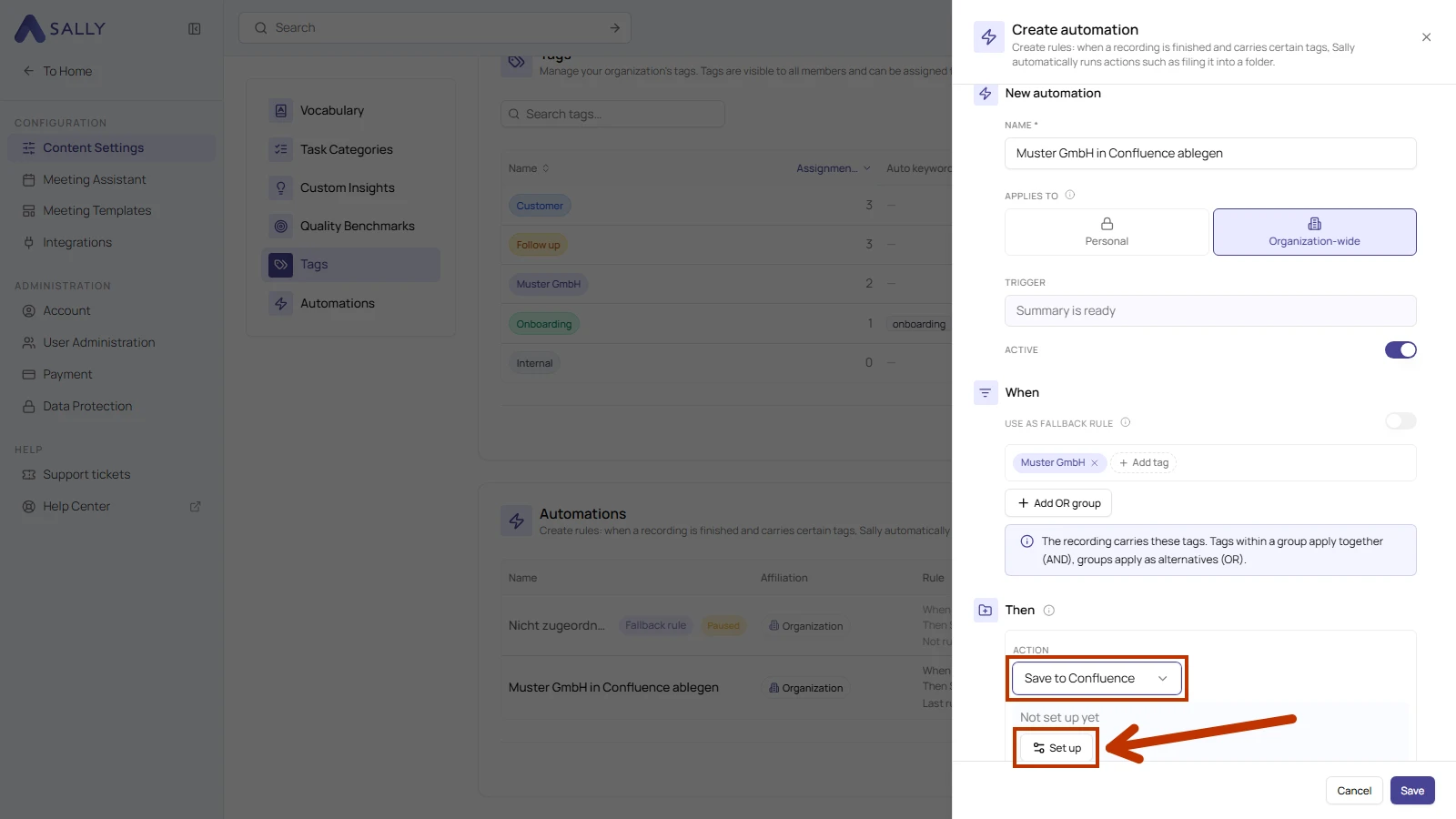
- Under Then, choose Save to Confluence as the Action and click Set up. This opens Set up Confluence location.
- Under Connection, choose your Confluence connection. The automation uses it to create the pages.
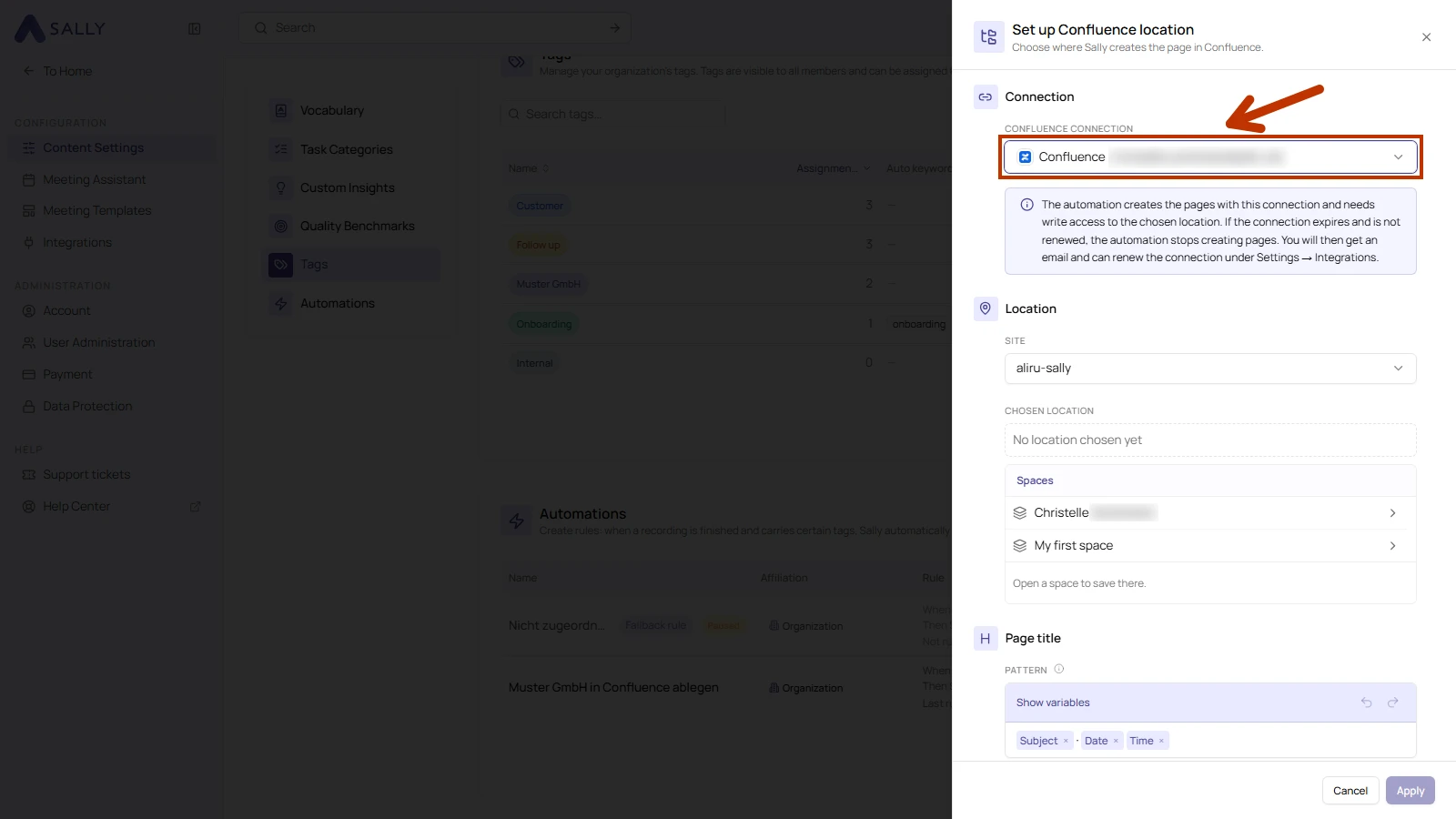
If the connection expires and is not renewed, the automation stops creating pages. You will then receive an email and can renew the connection under Settings → Integrations.
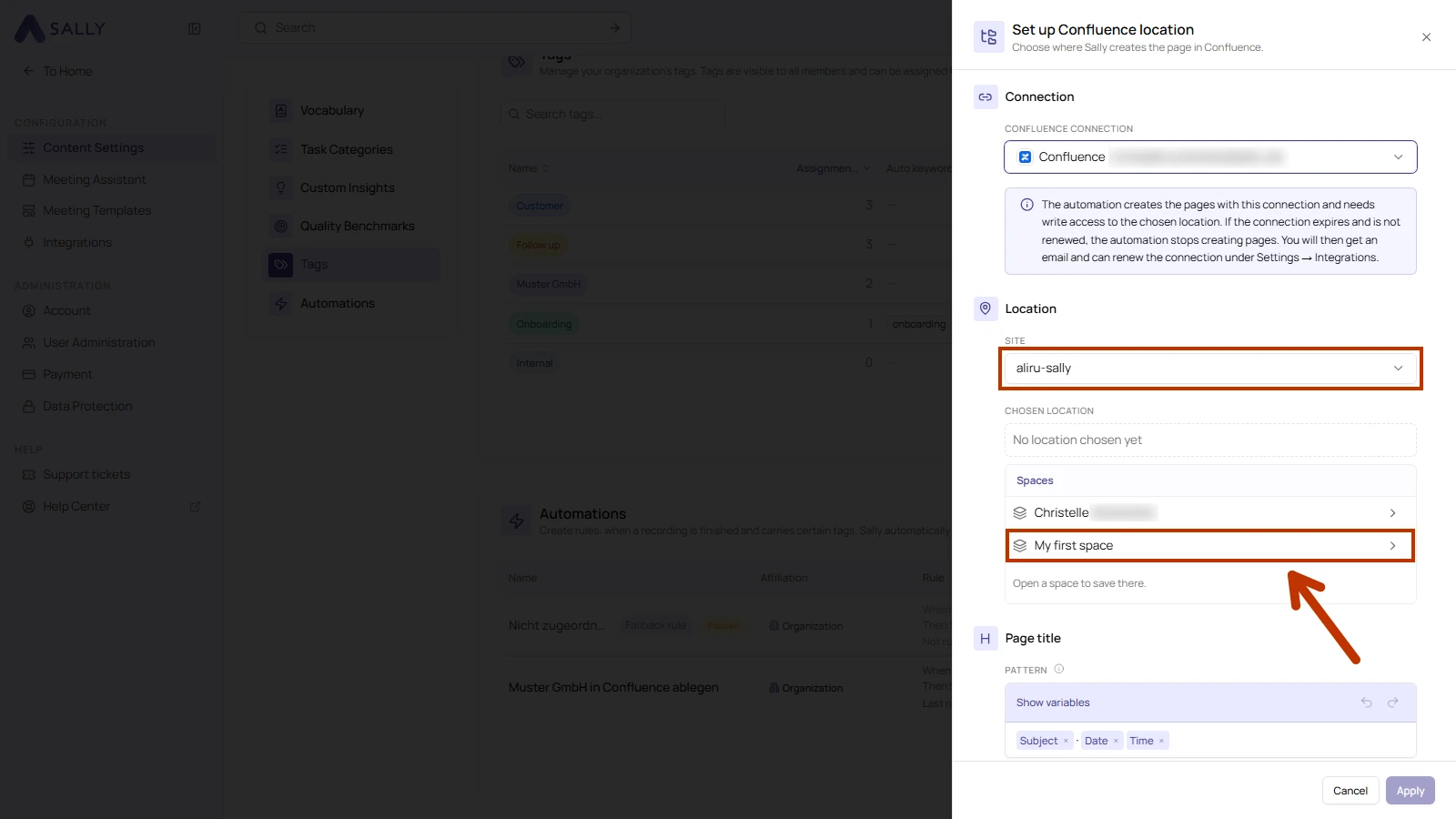
- Under Location, check that the right Site is selected. Your Confluence spaces appear under Spaces. Click the space where Sally should file the meetings.
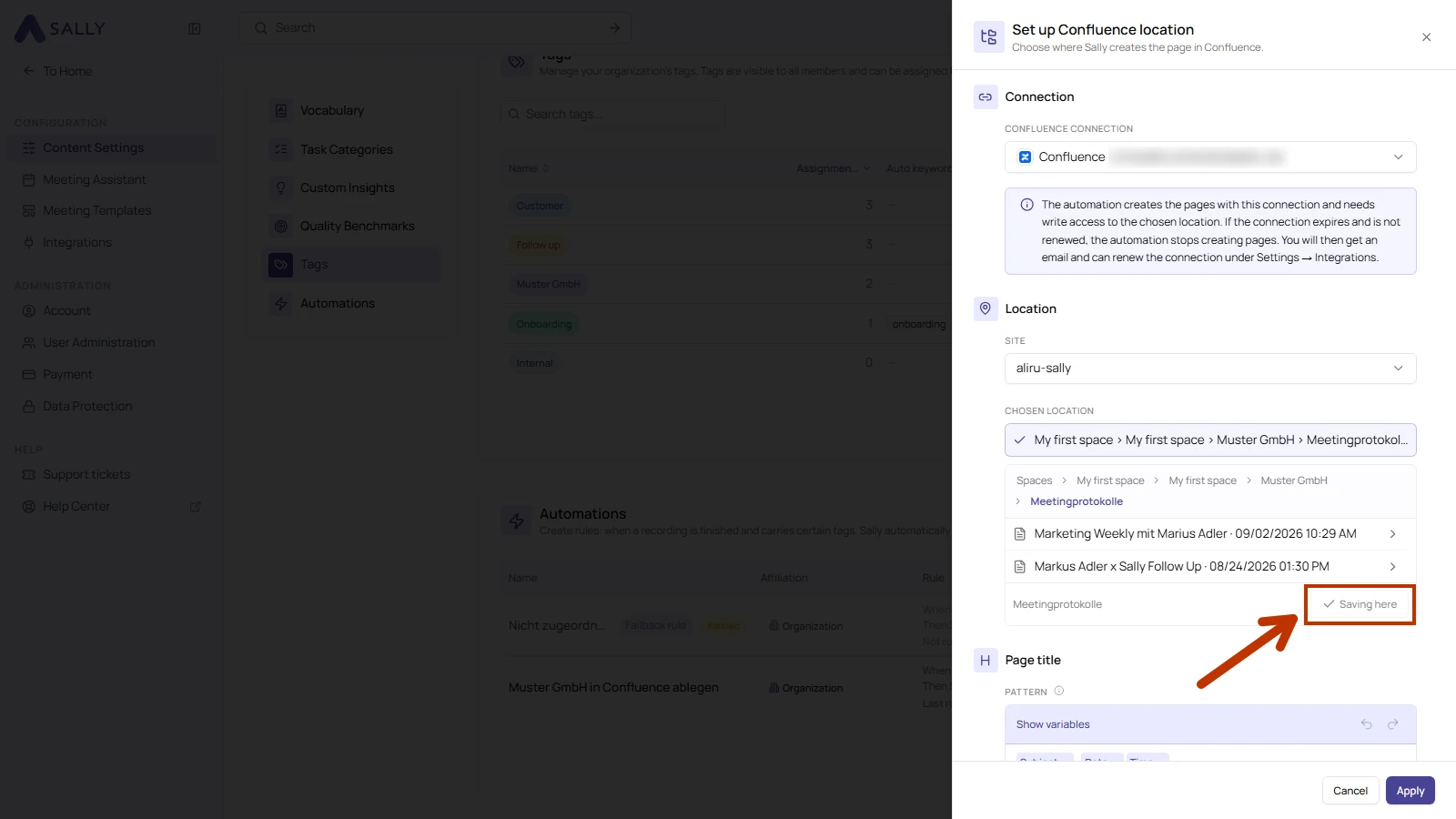
- Click through the pages down to the parent page for your meetings. The line above the list shows where you are, and the list shows the subpages of the page you have open. In this example, they are two meetings Sally has already filed there. At the bottom, click Save here next to the page name. The button then reads Saving here, and Chosen location shows the path.
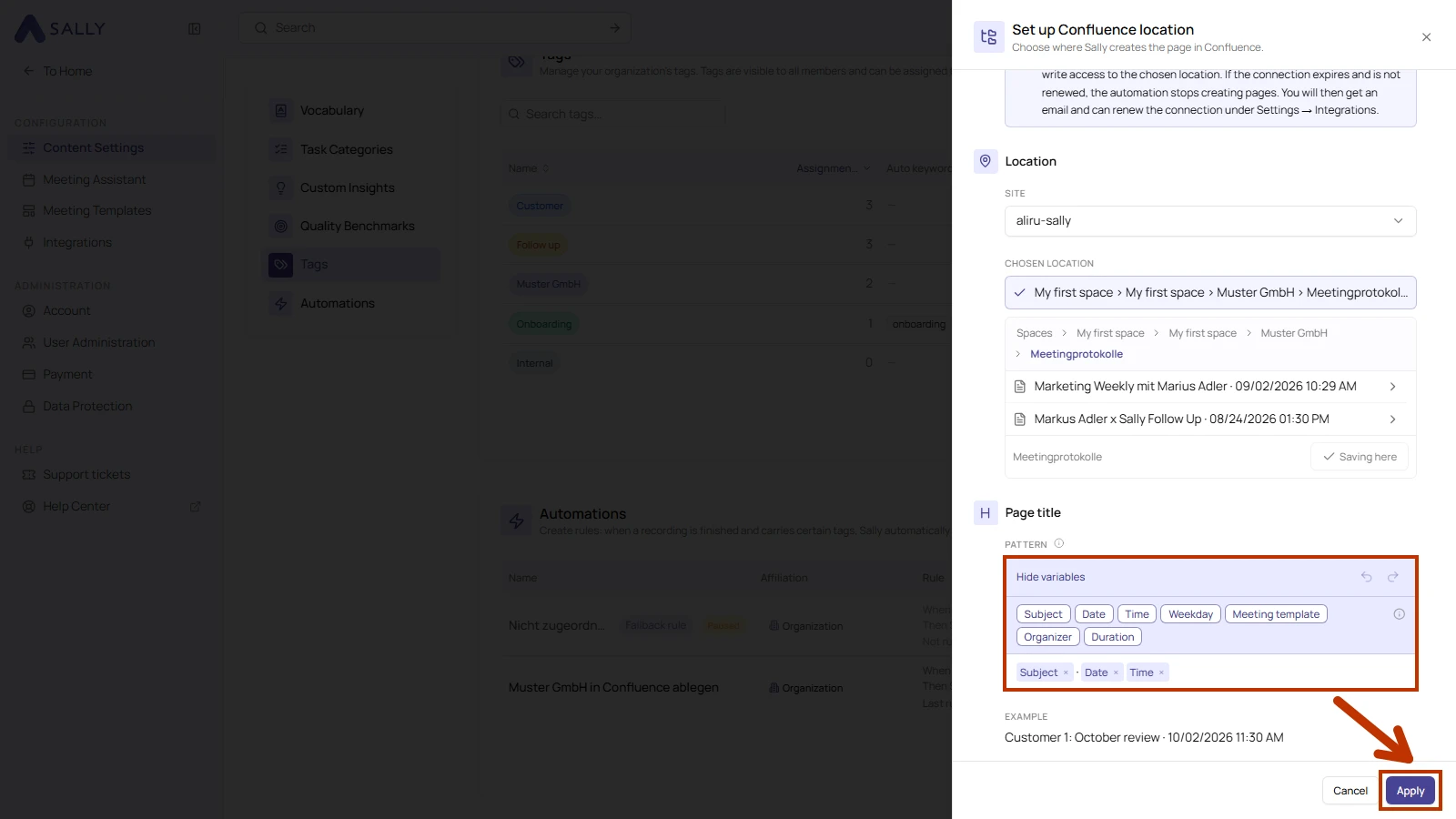
- Under Page title, set how Sally names the pages. The Pattern is built from variables you insert with Show variables: Subject, Date, Time, Weekday, Meeting template, Organizer and Duration. Subject, date and time are included by default. If a variable has no value, such as the organizer of an uploaded file, Sally leaves it out along with its separator. Example shows a preview of the title. Click Apply when you are done.
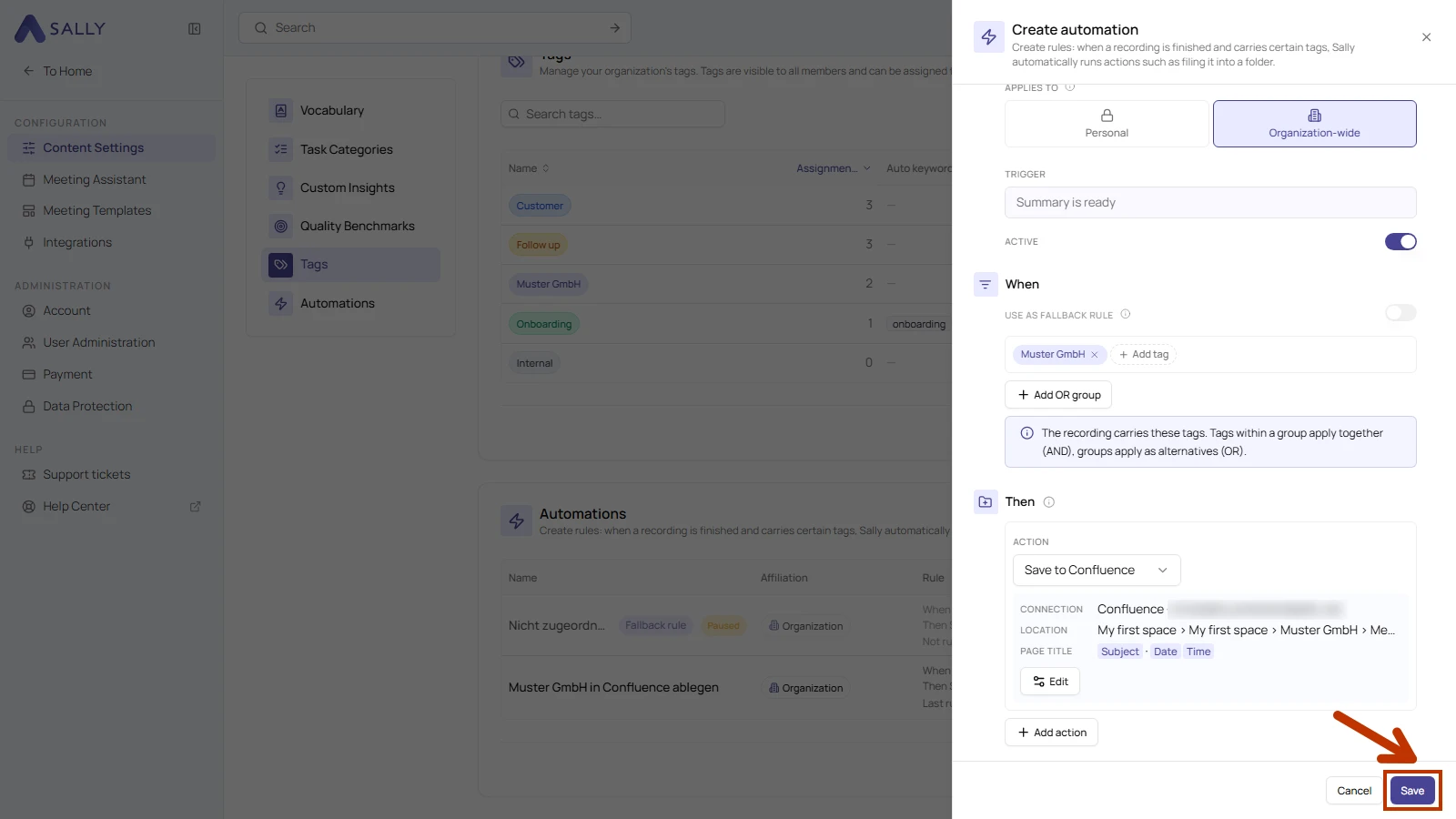
- Then now shows the connection, location and page title you chose. To change them, click Edit. Click Save to create the automation.
From then on, Sally creates a page for every meeting with that tag as soon as its summary is ready. The page contains the meeting summary, structured according to the meeting's template. Each automation creates no more than one page per recording. Recordings whose summary was ready before you created the automation are not filed retroactively.
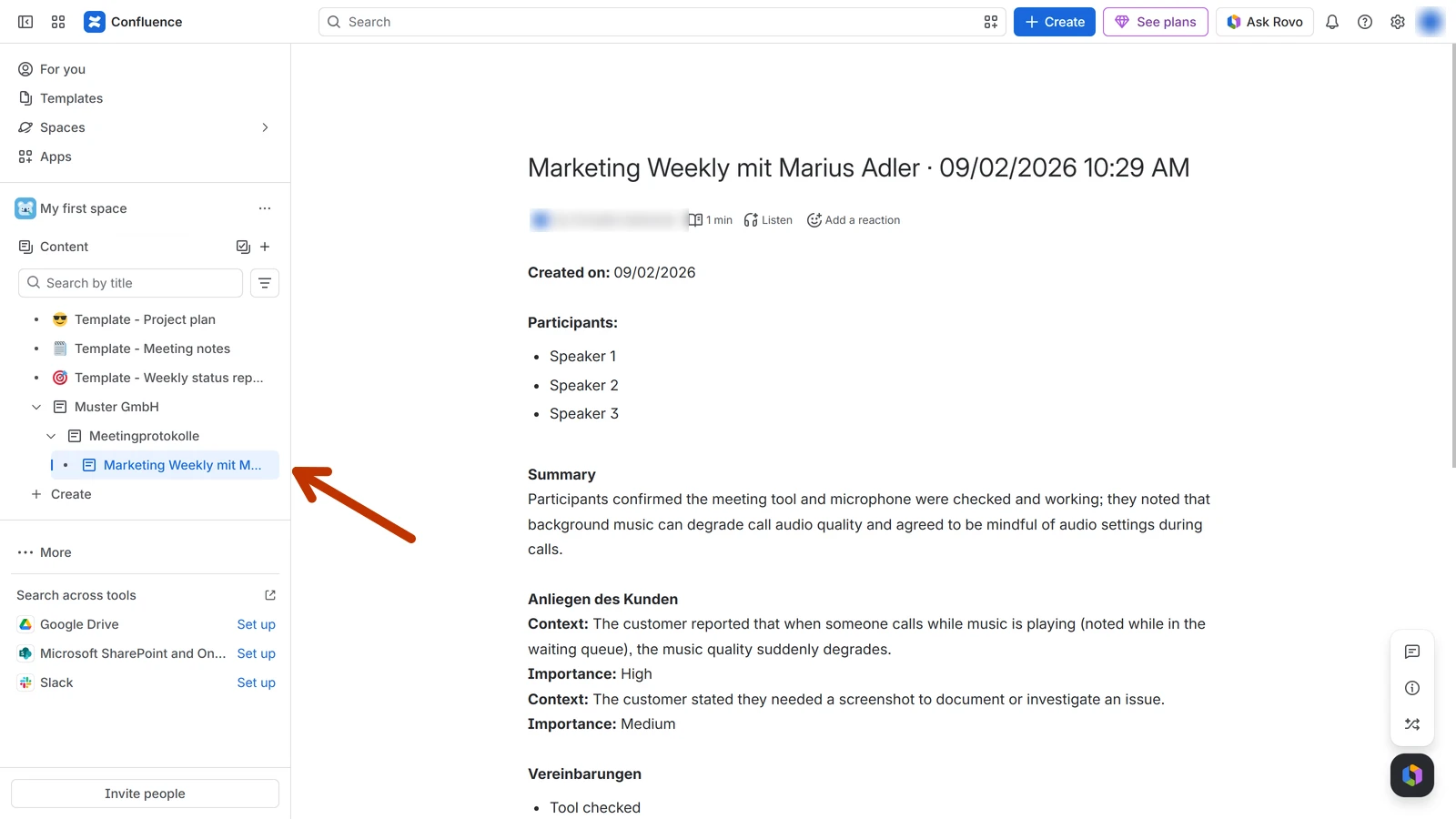
The list of automations shows whether filing worked. In the automation's row, Last run reads Succeeded with an Open page link to the new page in Confluence. If it reads Failed, the reason appears next to it.
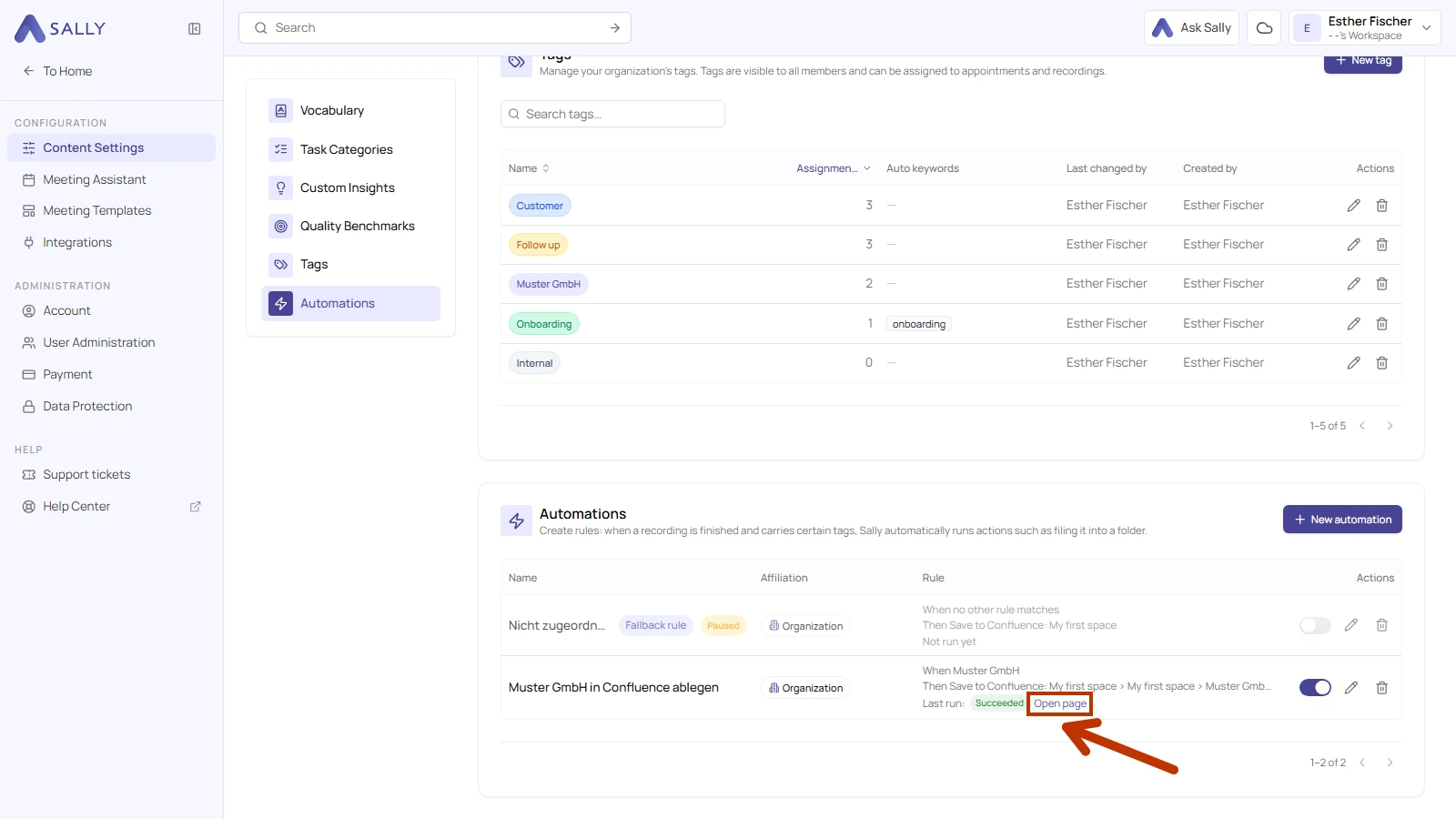
With a fallback rule, you can file every meeting that no other organization-wide automation matches in a separate place, for example under a page called "Unassigned".
The Last run line in the list of automations shows the reason. Possible causes:
- Connection: it has expired or been removed. Renew it under Settings → Integrations
- Write access: you do not have write access to the chosen location
- Location: the chosen page no longer exists in Confluence
- Page title: a page with that title already exists in the space. Keep the date and time in the pattern to avoid this
- Tag and timing: the recording does not have the tag, or its summary was ready before you created the automation
4. What OAuth scopes does the Confluence integration require?
For the integration with Confluence, Sally uses OAuth 2.0 for authorization. The following scopes define which areas Sally can access on behalf of the authenticated user.
-
Sally accesses this information solely to technically establish and maintain the connection to the user account.
-
Sally does not make any autonomous changes. Actions are performed exclusively upon the explicit initiative of the user.
-
API endpoints are only called within the scope of an active action initiated by the user within the platform.
Technical overview of required scopes
| Scope | What Atlassian technically allows with this scope | How Sally uses this scope |
|---|---|---|
offline_access | Issuance of long-lived access tokens | Enables a stable connection without repeated login. No content is modified. |
read:me | Read access to the authenticated user's profile | Sally reads basic account information for authentication purposes. |
write:confluence-content | API permission for Confluence content | Part of Atlassian's OAuth model. Sally does not independently modify existing content. |
read:confluence-space.summary | Read access to space metadata | Sally reads space information to correctly display available target areas within the integration. |
write:confluence-file | API permission for file attachments | Technically defined within the permission model. Sally does not independently upload files. |
read:confluence-content.all | Read access to accessible content | Sally reads page information where required within the integration context. |
read:confluence-content.summary | Read access to content summaries | Sally reads metadata for structured display within the integration. |
read:confluence-user | Read access to user information | Sally reads user information for display purposes within the integration. |
readonly:content.attachment:confluence | Read access to attachments | Sally does not independently access or modify attachments. |
read:space:confluence | Read access to spaces | Sally reads space information for technical assignment within the integration. |
search:confluence | Permission to search content | Sally uses this permission solely to display relevant content within the integration context. |
write:page:confluence | API permission for page objects | Part of the OAuth model. Sally does not create or modify pages without explicit user action. |
write:comment:confluence | API permission for comments | Technically defined for integrations. Sally does not independently add comments. |