How to manage user roles and permissions in Sally AI
A role decides what someone can see and do in Sally. Every account holds exactly one role, either Member, Admin, or Owner, and that role sets their rights across settings, users, licenses, and content.
It keeps responsibilities apart, administration and daily usage for example, and stops anyone from changing organization-wide settings by accident. Below you will find how to hand out a role, followed by the full permissions matrix.
Only owners and admins can hand out roles.
An admin cannot change an owner's role.
Quick navigation
1. Assign or change a role
- Open Settings at the bottom of the left sidebar.
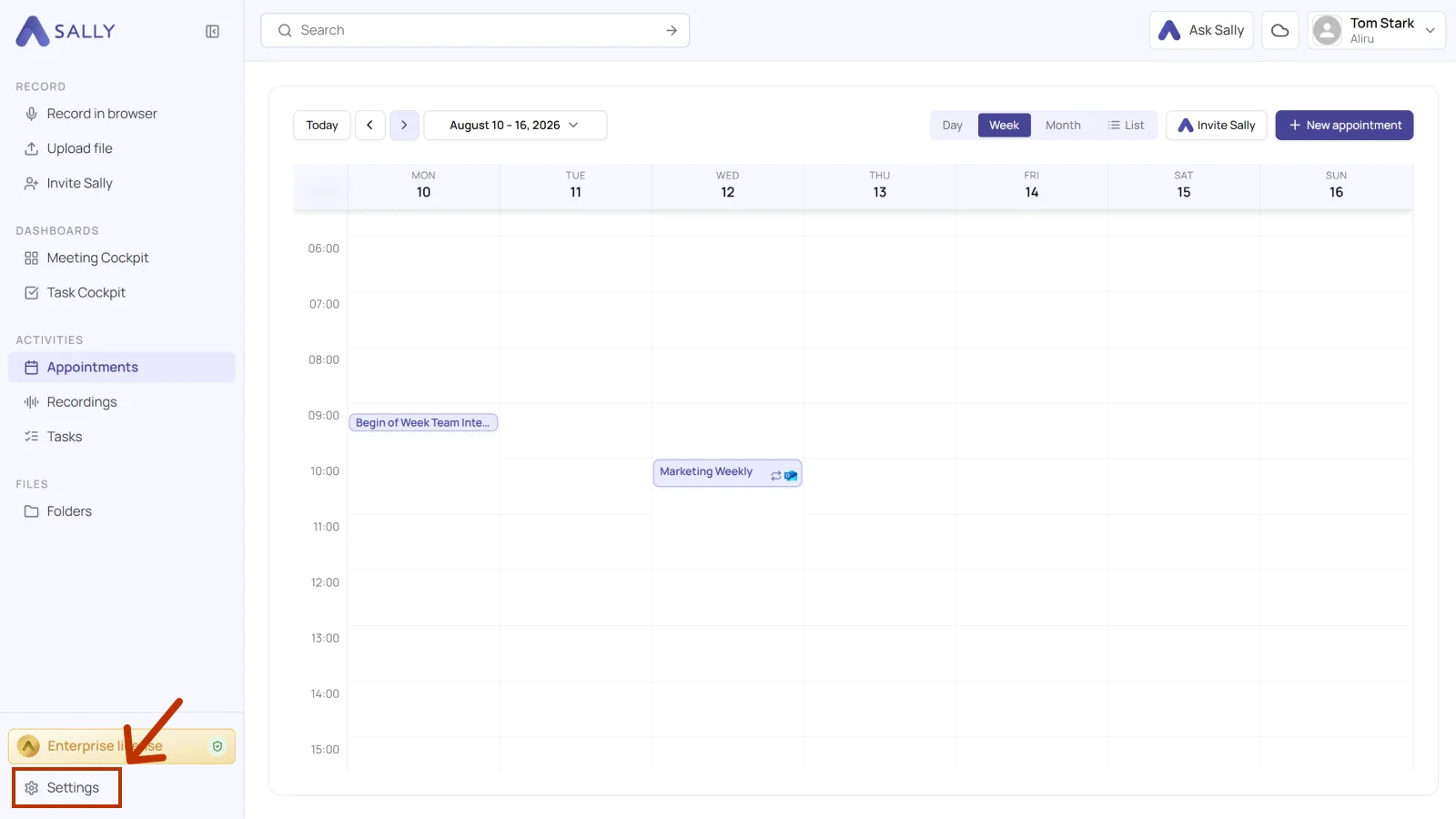
- Under Administration, open User Administration.
- Find the person's row in the Management tab, click the dropdown in the Role column, and pick Owner, Admin, or Member.
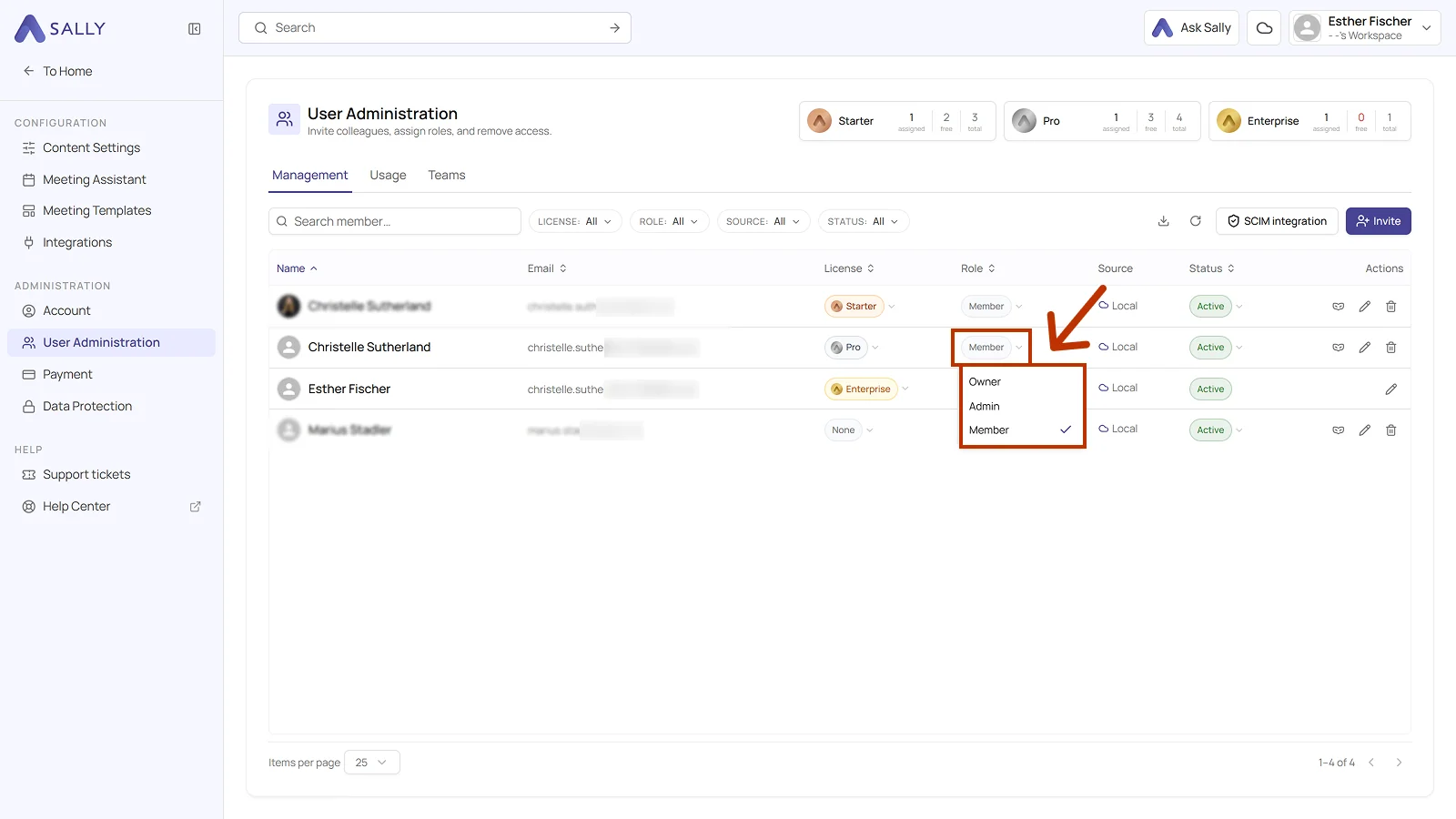
A check mark shows which role is set right now. The new role takes effect immediately, there is nothing to save.
You can also set the role while inviting someone.
The License sits just left of it in the same row. Role and license are two separate things: the role sets what someone may do in the account, the license sets which features they get.
The Source column shows where an account comes from. People you invited yourself show up as Local. Accounts from your identity provider are created through the SCIM integration.
The Role filter above the list shows everyone with a given role. That is the quickest way to check who holds administrative rights in your account.
2. What permissions does each role have?
The table below shows which actions are available for each role in Sally. Permissions are grouped by functional area so responsibilities and access levels are easy to read.
2.1. Role definitions
-
Owner
Owners hold every right in the organization account, hand out the owner role, and can delete the account. Admins and members cannot remove, block, or downgrade them. -
Admin
Admins manage the entire organization account. Owners are the one limit: an admin cannot change an owner's role or access. -
Member
Members work with Sally and manage their own settings and integrations. User administration, payment, and organization-wide settings stay closed to them.
2.2. Permissions matrix
A permission marked own account is everyone’s own to set. One marked organization-wide applies to everyone in the account, and only owners and admins can change it.
| Category | Permission | Owner | Admin | Member |
|---|---|---|---|---|
| Billing | Create subscription | ✅ | ✅ | ❌ |
| Change subscription (licenses, billing cycle, etc.) | ✅ | ✅ | ❌ | |
| Update billing information | ✅ | ✅ | ❌ | |
| View and download invoices | ✅ | ✅ | ❌ | |
| Cancel subscription | ✅ | ✅ | ❌ | |
| User management | Invite users | ✅ | ✅ | ❌ |
| Edit users | ✅ | ✅ | ❌ | |
| Delete users | ✅ | ✅ | ❌ | |
| Assign licenses | ✅ | ✅ | ❌ | |
| Change the role of admins and members | ✅ | ✅ | ❌ | |
| Change the role of owners | ✅ | ❌ | ❌ | |
| Change the status of admins and members (active or blocked) | ✅ | ✅ | ❌ | |
| Change the status of owners | ✅ | ❌ | ❌ | |
| Impersonate admins and members | ✅ | ✅ | ❌ | |
| Impersonate owners | ✅ | ❌ | ❌ | |
| Enable and manage SCIM | ✅ | ✅ | ❌ | |
| Account | Change personal account settings | ✅ | ✅ | ✅ |
| Change own password | ✅ | ✅ | ✅ | |
| Change organization settings | ✅ | ✅ | ❌ | |
| Delete the organization account | ✅ | ❌ | ❌ | |
| Meeting assistant | Allow or block Sally from attending meetingsown account | ✅ | ✅ | ✅ |
| Allow or block Sally from attending meetingsorganization-wide | ✅ | ✅ | ❌ | |
| Rules for automatic meeting attendanceown account | ✅ | ✅ | ✅ | |
| Rules for automatic meeting attendanceorganization-wide | ✅ | ✅ | ❌ | |
| Integrations | Connect a calendar | ✅ | ✅ | ✅ |
| Add personal integrations | ✅ | ✅ | ✅ | |
| Create and manage company integrations | ✅ | ✅ | ❌ | |
| Content settings | Create, edit, activate, and delete meeting quality benchmarks | ✅ | ✅ | ❌ |
| Custom insightsown account | ✅ | ✅ | ✅ | |
| Custom insightsorganization-wide | ✅ | ✅ | ❌ | |
| Vocabularyown account | ✅ | ✅ | ✅ | |
| Vocabularyorganization-wide | ✅ | ✅ | ❌ | |
| Data protection | Set the privacy notices for emails and meetings | ✅ | ✅ | ❌ |
| Set video and audio storage, retention periods, and download restrictions | ✅ | ✅ | ❌ | |
| Maintain and verify internal domains | ✅ | ✅ | ❌ | |
| Set up two-factor authentication for your own account | ✅ | ✅ | ✅ |
That keeps control and accountability clearly divided: whatever only touches someone's own work is theirs to set, and whatever applies to the whole organization stays with owners and admins.